
Welcome to the Universal Audio installation page.
Please find our installation guide videos below, which provide information on how to register, install and authorise your Universal Audio software.
Mac Video Installation Guide
Windows Video Installation Guide
Alternatively, please take a look at our step-by-step guides below.
Mac
Registration
1. Click the Download button in your Plugin Boutique account or go to https://www.uaudio.com/my/account/redeem/.
2. Enter your email and the serial code found in your Plugin Boutique User Account > Click 'Get my Plug-in'.
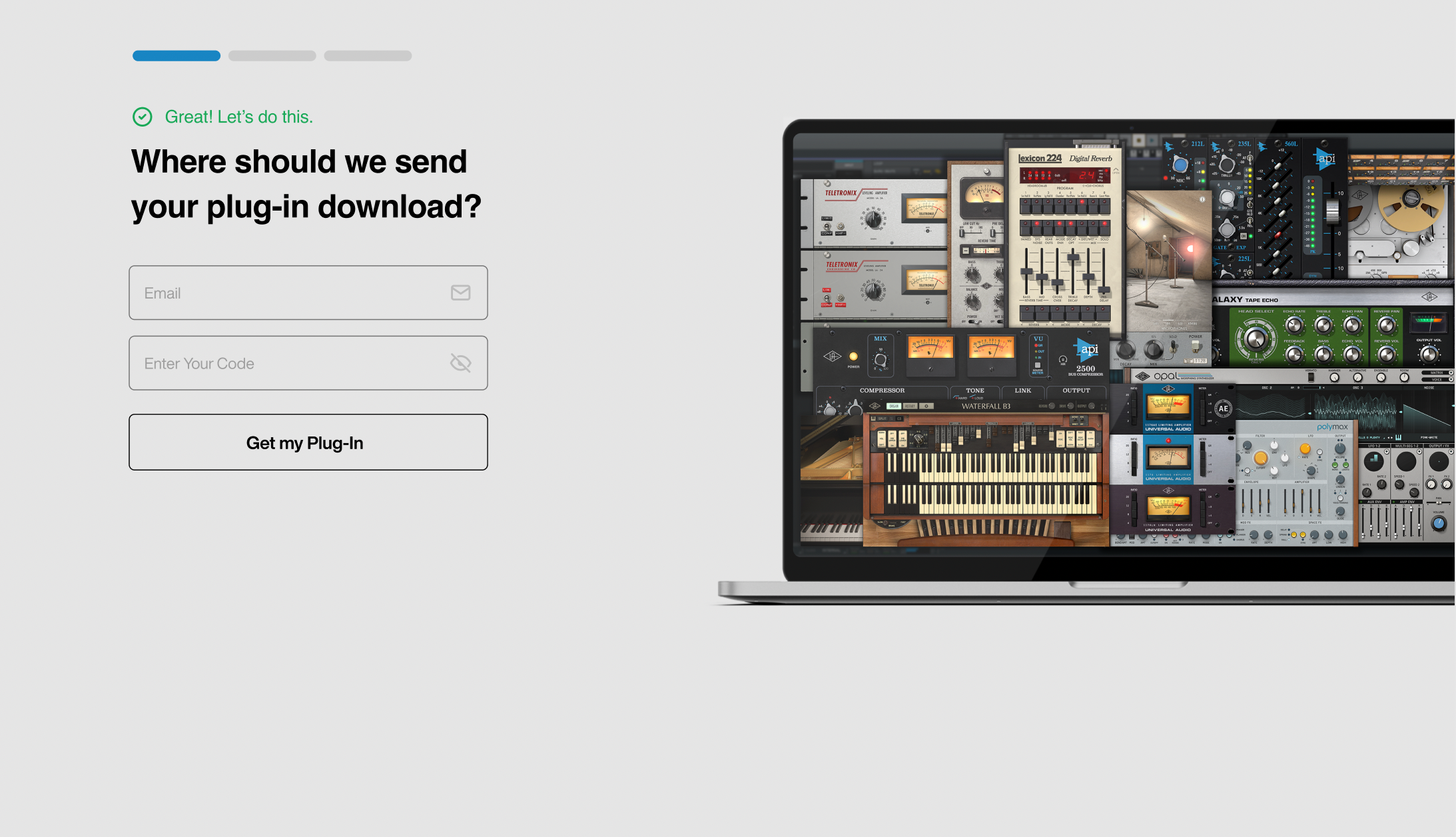
3. Enter the details required to create your Universal Audio account > Click 'Create Account'.
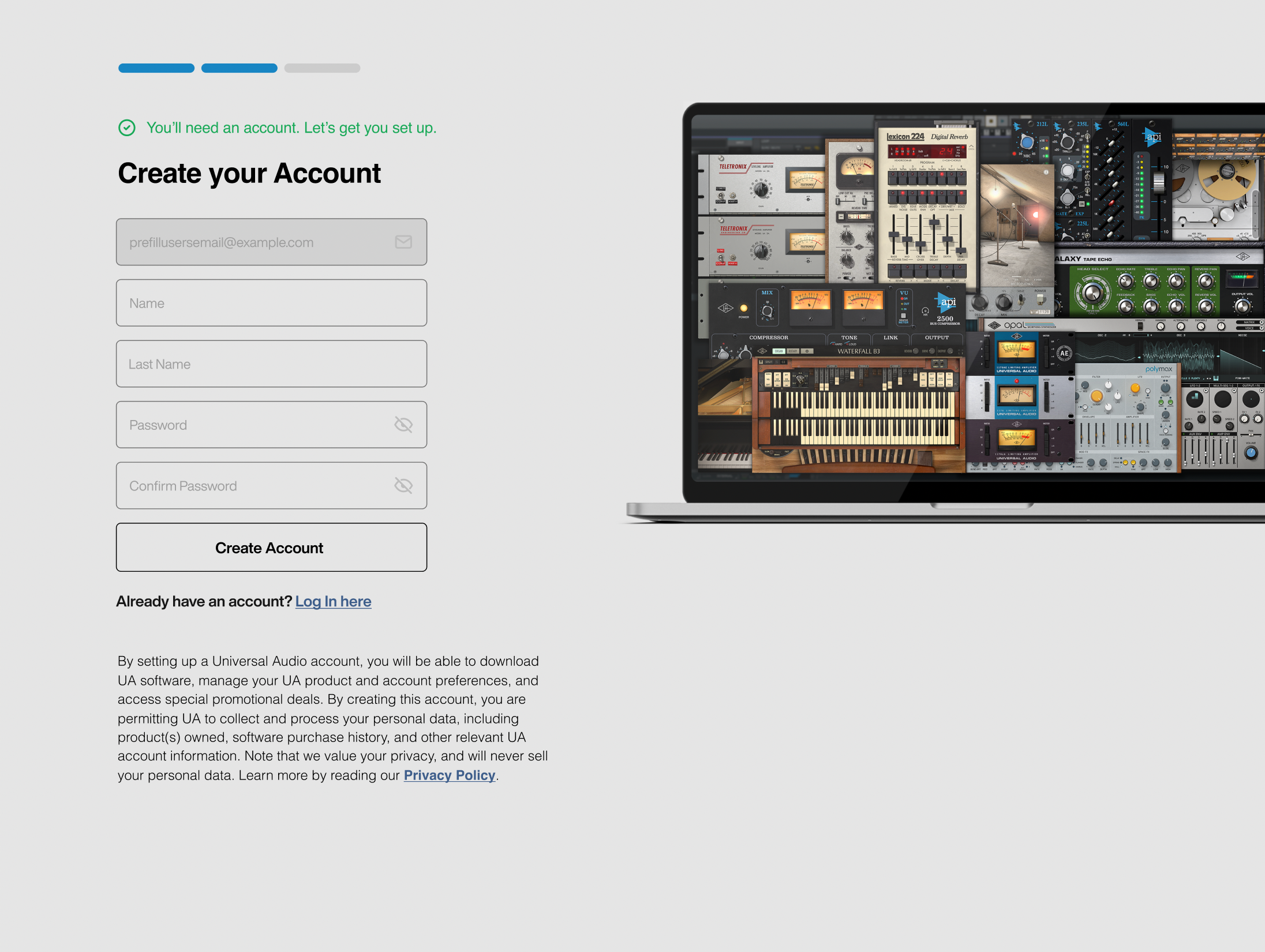
4. Download UA Connect by clicking either 'macOS' or 'Windows' depending on the system you are using.
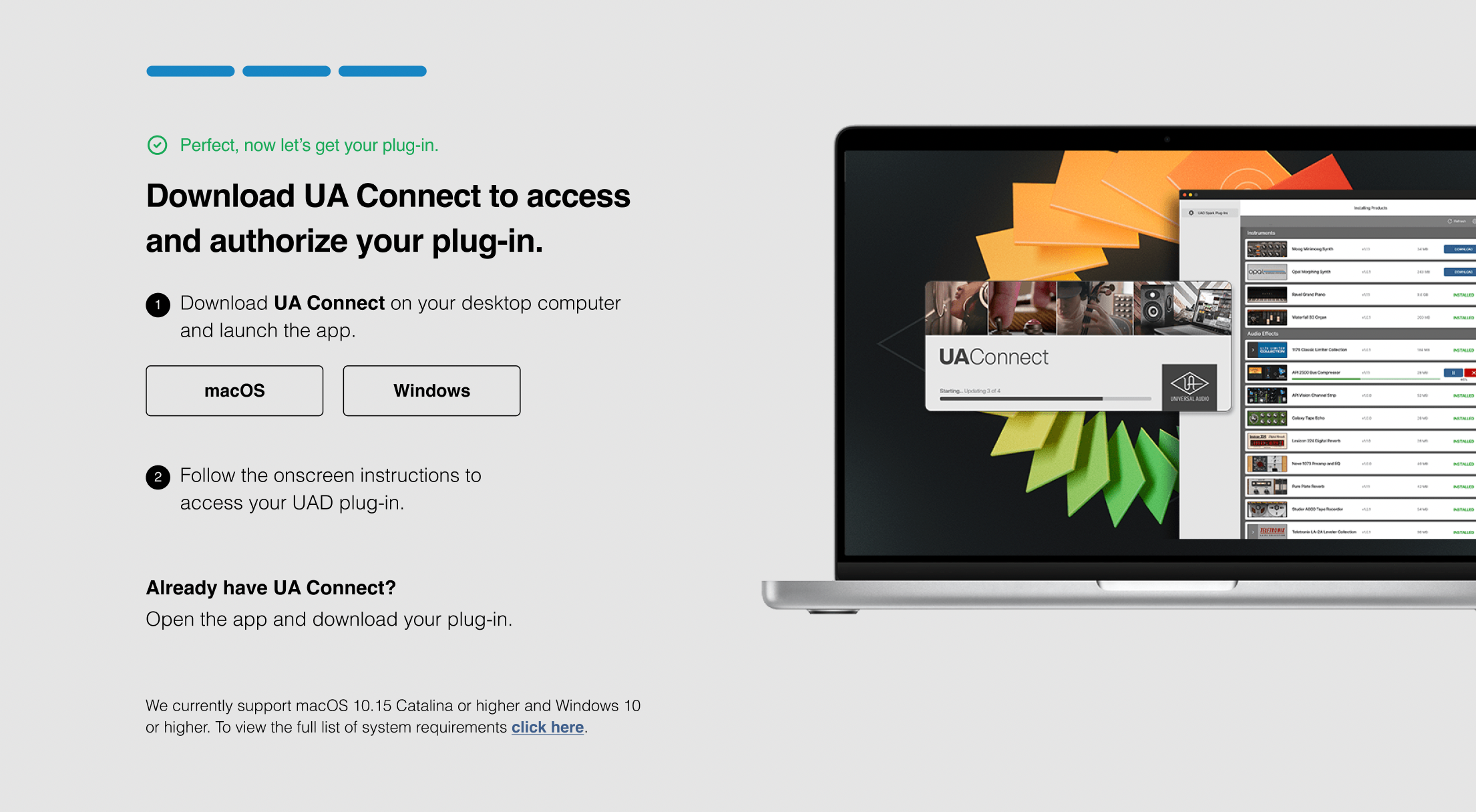
Installation
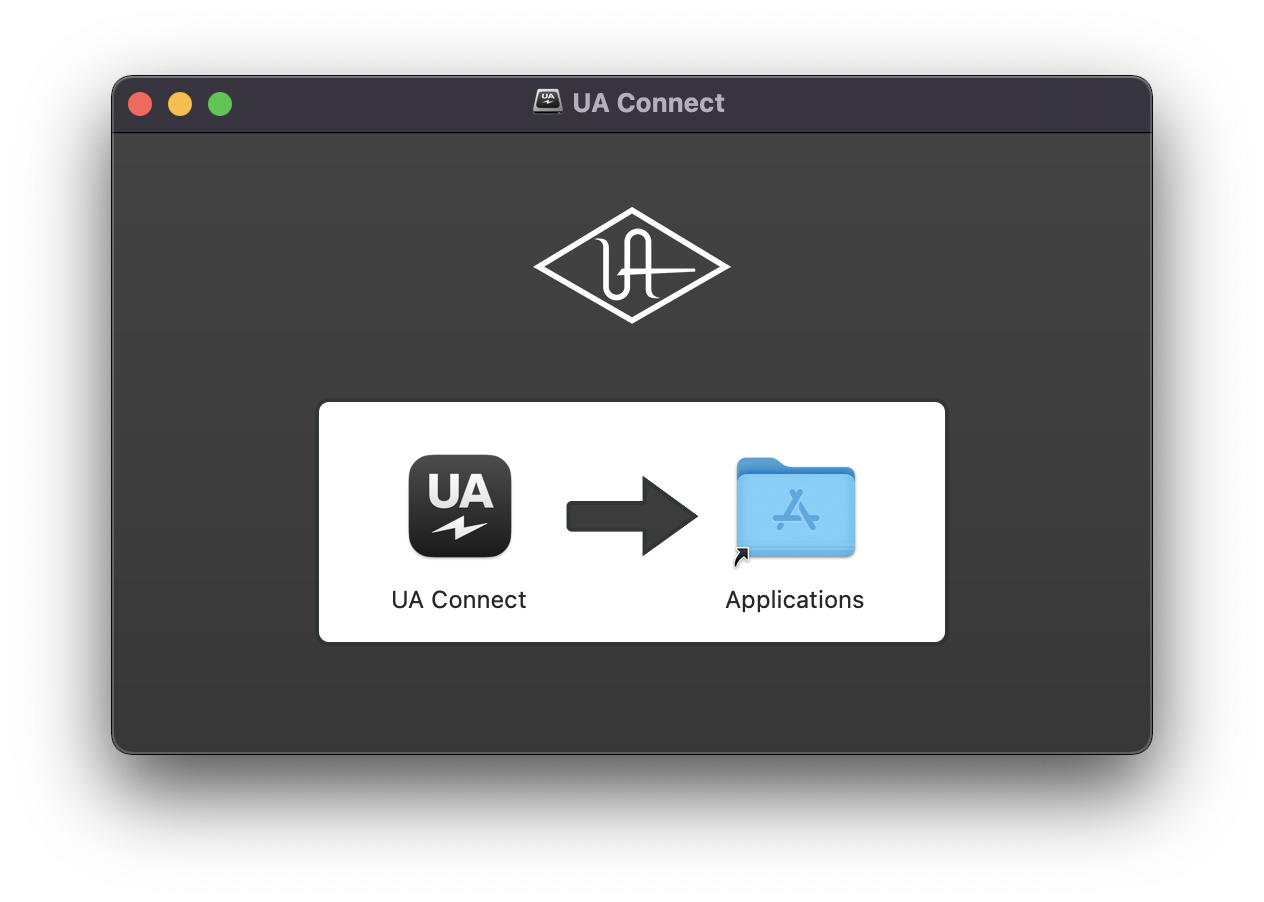
1. Once the download is complete, double-click the UA Connect.dmg installer file.
2. Drag UA Connect into your Applications folder.
3. Locate and open UA Connect > Enter the email address and password of your Universal Audio account.
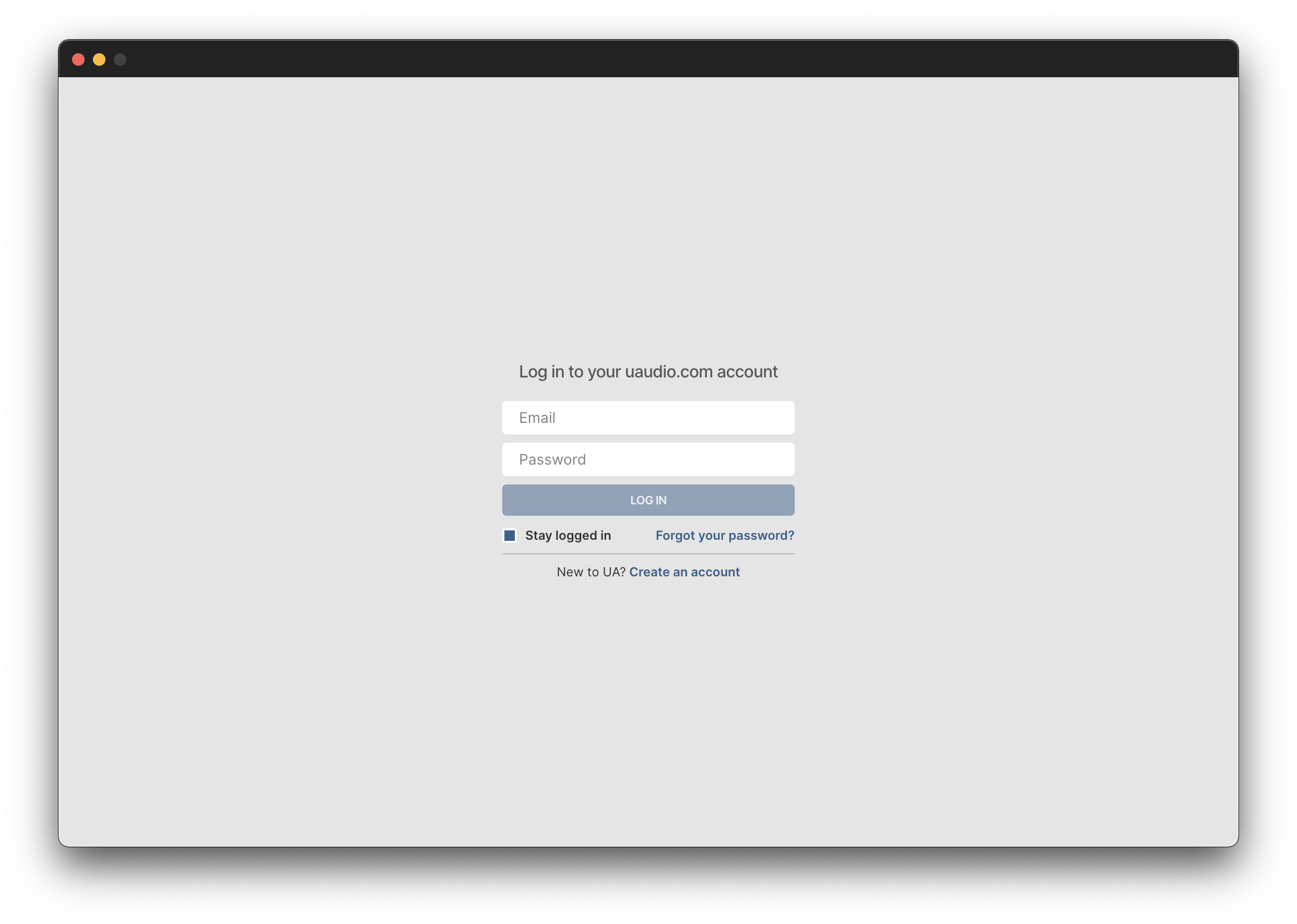
4. Click 'GET STARTED'.
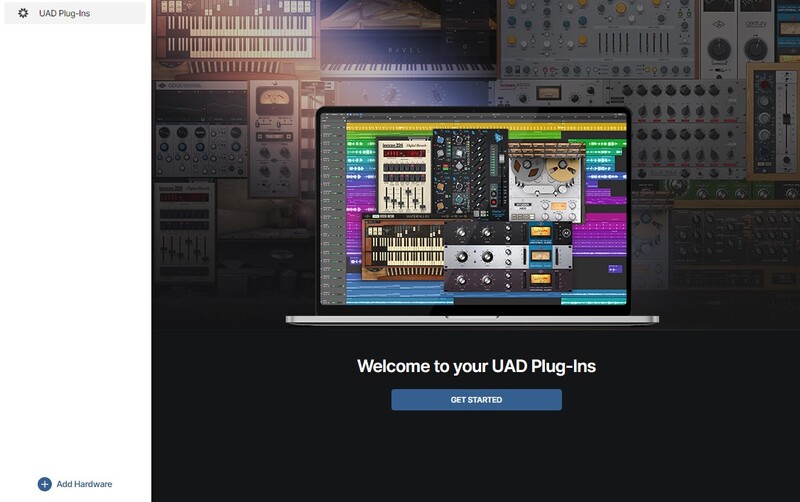
5. Select the option that is relevant to you - either 'I Already Have an iLok Account' or 'Create an iLok Account For Me'.
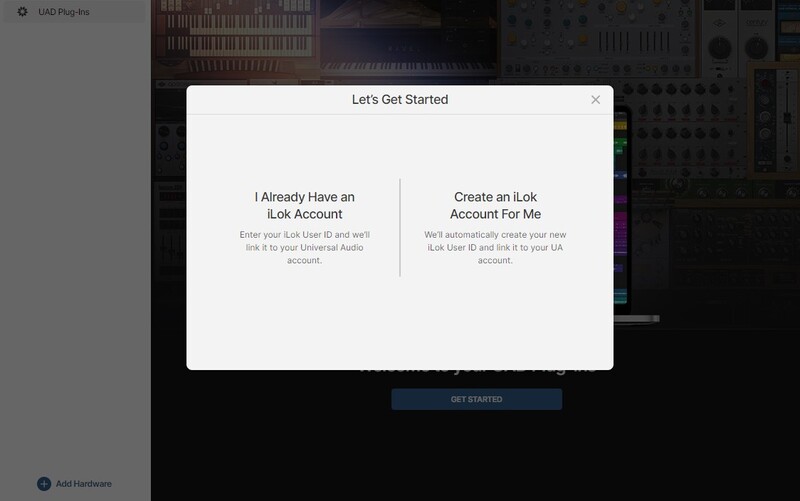
6. Enter your iLok account User ID then click 'LINK ACCOUNT'
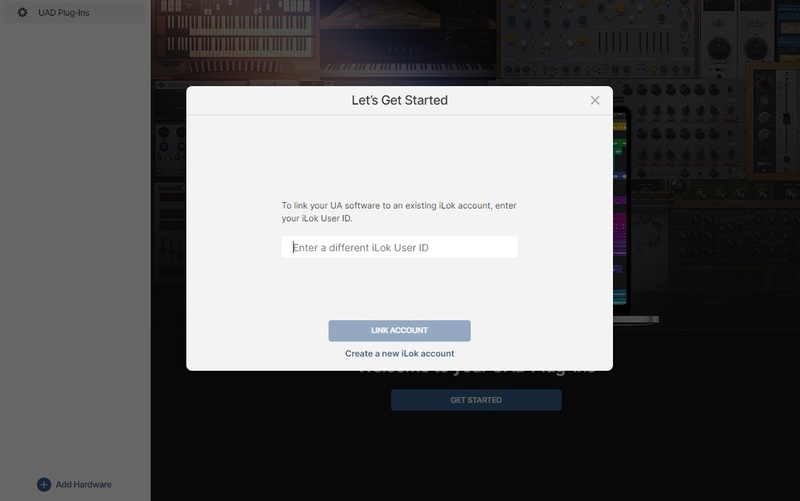 .
.
7. Enter the password for you iLok account and click 'Authorize'.
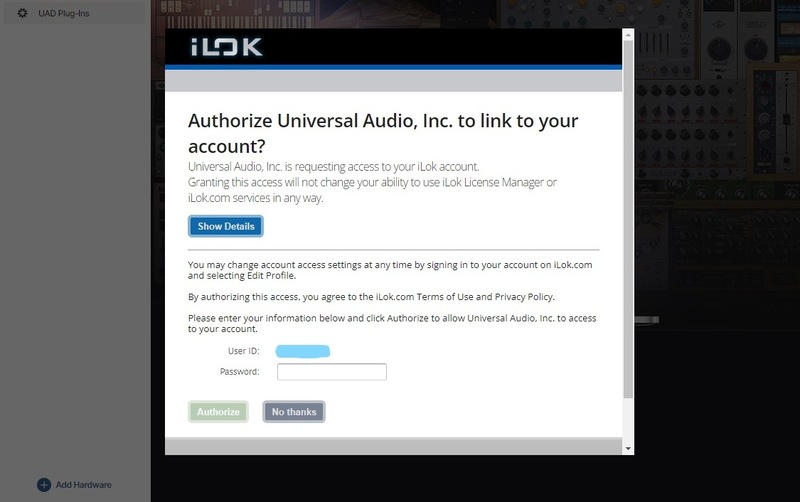
8. Locate the plugin you wish to install > Click 'DOWNLOAD'.
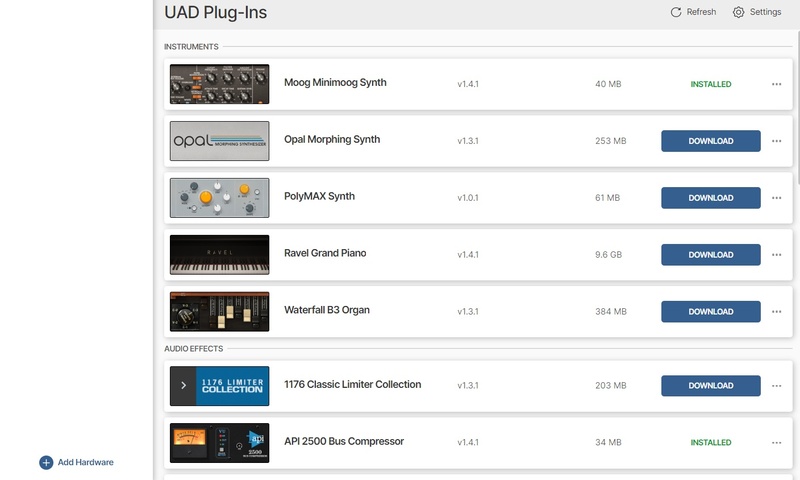
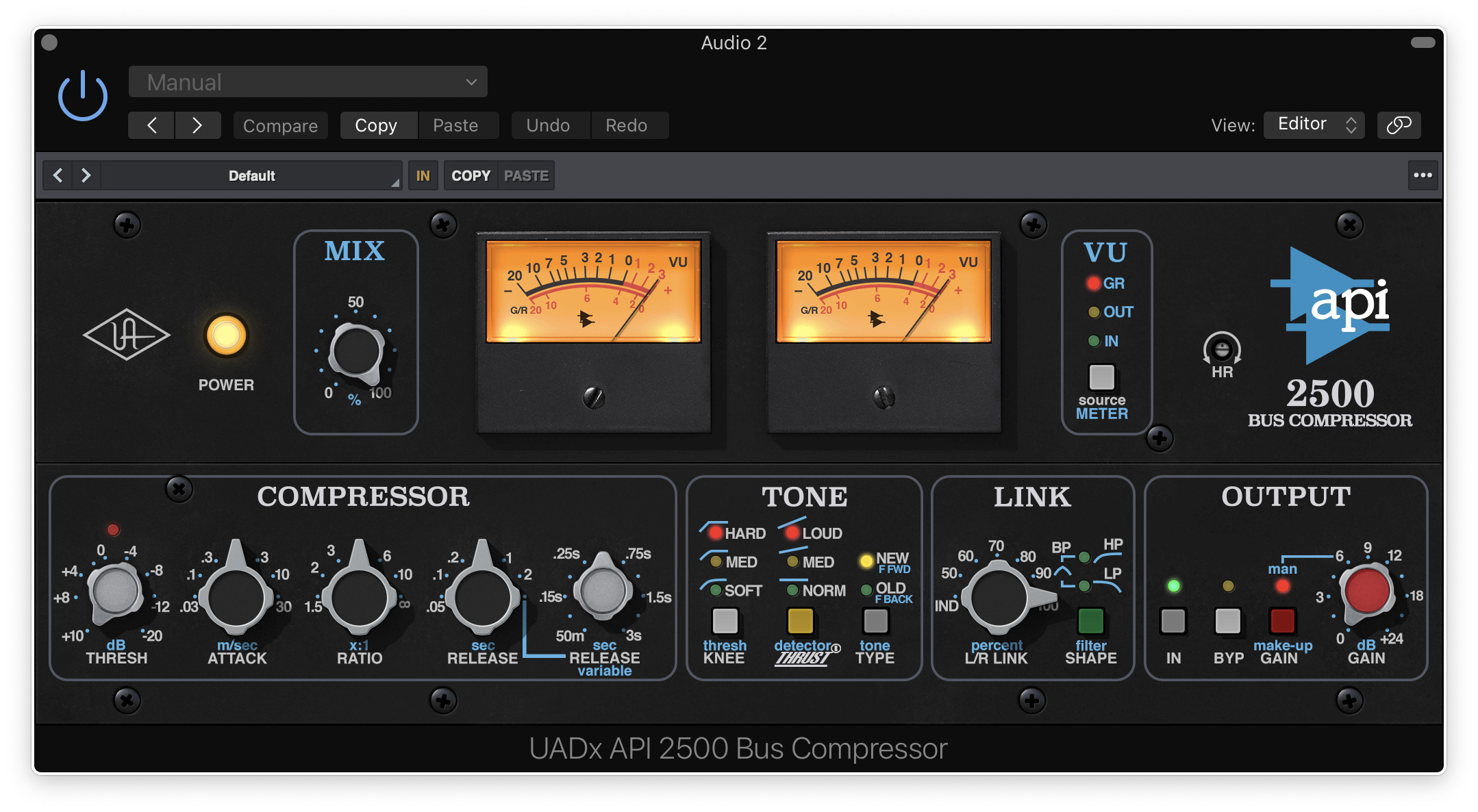
9. Once the plugin has been installed, open your DAW and then the newly installed plugin.
Your software is now activated and ready to use in your DAW!
Windows
Registration
1. Click the Download button in your Plugin Boutique account or go to https://www.uaudio.com/my/account/redeem/.
2. Enter your email and the serial code found in your Plugin Boutique User Account > Click 'Get my Plug-in'.
3. Enter the details required to create your Universal Audio account > Click 'Create Account'.
4. Download UA Connect by clicking either 'macOS' or 'Windows' depending on the system you are using.
Installation
1. Once the download is complete, extract and open the ZIP folder you just downloaded > Open the PC folder > Double-click the UA Connect.exe installer file.
2. Read the terms of agreement > Click 'I Agree'.

3. The installation of PACE License Support will now begin > Click 'Next >'.
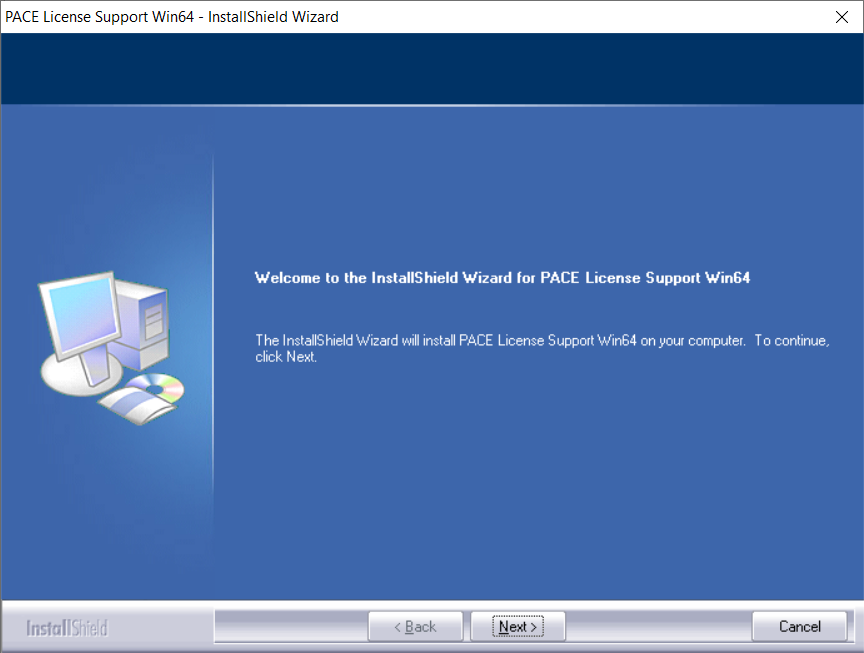
4. Read the license agreement > Click 'Yes'.
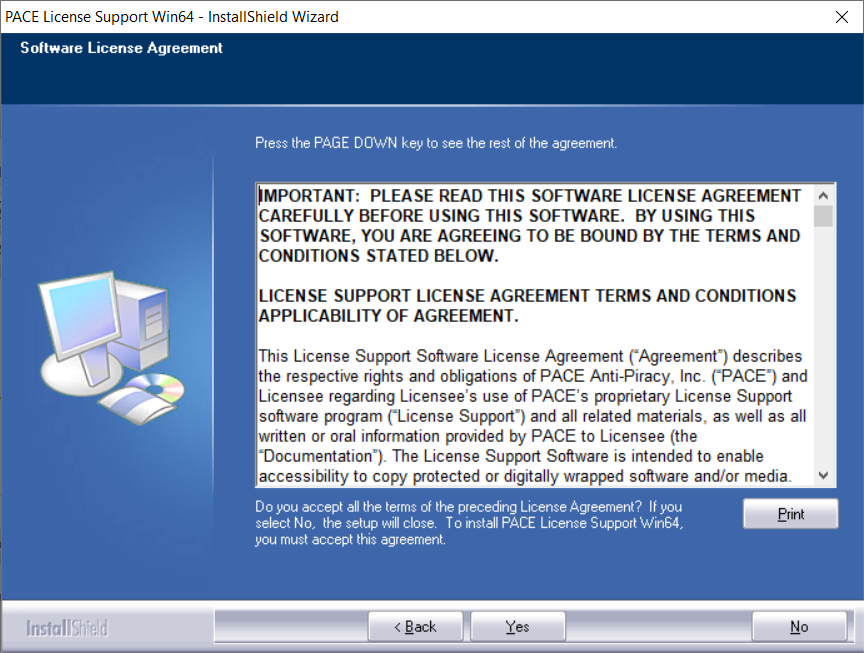
5. Click 'Install'.
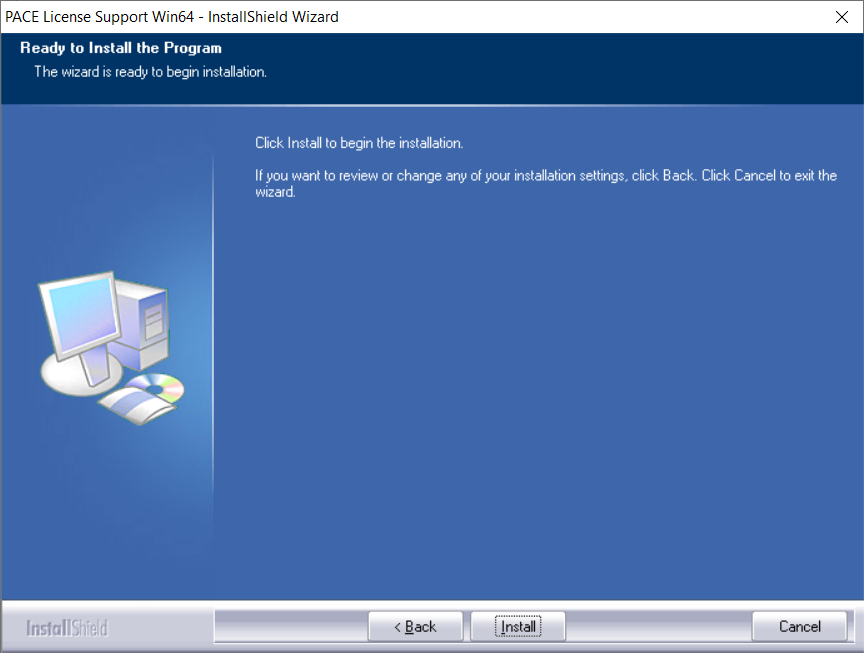
6. Click 'Finish'.
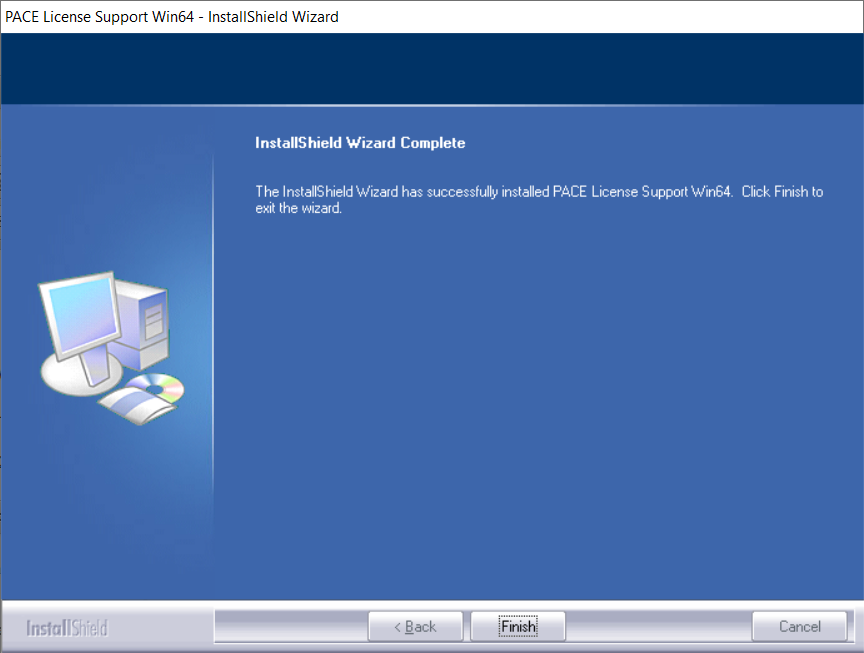
7. Locate and open UA Connect > Enter the email address and password of your Universal Audio account.
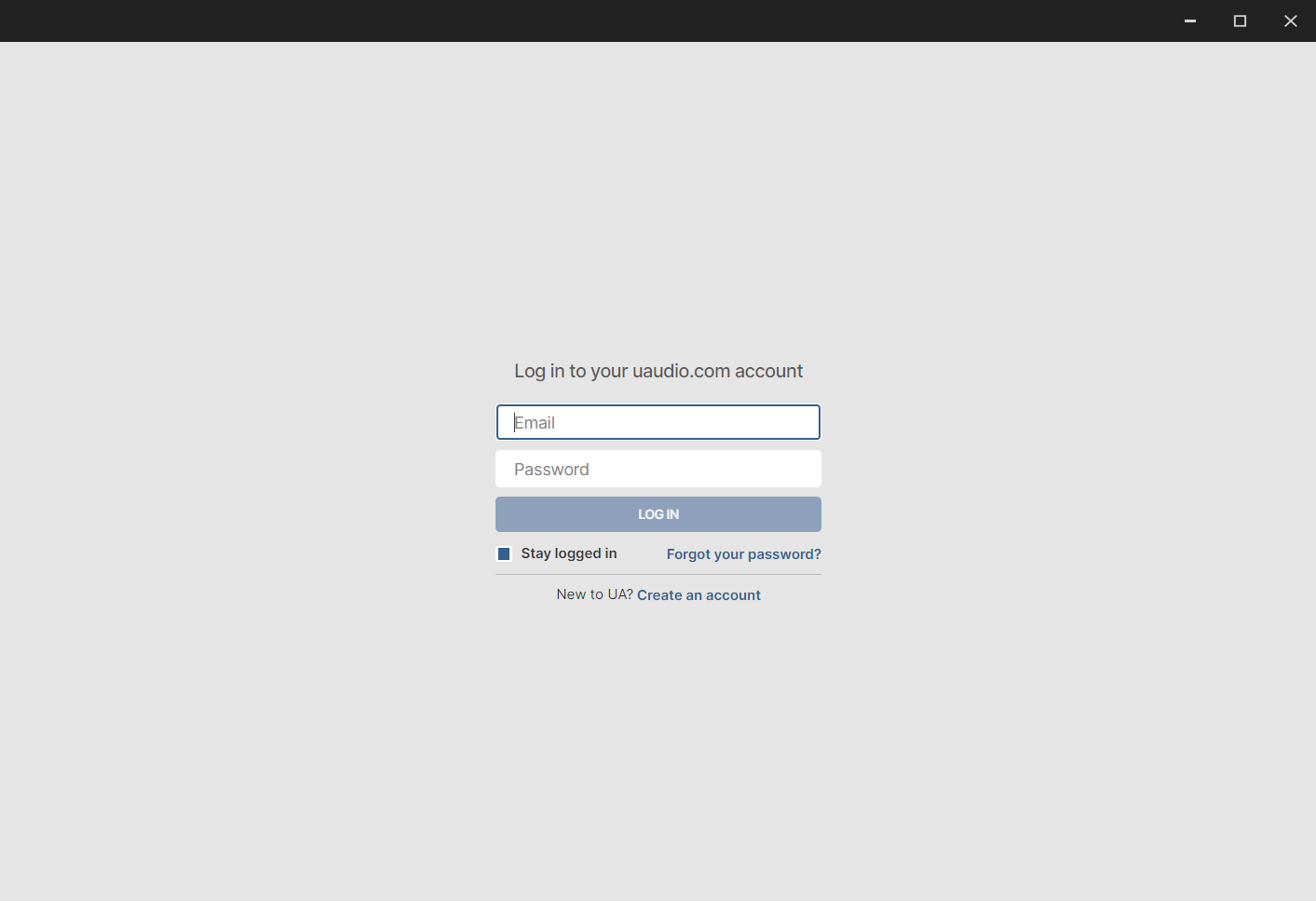
8. Click 'GET STARTED'.
9. Select the option that is relevant to you - either 'I Already Have an iLok Account' or 'Create an iLok Account For Me'.
10. Enter your iLok account User ID then click 'LINK ACCOUNT'
.
11. Enter the password for you iLok account and click 'Authorize'.
12. Locate the plugin you wish to install > Click 'DOWNLOAD'.
13. Once the plugin has been installed, open your DAW and then the newly installed plugin.
Your software is now activated and ready to use in your DAW!
If you would like any further assistance with your software, please feel free to reach out to our support team at support@pluginboutique.com.