
Welcome to the Cableguys installation page.
Please take a look at our installation guide videos below, which provide information on how to register, install and authorise your Cableguys software.
System Requirements
Mac
Mac OS X 10.13 or later
Intel or Apple Silicon processor
VST 2, VST 3, AU or AAX host DAW
Windows
Windows 7, 8, 10 or 11 (64-bit only)
VST 2, VST 3 or AAX host DAW
Mac Video Installation Guide
Windows Video Installation Guide
Alternatively, you can follow the step-by-step instructions below for your software.
Note: ShaperBox is used as the example.
Mac
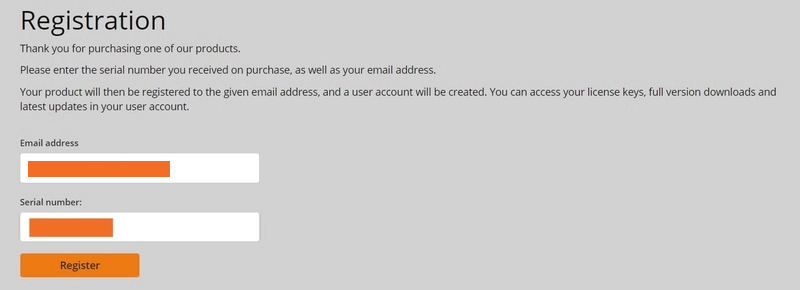
1. Head to the Cableguys registration page and enter your email address and serial number which can found in your Plugin Boutique account > click 'Register'.
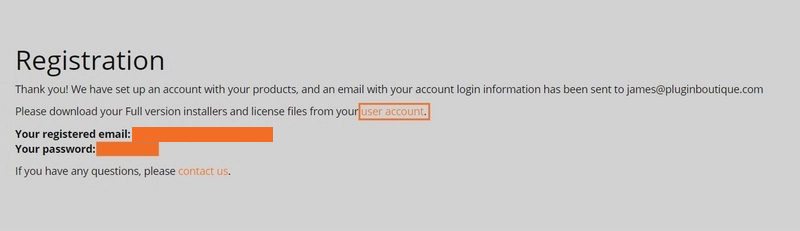
2. You have now registered an account with Cableguys > click 'User Account' to log in.
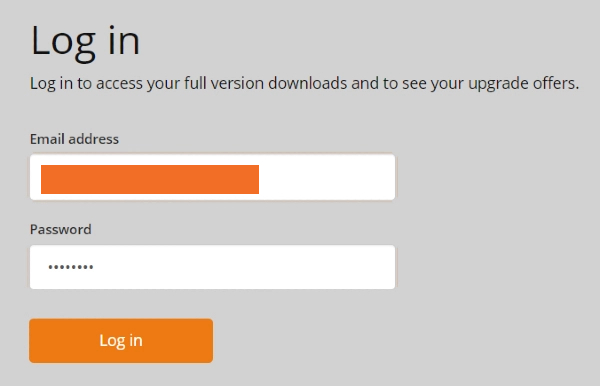
3. Enter your registered email address and password > Click 'Log in'.
4. Click 'DOWNLOAD' to access your software installer and then click 'LICENSE FILE' to download your key for activating the plugin.

5. Once downloaded, run the .dmg installer > click 'Continue'.
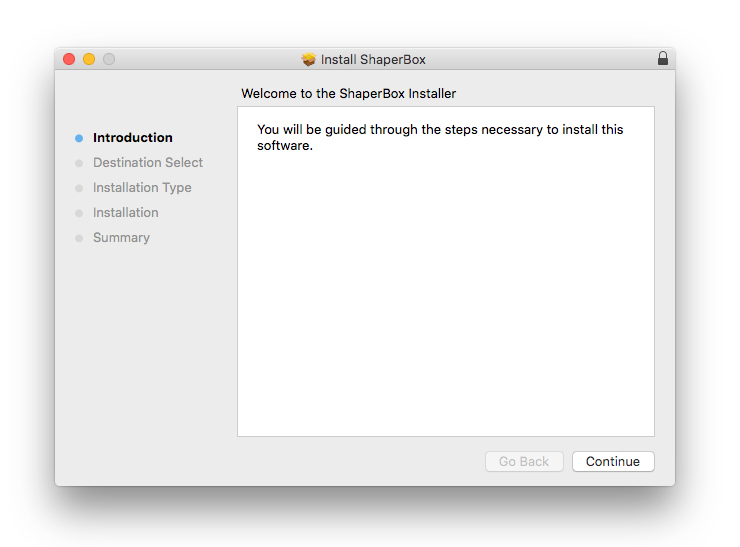
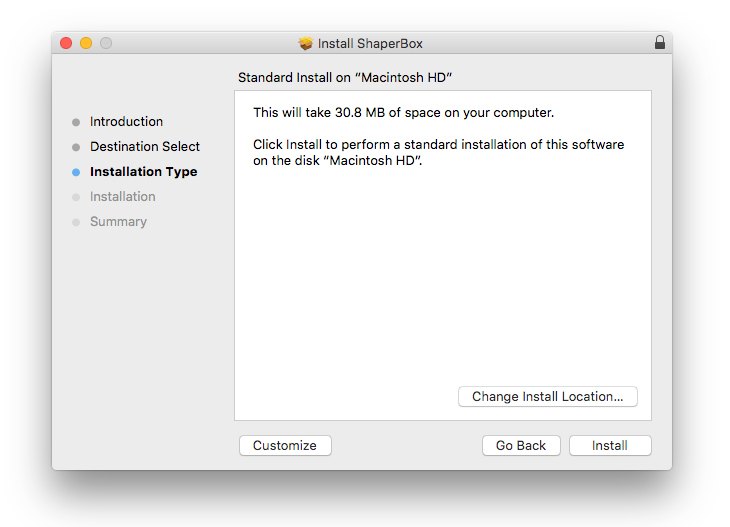
6. Check you are happy where the contents will be installed and then click 'Install'.
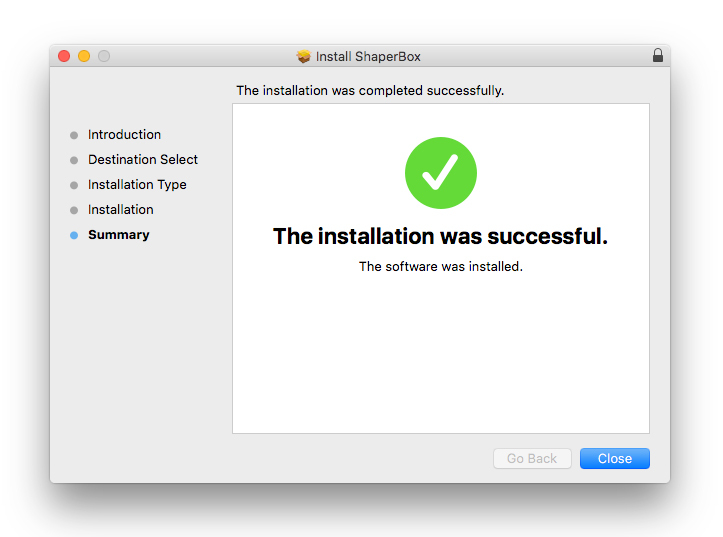
7. Once the installation has concluded > click 'Close'.
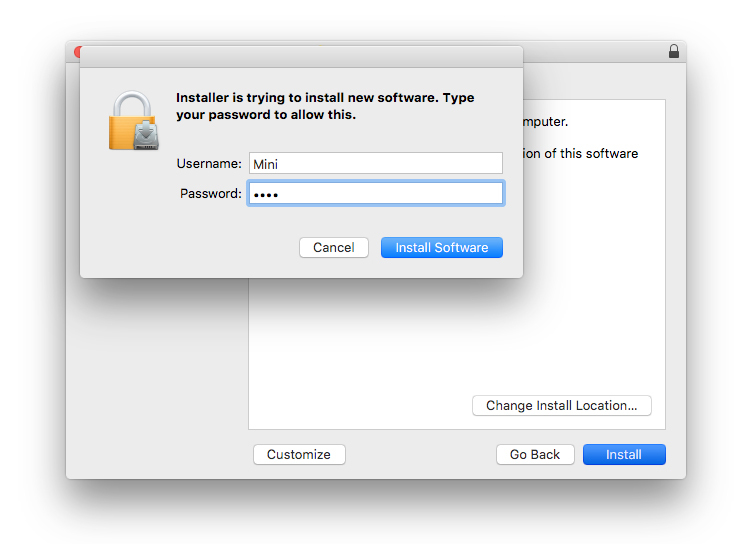
8. If prompted, enter your password for your login > click 'Install Software'.
9. Launch your Cableguys plugin within your chosen DAW > click 'Choose License File'.

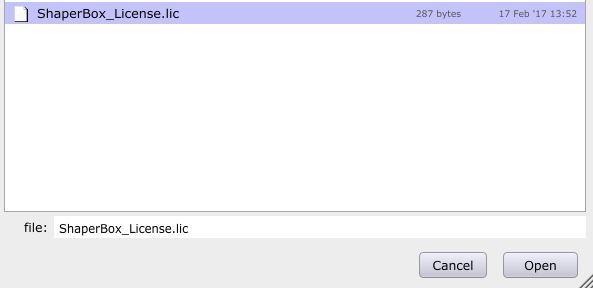
10. Browse and find your .lic license file which you downloaded and unzipped earlier. Select the file > click 'Open'.
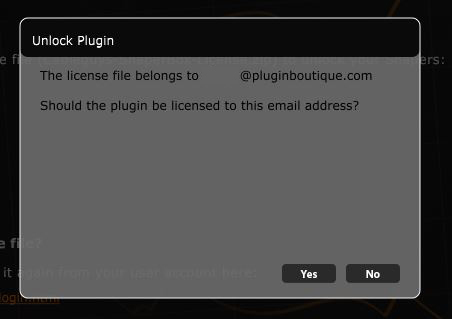
11. Confirm that your email address is correctly listed and then click 'Yes'.
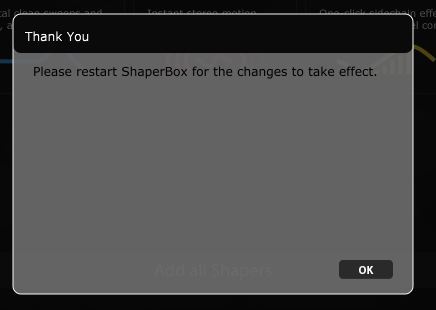
12. Click 'OK'.
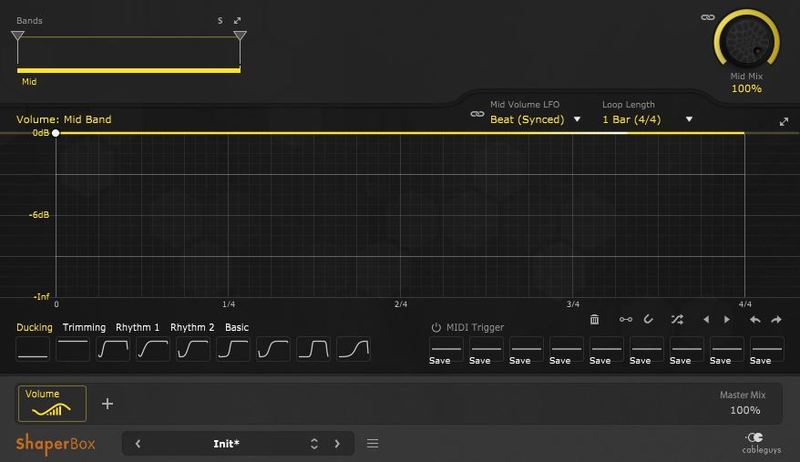
13. Exit the plugin and then launch it again. Your product will now be activated.
Windows
1. Head to the Cableguys registration page and enter your email address and serial number which can found in your Plugin Boutique account > click 'Register'.
2. You have now registered an account with Cableguys > click 'User Account' to log in.
3. Enter your registered email address and password > Click 'Log in'.
4. Click 'DOWNLOAD' to access your software installer and then click 'LICENSE FILE' to download your key for activating the plugin.

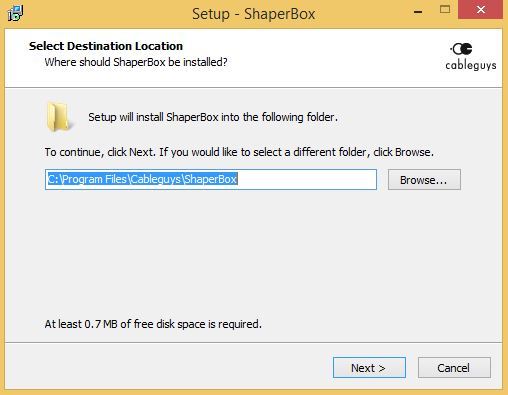
5. Once downloaded, extract the contents from the .zip file and run the .exe installer. Select your destination location > click 'Next >'.
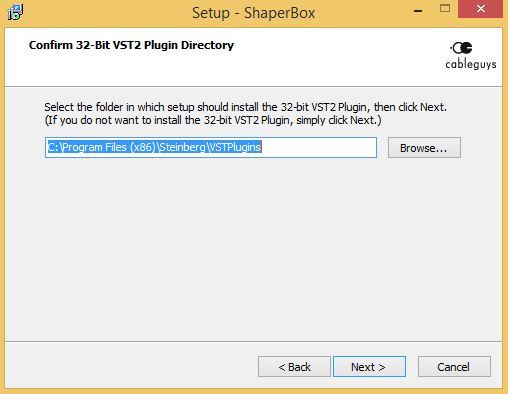
6. Confirm where you wish to install the 32-bit VST2 plugin > click 'Next >'.
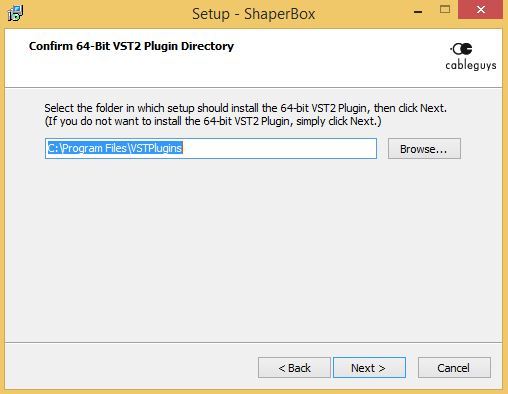
7. Confirm where you wish to install the 64-bit VST2 plugin > click 'Next >'.
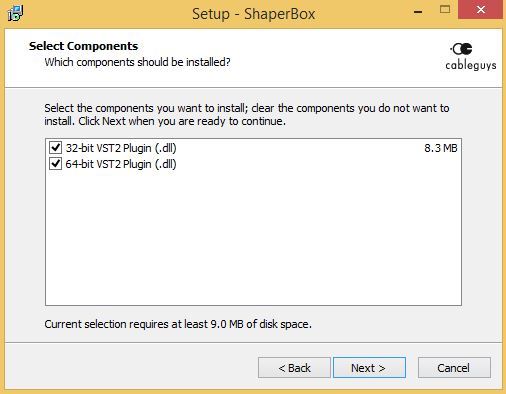
8. Select which components/formats you wish to install > click 'Next >'.
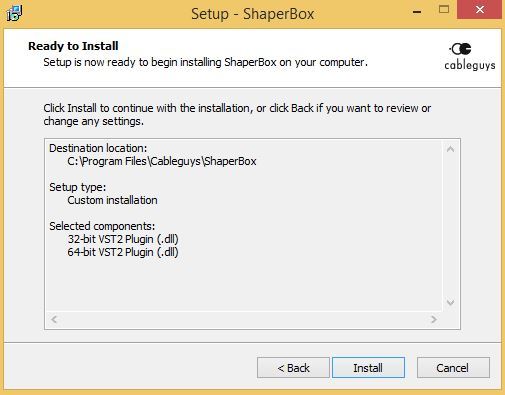
9. Confirm you are happy with the installation settings > click 'Install'.
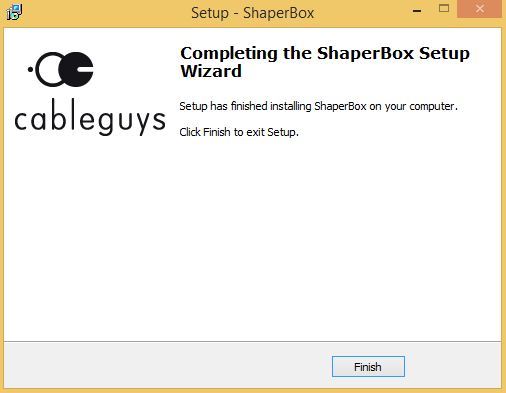
10. Once the installation has concluded > click 'Finish'.
11. Launch your Cableguys plugin within your chosen DAW > click 'Choose License File'.
12. Browse and find your .lic license file which you downloaded and unzipped earlier. Select the file > click 'Open'.
13. Confirm that your email address is correctly listed and then click 'Yes'.
14. Click 'OK'.
15. Exit the plugin and then launch it again. Your product will now be activated.