
Welcome to the Celemony installation page.
Please take a look at our installation guide videos below, which provide information on how to register, install and authorise your Celemony software.
Mac Video Installation Guide
Windows Video Installation Guide
Alternatively, you can follow the step-by-step instructions below for your software.
Mac
Registration
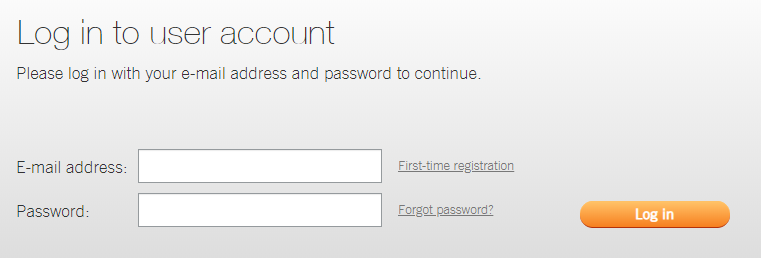
1a. Visit the Celemony User Account Area. If you do not have a Celemony Account, click "First-time registration".
1b. OR if you do have a Celemony account, log in.
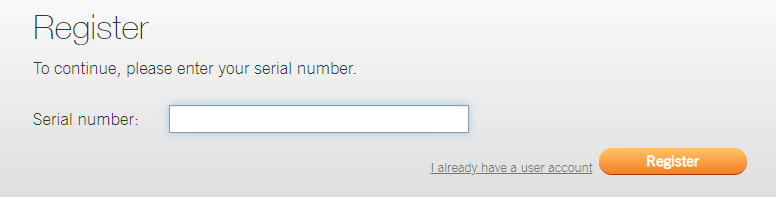
2a. Enter the serial number found in your Plugin Boutique User Account > Click 'Register'.
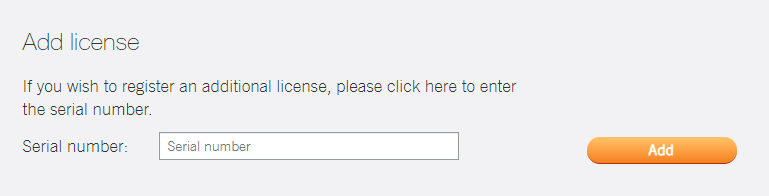
2b. OR if you do have a Celemony Account, enter the serial number found in your Plugin Boutique User Account > Click 'Add' and skip to Step 4.
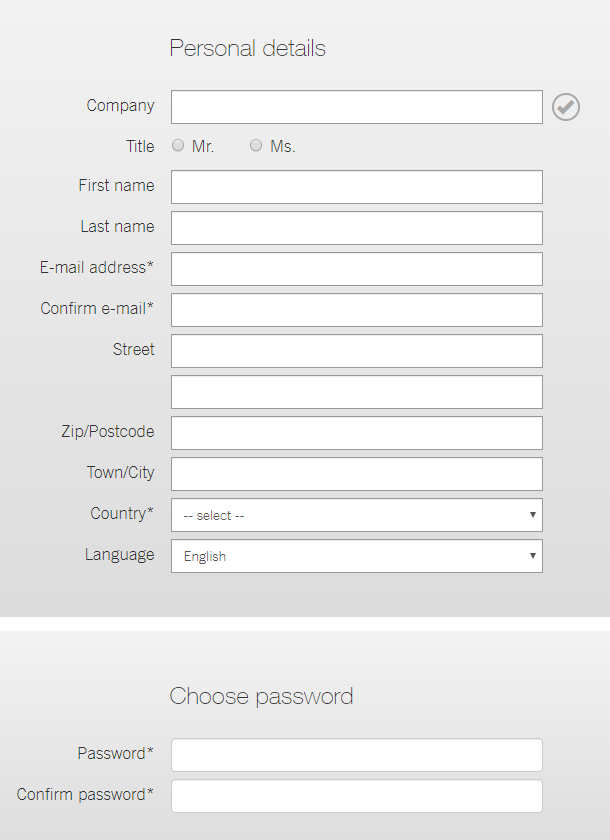
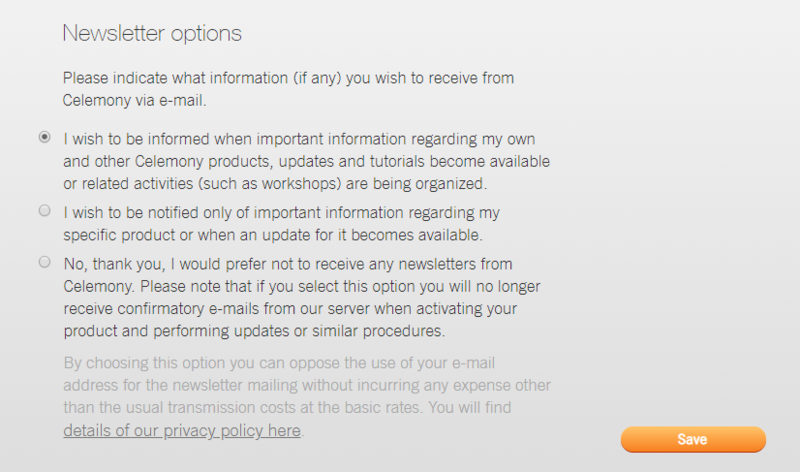
3. Enter your details, choose a password and choose your newsletter preferences > Click 'Save'.
4. Click 'Download'.
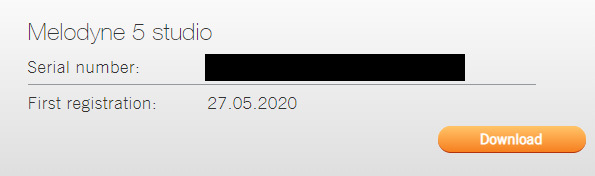
5. Scroll down to the Mac download link, click 'Download'.

Installation
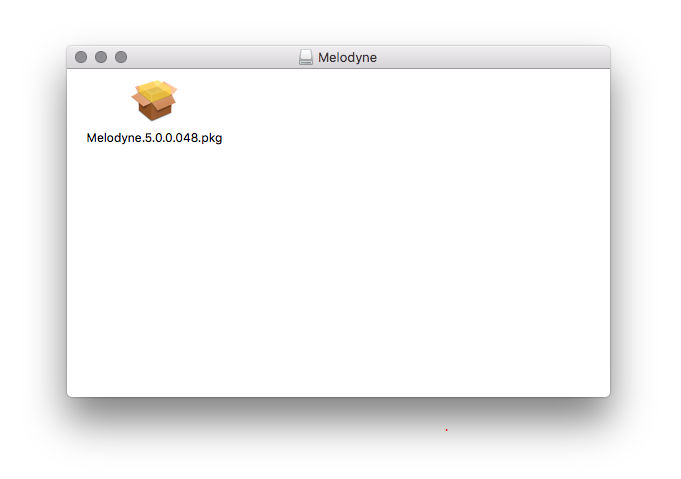
1. Double click the download .dmg folder to open it > Double click the .pkg file to run the installer.
2. Click 'Continue'.
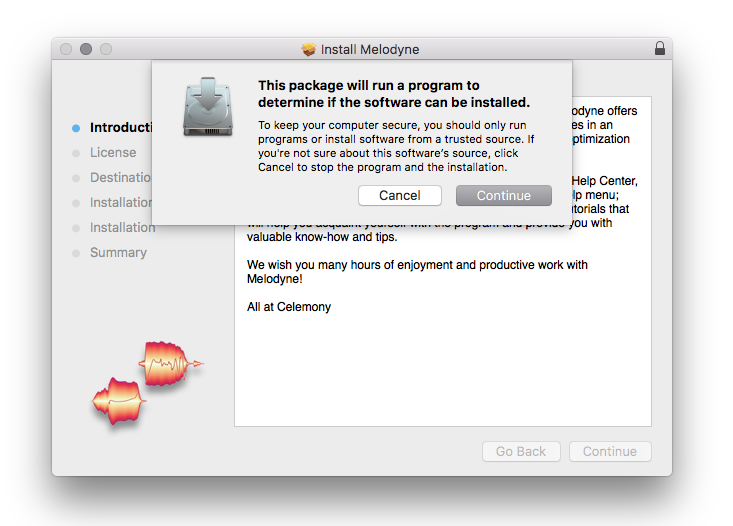
3. Click 'Continue'.
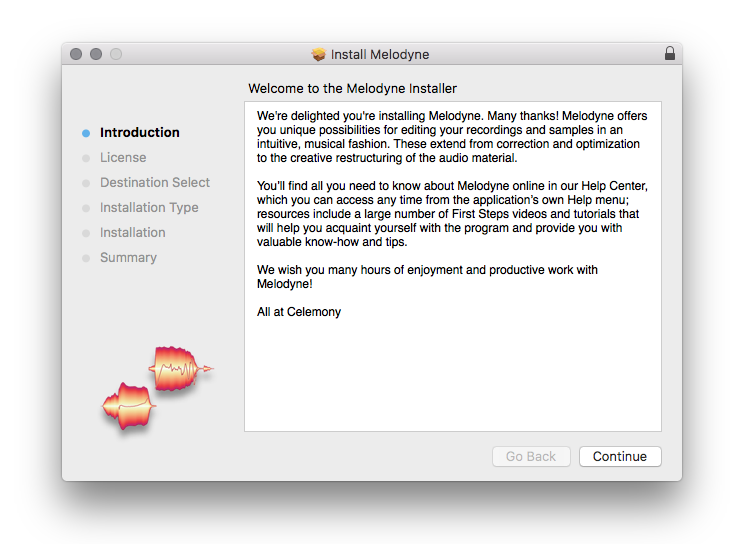
4. Click 'Continue'.
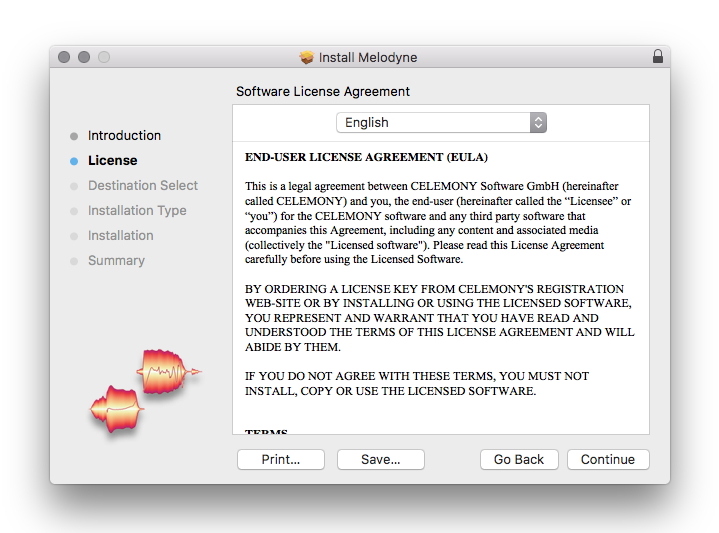
5. Click 'Agree'.
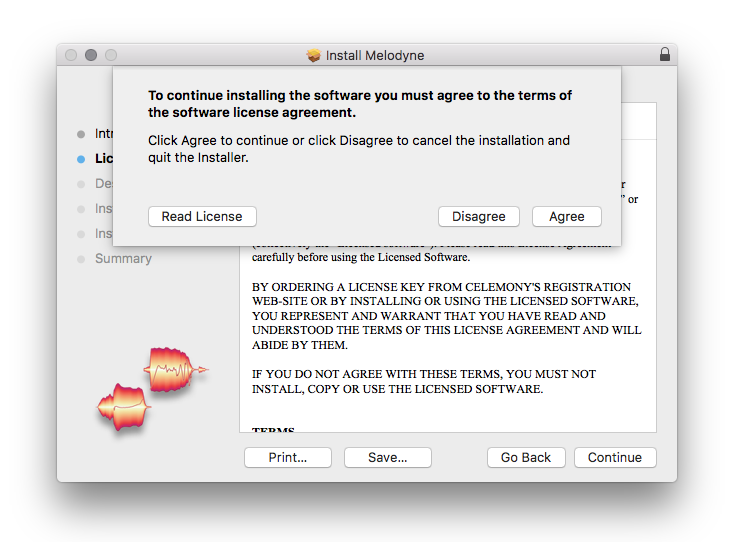
6. Click 'Install'.
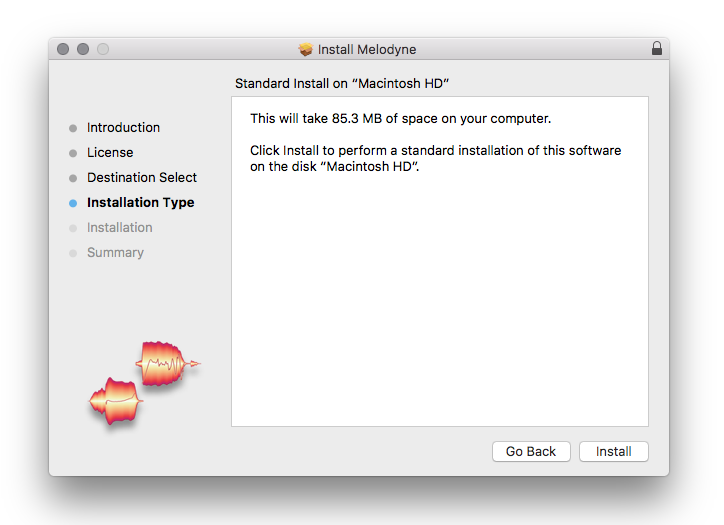
7. Click 'Close'.
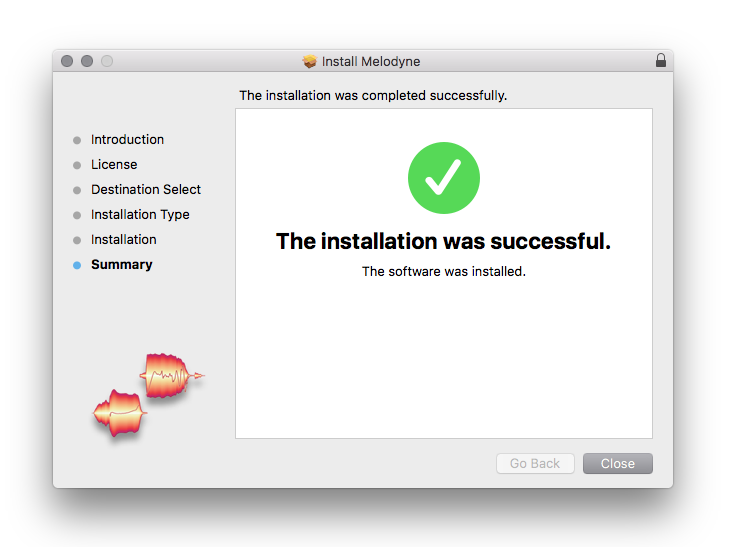
Activation
1. Open Melodyne as a standalone application or inside of your DAW > Click 'Activate'.
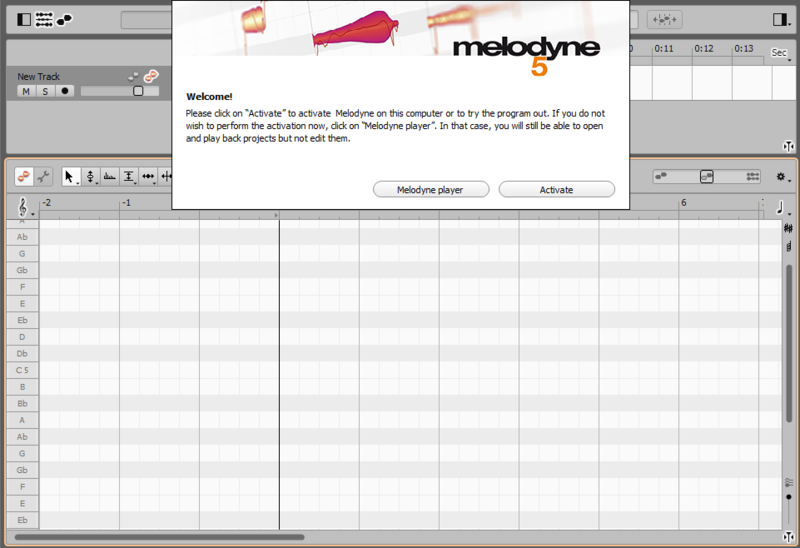
2. Once you are redirected to the Celemony Activation area, click 'Activate'.

3. Enter your Celemony user account details > Click 'Log In'.
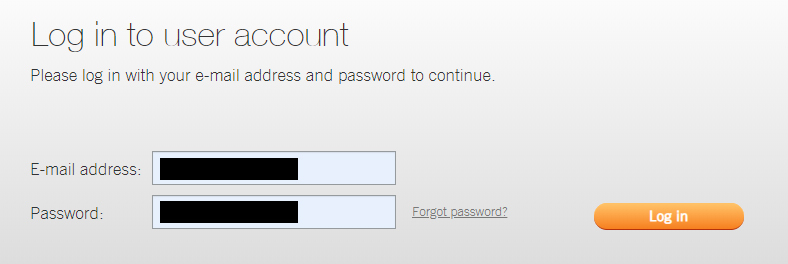
4. Click 'Activate'.
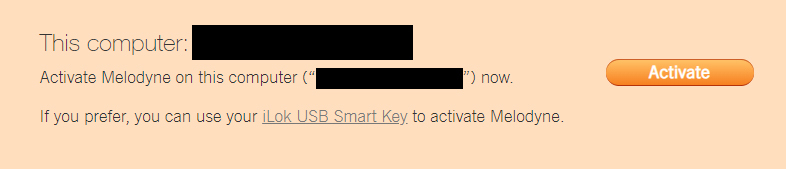
5. Your software has now been activated and you may close the window.
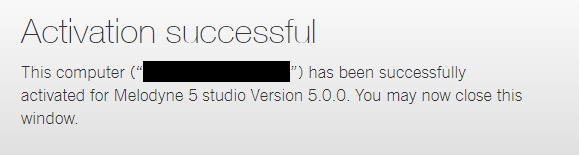
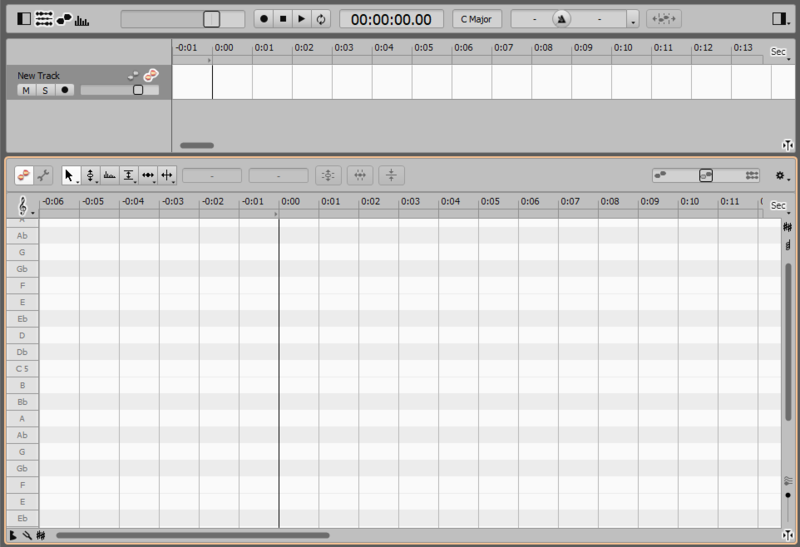
Your software is now activated and ready to use!
Windows
Mac
Registration
1a. Visit the Celemony User Account Area. If you do not have a Celemony Account, click "First-time registration".
1b. OR if you do have a Celemony account, log in.
2a. Enter the serial number found in your Plugin Boutique User Account > Click 'Register'.
2b. OR if you do have a Celemony Account, enter the serial number found in your Plugin Boutique User Account > Click 'Add' and skip to Step 4.
3. Enter your details, choose a password and choose your newsletter preferences > Click 'Save'.
4. Click 'Download'.
5. Scroll down to the Windows download link and click 'Download'.

Installation
1. Double click the downloaded .zip folder to open it > Double click the application named 'setup' to run the installer.
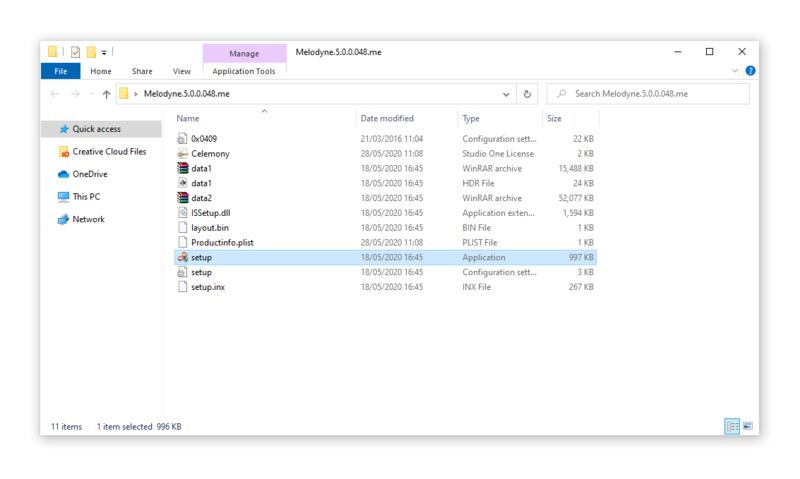
2. Click 'Next'.
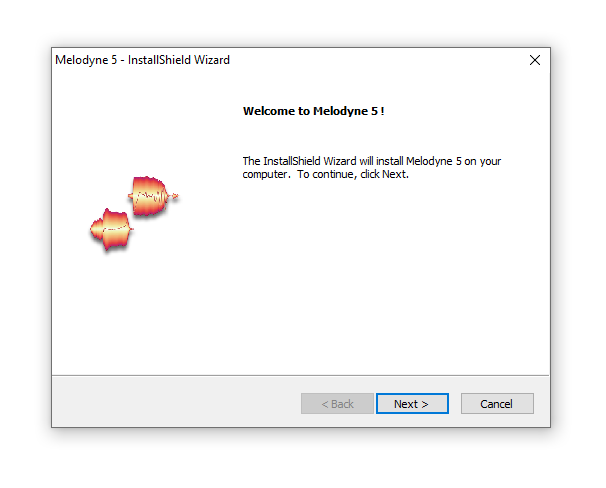
3. Select 'I accept the terms of the license agreement' > Click 'Next'.
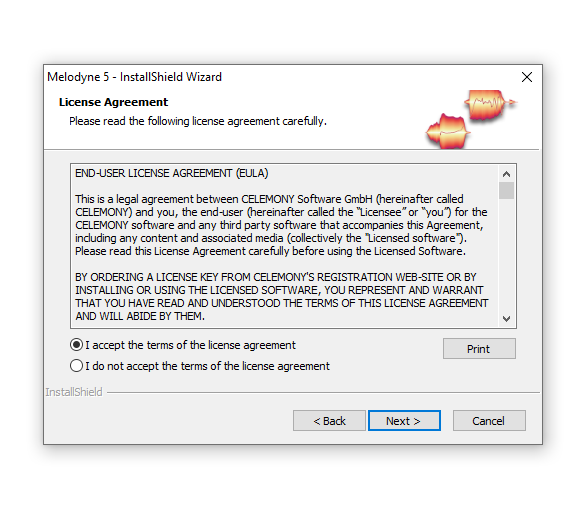
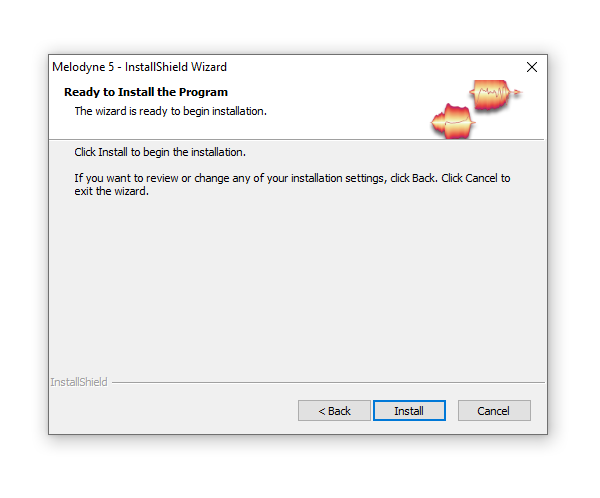
4. Click 'Install'.
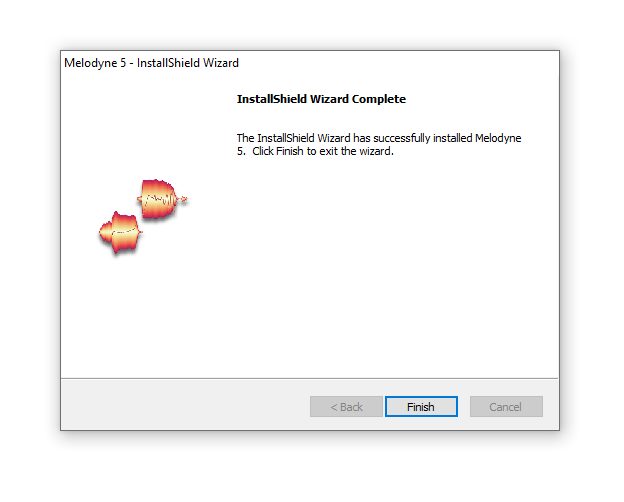
5. Click 'Finish'.
Activation
1. Open Melodyne as a standalone application or inside of your DAW > Click 'Activate'.
2. Once you are redirected to the Celemony Activation area, click 'Activate'.
3. Enter your Celemony user account details > Click 'Log In'.
4. Click 'Activate'.
5. Your software has now been activated and you may close the window.
Your software is now activated and ready to use!