
Welcome to the D16 installation page.
Please take a look at our installation guide videos below, which provide information on how to register, install and authorise your D16 software.
System Requirements
Windows
- Windows 7 - 10 (32 or 64-bit)
- CPU - Single-core 2.0 GHz SSE (Multi-core 2.4 GHz SSE recommended)
- RAM - 8 GB (16 GB Recommended)
- Plugin Formats - VST2, VST3, AAX
Mac
- macOS 10.13 - macOS 12 Monterey (64-bit only)
- CPU - Intel 1.8 GHz / Apple M1 (Intel 2.4 GHz / Apple M1 recommended)
- RAM - 8 GB (16 GB Recommended)
- Plugin Formats - VST2, VST3, AU, AAX
Please Note: This is not a standalone program - a host application (DAW) is required to use it.
Mac Video Installation Guide
Windows Video Installation Guide
Alternatively, you can follow the step-by-step instructions below for your software.
Installation Instructions
Windows
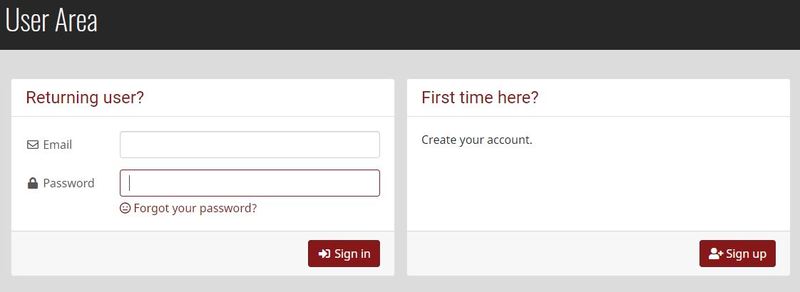
1. Visit the D16 Group website to create or login into your user account.
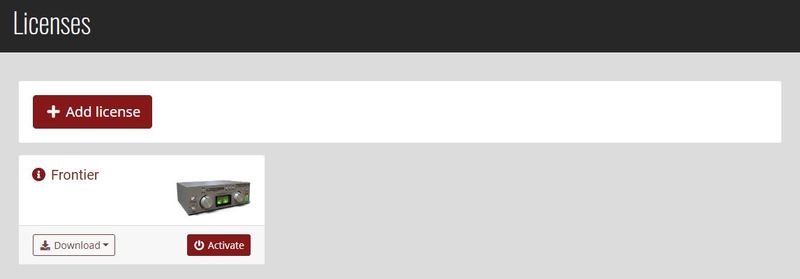
2. Once logged into your account, select the '+ Add Licence' tab
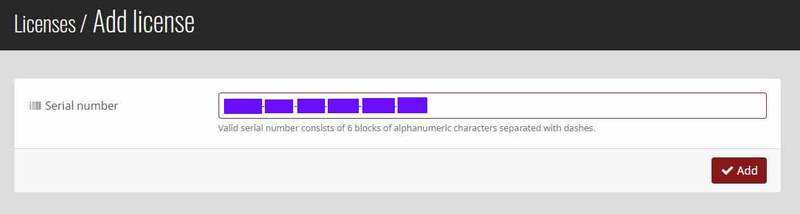
3. Copy and paste the serial number provided in your Plugin Boutique User Account into the box and click 'Add.'
Note: Ensure there are no spaces at the beginning and end of the licence before clicking 'Add' to register it.
4. Once the licence has successfully been added to your account, click 'Close.'

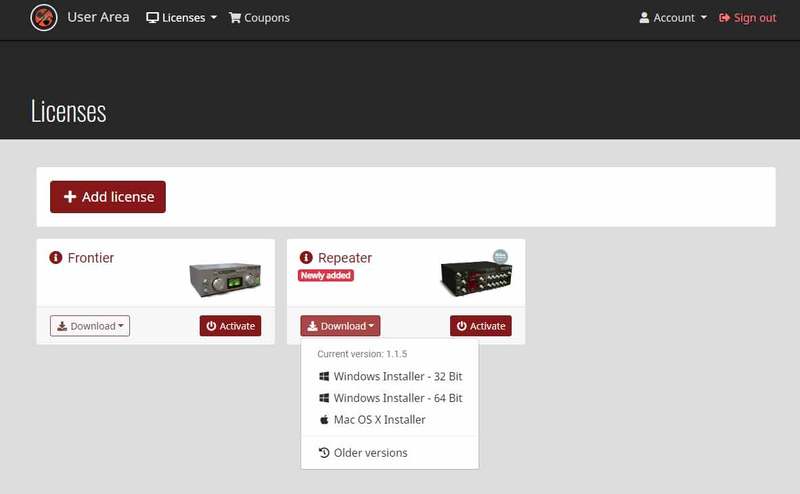
5. Select the 'Download' tab to reveal the drop-down list and click your preferred 32 and/or 64-bit Windows Installer option to obtain the software.
6. Once downloaded, double-click the .msi installer file to begin the installation process > then click 'Run.'
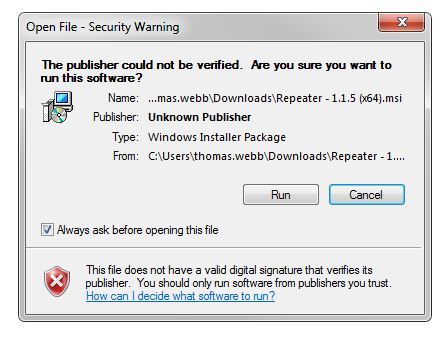
7. Click 'Next.'
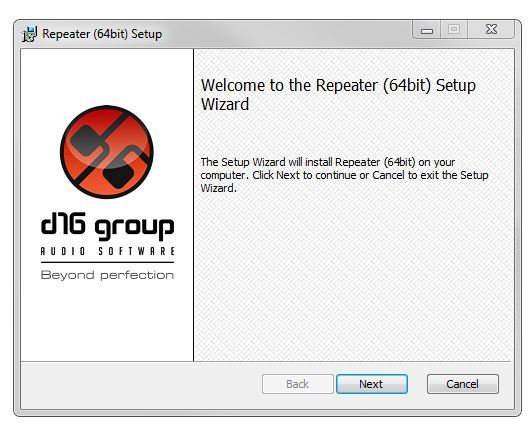
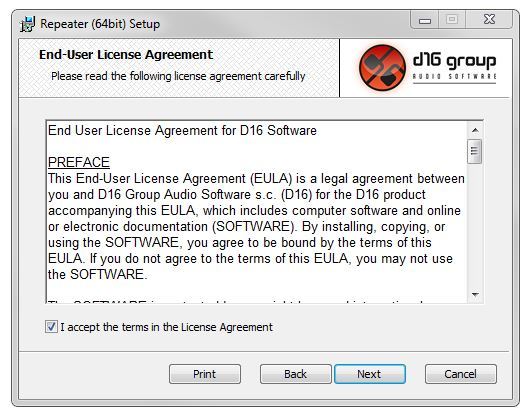
8. Read through and select 'I accept the terms in the licence agreement' and click 'Next.'
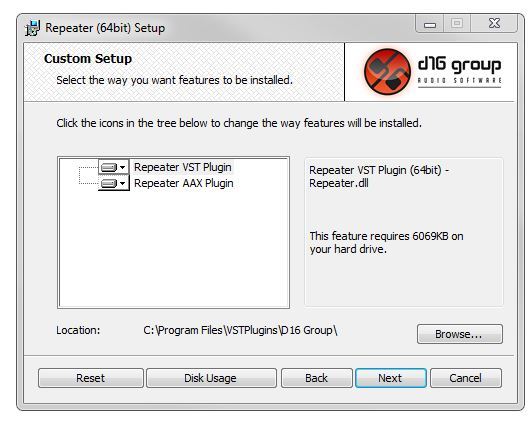
9. Select the format (s) i.e VST/AAX that you wish to install and click 'Next.'
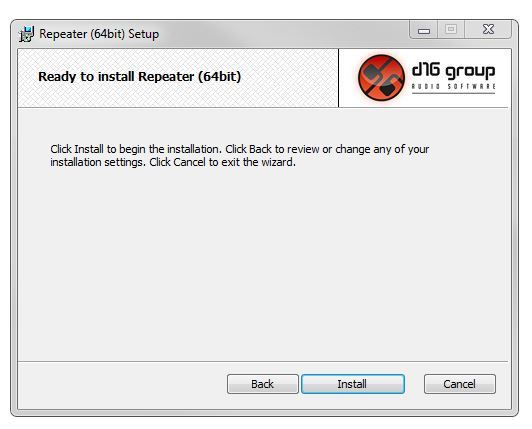
10. Click 'Install' to complete the installation process.
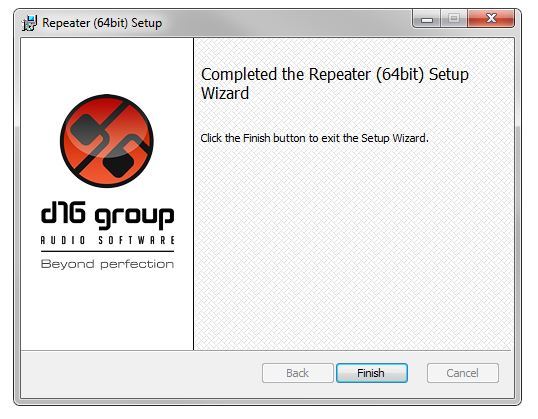
11. The installation of the software has successfully completed > click 'Finish.'
Activation
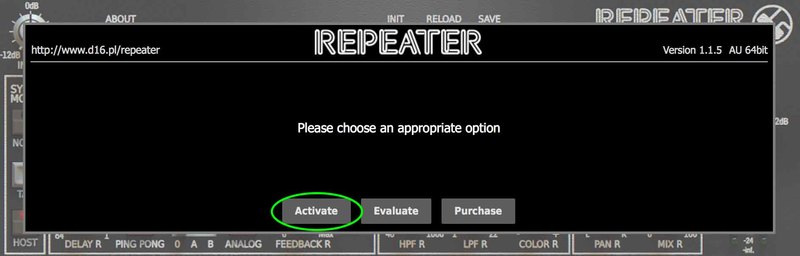
1. Open and load the software within your DAW and then click the 'Activate' tab.
Note: If the software fails to appear, rescan your DAW's plugin selection and/or restart your computer.
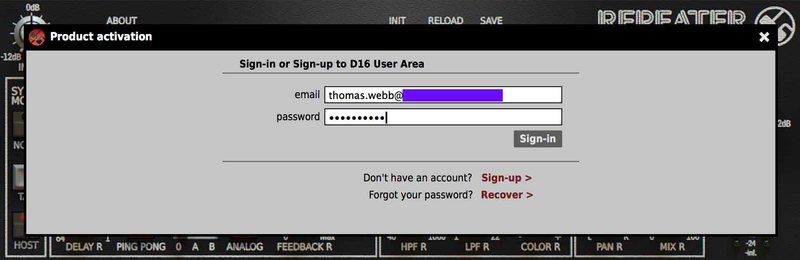
2. Enter your D16 Group user account email and password > then click 'Sign-In.'
3. Close the plugin and then reopen it to complete activation of the software.
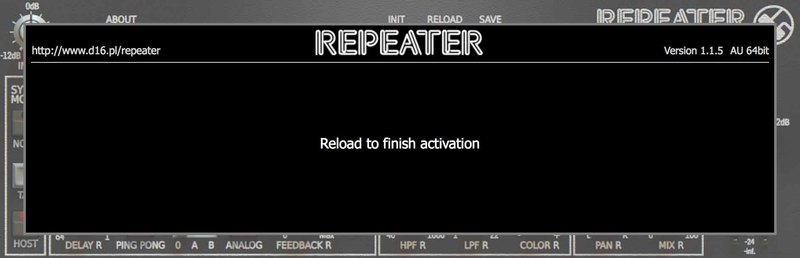
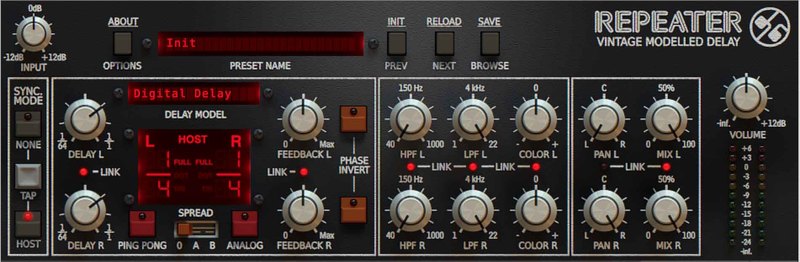
The Software is now Activated and Ready for Use!
Mac
1. Visit the D16 Group website to create or login into your user account.
2. Once logged into your account, select the '+ Add Licence' tab
3. Copy and paste the serial number provided in your Plugin Boutique User Account into the box and click 'Add.'
Note: Ensure there are no spaces at the beginning and end of the licence before clicking 'Add' to register it.
4. Once the licence has successfully been added to your account, click 'Close.'
5. Select the 'Download' tab to reveal the drop-down list and click your preferred Mac OS X Installer option to obtain the software.
6. Once downloaded, double-click the .dmg installer file to unpack the .pkg file.
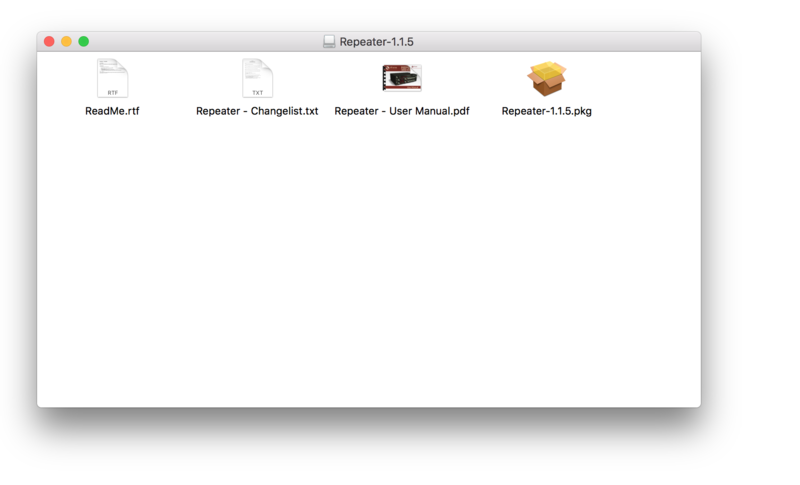
7. Double-click the .dmg .pkg installer file to begin the installation process > then click 'Continue.'
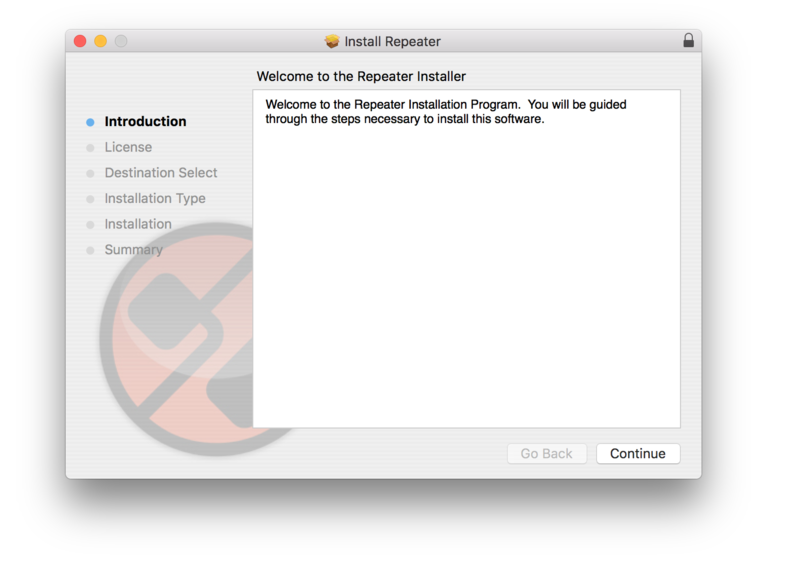
8. Read through the licence agreement > click 'Continue' then 'Agree.'
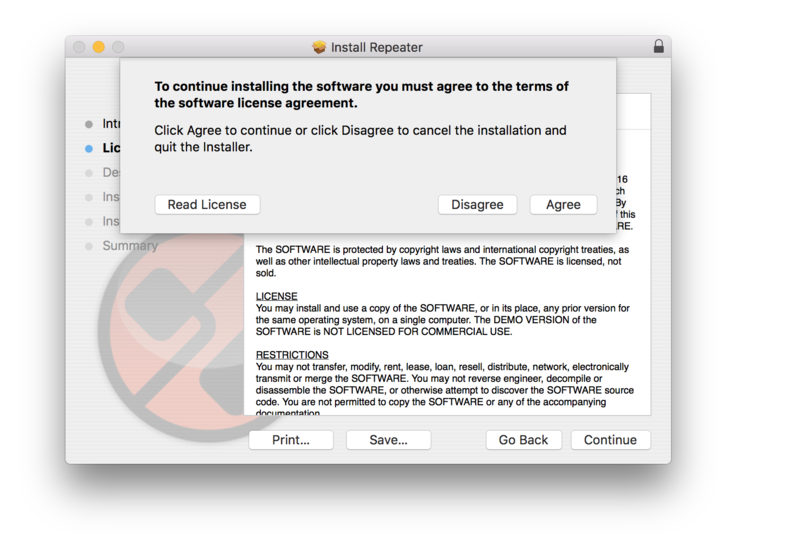
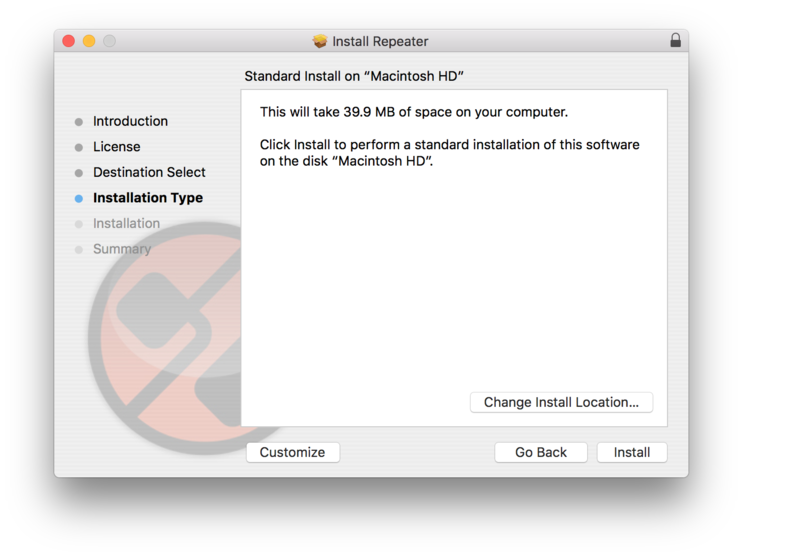
9. Click 'Install.'
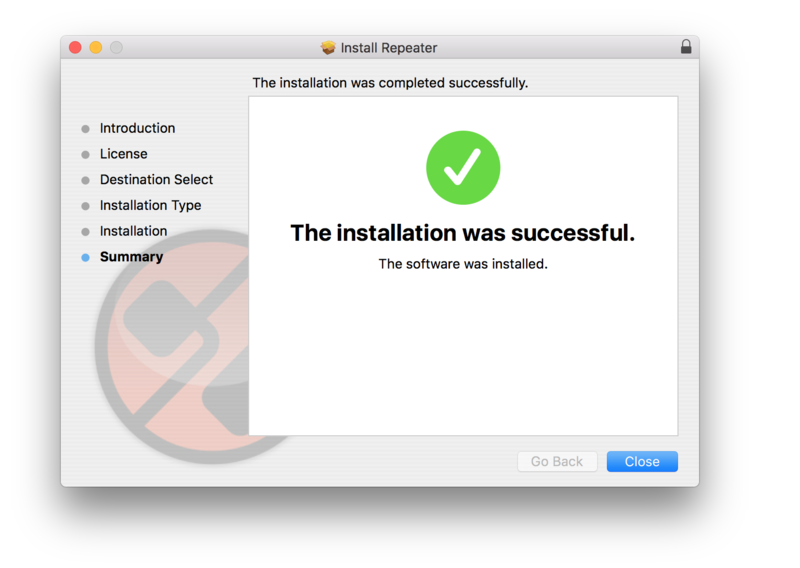
10. The installation of the software has successfully completed > click 'Close.'
Activation
1. Open and load the software within your DAW and then click the 'Activate' tab.
Note: If the software fails to appear, rescan your DAW's plugin selection and/or restart your computer.
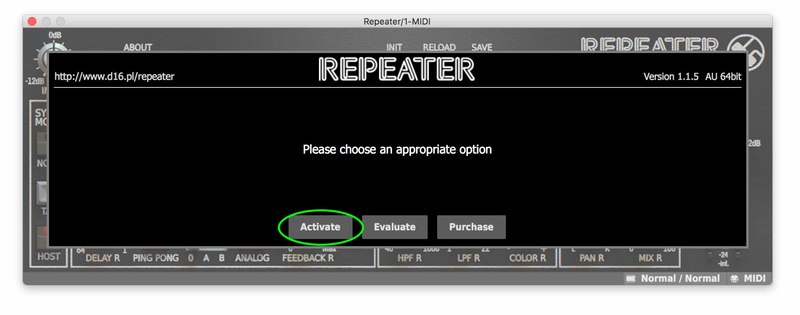
2. Enter your D16 Group user account email and password > then click 'Sign-In.'
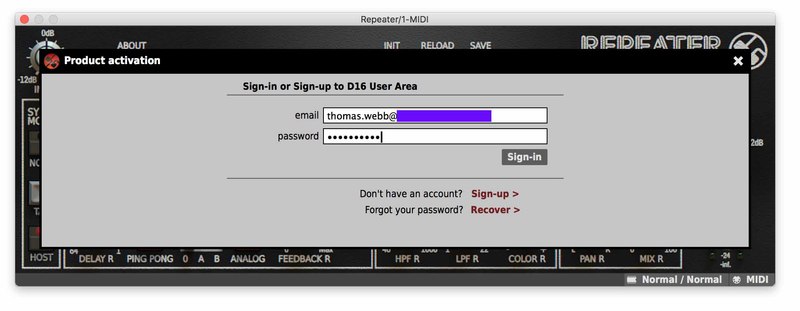
3. Close the plugin and then reopen it to complete activation of the software.
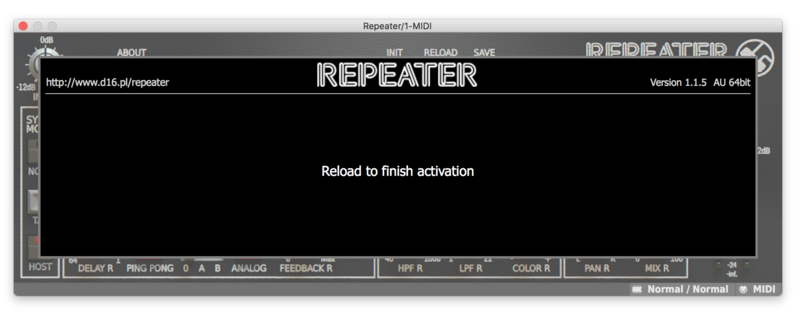
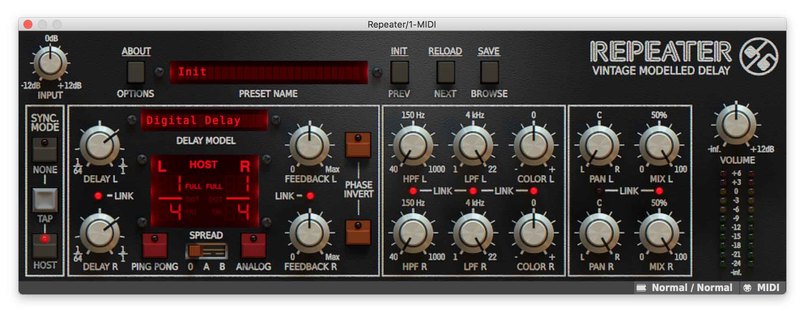
The Software is now Activated and Ready for Use!
If you would like any further assistance with your software, please feel free to reach out to our support team at support@pluginboutique.com.