
Welcome to the Baby Audio installation page.
Please take a look at our installation guide videos below, which provide information on how to register, install and authorise your Baby Audio software.
System Requirements
Mac
Mac OS X 10.7 or later (64-bit only)
Intel or M1 Apple Silicon Processor (Native compatibility)
Formats: AU, VST, VST3 & AAX
Compatible DAWS: Ableton Live, Pro Tools, Logic Pro, FL Studio, Cubase, Nuendo, Reaper, Reason and any other major DAW software on the market
Windows
Windows 7 or later (32 / 64-bit)
Formats: VST, VST3 & AAX
Compatible DAWS: Ableton Live, Pro Tools, FL Studio, Cubase, Nuendo, Reaper, Reason and any other major DAW software on the market
Mac Video Installation Guide
Windows Video Installation Guide
Alternatively, you can follow the step-by-step instructions below for your software.
Installation
1. Download the installer from within your Plugin Boutique account and open the .pkg file to begin the installation > Click 'Continue'.
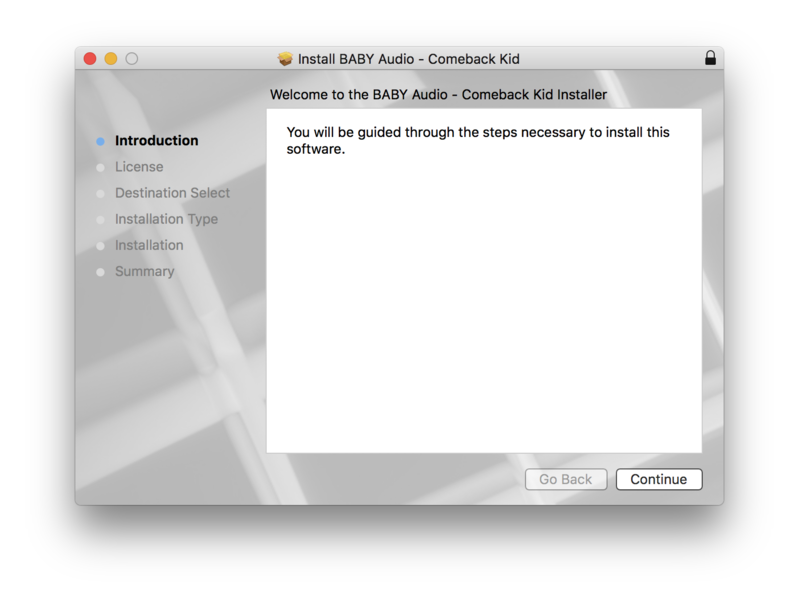
2. Click 'Continue'.
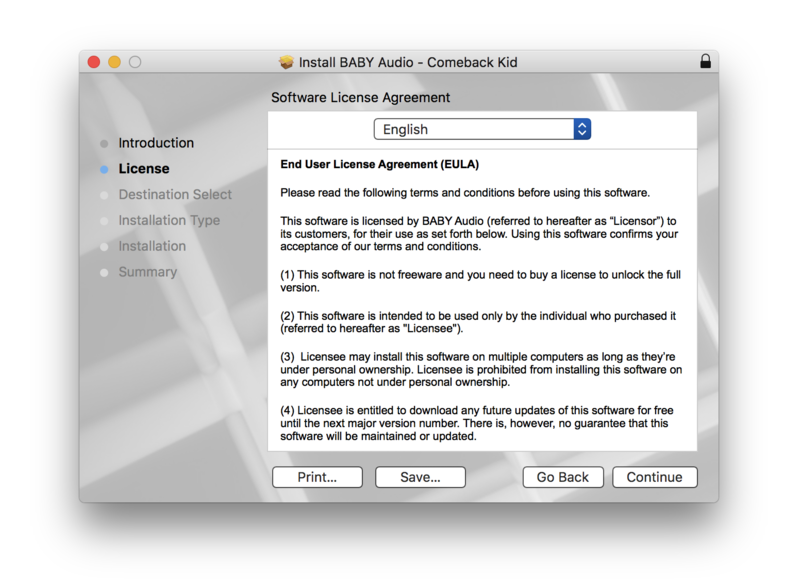
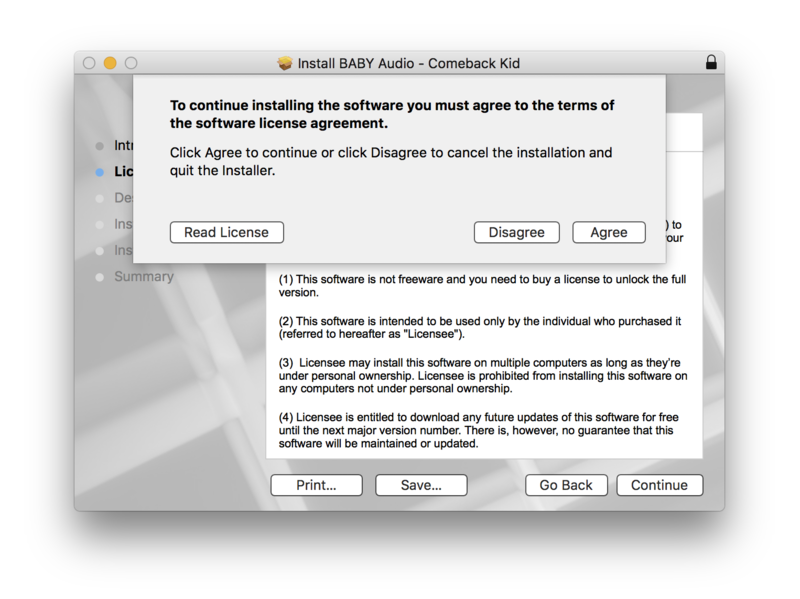
3. Click 'Agree'.
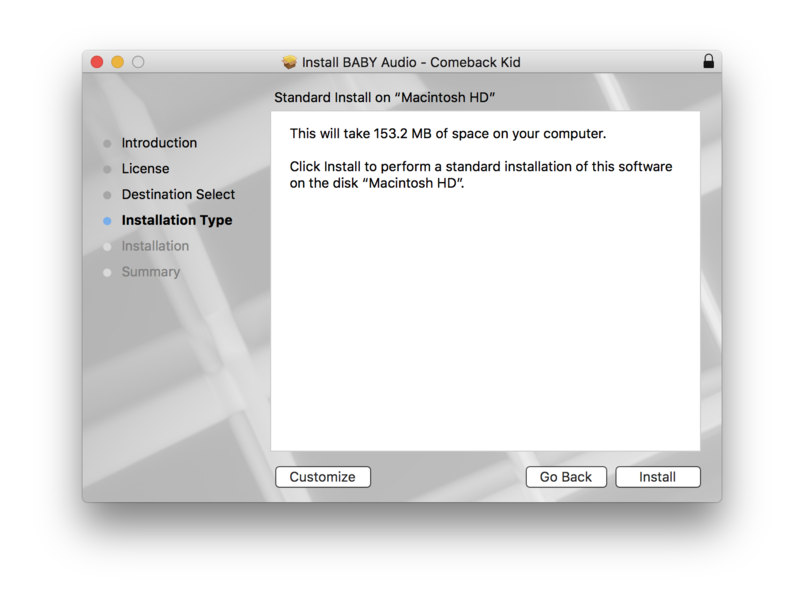
4. Click 'Install'.
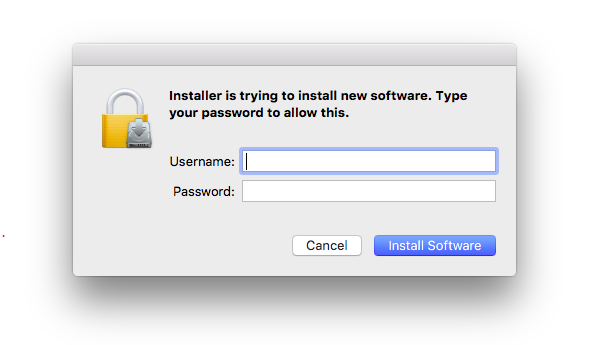
5. Enter your computer username and password > Click 'Install Software'.
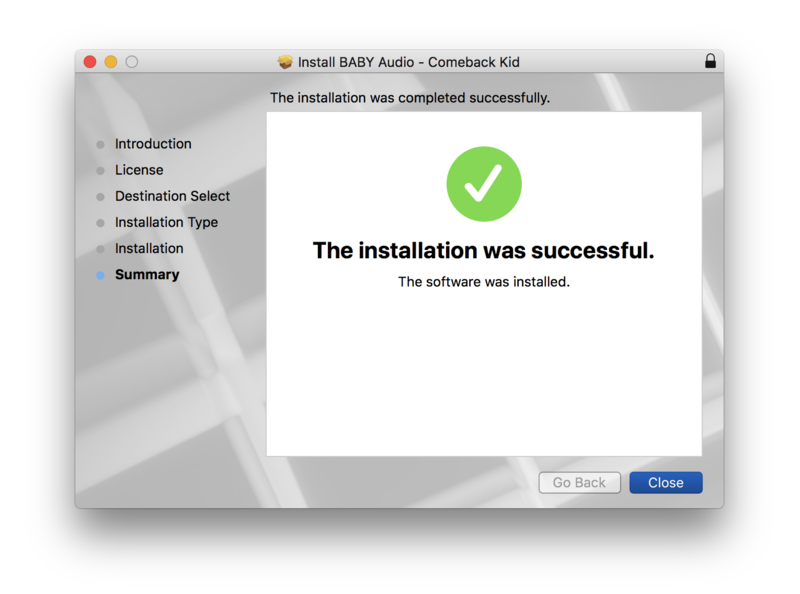
6. Click 'Close'.
Activation
1. Open the plugin within your DAW.
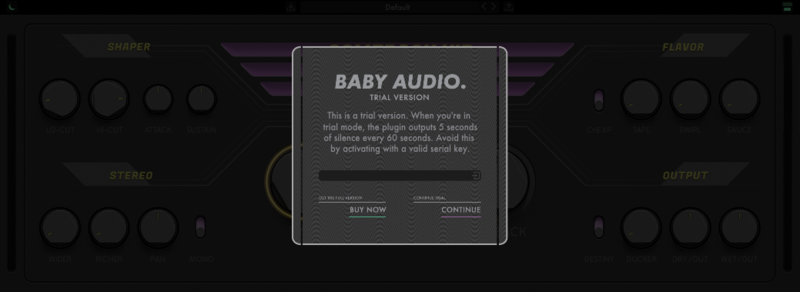
2. Enter the serial number, found within your Plugin Boutique account > In order to proceed, click the small green button next to the box containing your serial number.
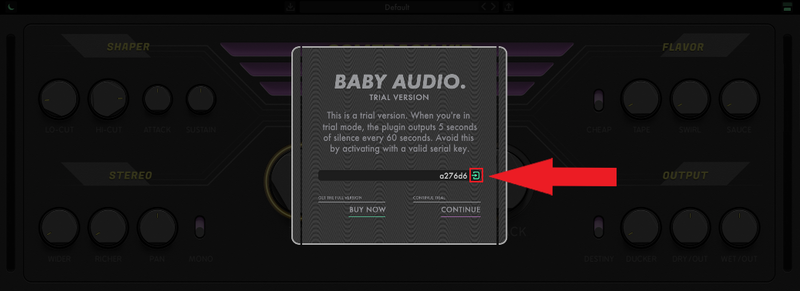
3. Click anywhere on the plugin interface to continue.
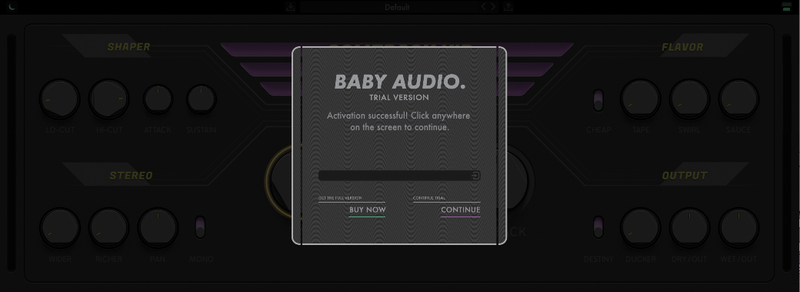
Your software is now installed and ready to use within your DAW.
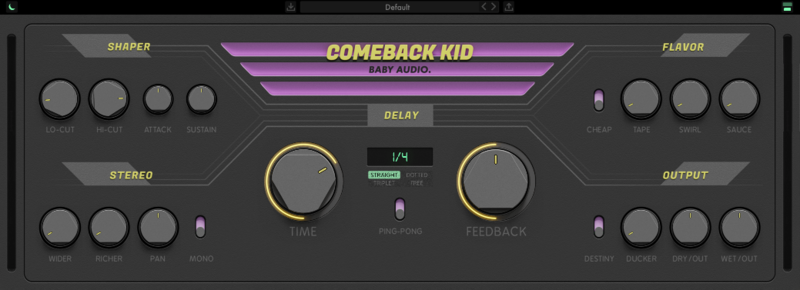
Windows
Installation
1. Download the installer from within your Plugin Boutique account and double-click it to extract the contents > Open the .exe file to begin the installation.
2. Select 'I accept the agreement' > Click 'Next'.
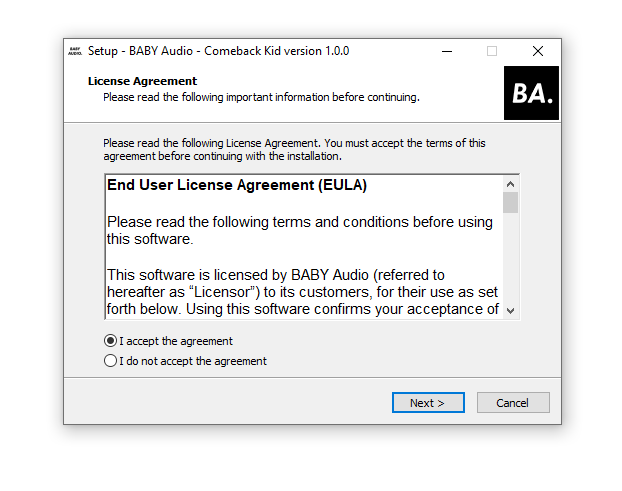
3. Click 'Next'.
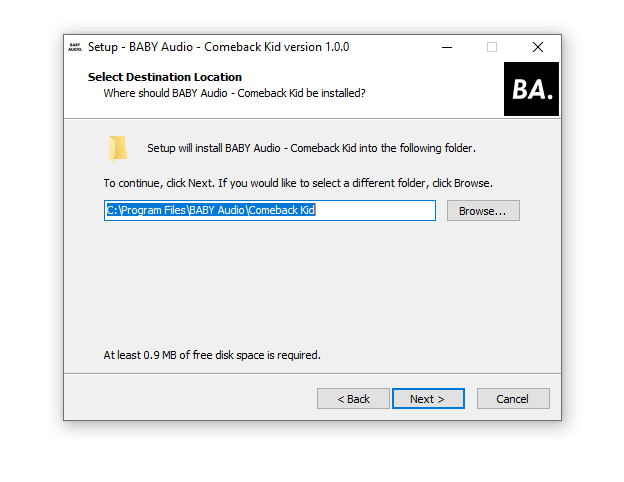
4. Click 'Next'.
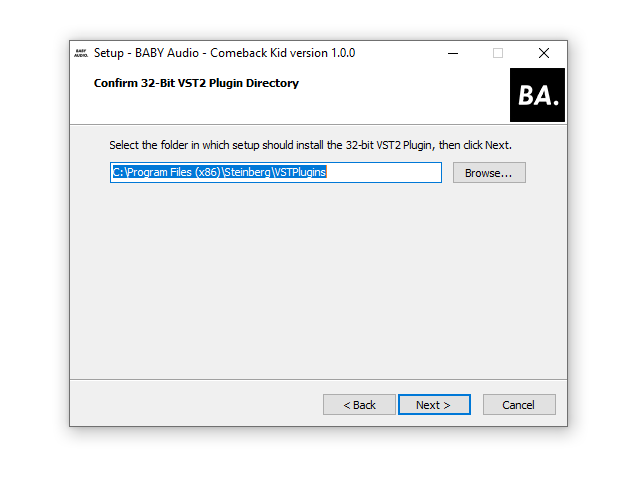
5. Click 'Next'.
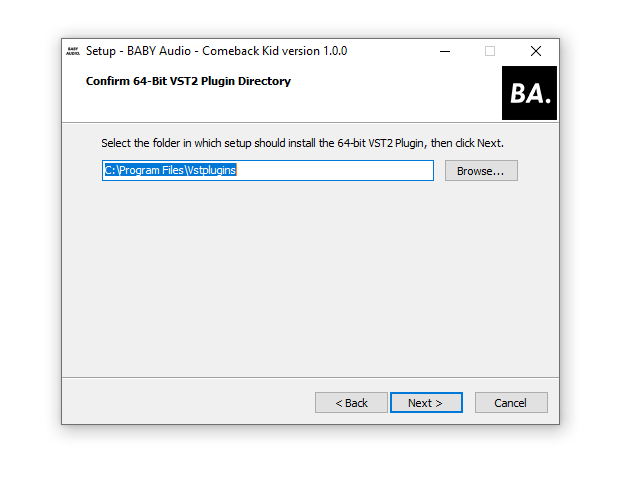
6. Click 'Next'.
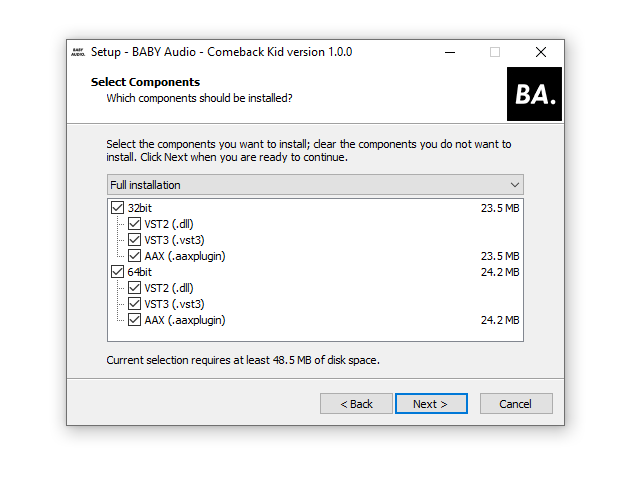
7. Click 'Install'.
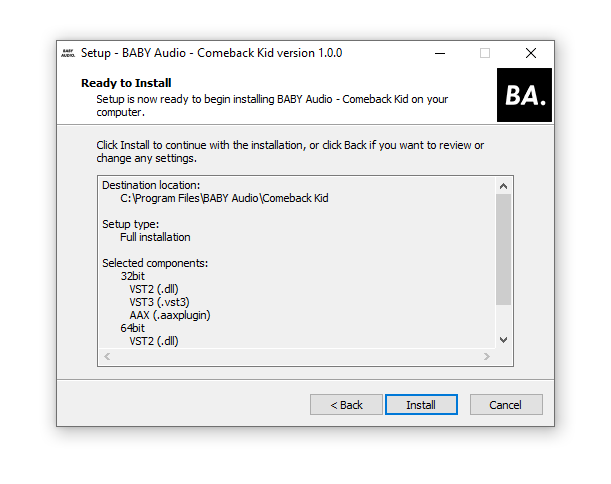
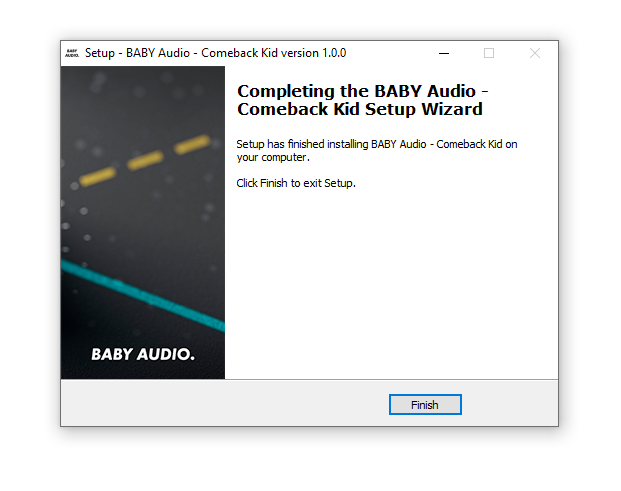
8. Click 'Finish'.
Activation
1. Open the plugin within your DAW.
2. Enter the serial number, found within your Plugin Boutique account > Click the small green button next to the box containing your serial number.
3. Click anywhere on the plugin interface to continue.
Your software is now installed and ready to use within your DAW.
If you would like any further assistance with your software, please feel free to reach out to our support team at support@pluginboutique.com.