
This guide provides information on how to register, authorise and install your Brainworx & Plugin Alliance software.
System Requirements
Mac
macOS 10.13 or later (Apple Silicon Native supported) (64-bit only)
2 GB RAM (4 GB recommended)
Internet connection (during installation only)
VST, AU, AAX
Windows
Windows 7 - 11 (64-bit only)
2 GB RAM (4 GB recommended)
Internet connection (during installation only)
VST, AAX
Please Note: This software is 64-bit only and will not function on 32-bit systems.
Hosts:
This product should run on any host supporting 64-bit VST, AU, or AAX plugins. XLN Audio actively tests on the host applications listed below:
Ableton Live 9 or later
Apple Logic Pro 9 & 10
Avid Pro Tools 11 or later (Pro Tools First is not supported)
Cakewalk by Bandlab
FL Studio 20
Propellerhead Reason 9.5 or later
Reaper 5 or later
Steinberg Cubase 8 or later
Mac Installation Guide
Windows Installation Guide
Installation Instructions
Account Registration
(If you have already created an XLN Audio account previously, please skip this part).
1. Go to the XLN Audio registration page (where you can now register for an account, and register your product key at the same time).
2. Enter your details, click 'I have a product key to register' and enter the code found in your Plugin Boutique account (displayed as Serial Number).
3. Click 'I agree to the Terms & Conditions' and then click REGISTER.
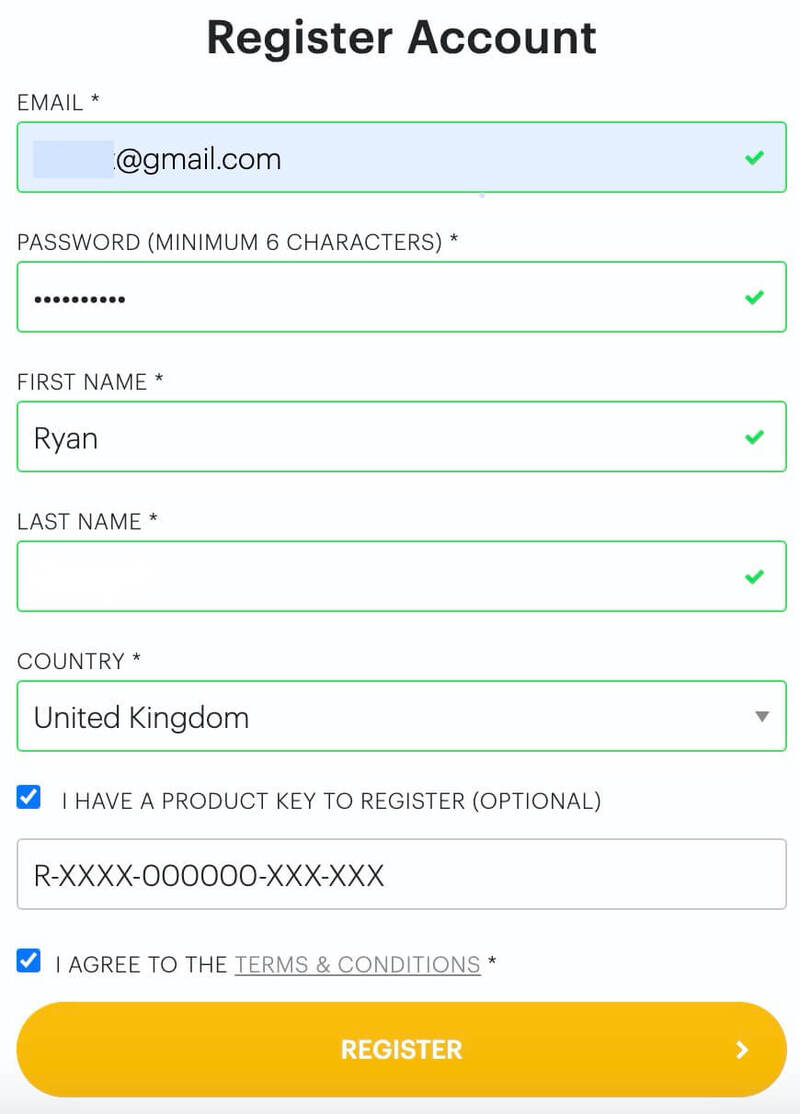
You have now created an XLN Audio account and registered your product key.
Product Registration
(If you registered your product earlier when creating an account, skip this part).
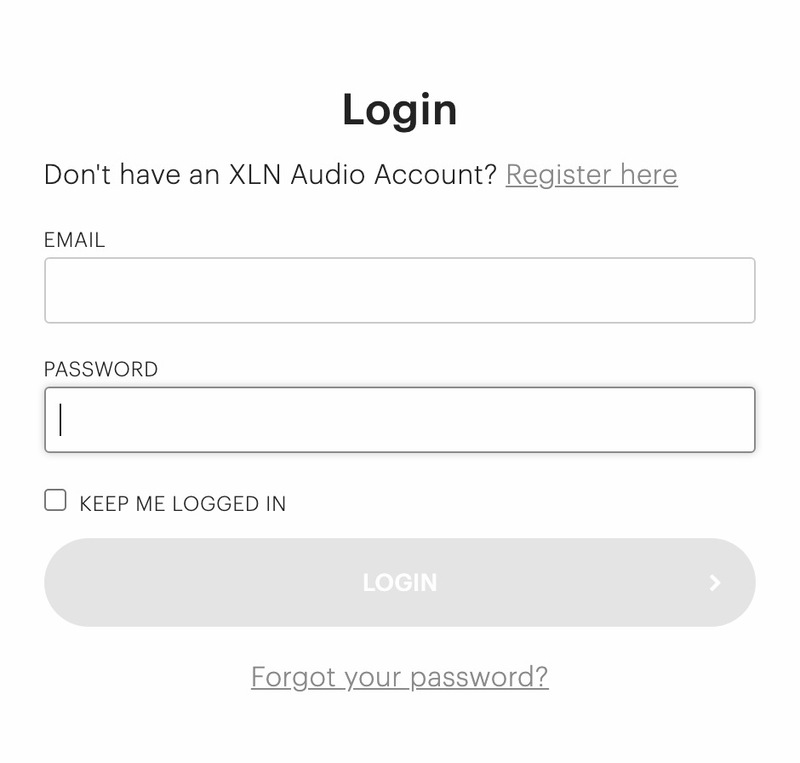
1. Log in to your XLN Audio account.
2. Hover over My Account and select Register Product Key.

3. Enter the product key found in your Plugin Boutique account and click REGISTER PRODUCT KEY.
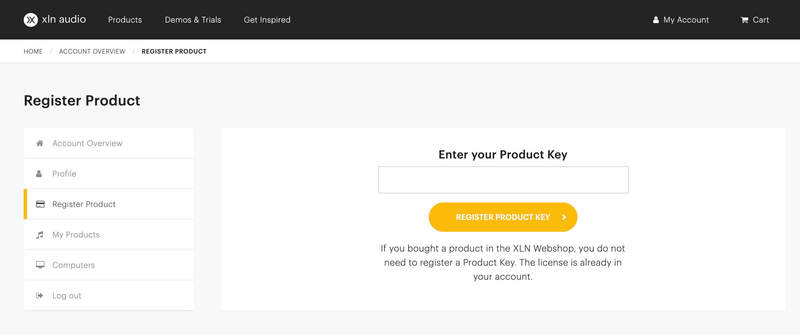
Your product has now been added to your XLN Audio account.
Mac
XLN Online Installer Installation
1. Download the Mac XLN Online Installer from your Plugin Boutique account and open it.
2. Double-click to install the XLN Online Installer.
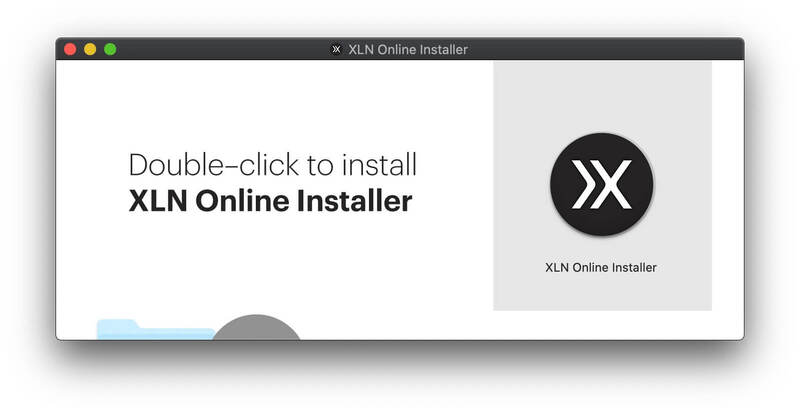
3. Click Open (depending on your version of macOS, you may not encounter this security message).
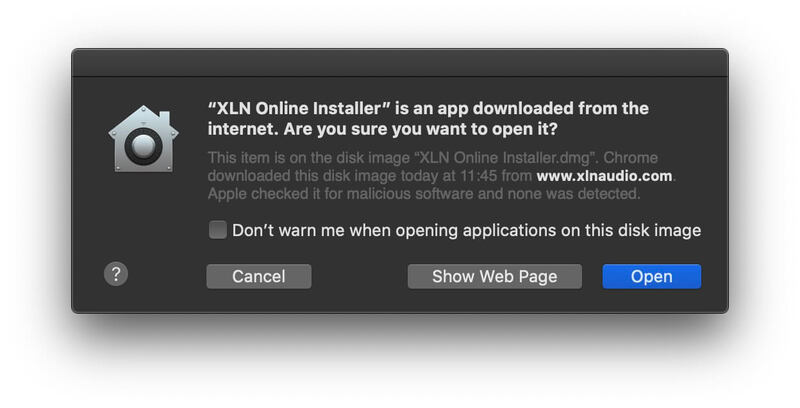
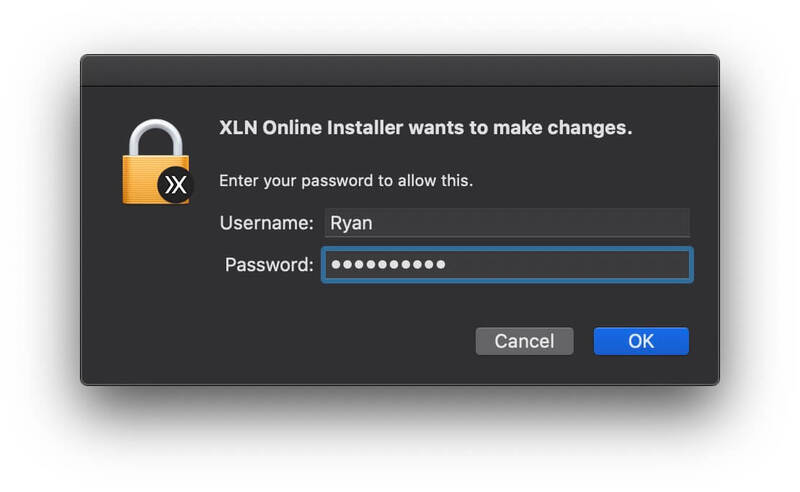
4. Enter your password and click OK.
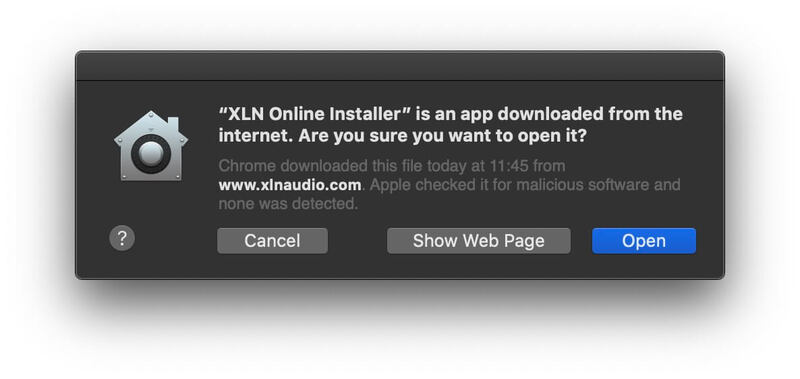
5. Click Open to finalise the security prompt.
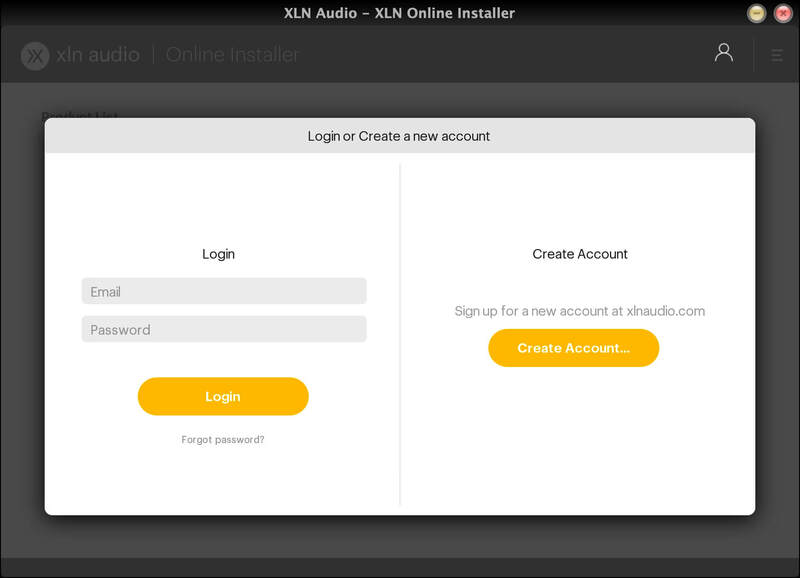
6. Log in to your XLN Audio account.
7. Enter a name for your Mac and click Register Computer.
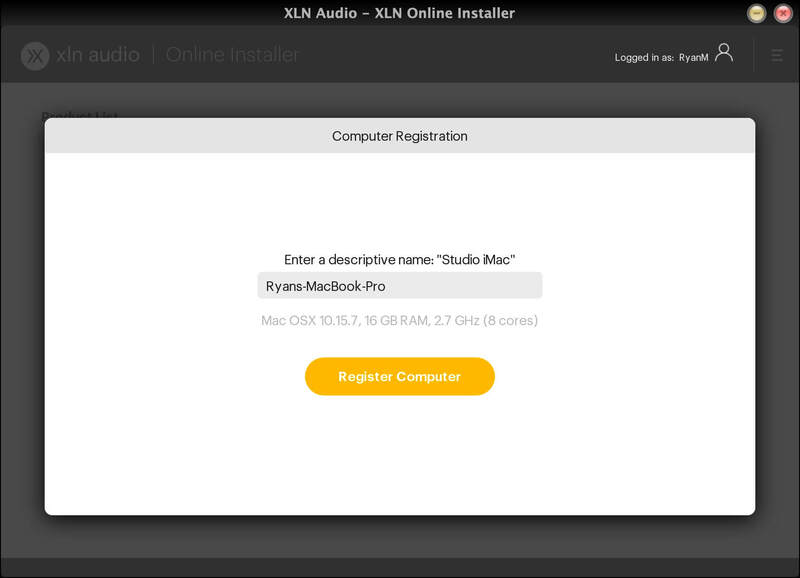
The XLN Online Installer is now installed.
Product Installation
1. Make sure your new product is selected and click 'Click to start - Install: 1'.
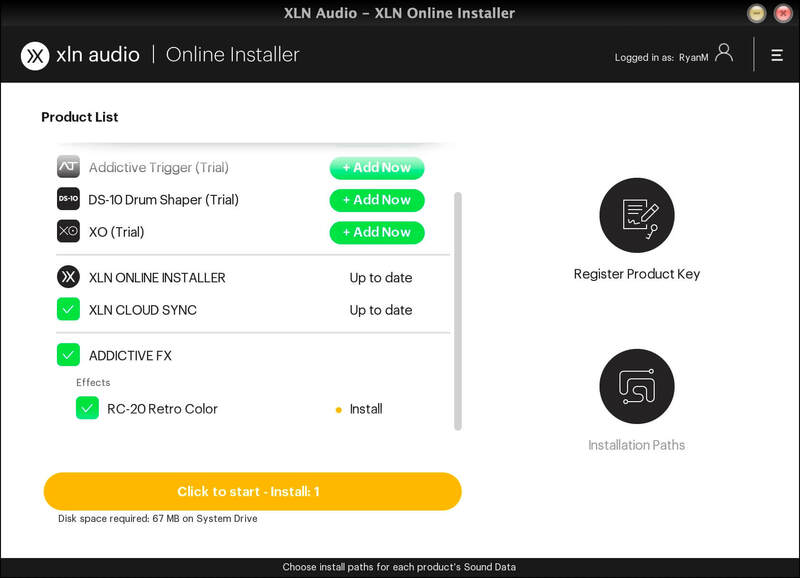
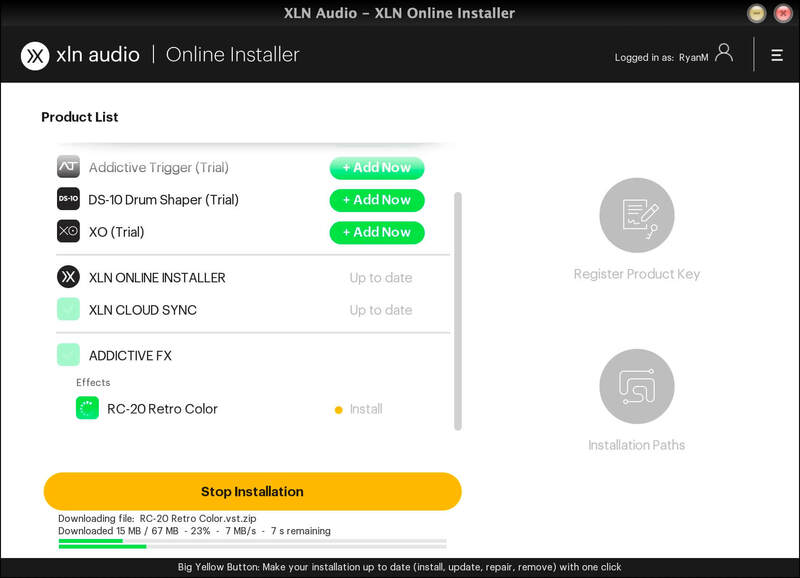
2. Your software will now install.
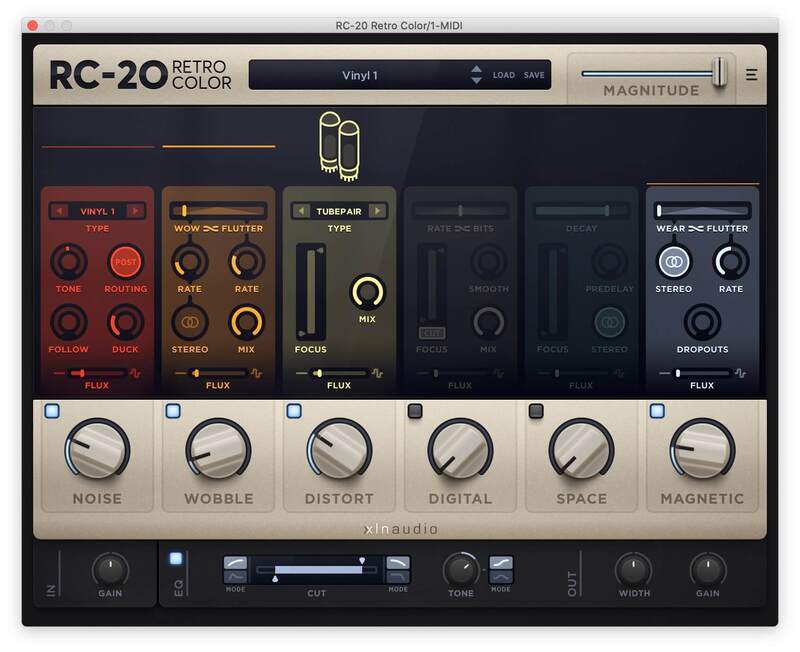
Your software is now activated and ready for use within your DAW.
Windows
Online Installer Installation
1. Download the Windows XLN Audio Online Installer from your Plugin Boutique account and open it.
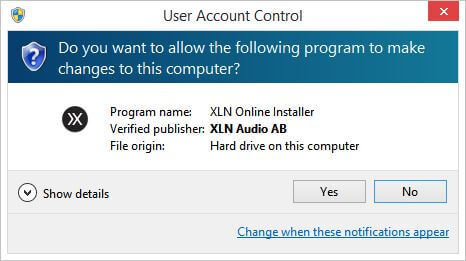
2. Click Yes to allow the application to run.
3. Log into your XLN Audio account.
4. Enter a name for your computer and click Register Computer.
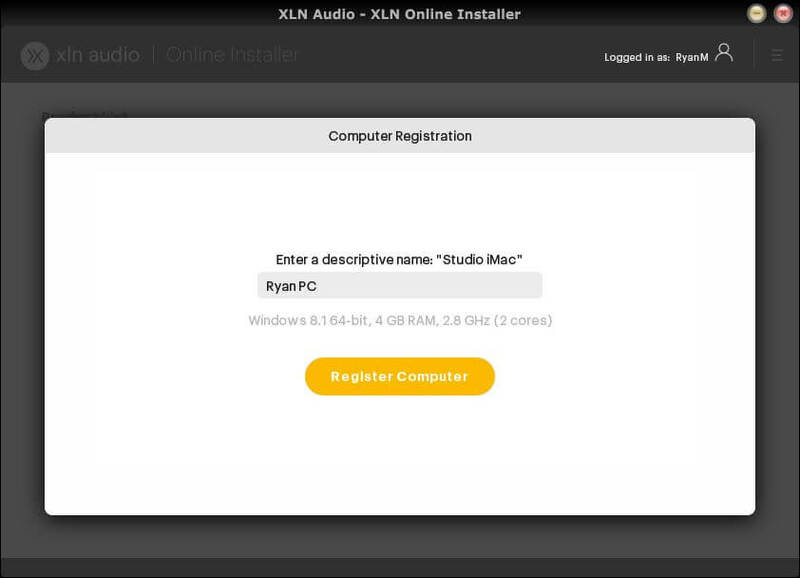
The XLN Online Installer is now installed.
Product Installation
1. Make sure your new product is selected and click 'Click to start - Install: 1'.
2. Your software will now install.
Your software is now activated and ready for use within your DAW.
If you would like any further assistance with your software, please feel free to reach out to our support team at support@pluginboutique.com.