
Welcome to the W. A. Production installation page.
Please take a look at our installation guide videos below, which provide information on how to register, install and authorise your W. A. Production software.
System Requirements
Windows
- Windows 8 and later (64-bit only)
- Formats: VST2, VST3, AAX
Mac
- macOS 10.10 and later (64-bit only)
- Formats: VST2, VST3, AAX, AU
Please Note: AAX compatible with ProTools 11 and higher only.
Important Note for Mac Apple Silicon users: Before purchasing, please review the current compatibility status of this plugin on your system here.
Mac Video Installation Guide
Windows Video Installation Guide
Alternatively, you can follow the step-by-step instructions below for your software.
Registration
1. Click the Download button in your Plugin Boutique account or go to https://www.waproduction.com/users/login
2. Click 'Create New Account' (if you already have a W.A Production account, enter your details, log in and skip to step 5).

3. Enter your details > Choose your marketing preferences > Click 'Finish Registration'.

4. Your account has been registered > Click 'Register Plugin'.

5. On the license registration page, enter the license key from your Plugin Boutique account (which will be referred to as 'serial number' on our site) > Click 'Add'.

6. Your product will now be displayed in your W.A Production account > Scroll down to My Orders and click 'View Order'.

7. Click 'Download Files'.

8. Click 'Download'.

Mac Installation
1. Once the download is complete, extract and open the ZIP folder you just downloaded > Open the Mac folder > Double-click the CHORDS .pkg installer file.
2. Click 'Continue'.
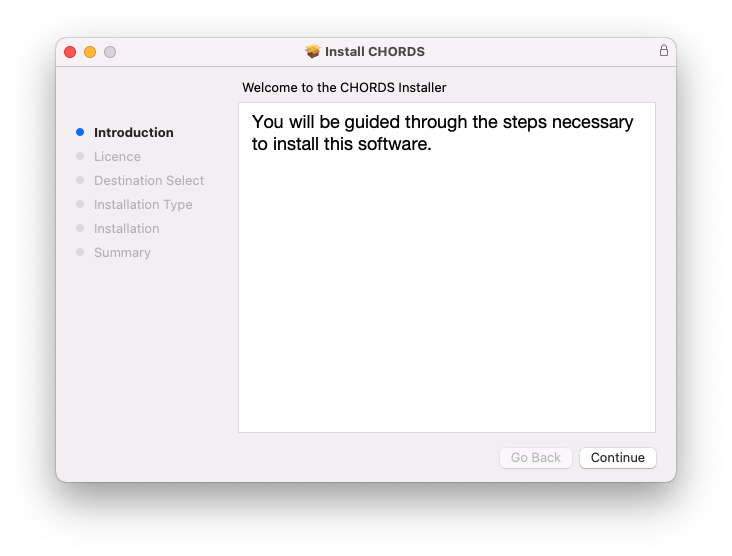
3. Read the Software License Agreement > Click 'Continue'.
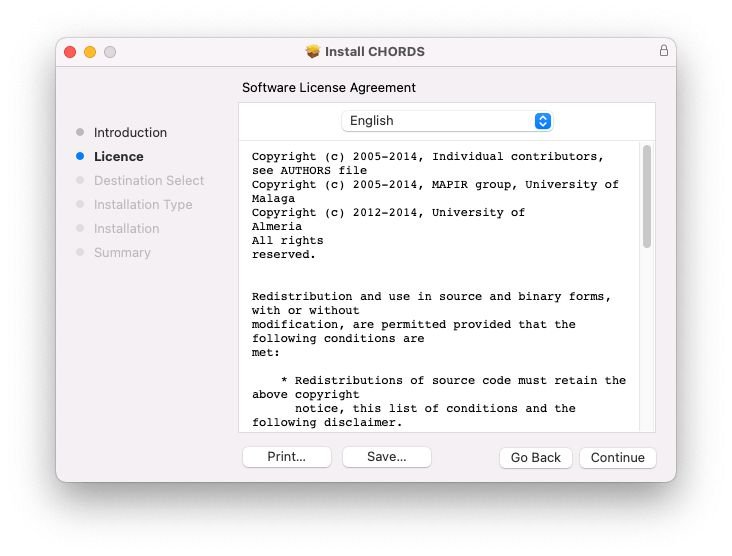
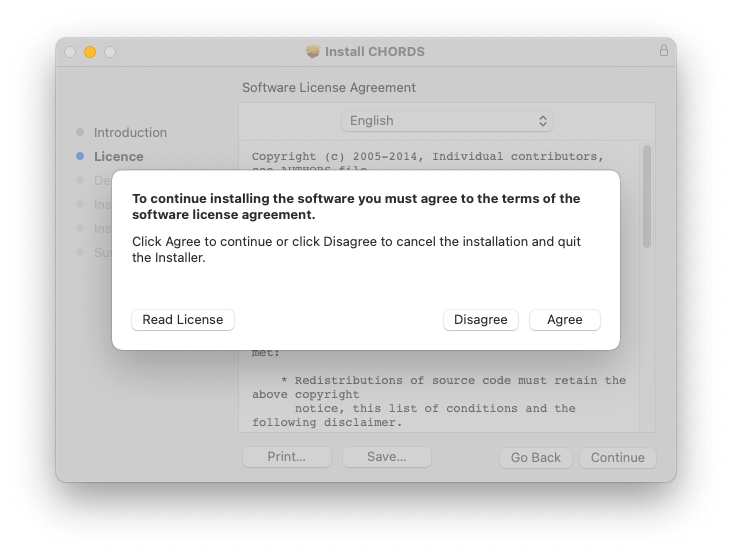
4. Click 'Agree'.
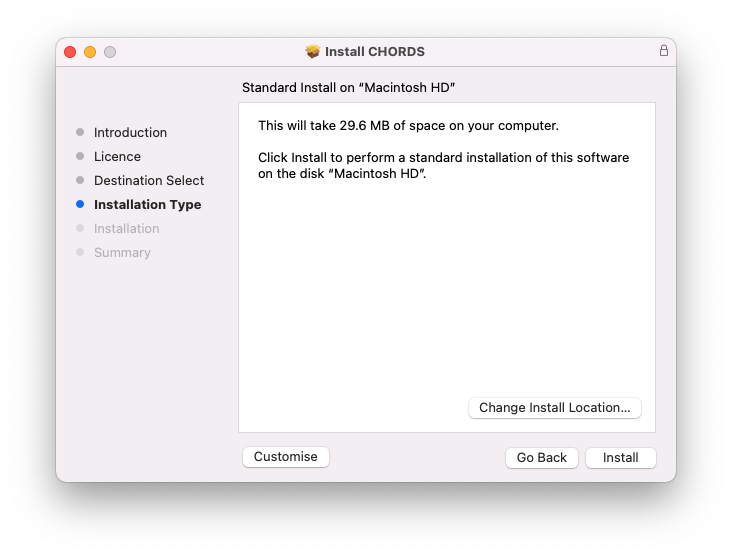
5. Click 'Install'.
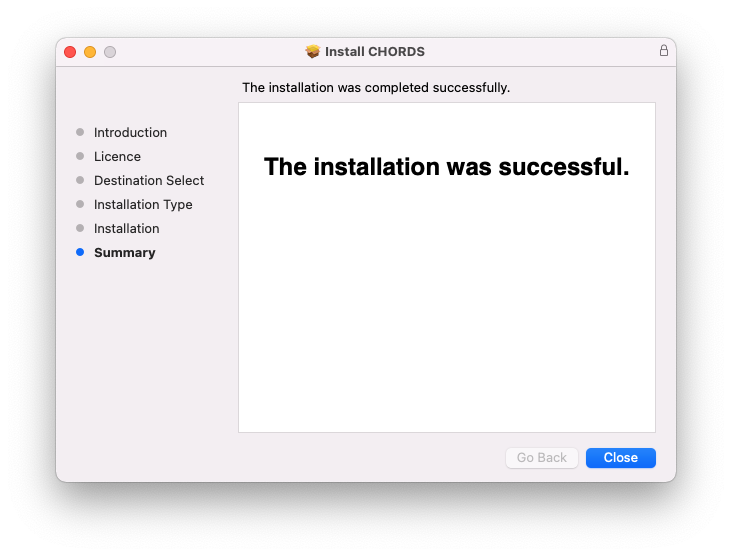
6. Click 'Close'.
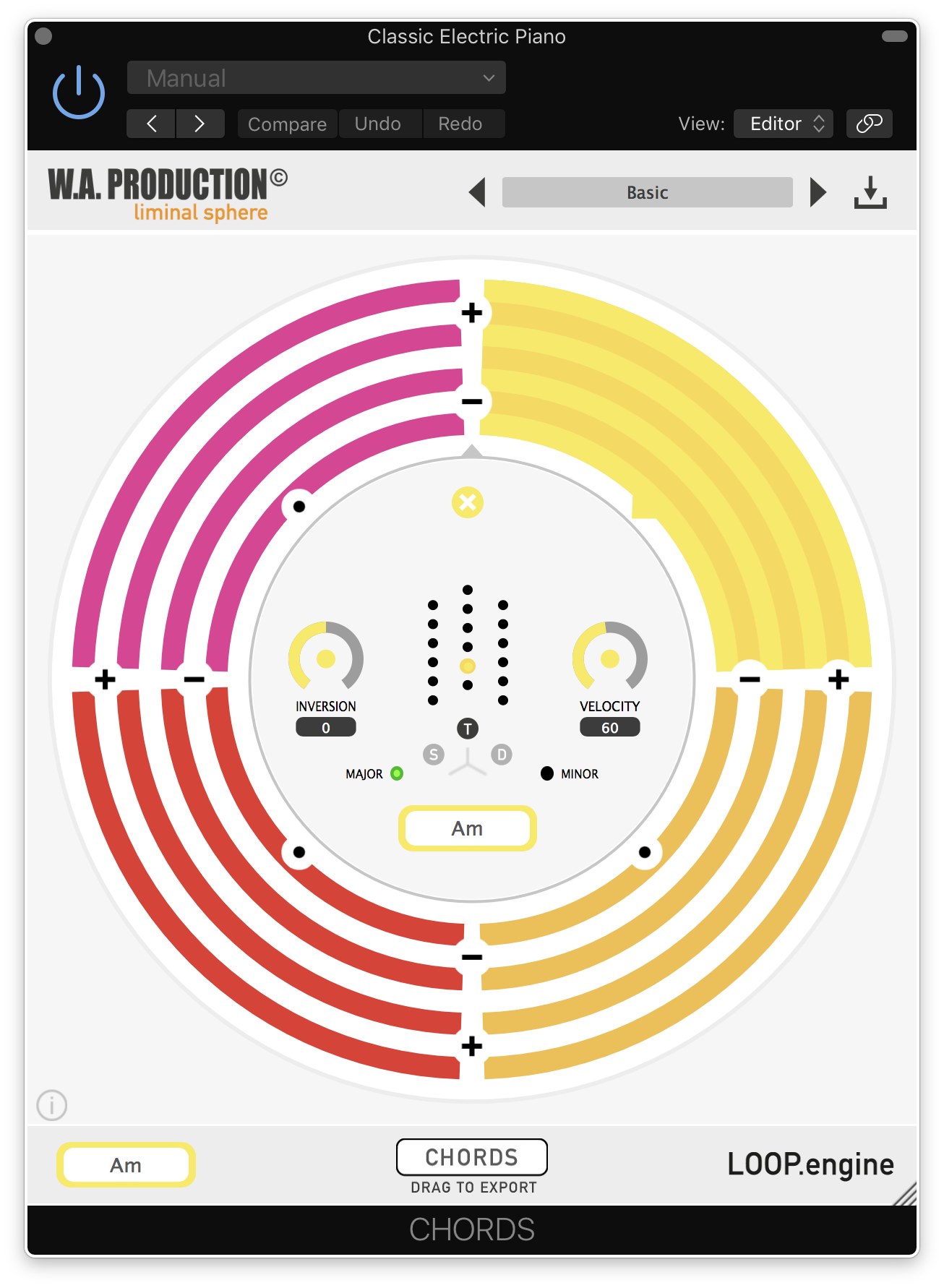
7. Open CHORDS in your DAW.
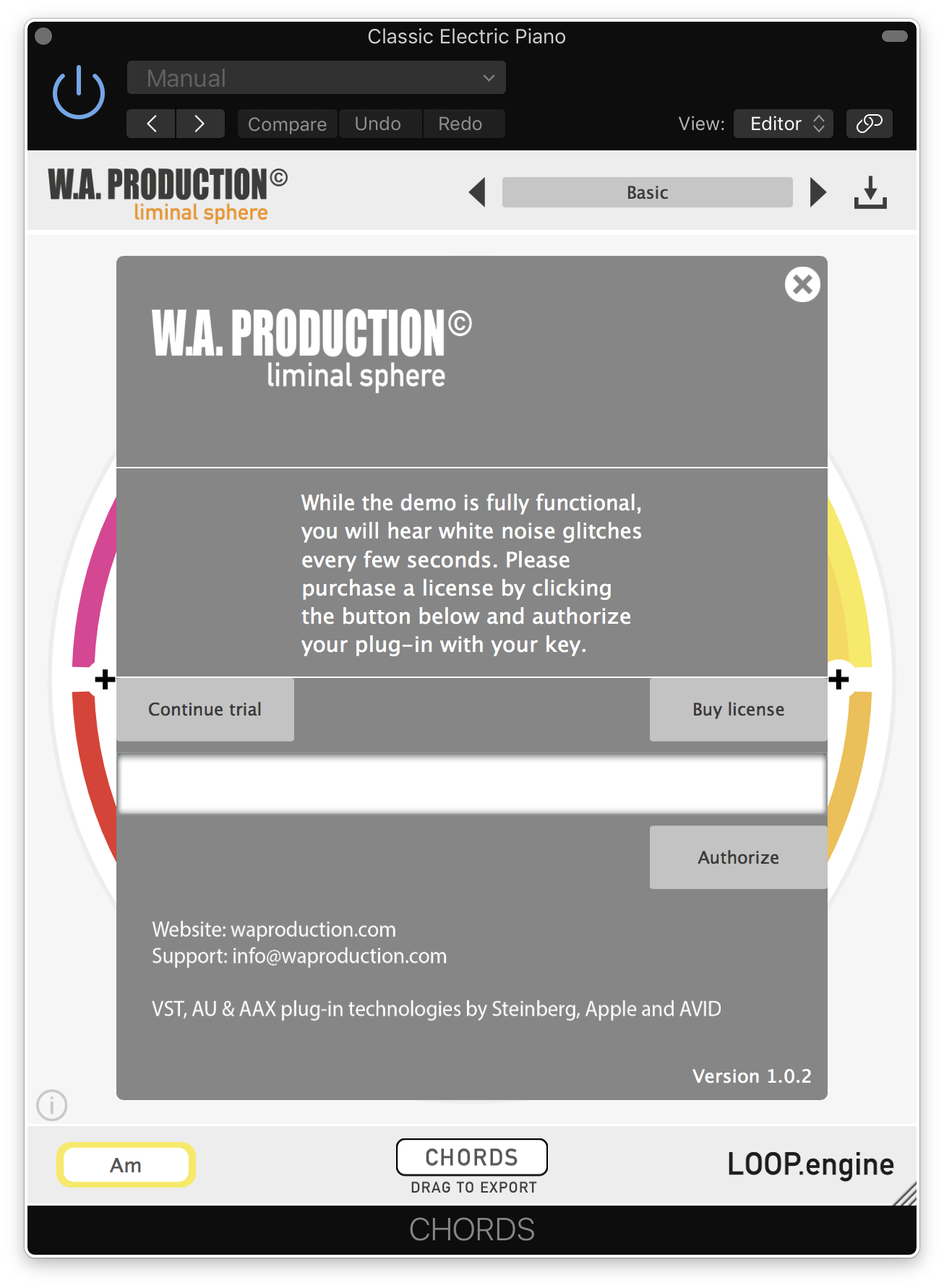
8. Click the information icon in the bottom left-hand corner > Enter the serial number you were given in your W.A Production account > Click 'Authorize'.
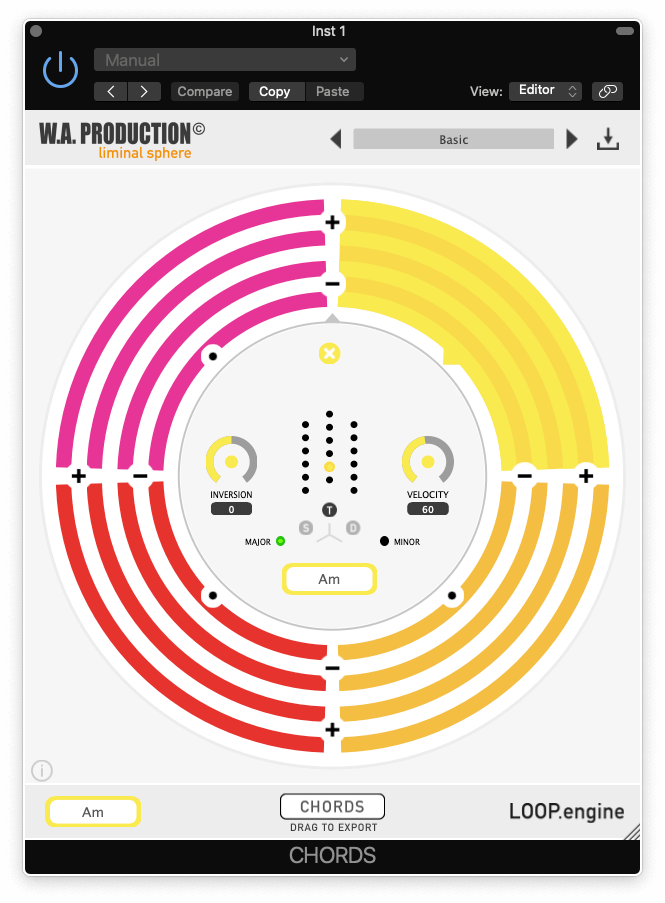
Your software is now ready to use in your DAW!
Windows Installation
1. Once the download is complete, extract and open the ZIP folder you just downloaded > Open the PC folder > Double-click the CHORDS PC installer file.
2. Click 'Next'.

3. Click 'Next'.

4. Select which plugin formats you would like to install > Click 'Next' > Click 'Install'.

5. Click 'Finish'.

6. Open CHORDS in your DAW.

7. Click the information icon in the bottom left-hand corner > Enter the serial number you were given in your W.A Production account > Click 'Authorize'.

Your software is now activated and ready to use in your DAW!
If you would like any further assistance with your software, please feel free to reach out to our support team at support@pluginboutique.com.