
Welcome to the Rhodes installation page.
Please take a look at our installation guide videos below, which provide information on how to register, install and authorise your Rhodes software.
System Requirements
Operating System:
Mac
- MacOS: Big Sur (11) – Sonoma (14) Intel and Apple Silicon supported, Rosetta and Native
- VST2, VST3, AU, AAX
Important note: Rhodes are aware of an issue with their third-party copy protection provider. This means that Rhodes software is currently not working with GarageBand on Macs with Intel processors.
Windows
- Windows 10 – 11
- VST2, VST3, AAX
- RAM: 8GB minimum
- Disk Space: 1.2GB
- Display: 1280 x 960 minimum, UI resizable.
- Internet Connection: Required
Mac Video Installation Guide
Windows Video Installation Guide
Alternatively, you can follow the step-by-step instructions below for your software.
Mac Installation
1. Download the ZIP folder from your Plugin Boutique account > Open.
2. Double-click the application installation file to run the downloader > The plugin data will now be downloaded.
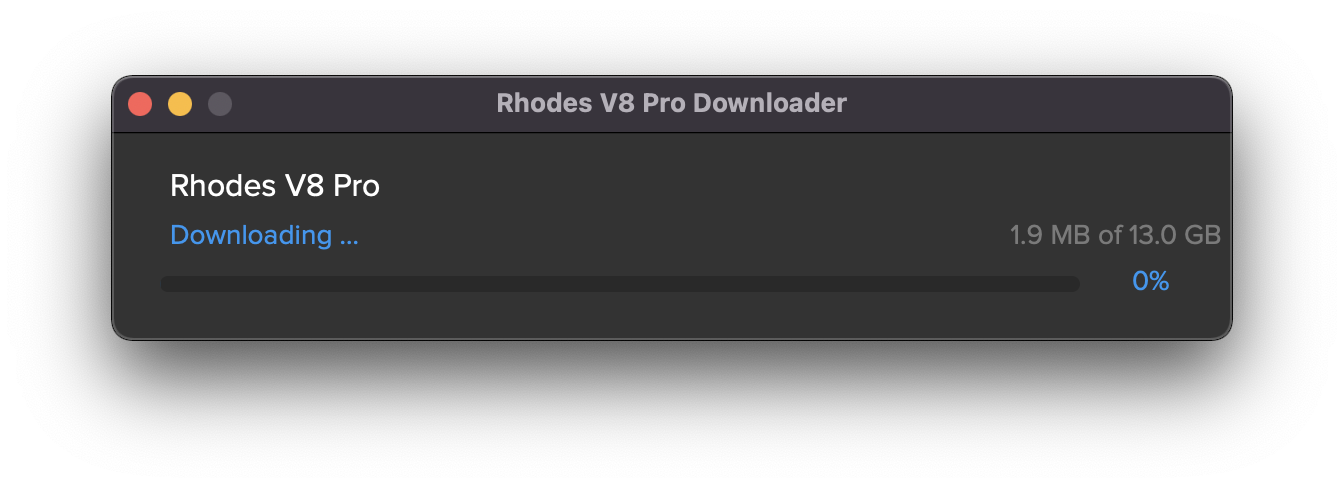
3. Double click the .PKG file to run the installer.
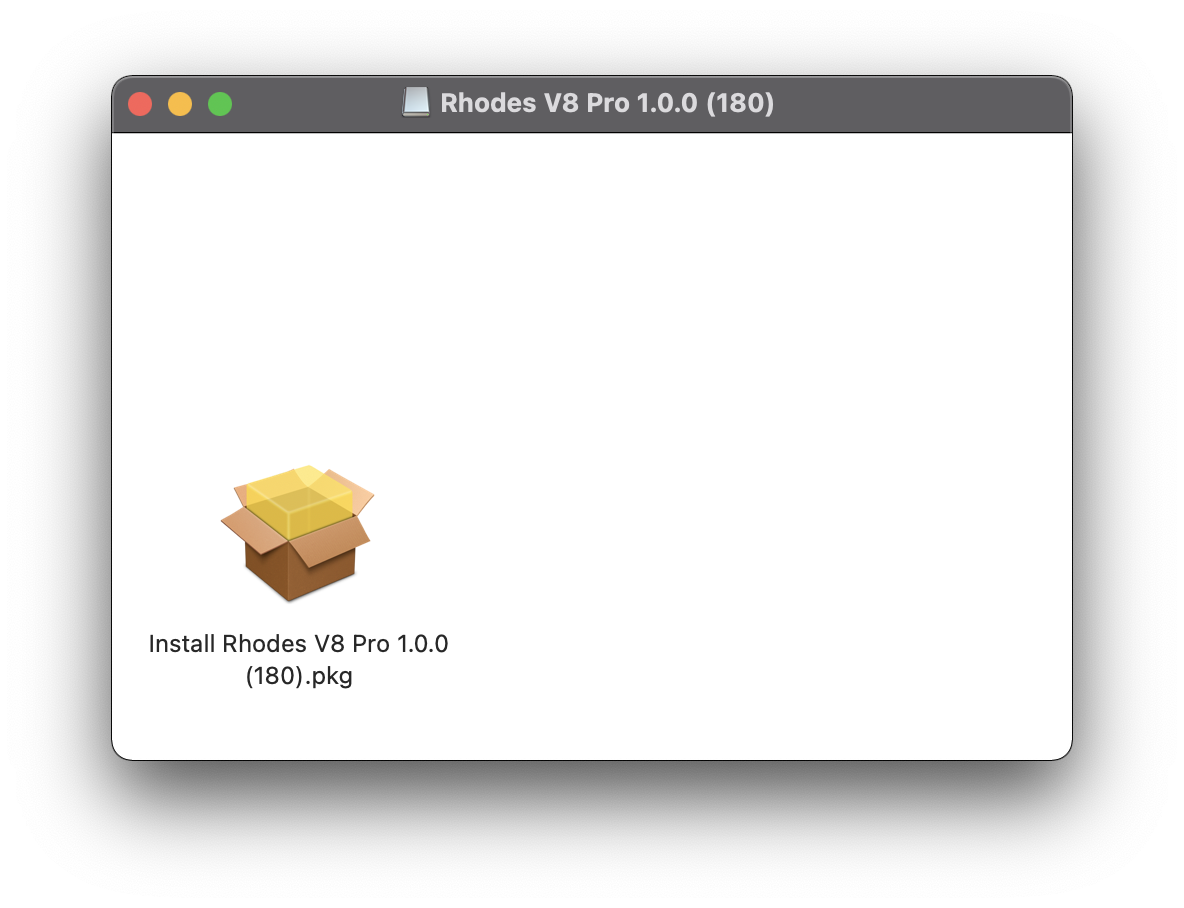
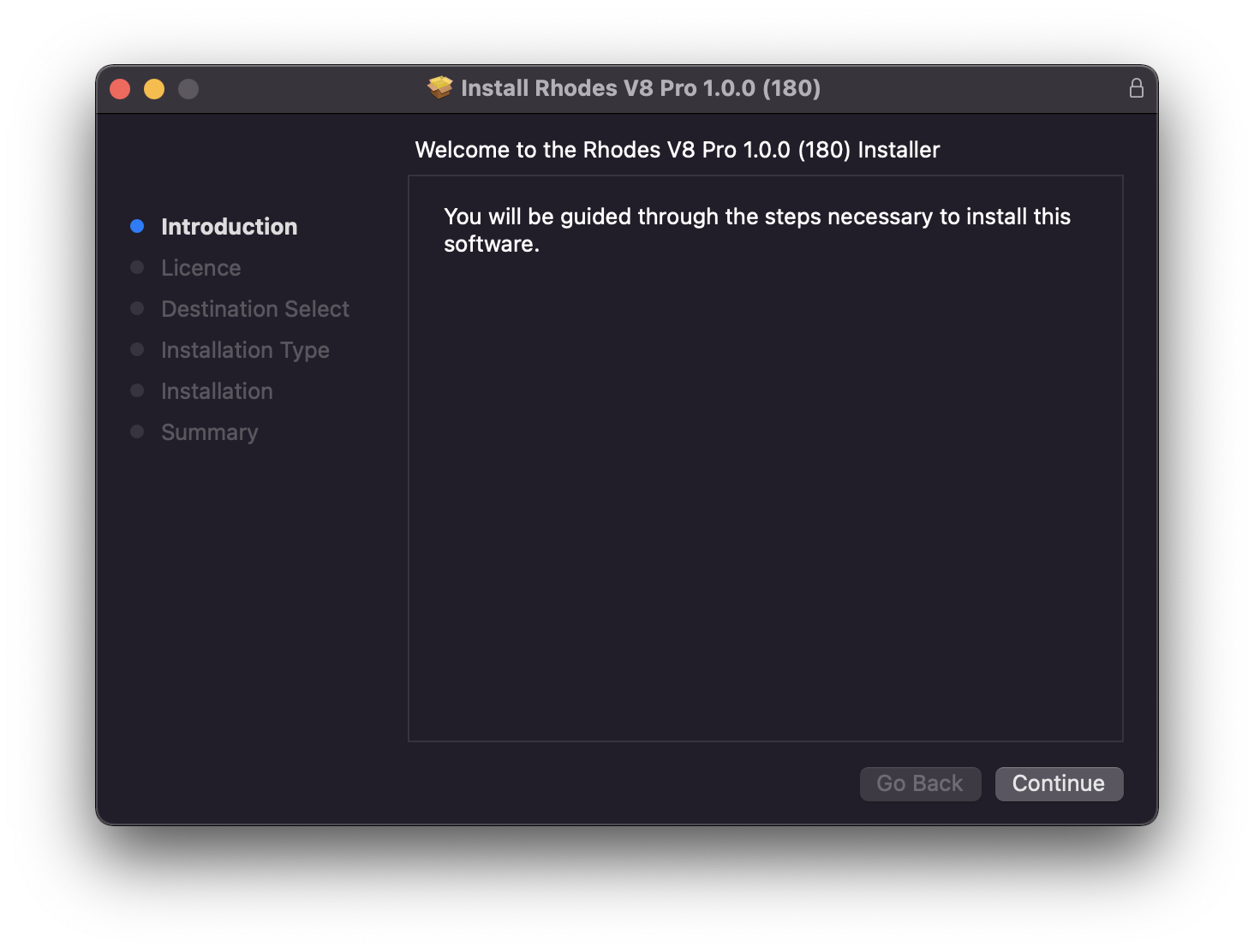
4. Click 'Continue'.
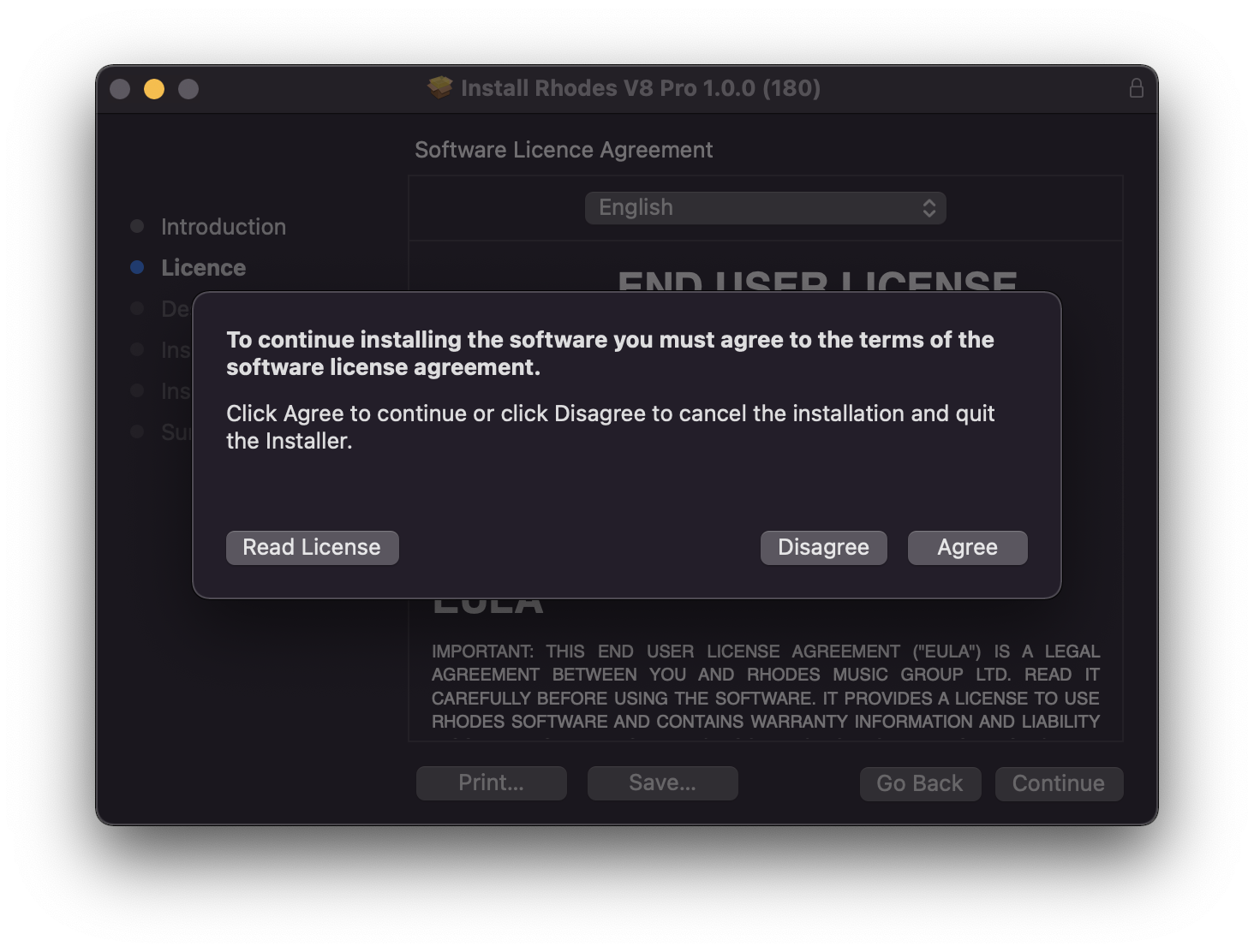
5. Click 'Agree'.
6. Choose the install location > Click 'Continue'.
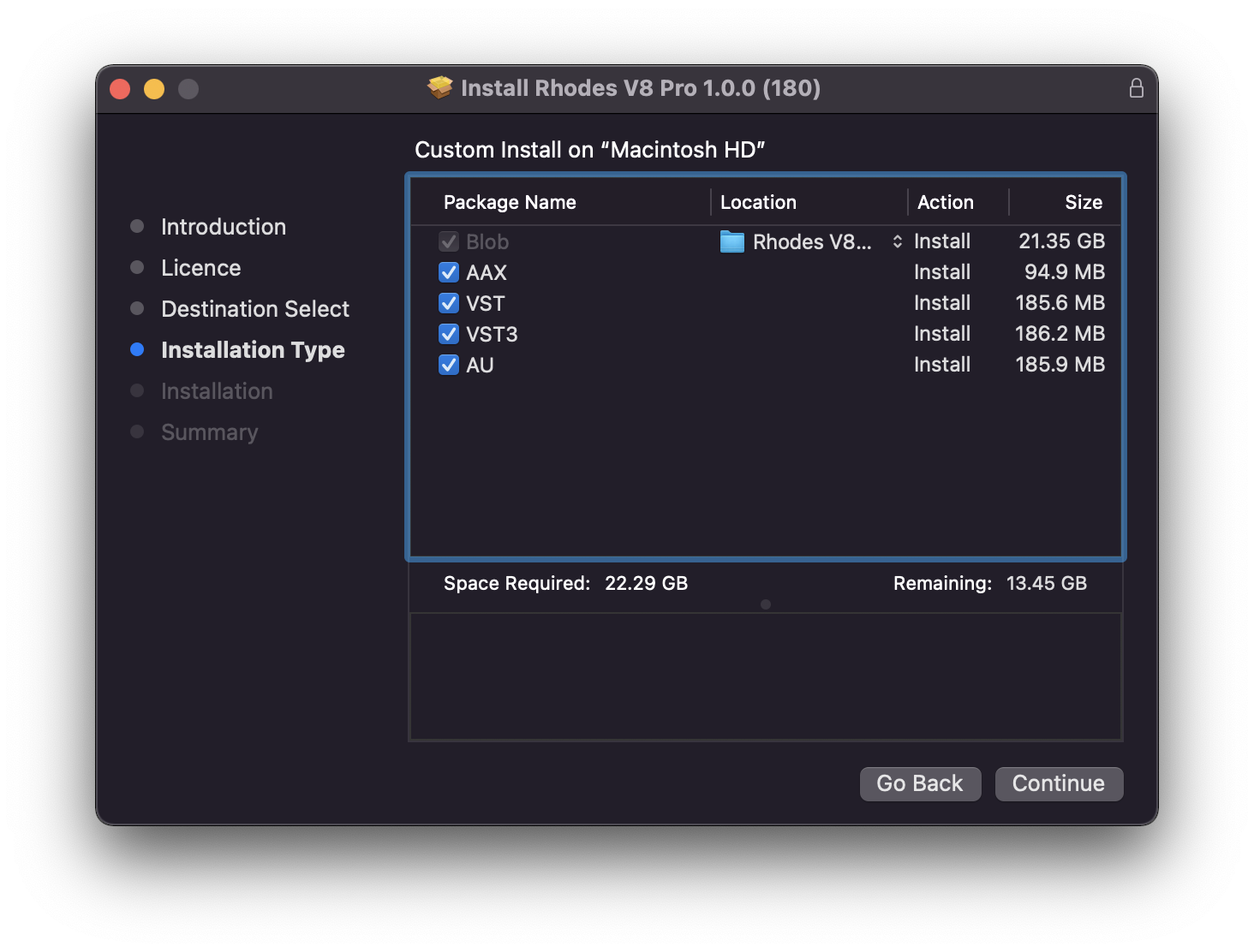
7. Click 'Install'.
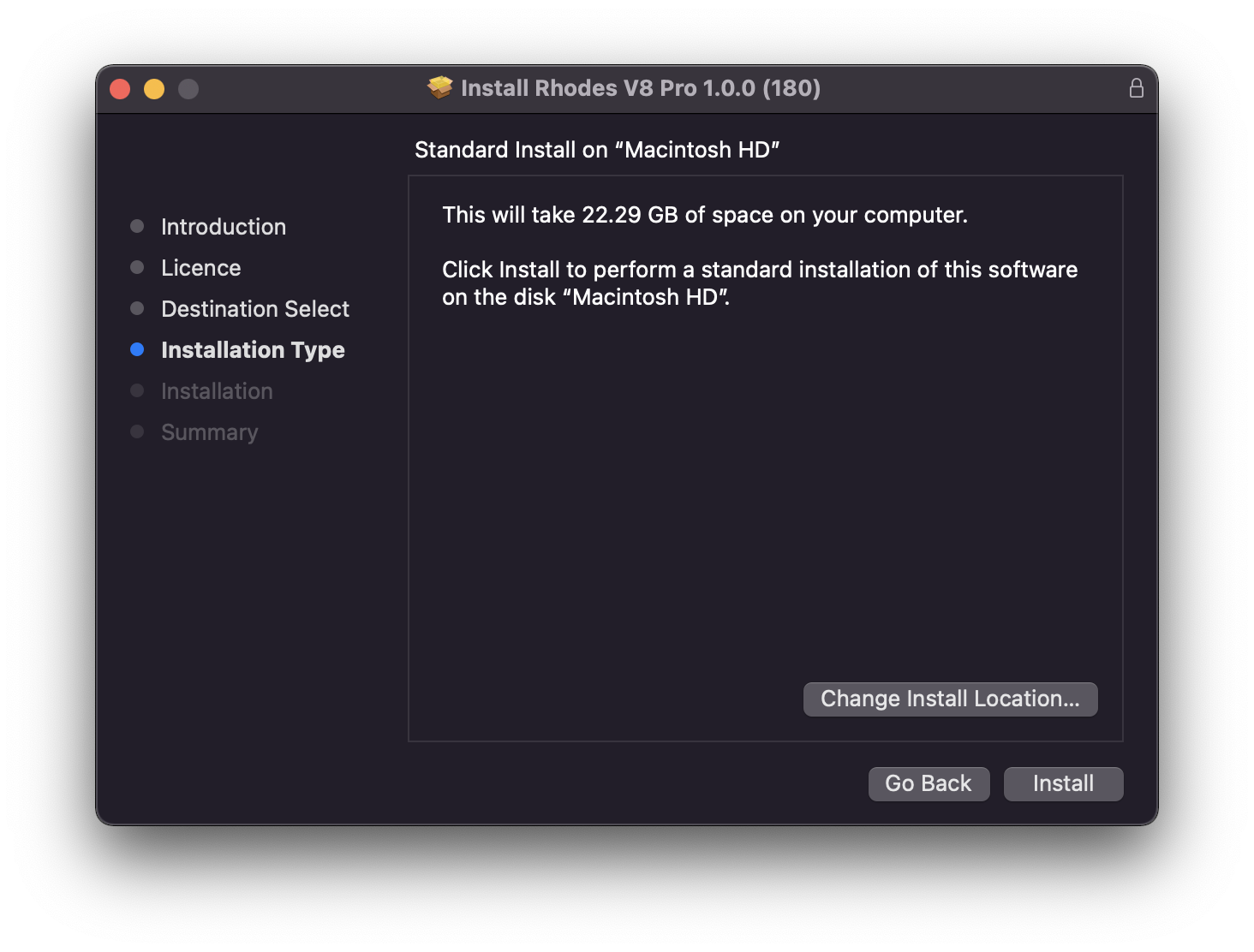
8. Click 'Close' > Open your DAW and locate Rhodes V8 Pro.
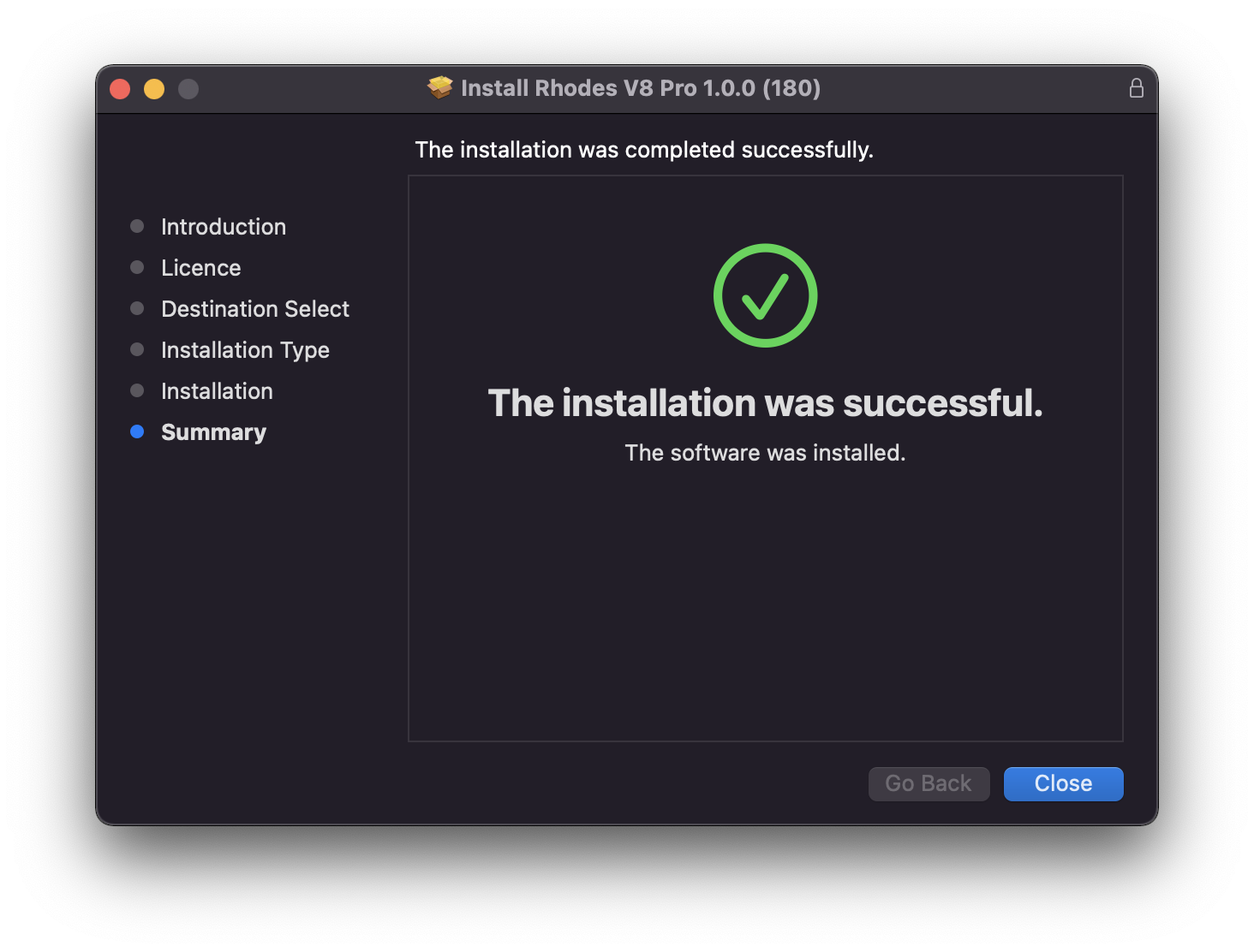
9. Enter your License Code, listed under 'Serial Number' within your Plugin Boutique User Account, and click 'Activate License'.
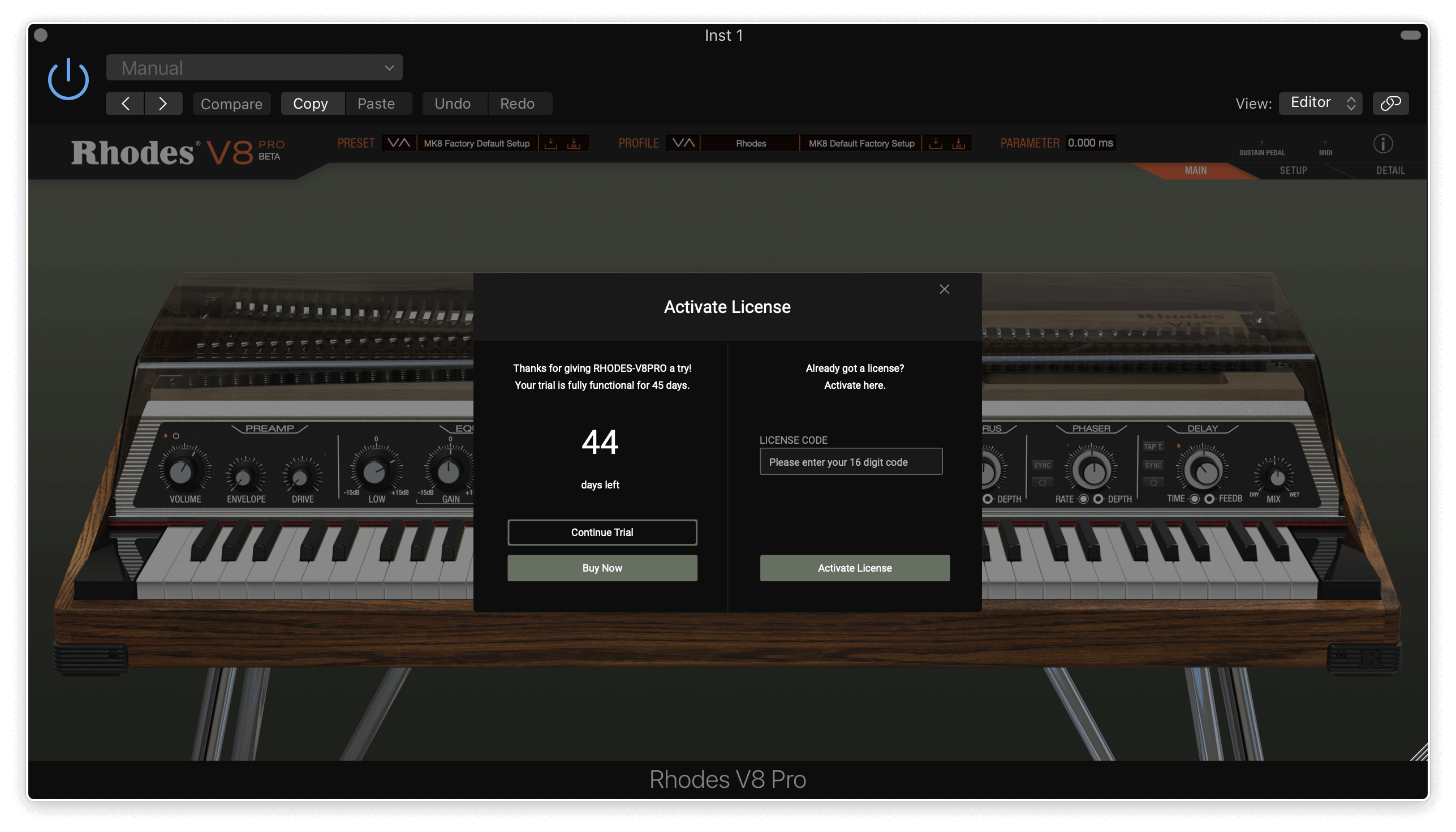
Your software is now installed and ready to use in your DAW.
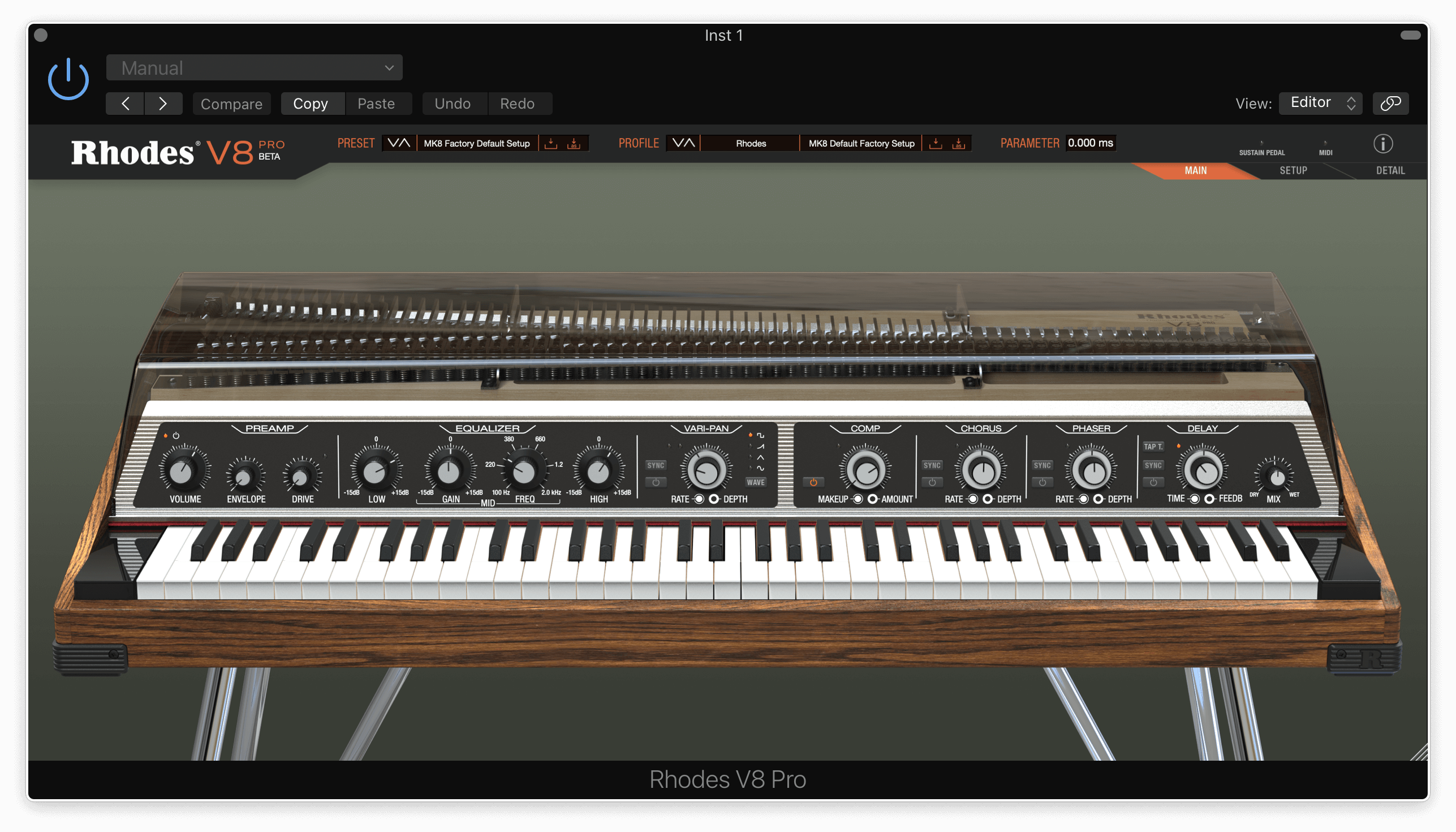
Windows Installation
1. Download the installer from your Plugin Boutique account > Extract the folder.
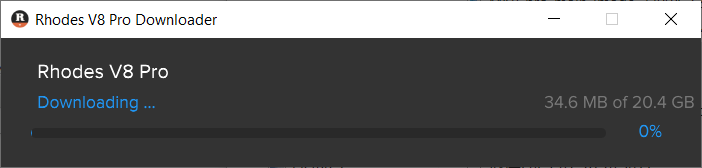
2. Double-click the Windows installation file to run the installer > The plugin data will now be downloaded.
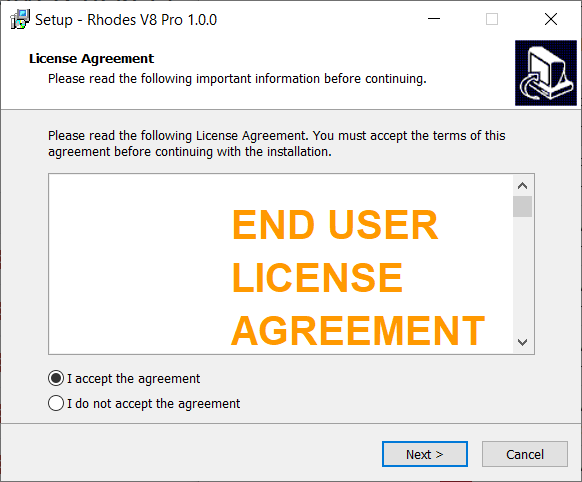
3. Read the License Agreement > Select 'I accept the agreement' > Click 'Next'.
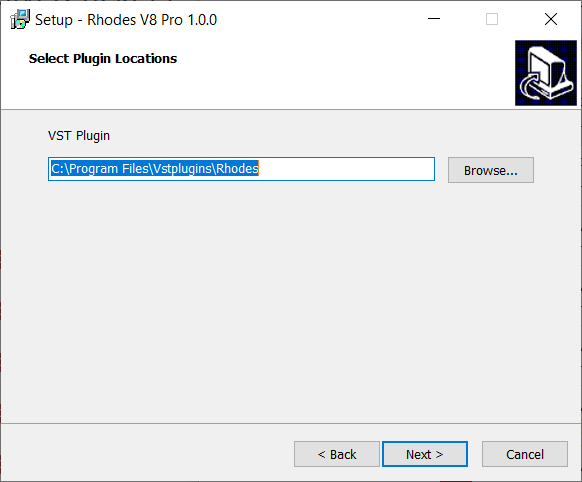
4. Select plugin installation location > Click 'Next'.
5. Select the content location (this should be correct by default). Click 'Next'.
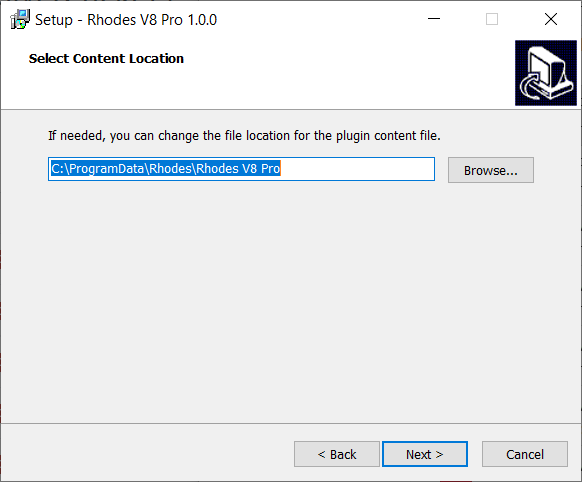
6. Click 'Install'.
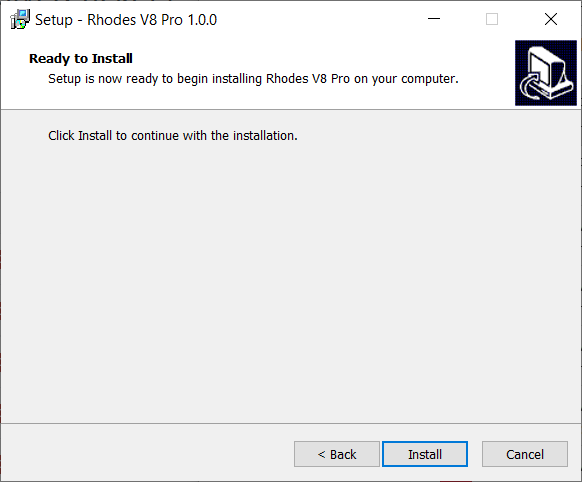
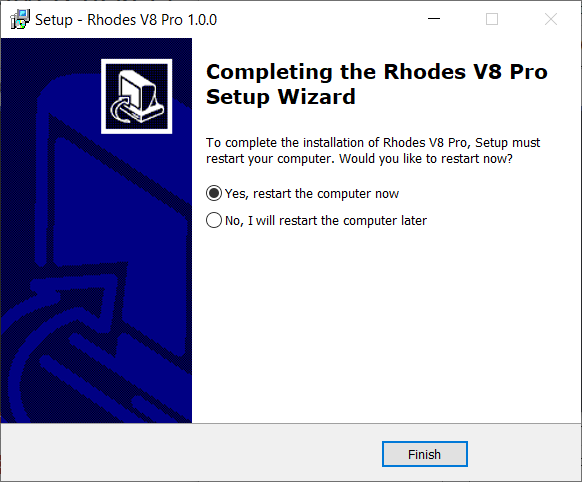
7. Click 'Finish' and restart your computer > Once restarted, open your DAW and locate Rhodes V8 Pro.
8. Enter your License Code, listed under 'Serial Number' within your Plugin Boutique User Account, and click 'Activate License'.
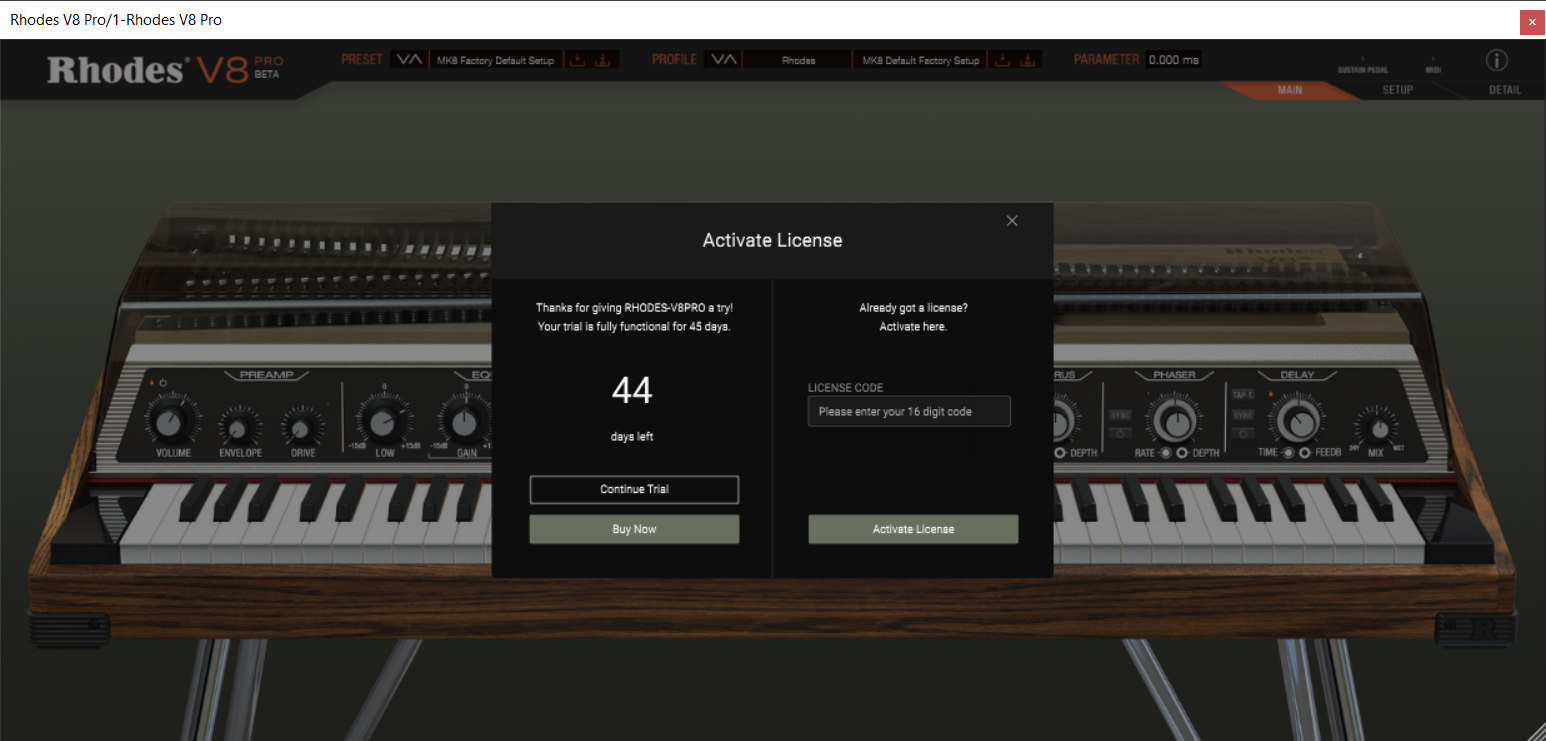
Your new software is now installed and ready to use in your DAW.
If you would like any further assistance with your software, please feel free to reach out to our support team at support@pluginboutique.com.