
Welcome to the Future Audio Workshop installation page.
Please take a look at our installation guide videos below, which provide information on how to register, install and authorise your Rhodes software.
System Requirements
- Compatible with macOS 10.12 or higher (Intel / M1 Apple Silicon supported) (64-bit only)
- Compatible with Windows 8 and higher (Windows 11 supported)
- Available as VST2, VST3, AU, AAX.
- Tested in FL Studio, Ableton Live, Logic, Studio One, Pro Tools and Cubase.
- NKS ready for Native Instruments Machine and Komplete Kontrol.
Please Note: SubLab can be used offline but you need to be connected to the internet to activate it.
Mac Video Installation Guide
Windows Video Installation Guide
Alternatively, you can follow the step-by-step instructions below for your software.
Installation Instructions
Mac Installation & Activation
1. Download the Mac SubLab XL installer from your Plugin Boutique User Account.
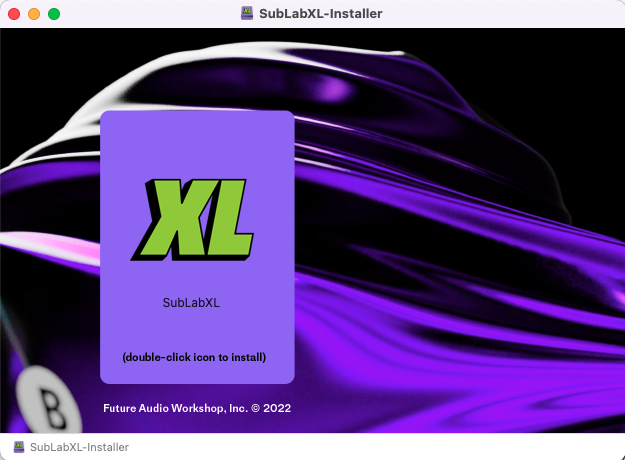
2. Double-click the .dmg file to launch the installer application.
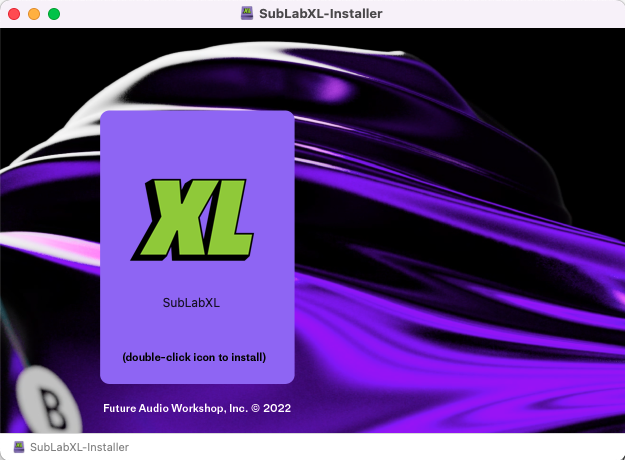
3. Double-click the 'XL" logo to begin the installation process.
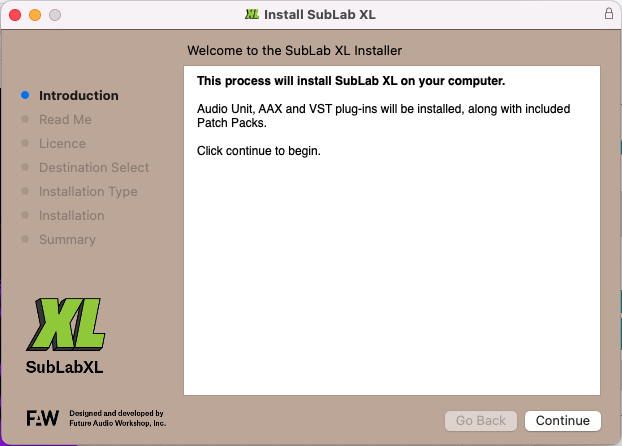
4. Click 'Continue.'
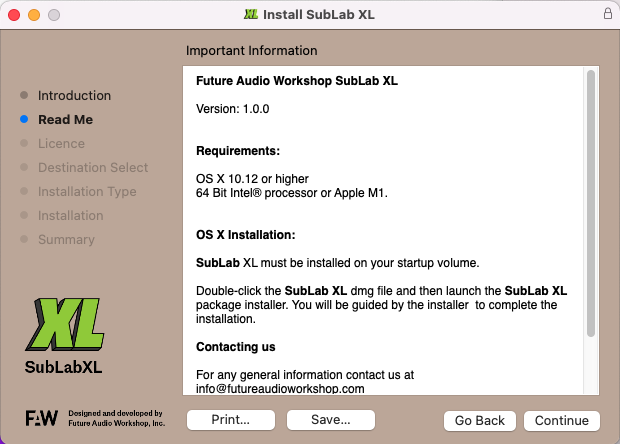
5. Read the information and click 'Continue.'
6. Read the licence agreement > click 'Continue' then 'Agree.'
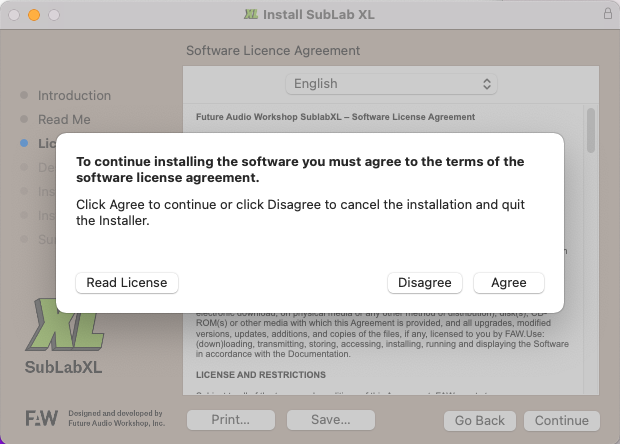
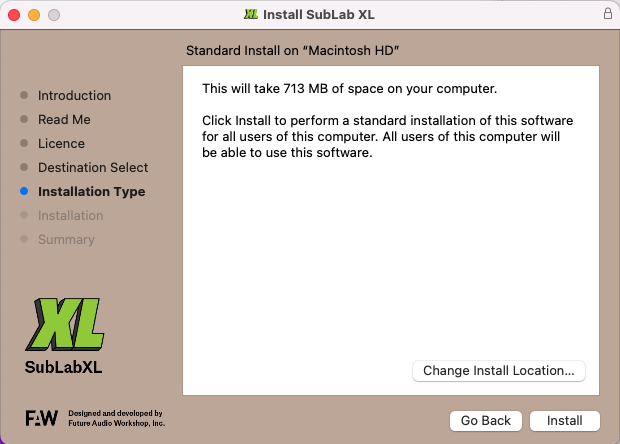
7. Click 'Install.'
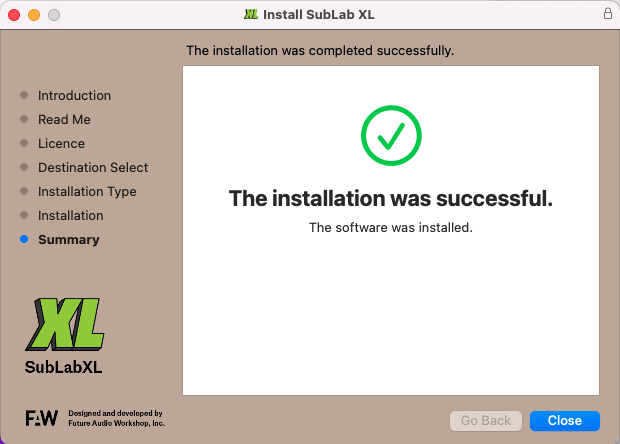
8. The installation of the software has successfully completed > click 'Close.'
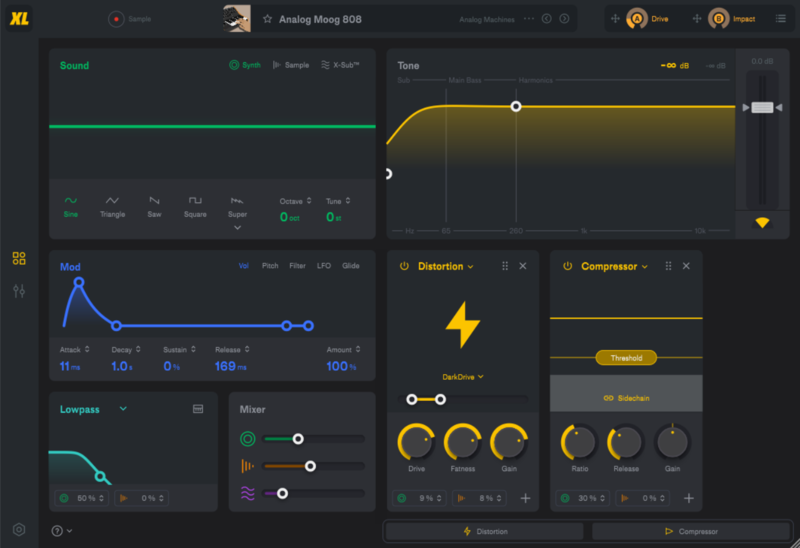
9. Open your DAW, then locate and load the software onto a MIDI track.
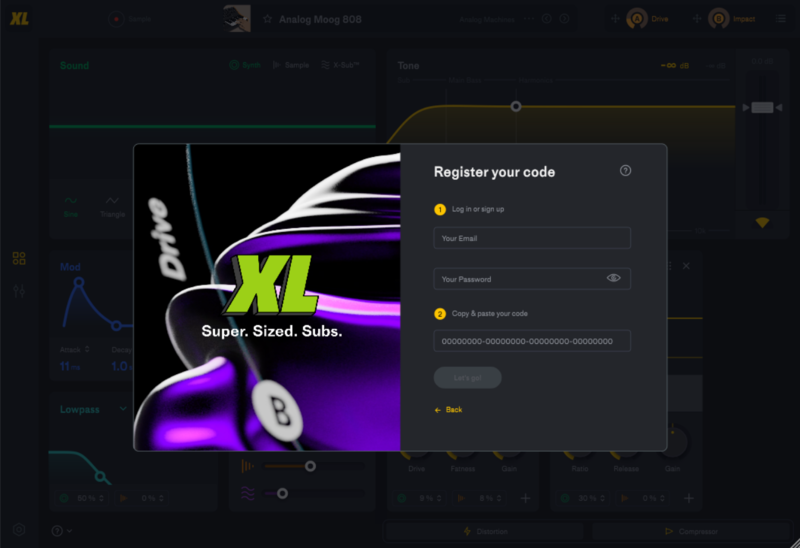
10. Click the link in the bottom-right of the plugin window, next to the prompt 'Have an activation code from another shop?'.
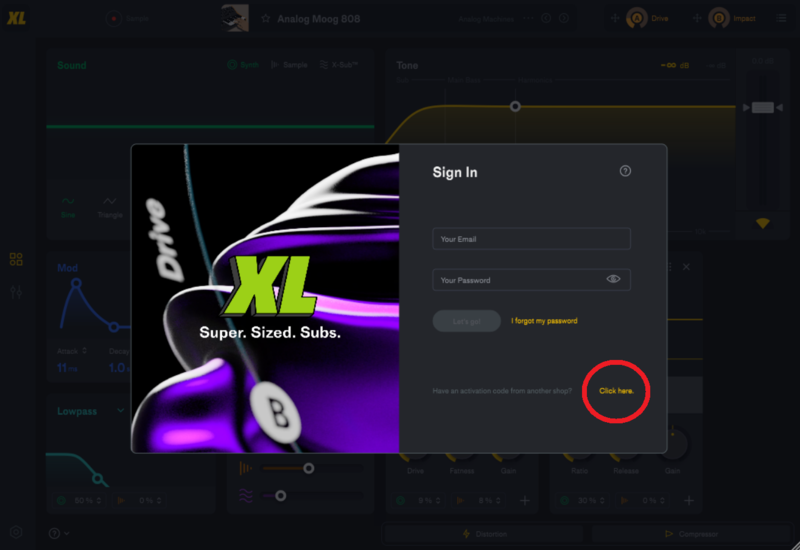
11. Log in or sign up using the email and password boxes provided, then copy and paste the serial number from within your Plugin Boutique User Account into the box underneath (make sure you remove any spaces from your serial number!). Next, click 'Activate' to authorise the software.
The Software is Now Ready for Use!
Windows Installation & Activation
1. Download the PC SubLab XL installer from your Plugin Boutique User Account.
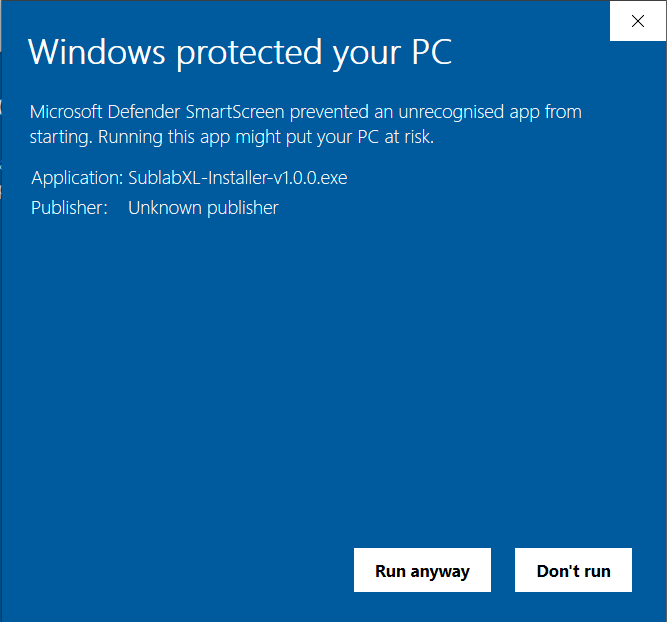
2. Double-click the .zip folder to extract the contents and then double-click the .exe file to begin the installation process > click 'More info' > then click 'Run anyway'.
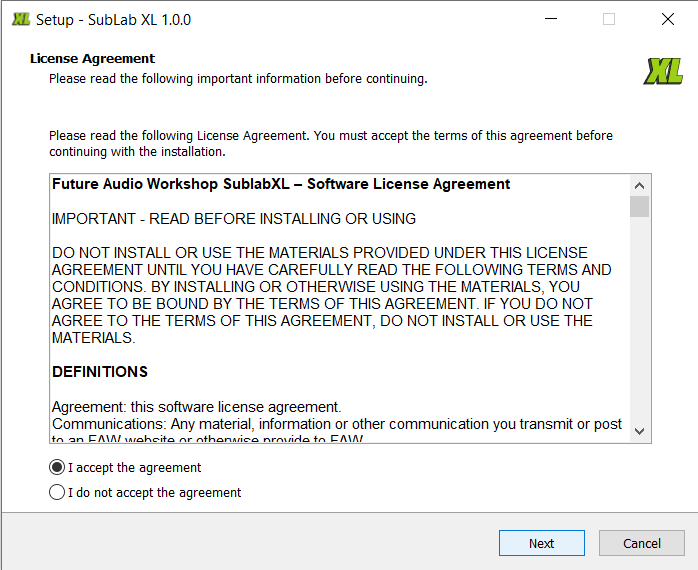
3. Read through the licence agreement and select 'I accept the agreement' > click 'Next.'
4. Select the software format(s) that you wish to install and click 'Next.'
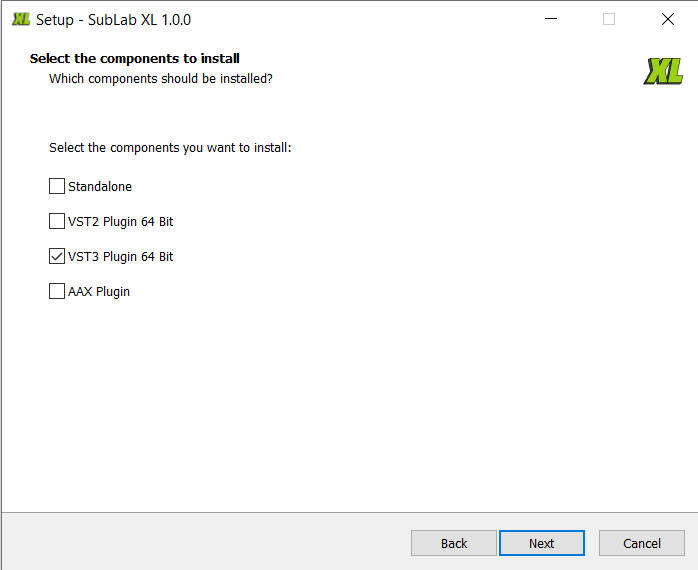
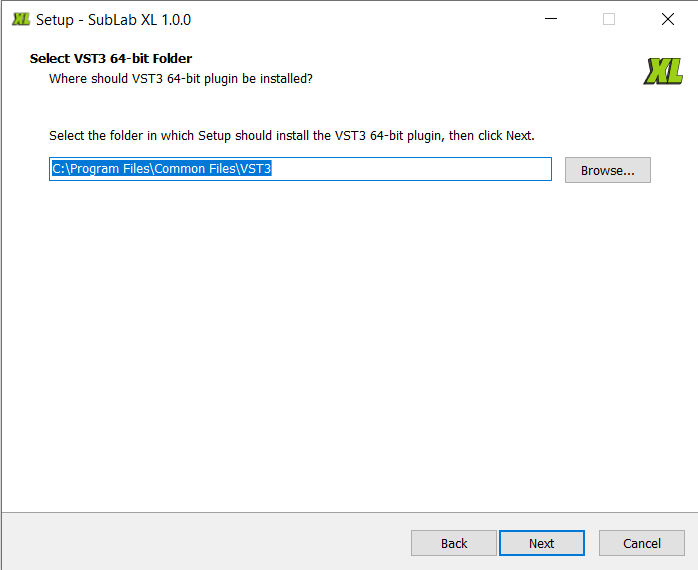
5. Select the folder (s) in which to install the component file (s) into > click 'Next.'
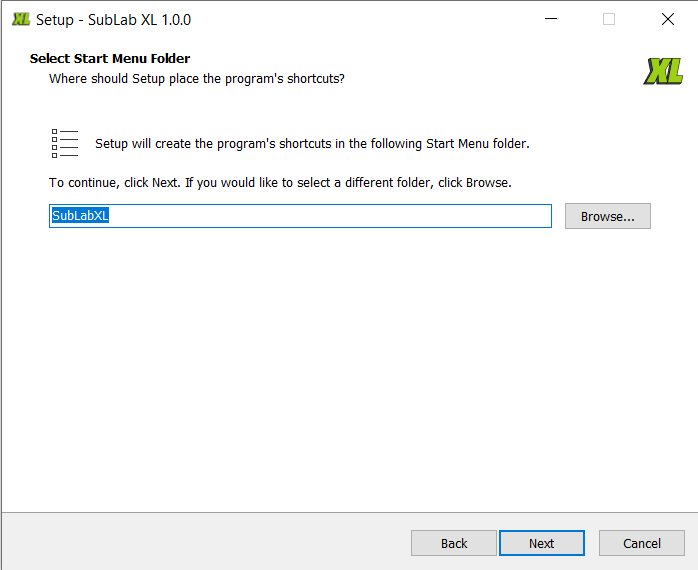
6. Click 'Next'.
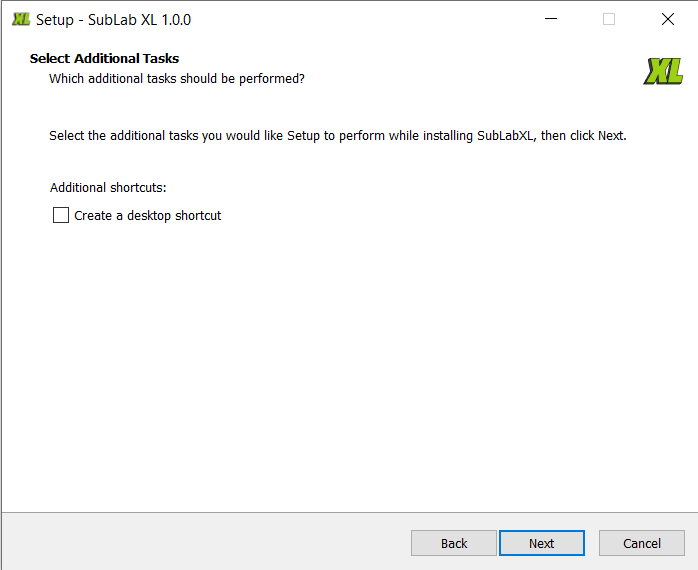
7. Use the checkbox to select whether or not to create a desktop shortcut for SubLab XL, then click 'Next'.
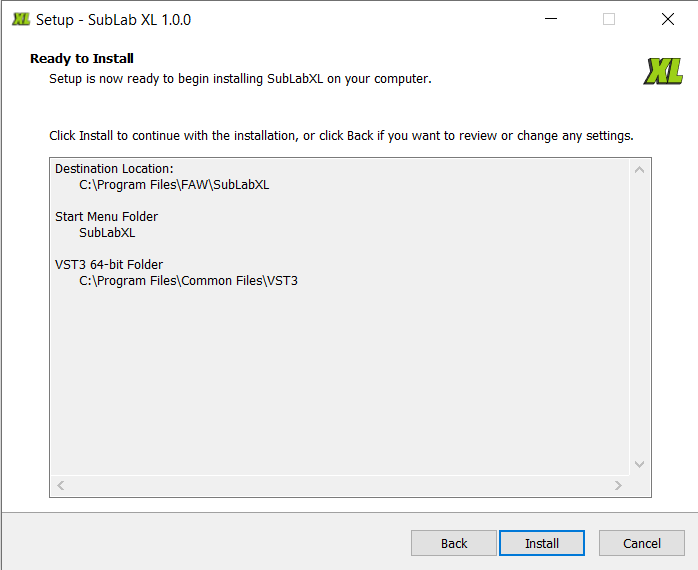
8. Review the installation and click 'Install.'
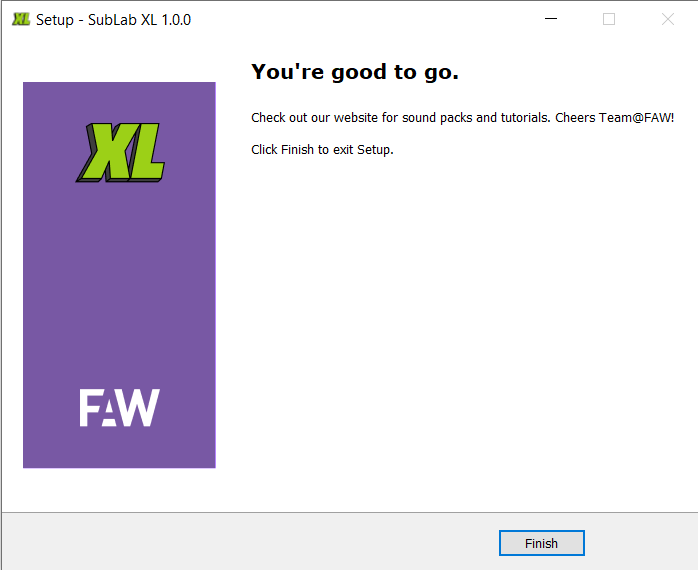
9. The installation of the software has successfully completed > click 'Finish.'
10. Open your DAW, then locate and load the software onto a MIDI track.
11. Click the link in the bottom-right of the plugin window, next to the prompt 'Have an activation code from another shop?'.
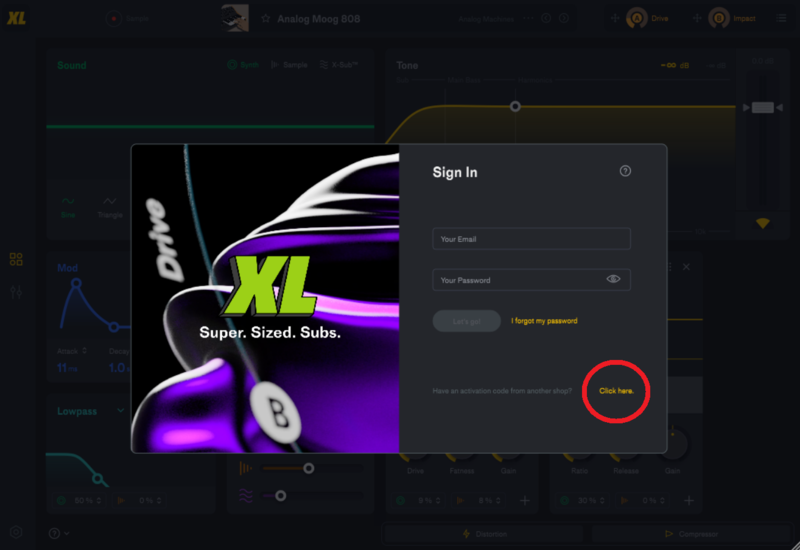
12. Log in or sign up using the email and password boxes provided, then copy and paste the serial number from within your Plugin Boutique User Account into the box underneath (make sure you remove any spaces from your serial number!). Next, click 'Activate' to authorise the software.
The Software is Now Ready for Use!
If you would like any further assistance with your software, please feel free to reach out to our support team at support@pluginboutique.com.