
Welcome to the Excite Audio installation page.
Please find our installation guide videos below, which provide information on how to register, install and authorise your Excite Audio software.
System Requirements
macOS
macOS 10.15 or higher (Intel / Native Apple Silicon supported).
Plugin Formats: VST, VST3, AU, AAX, Standalone.
DAW's Supported: Ableton Live, Pro Tools, Logic Pro, FL Studio, Cubase, Nuendo, Reaper, Reason + more.
Compatibility: 64-bit compatible only.
Windows
Windows 7 or higher
Plugin formats: VST, VST3, AAX, Standalone
DAWs supported: Ableton Live, Pro Tools, FL Studio, Cubase, Nuendo, Reaper, Reason + more.
Compatibility: 64-bit compatible only.
Please Note: An internet connection is required to authorise this software.
Mac Video Installation Guide
Windows Video Installation Guide
Alternatively, please take a look at our step-by-step guides below.
Mac
1. Click 'Download' in your Plugin Boutique User Account to download the installer. Double click the .pkg file to begin installation.
2. Click 'Continue'.
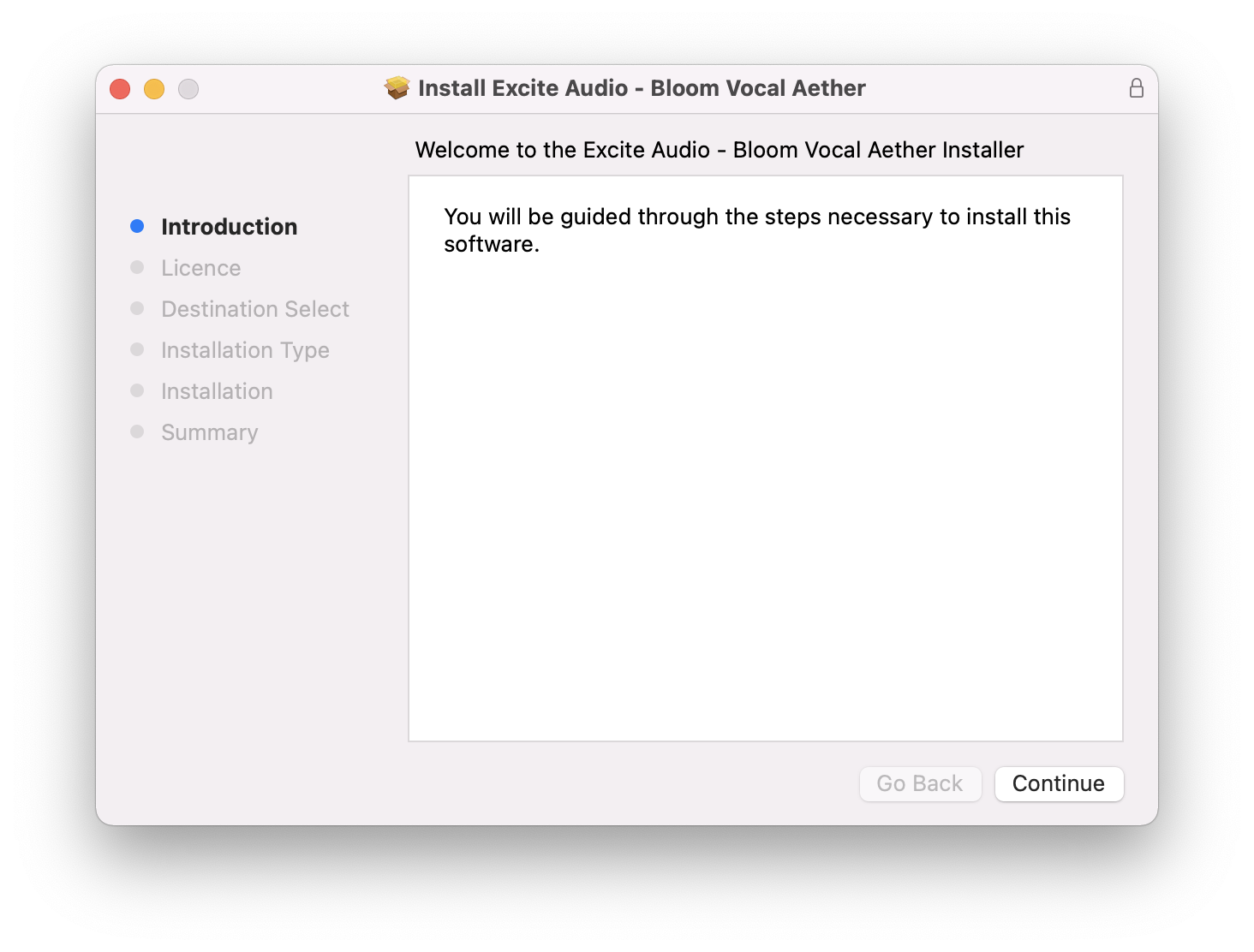
3. Click 'Continue'.
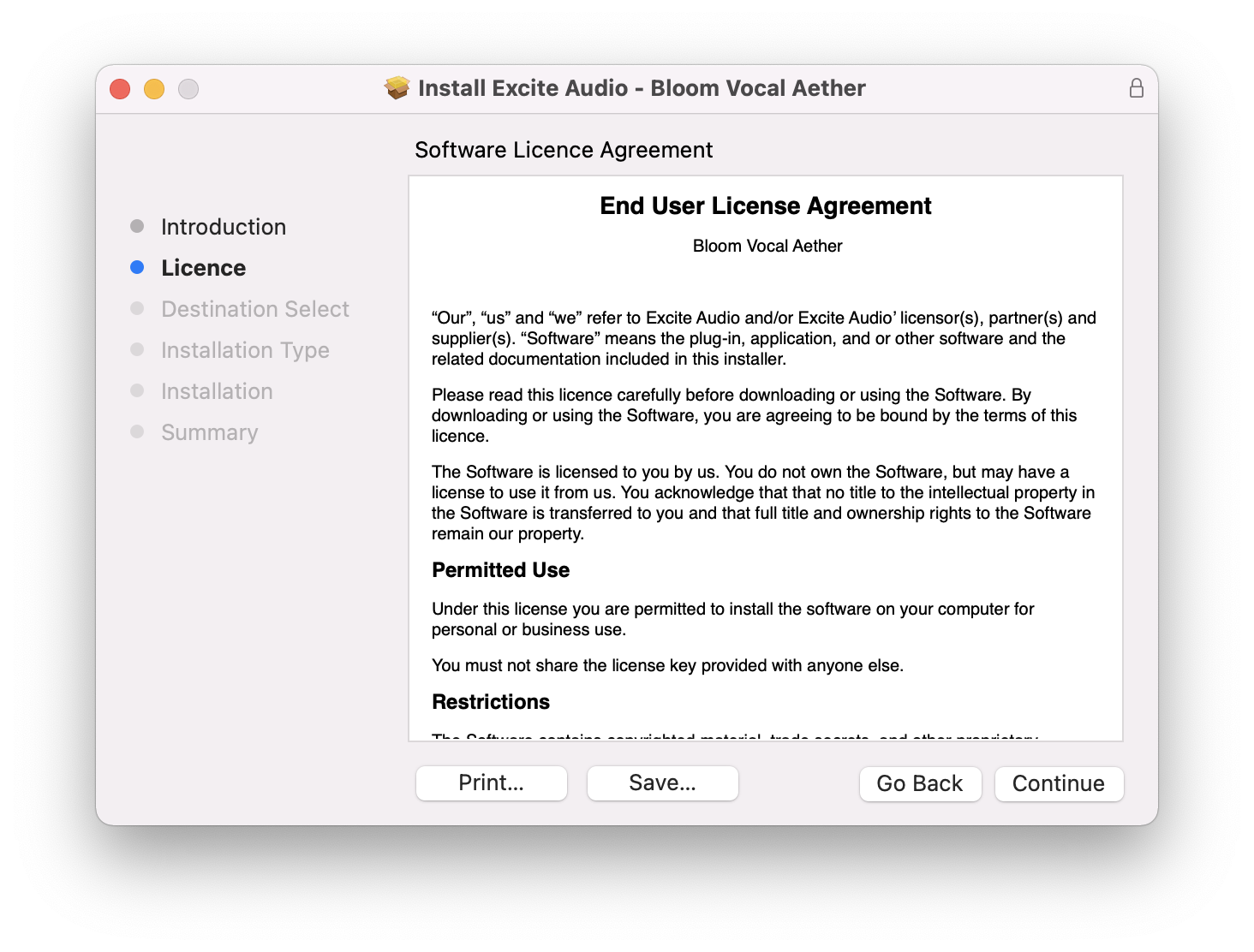
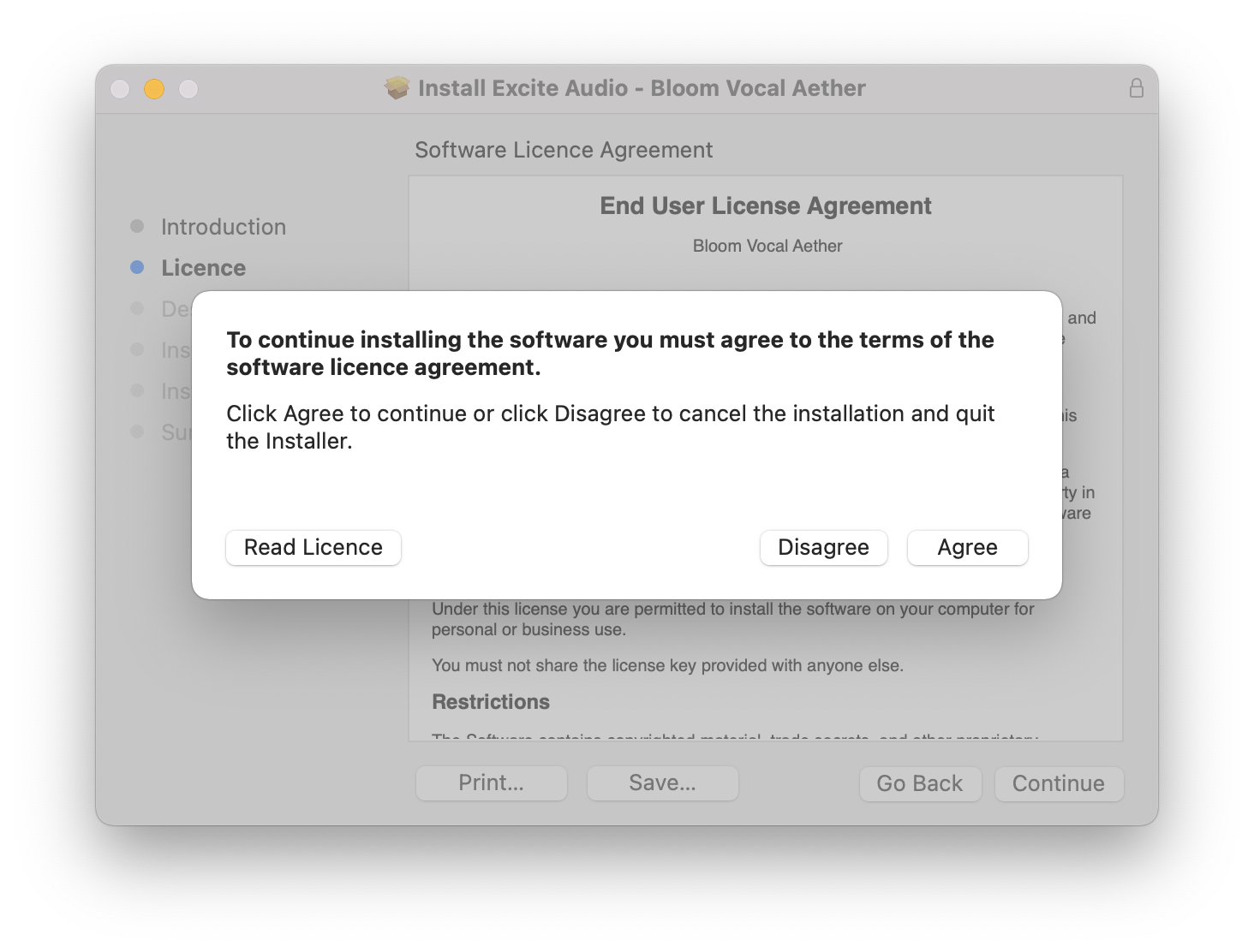
4. Click 'Agree'.
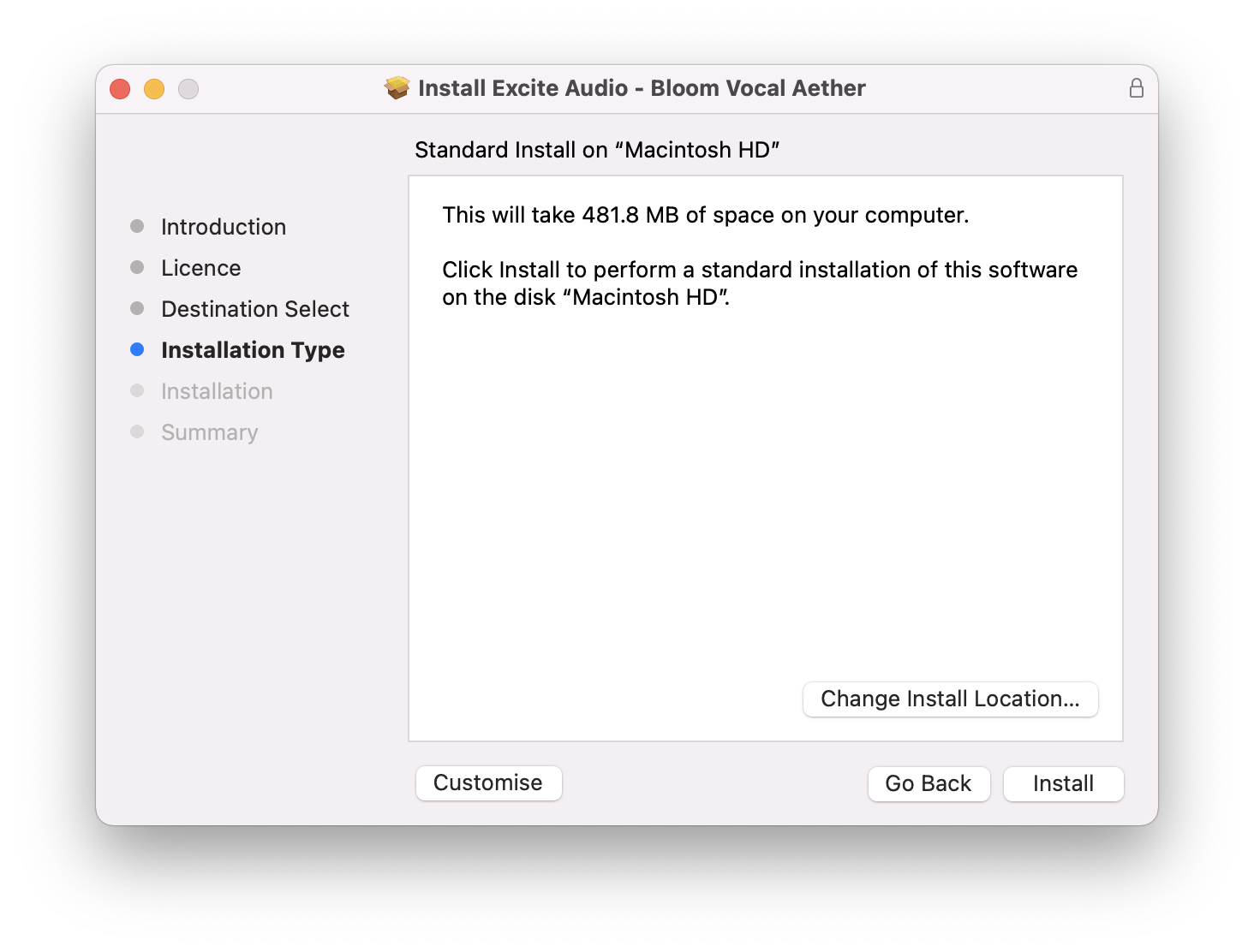
5. Click 'Install'.
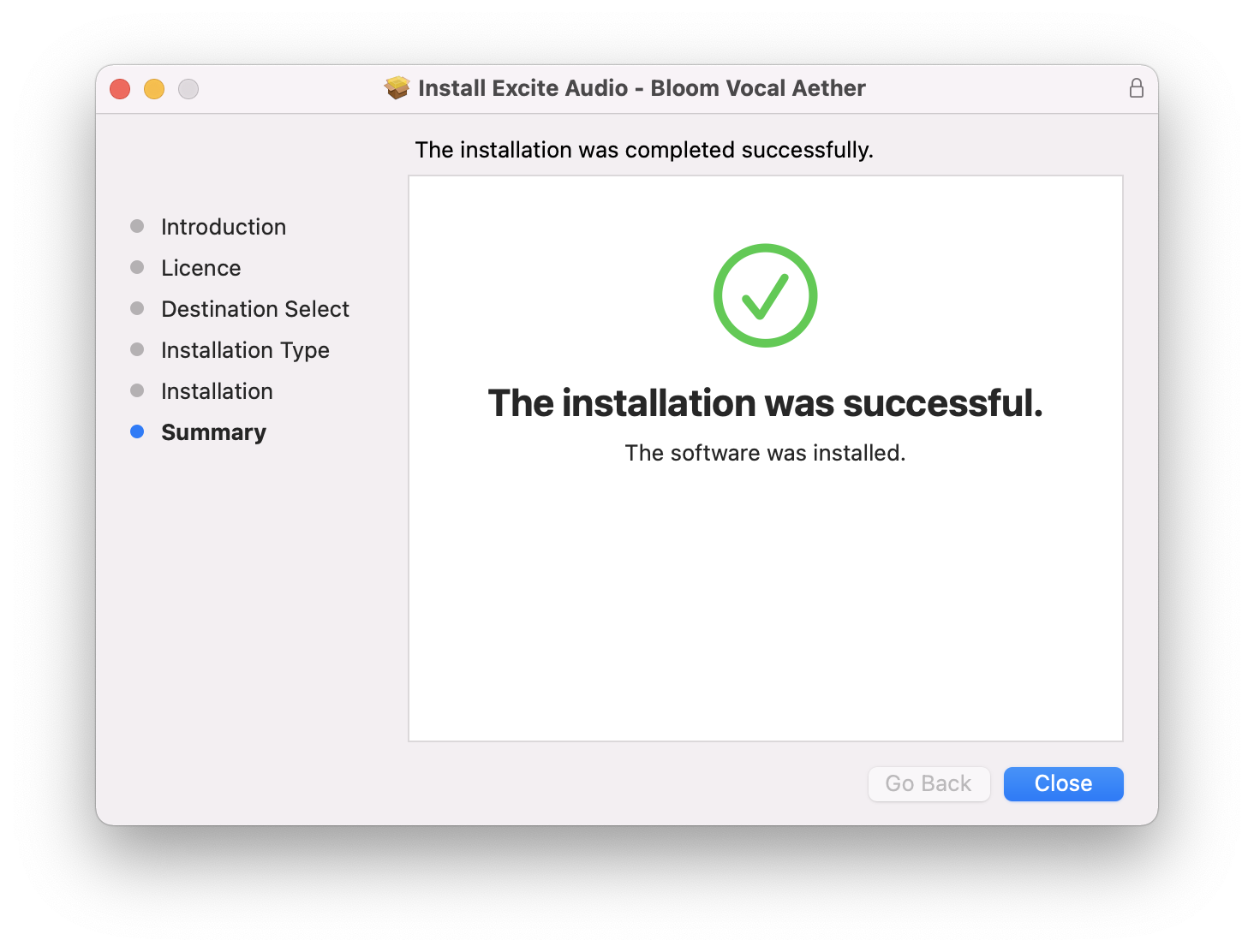
6. Click 'Close'.
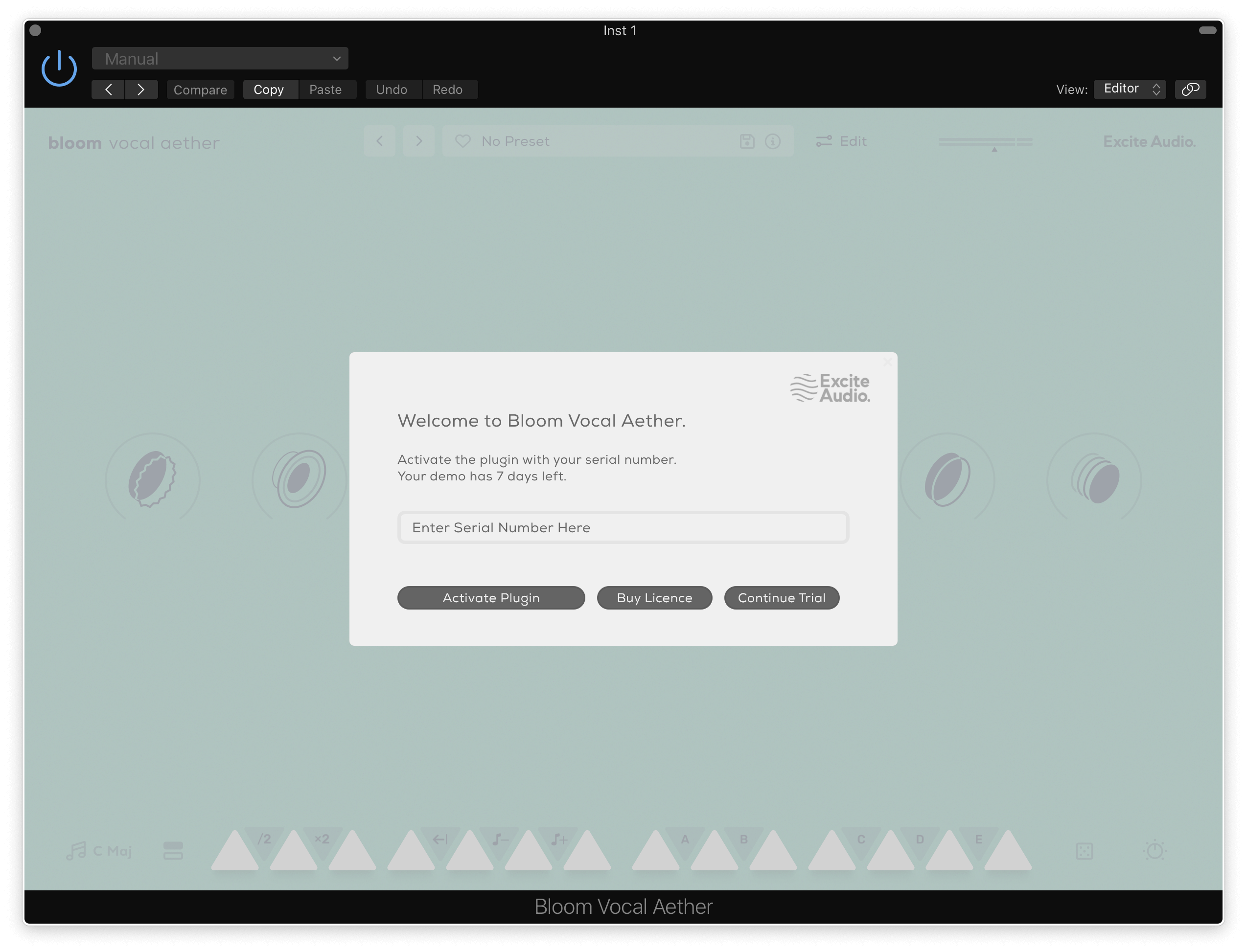
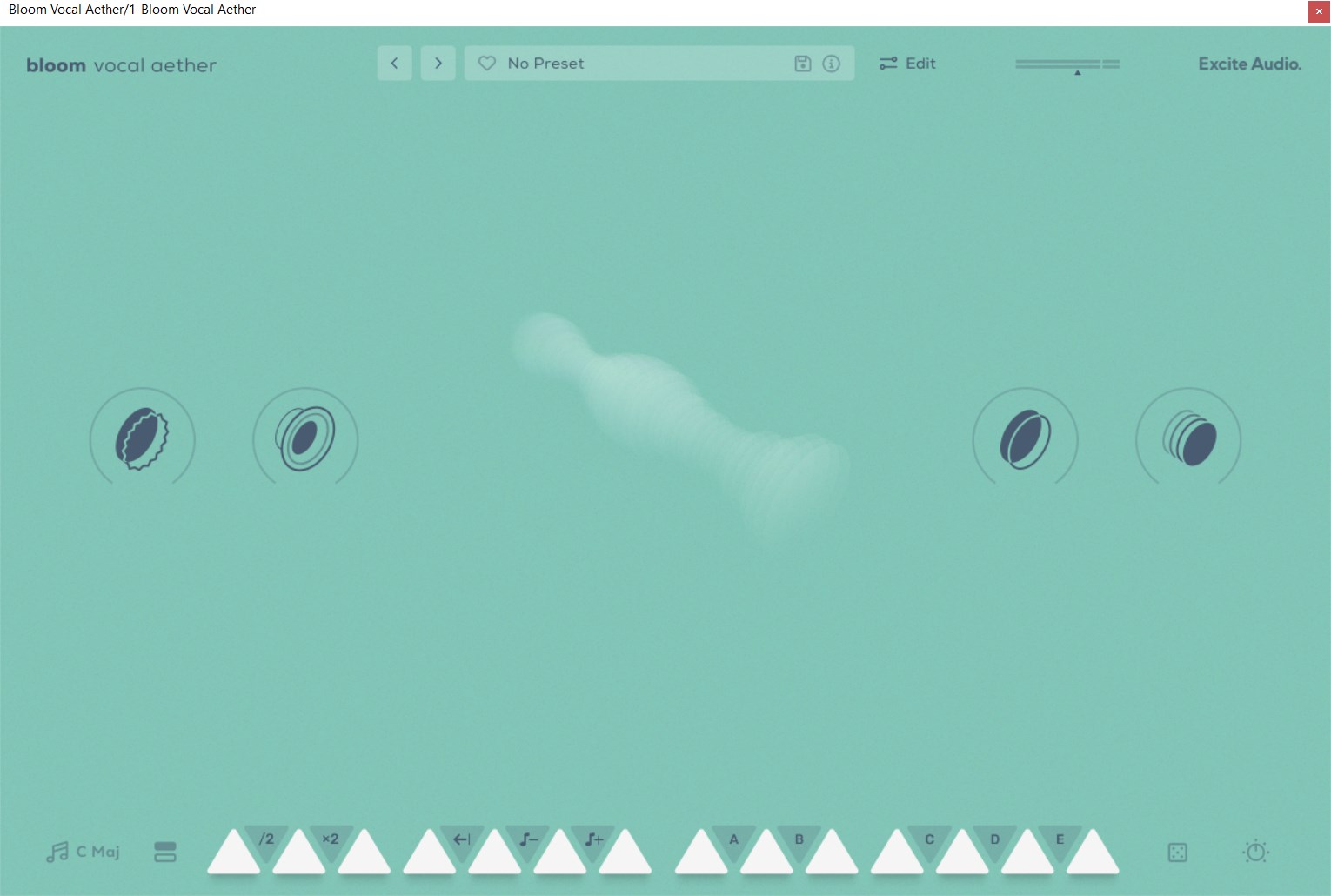
7. Open your DAW, locate Bloom Vocal Aether > Enter your serial number found in your Plugin Boutique User Account.
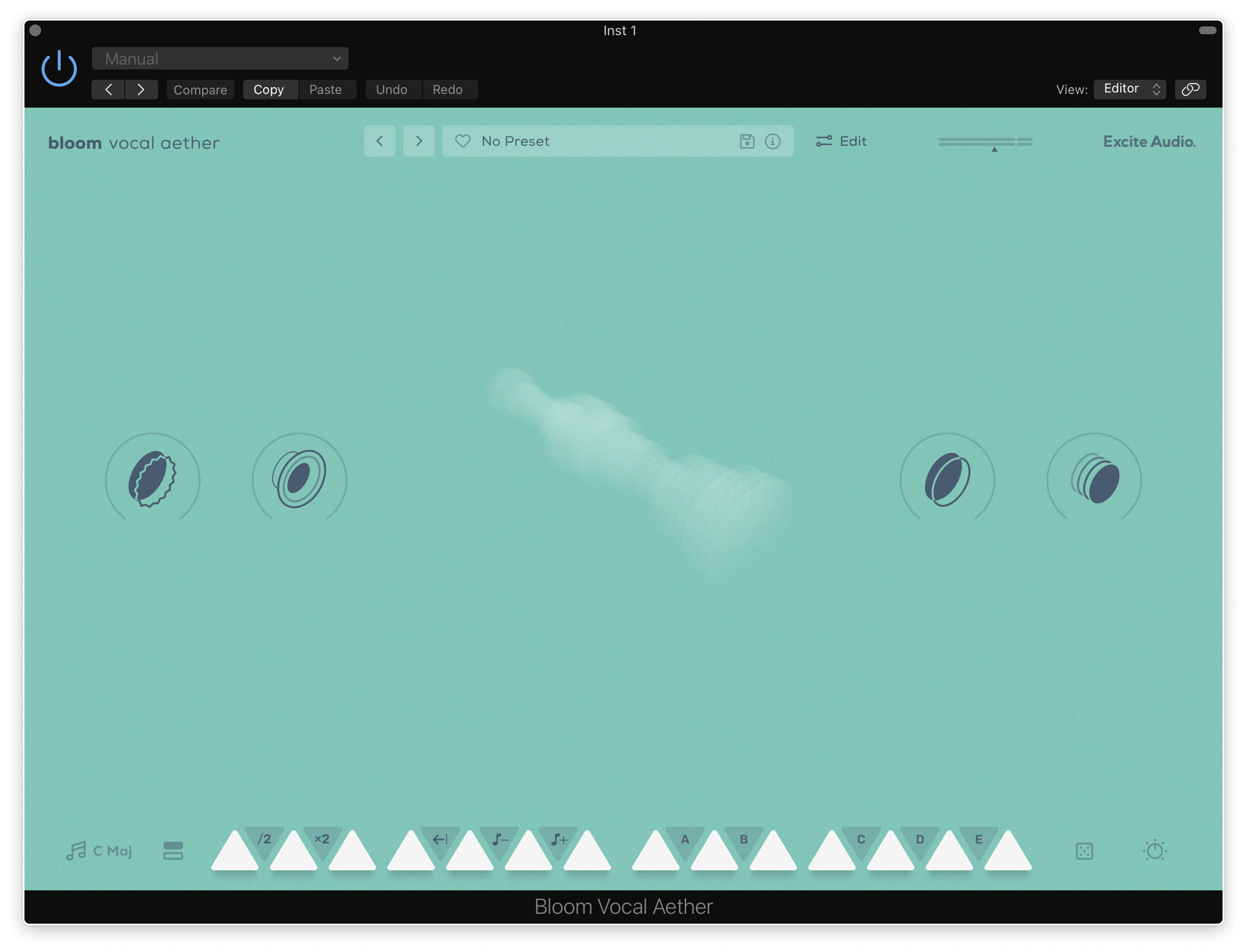
Your plugin is now installed and ready to be used in your DAW!
PC
1. Click 'Download' in your Plugin Boutique User Account to download the installer. Double click the .exe file to begin installation.
2. Click 'I accept the agreement' > Click 'Next'.

3. Click 'Next'.

4. Click 'Next'.

5. Click 'Next'.

6. Click 'Next'.

7. Click 'Install'.

8. Click 'Finish'.

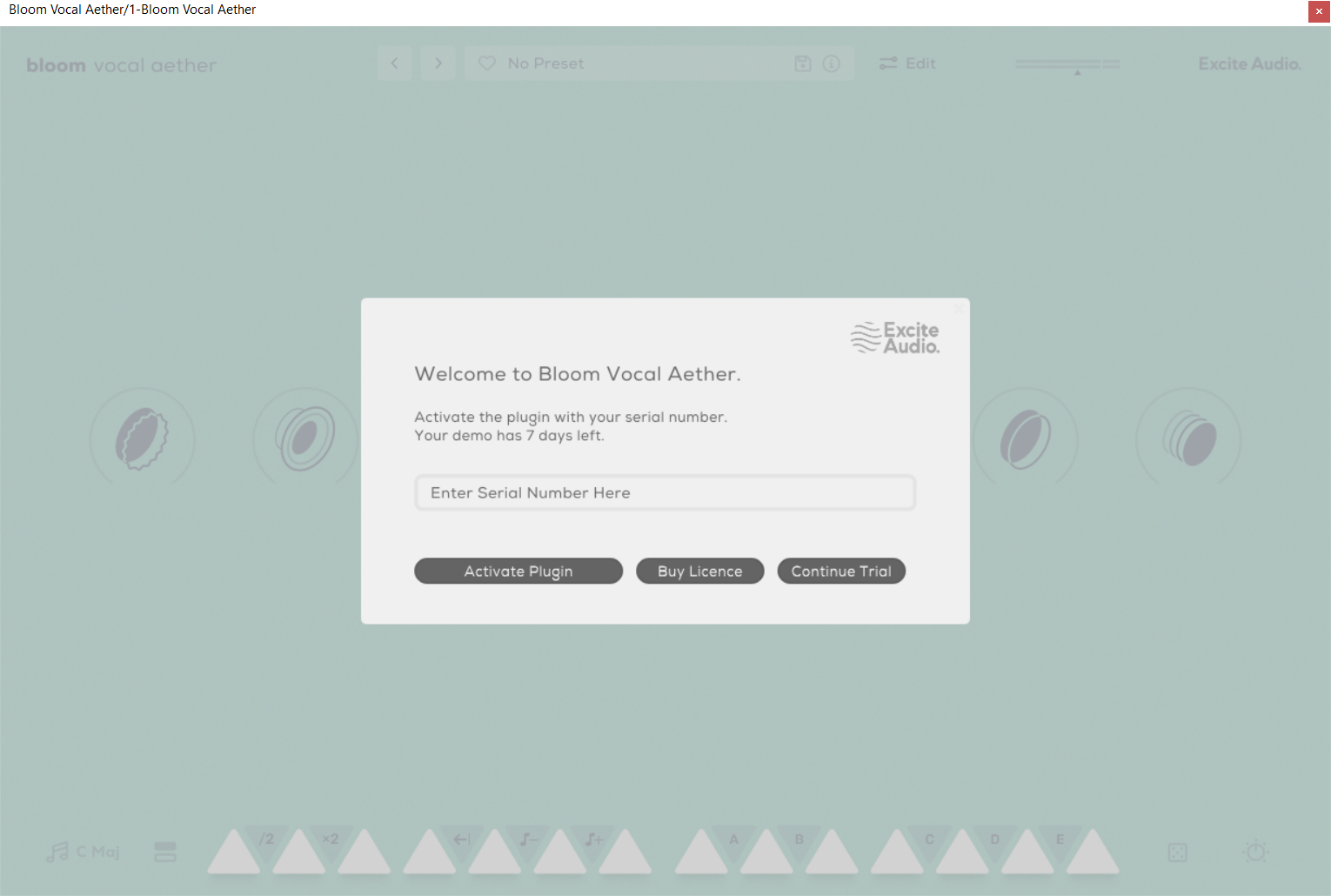
9. Open your DAW, locate Bloom Vocal Aether > Enter your serial number found in your Plugin Boutique User Account.
Your plugin is now installed and ready to be used in your DAW!
If you would like any further assistance with your software, please feel free to reach out to our support team at support@pluginboutique.com.