
Welcome to the KORG installation page.
Please take a look at our installation guide videos below, which provide information on how to register, install and authorise your KORG software.
Mac Video Installation Guide
Windows Video Installation Guide
Alternatively, you can follow the step-by-step instructions below for your software.
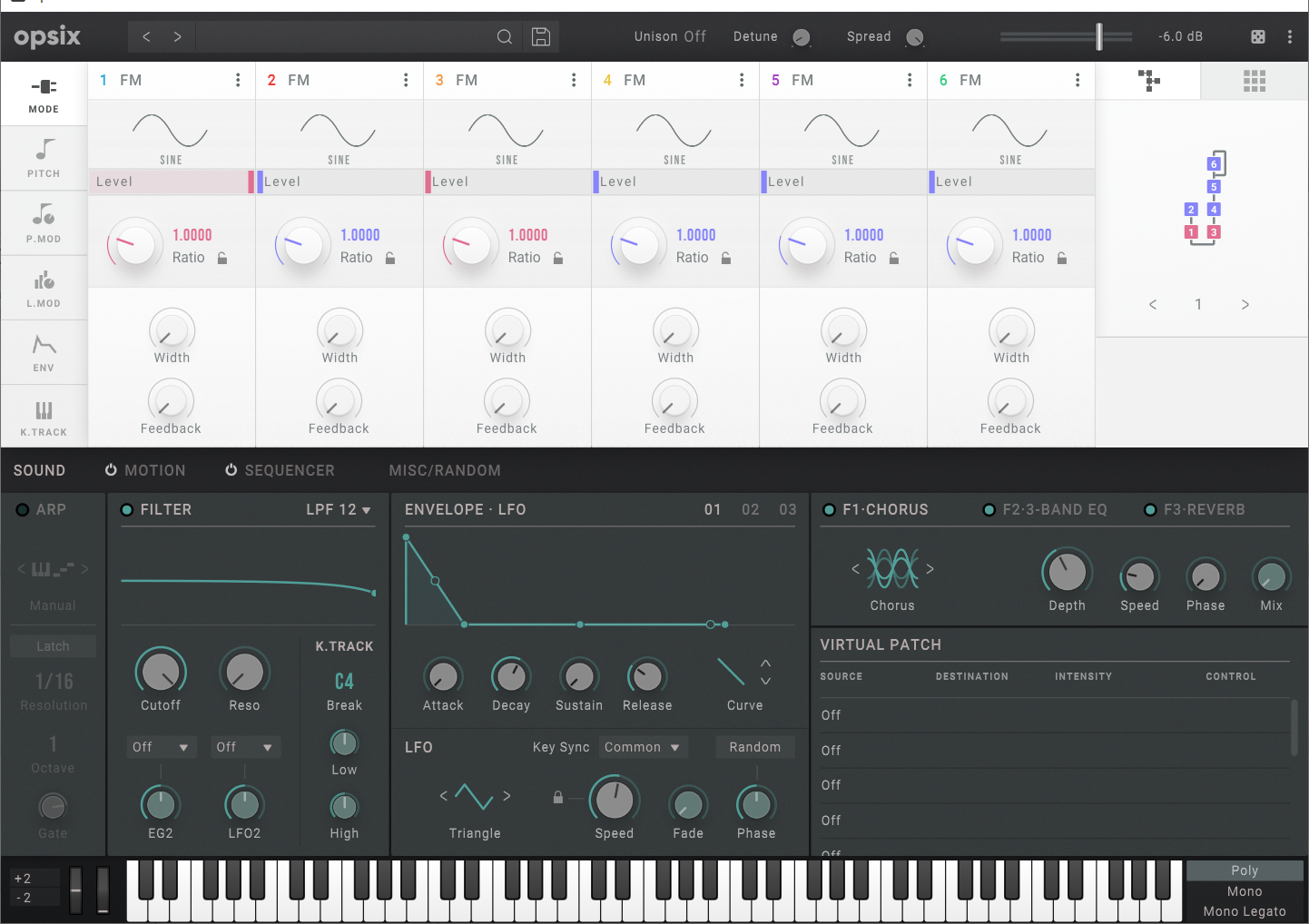
Please note: opsix native is used as an example.
PC
Activation
1. Download the installer file from your Plugin Boutique account. Run the KORG Software Pass .exe file
2. Click 'I accept the agreement' > Click 'Next >'.
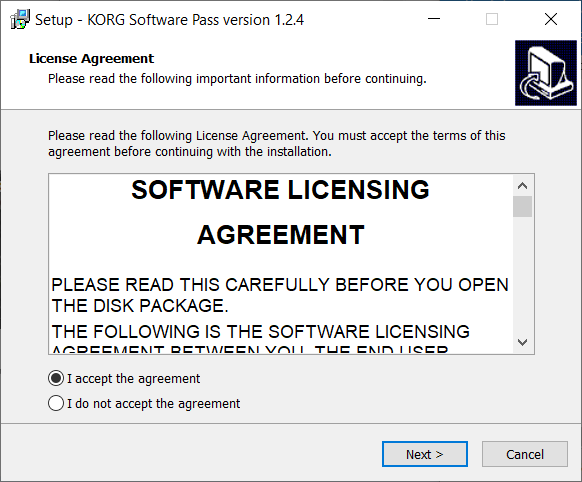
3. Click 'Next >'.
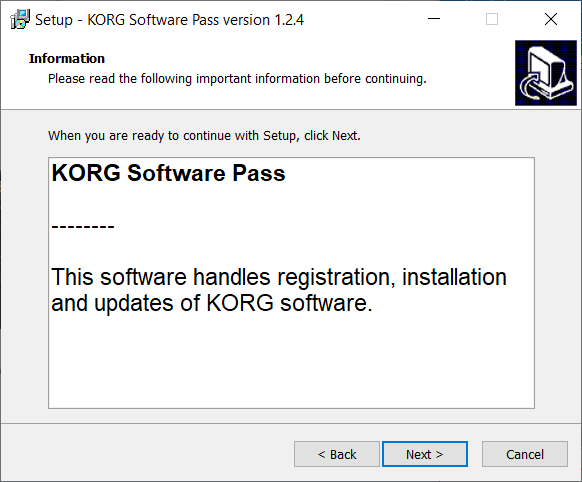
4. Click 'Next >'.
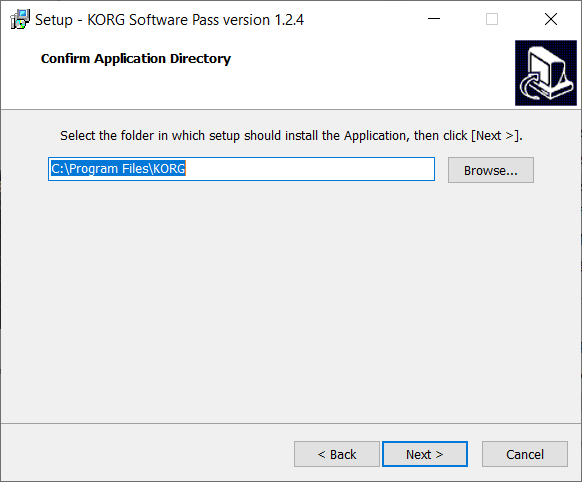
5. Click 'Next >'.
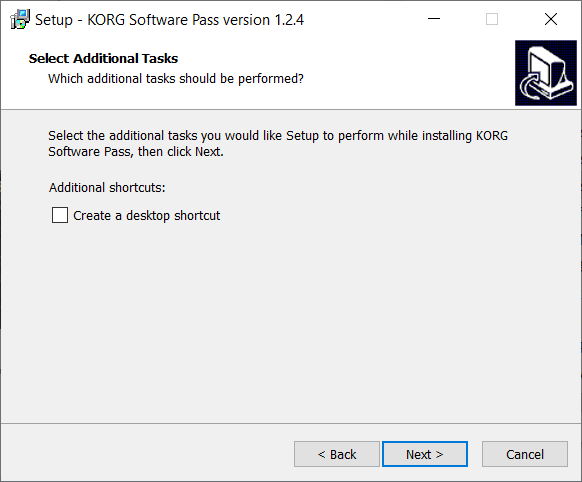
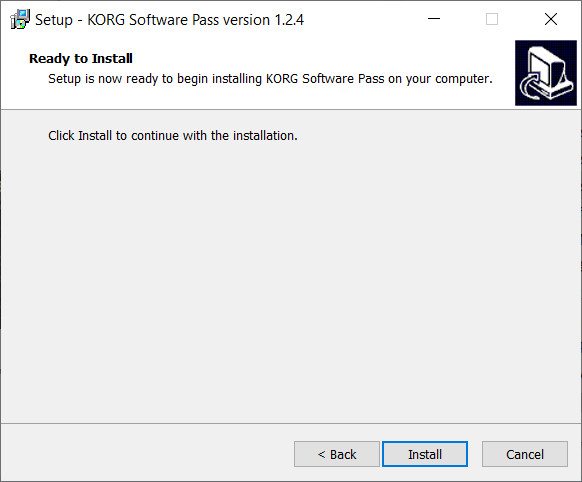
6. Click 'Install'.
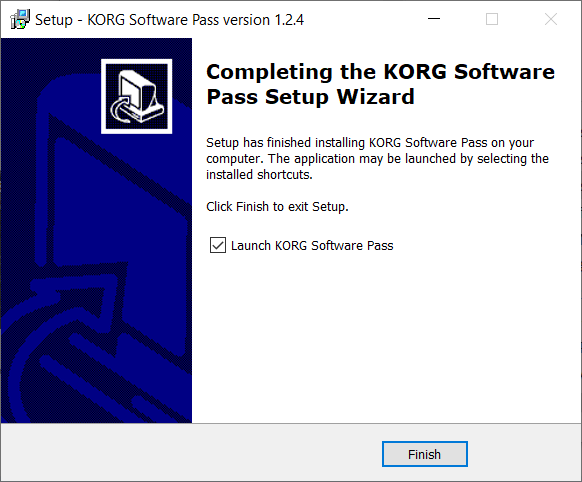
7. Click 'Finish'.
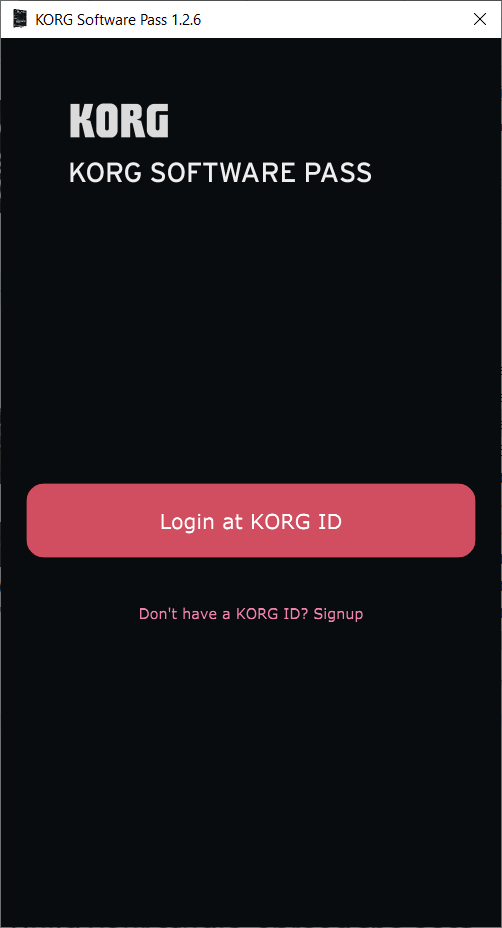
8. Open KORG Software Pass.
9. If you already have a KORG account, skip to step 12 > Click 'Don't have a KORG ID? Signup'.
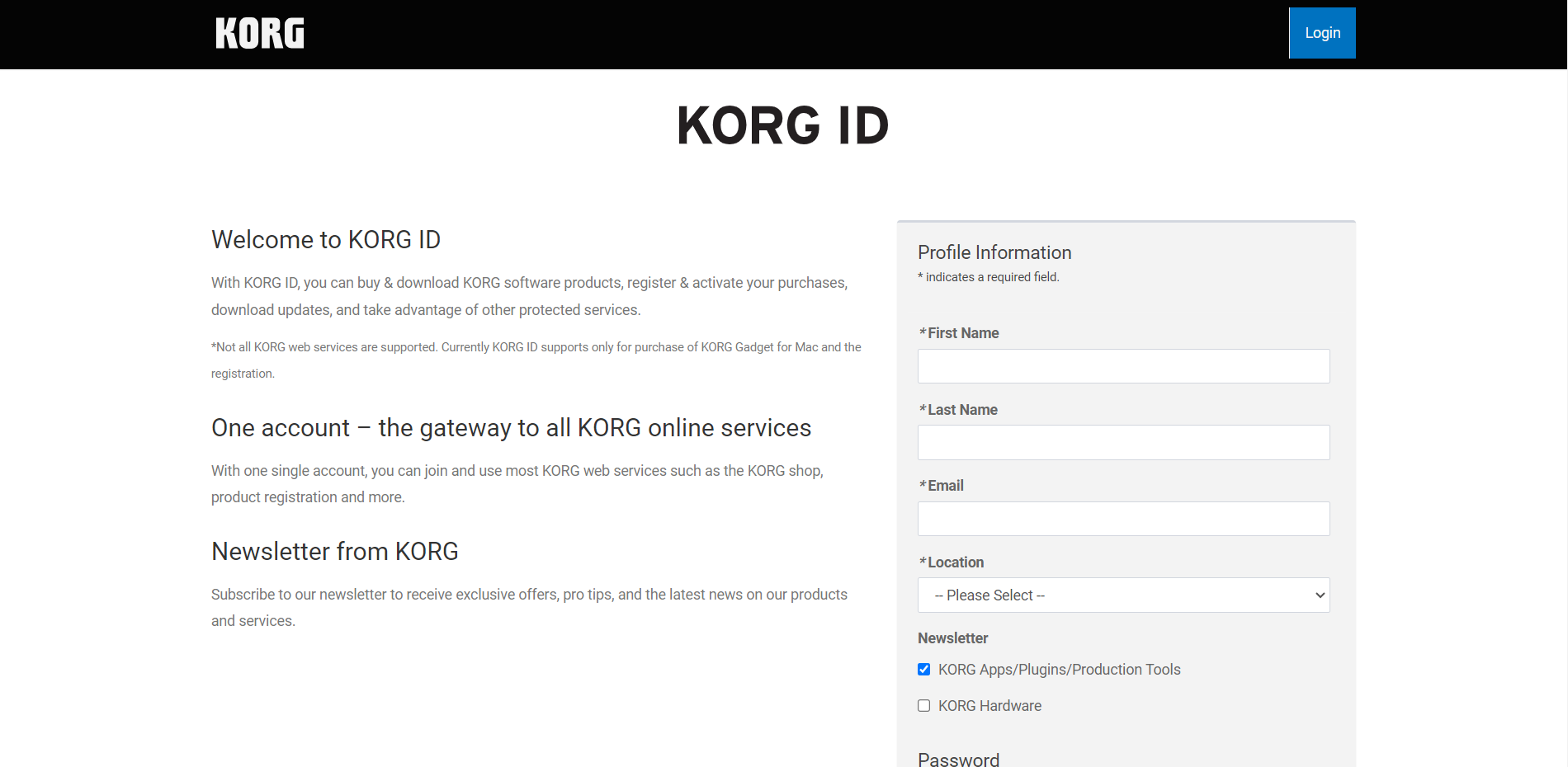
10. Sign up for a KORG account by filling in your details.
11. Go to your email inbox and locate the email from KORG > Click 'Confirm my account'.
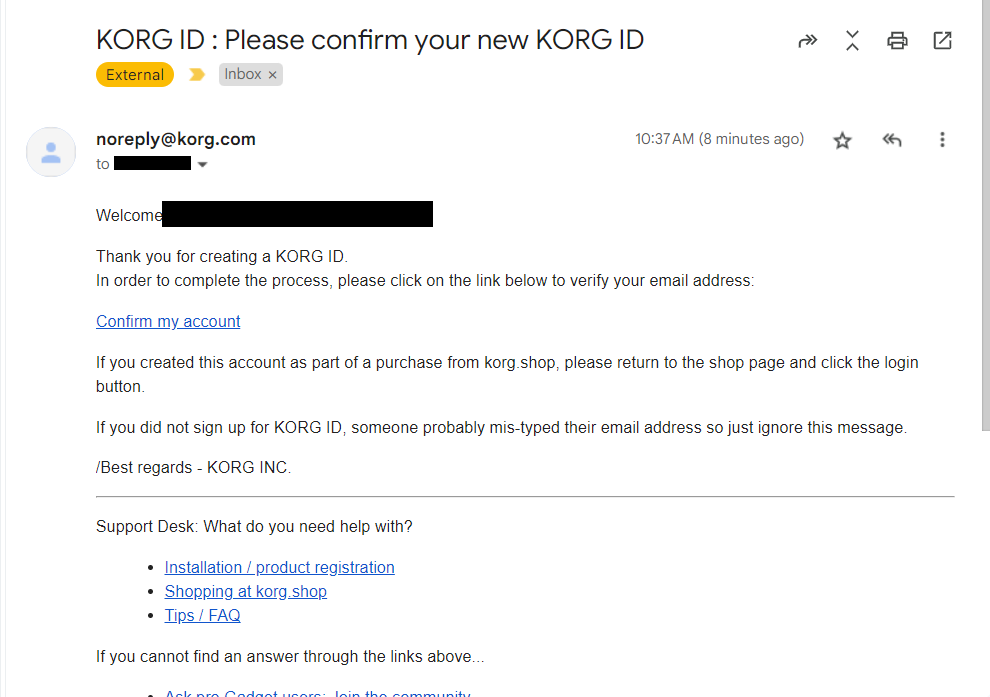
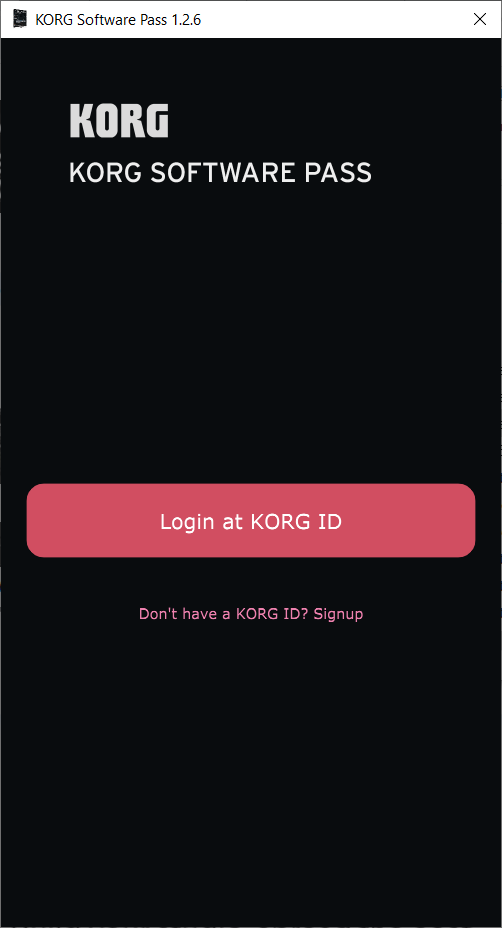
12. Go back to the KORG Software Pass > Click 'Login at KORG ID'.
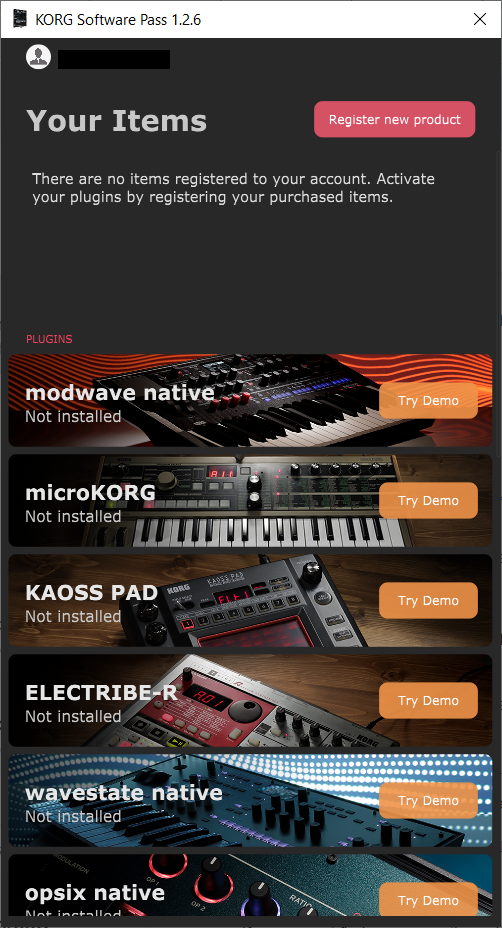
13. Click 'Register new product'
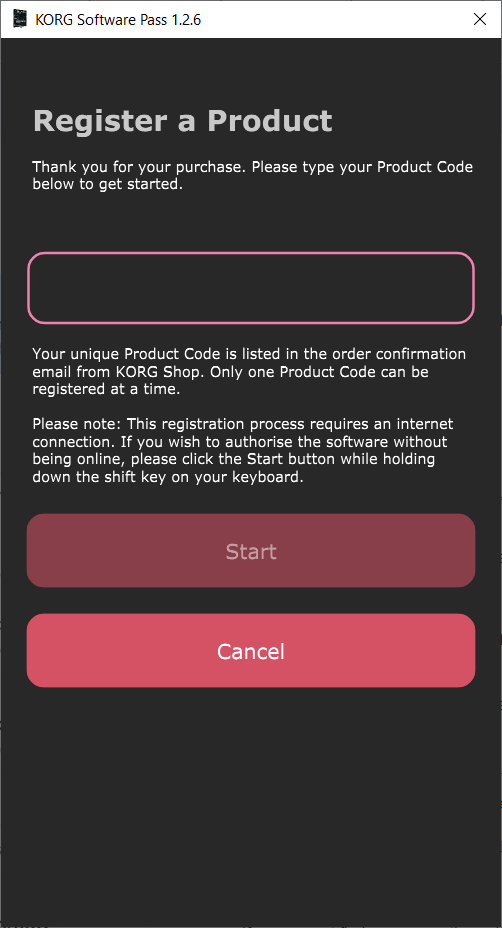
14. Copy & paste/manually enter the licence key/serial code that is available in your Plugin Boutique account > Click 'Start'.
15. Locate opsix native in the list of products > Click 'Download'.
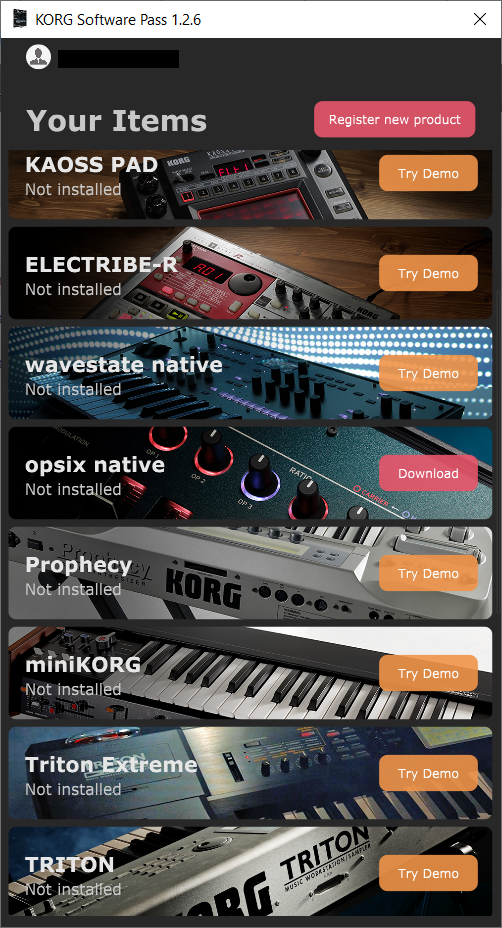
16. The software will automatically open the downloaded .zip file > Double click the opsix native .exe file.
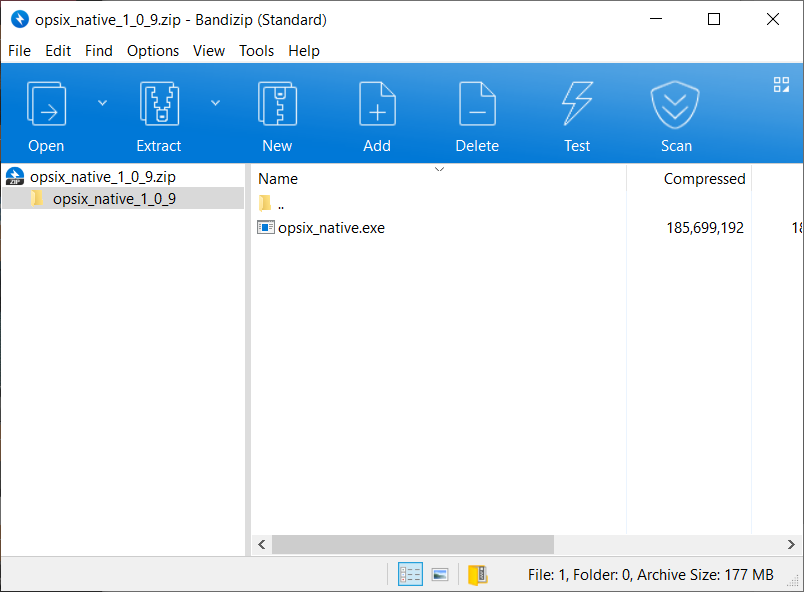
Installation
1. Click 'I accept the agreement' > Click 'Next >'.
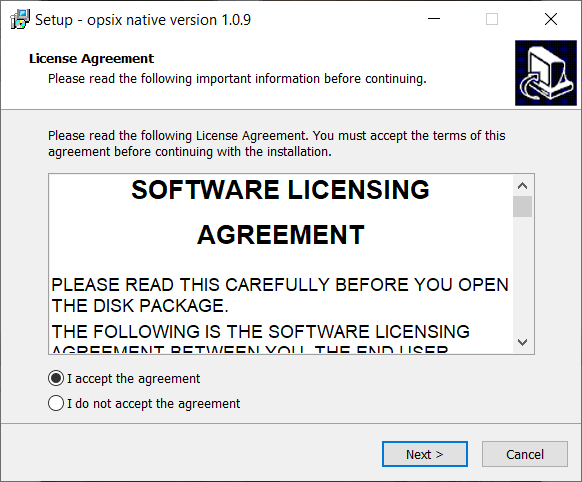
2. Click 'Next >'.
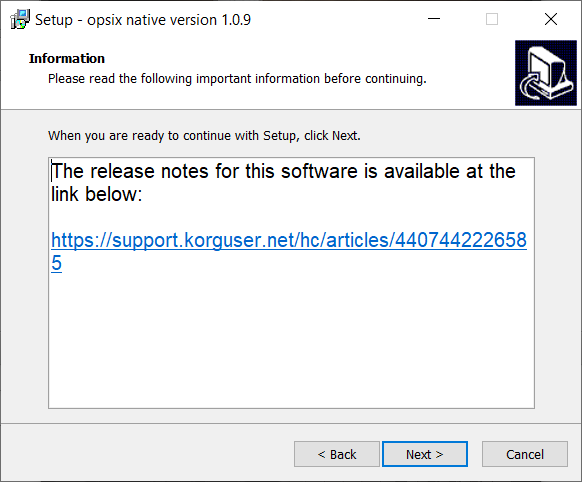
3. Click 'Next >'.
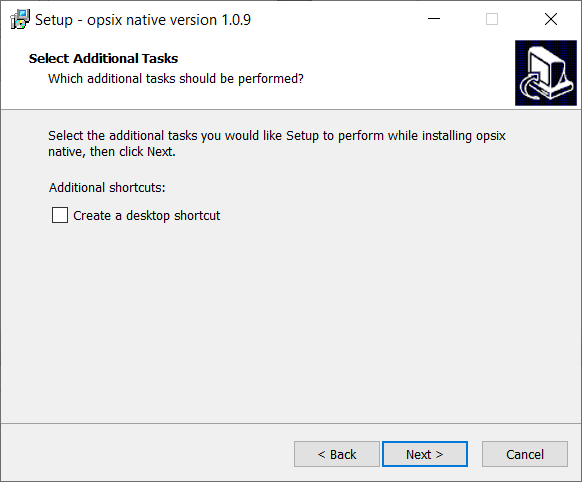
4. Click 'Next >'.
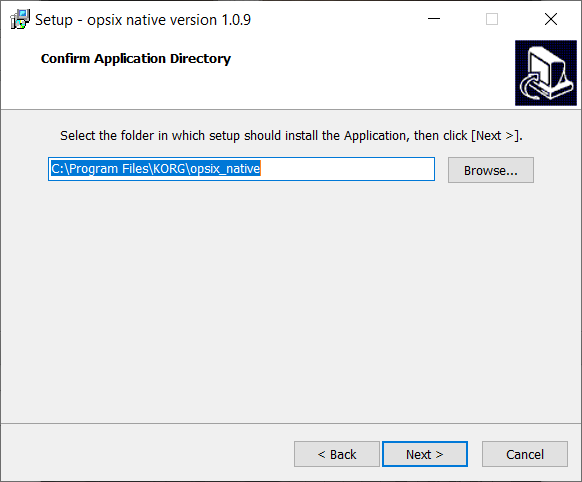
5. Click 'Install'.
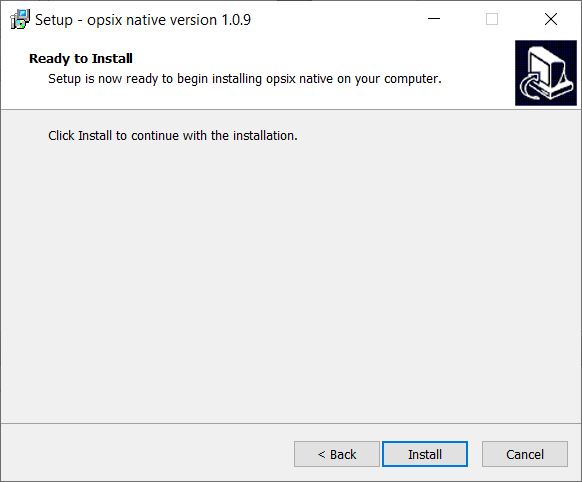
6. Click 'Finish.
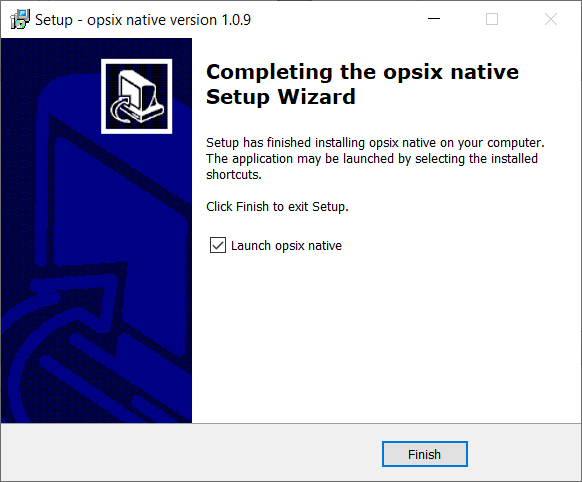
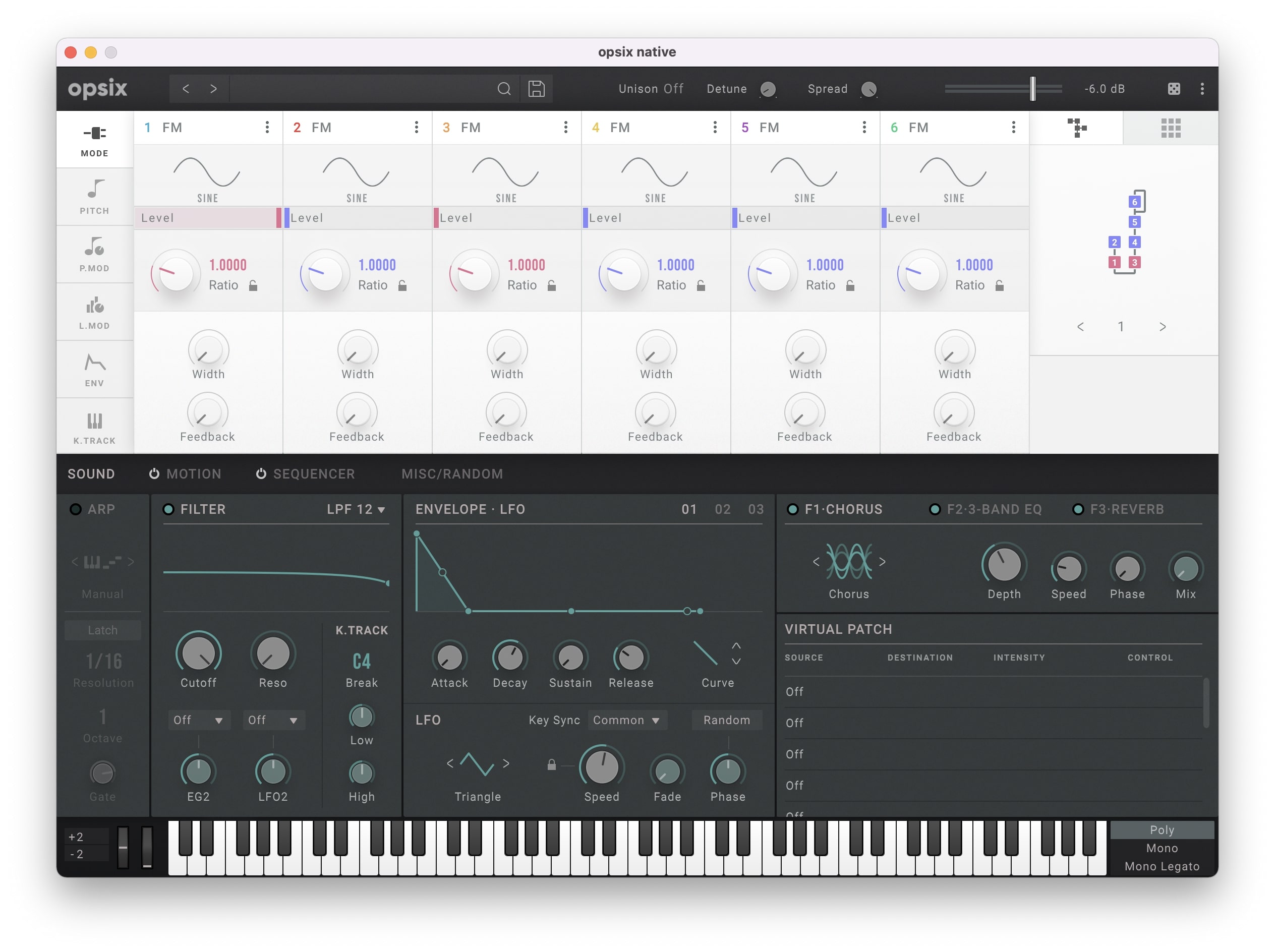
7. Open opsix native in your DAW or as a standalone program.
Your software is now activated and ready to use!
Mac
Activation
1. Download the installer file from your Plugin Boutique account. Run the KORG Software Pass .pkg file
2. Click 'Continue'.
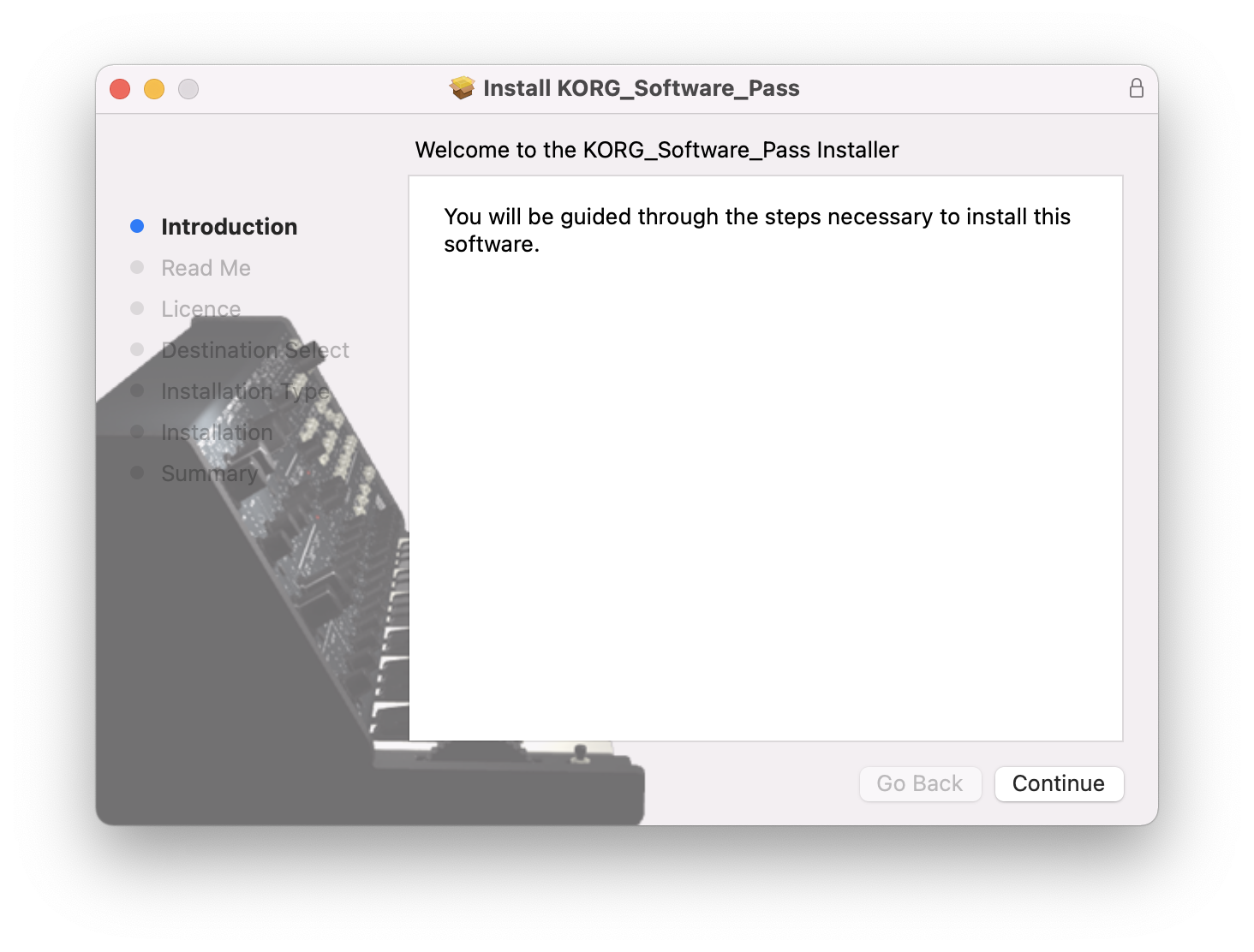
3. Click 'Continue'.
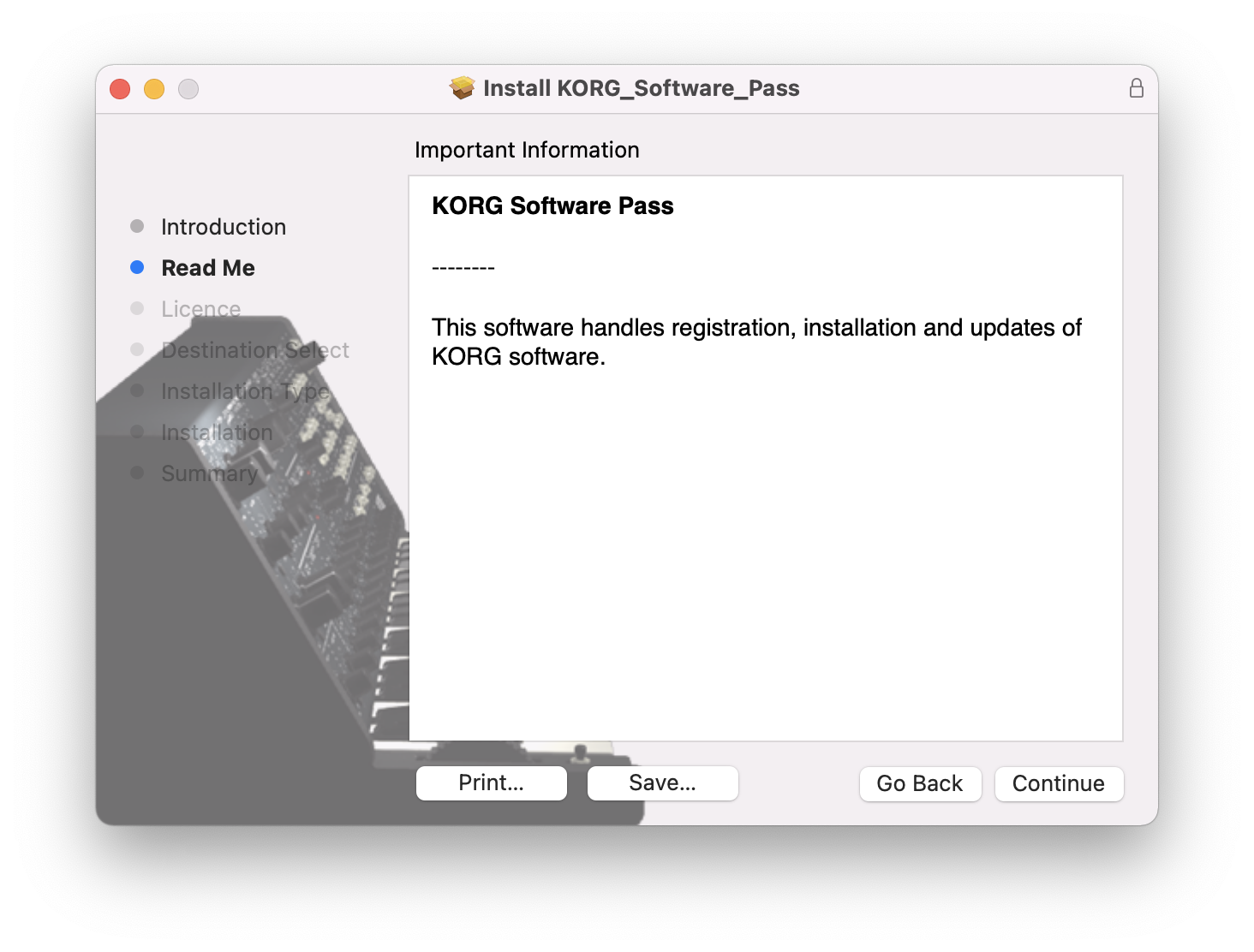
4. Click 'Continue'.
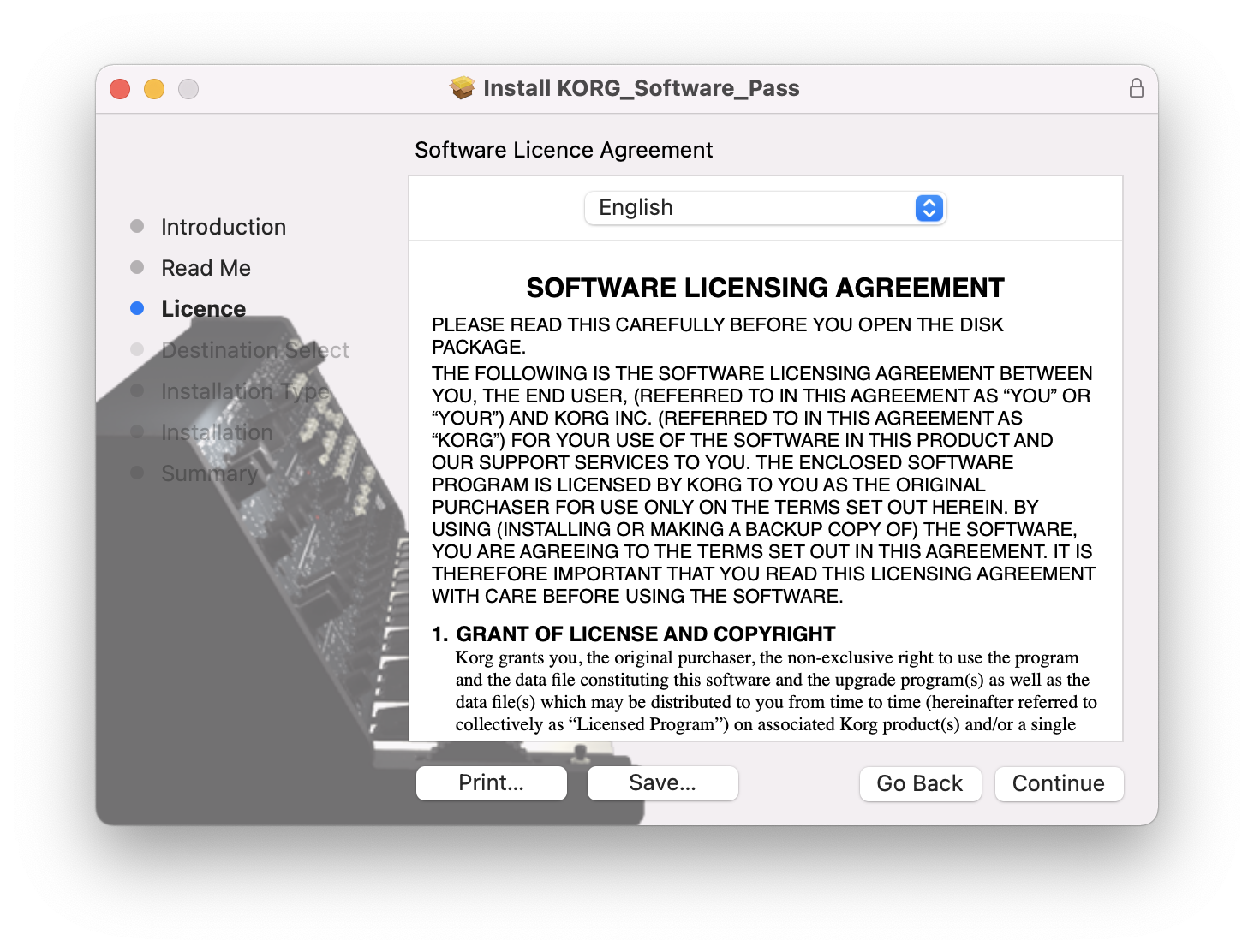
5. Click 'Agree'.
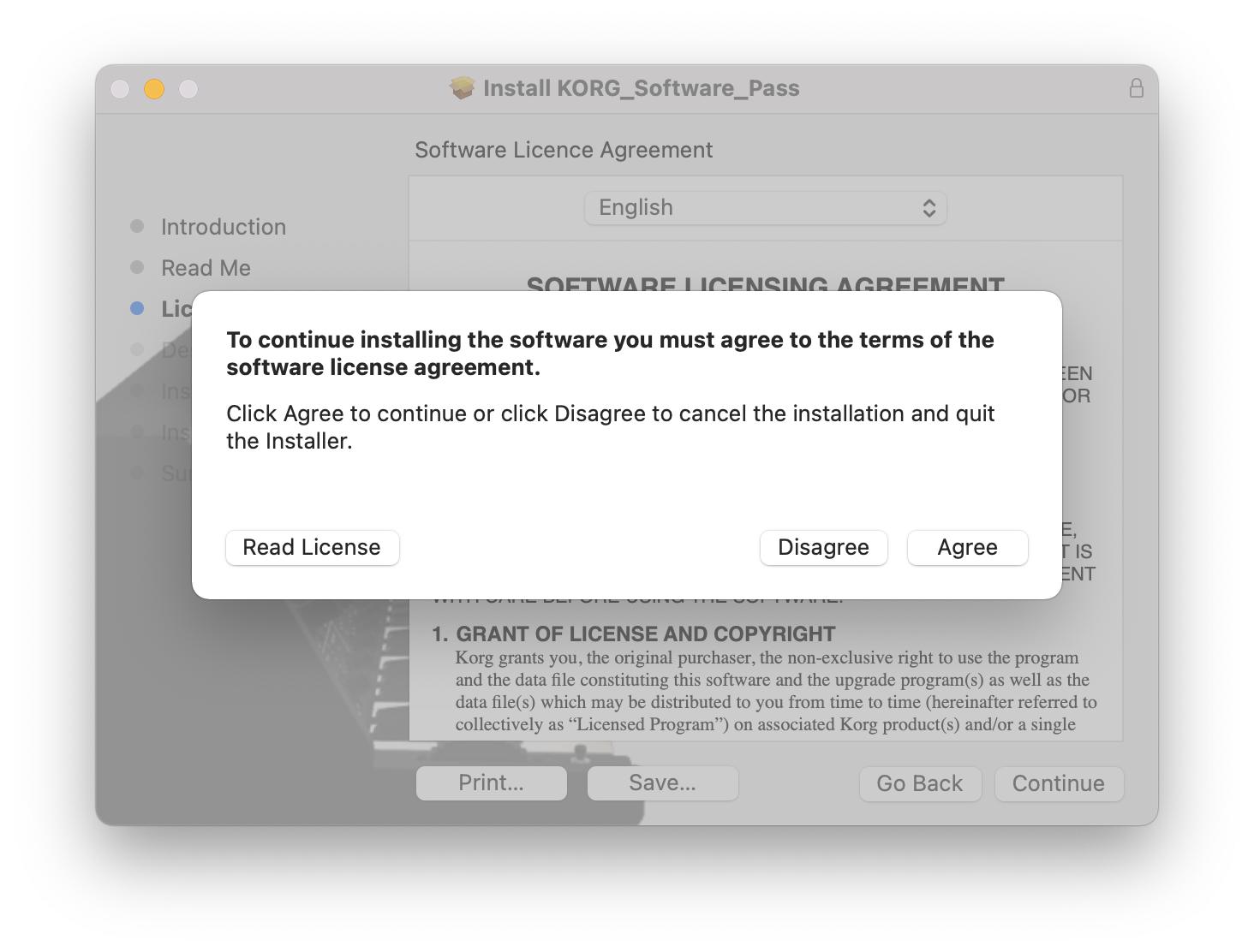
6. Click 'Install'.
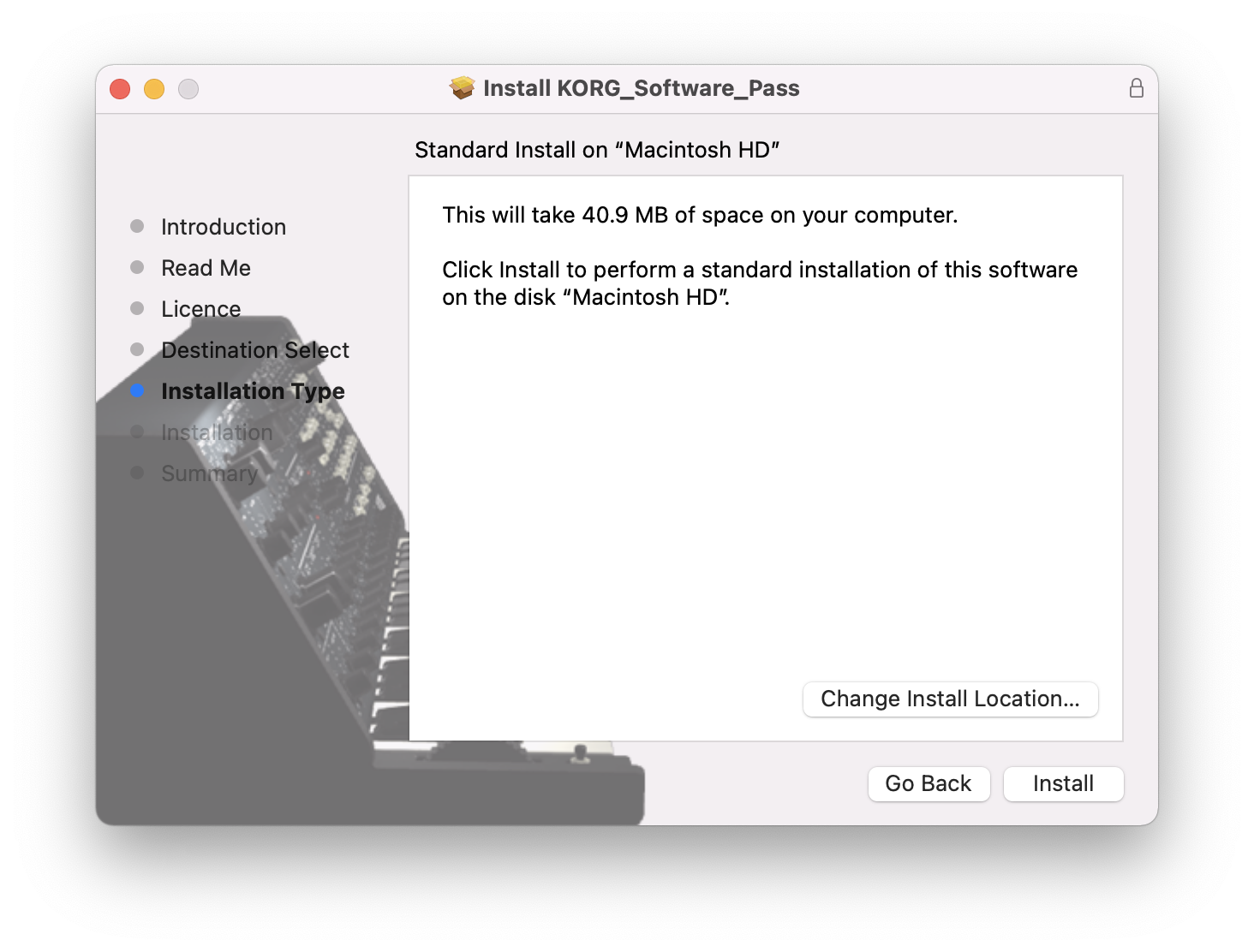
7. Click 'Close'.
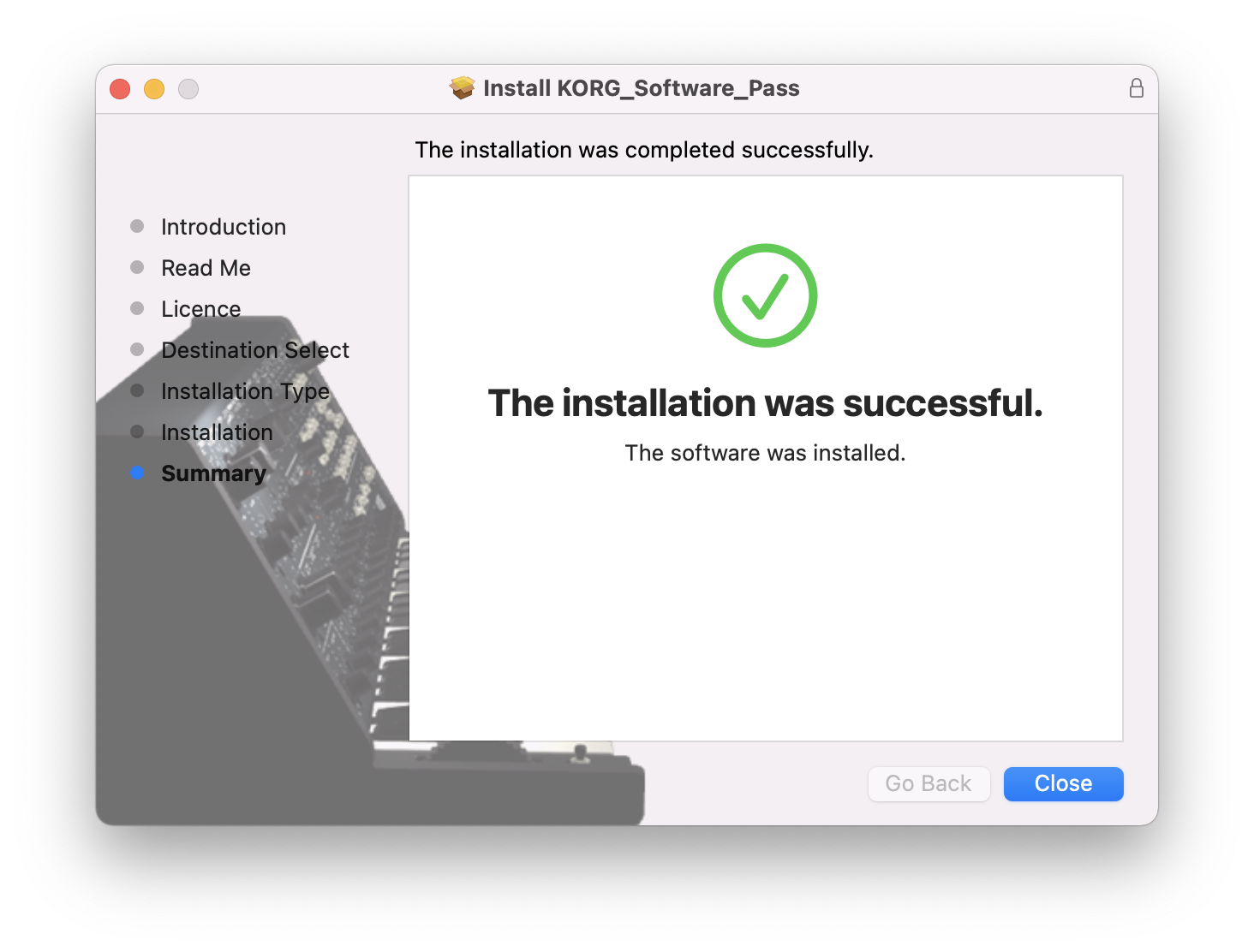
8. Open KORG Software Pass.
9. If you already have a KORG account, skip to step x > Click 'Don't have a KORG ID? Signup'.
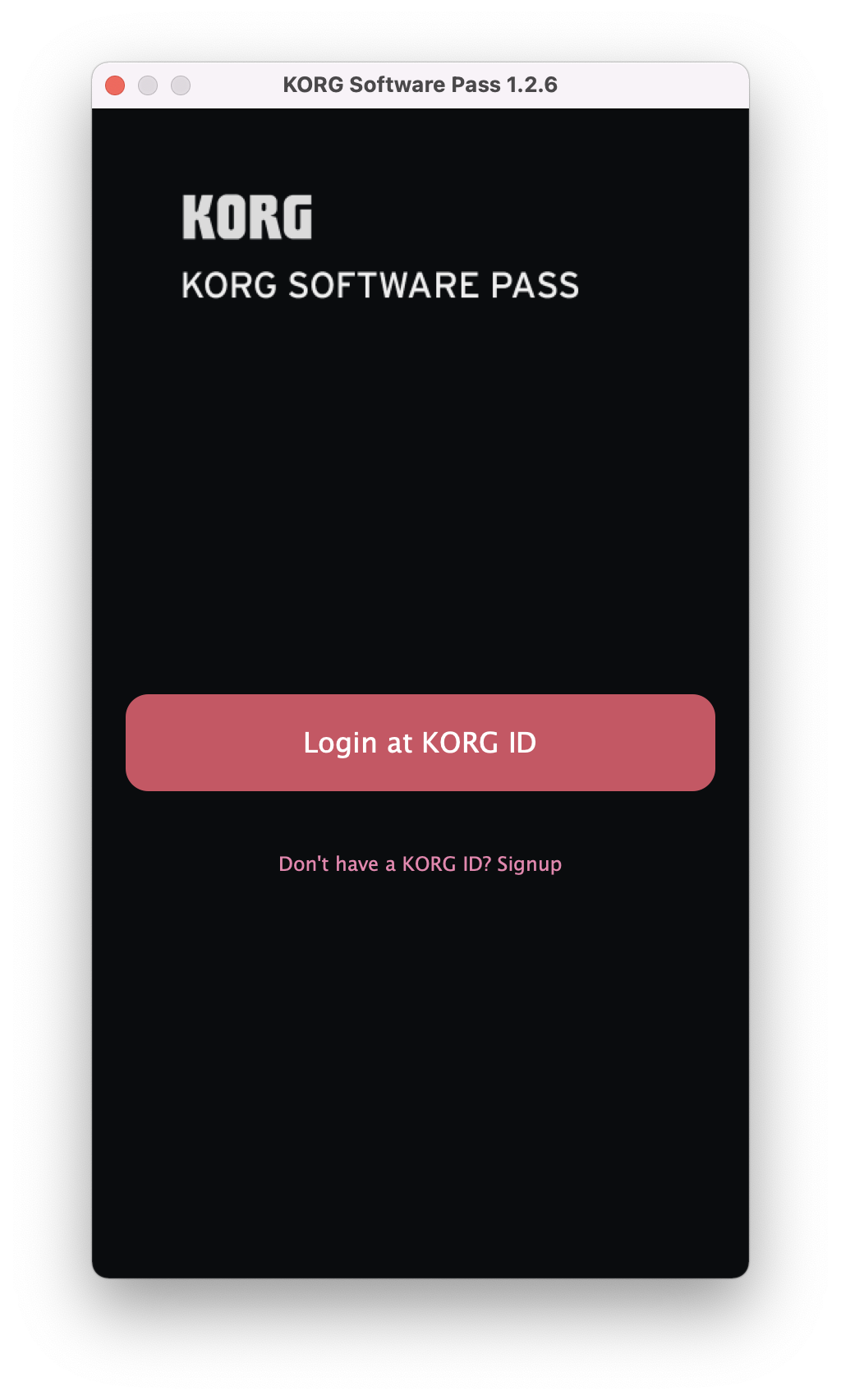
10. Sign up for a KORG account by filling in your details.
11. Go to your email inbox and locate the email from KORG > Click 'Confirm my account'.
12. Go back to the KORG Software Pass > Click 'Login at KORG ID'.
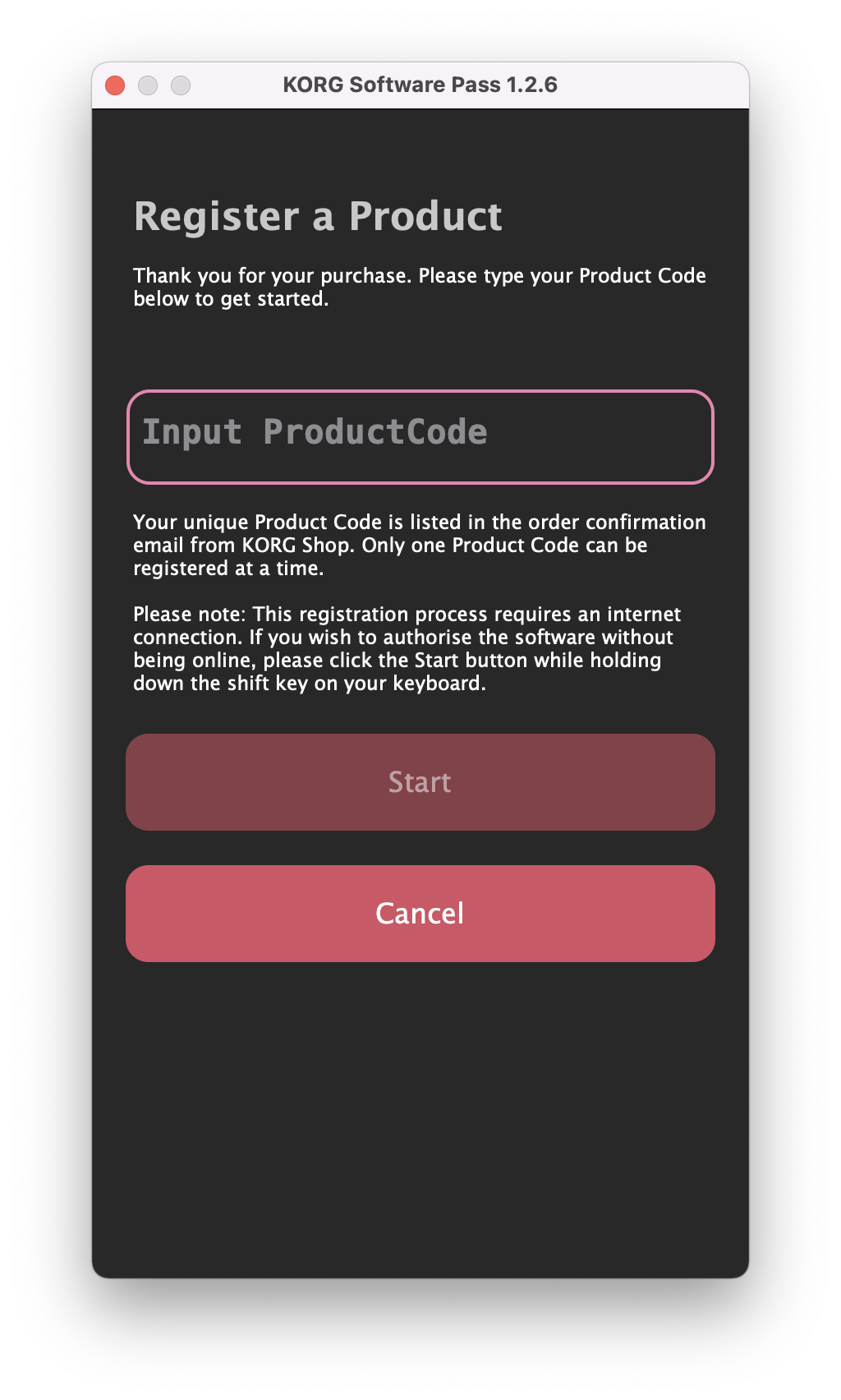
13. Click 'Register new product'
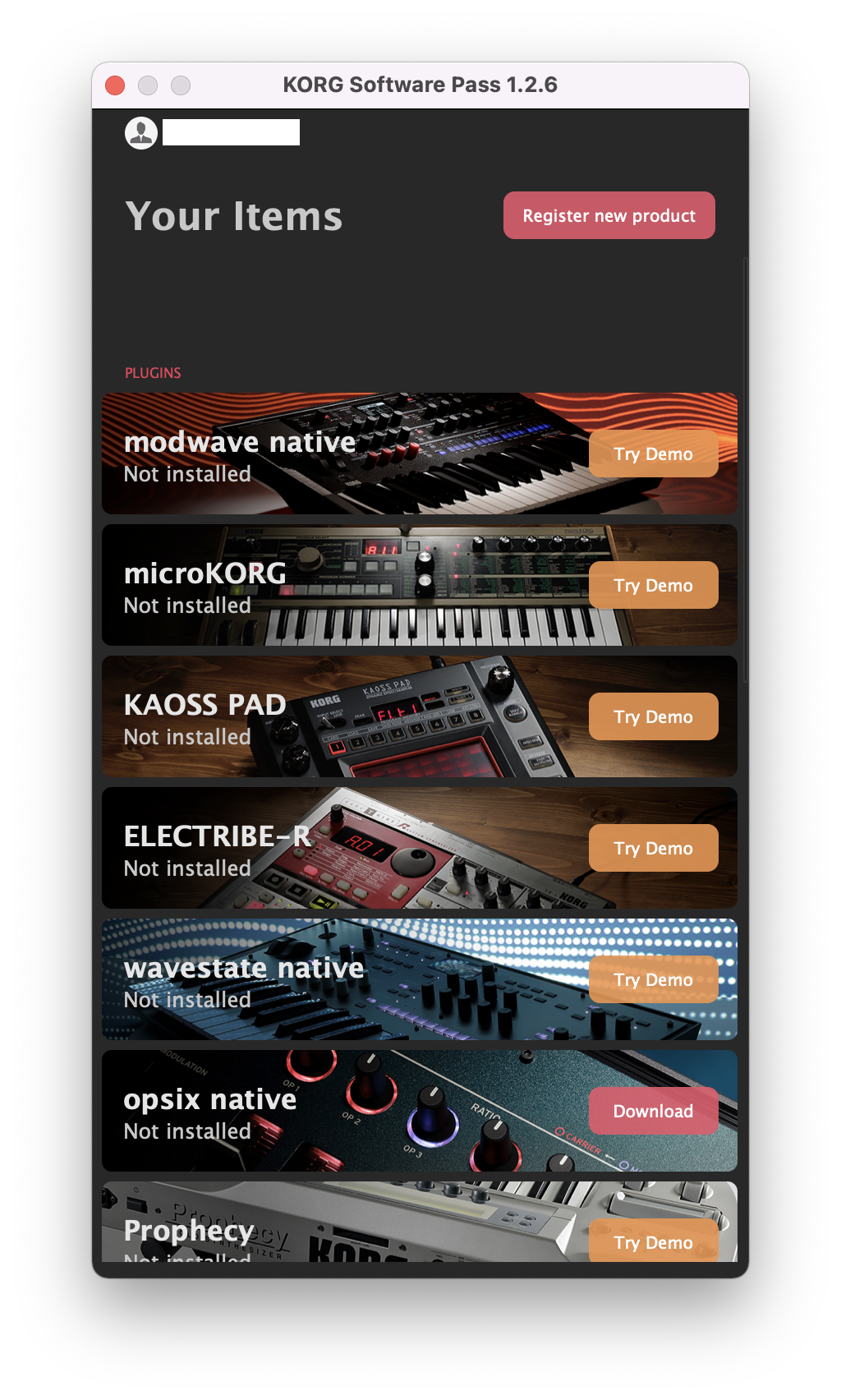
14. Copy & paste/manually enter the licence key/serial code that is available in your Plugin Boutique account > Click 'Start'.
15. Locate opsix native in the list of products > Click 'Download'.
16. The software will automatically open the downloaded .zip file > Double click the opsix native .pkg file.
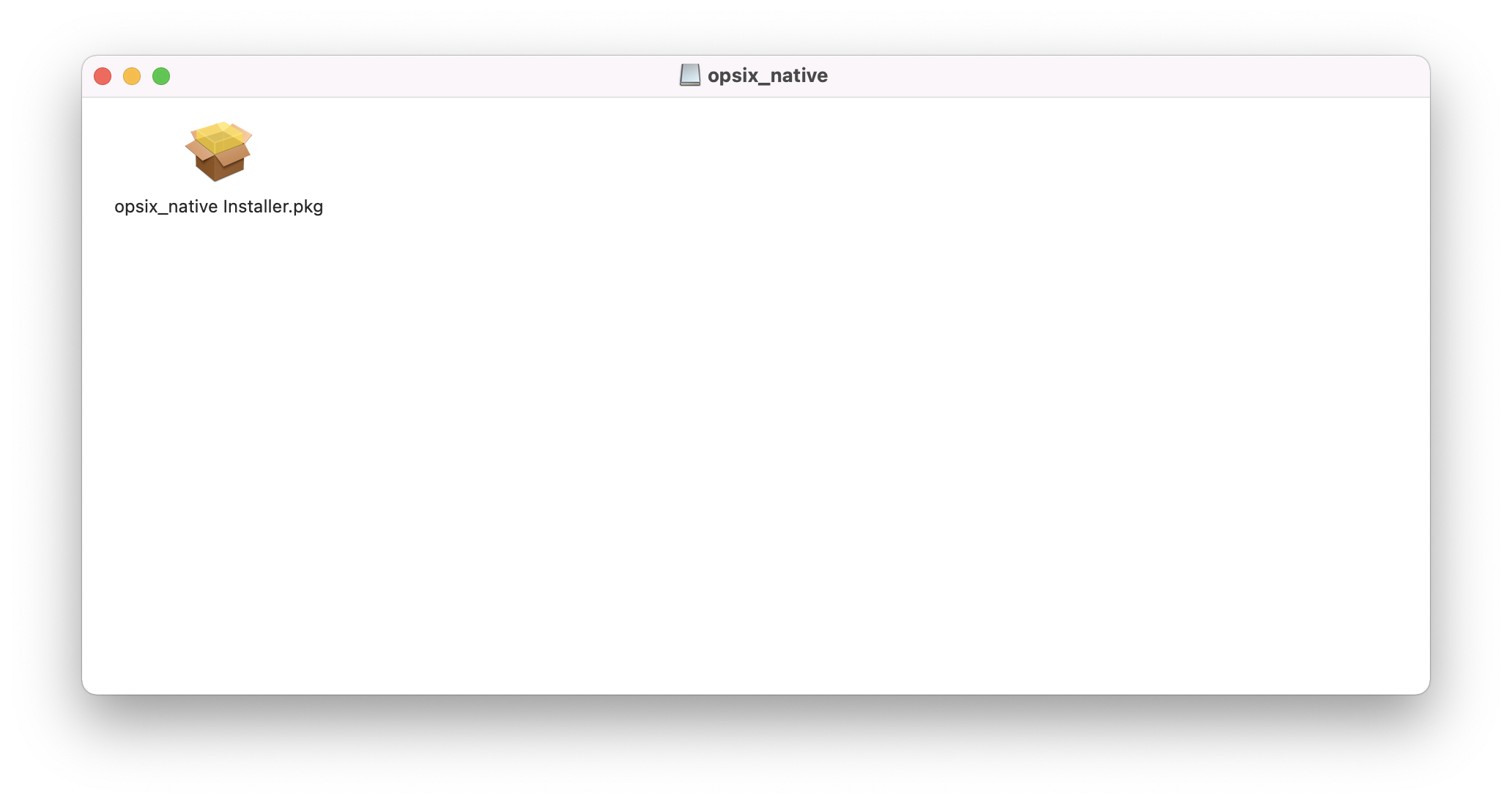
Installation
1. Click 'Continue'.
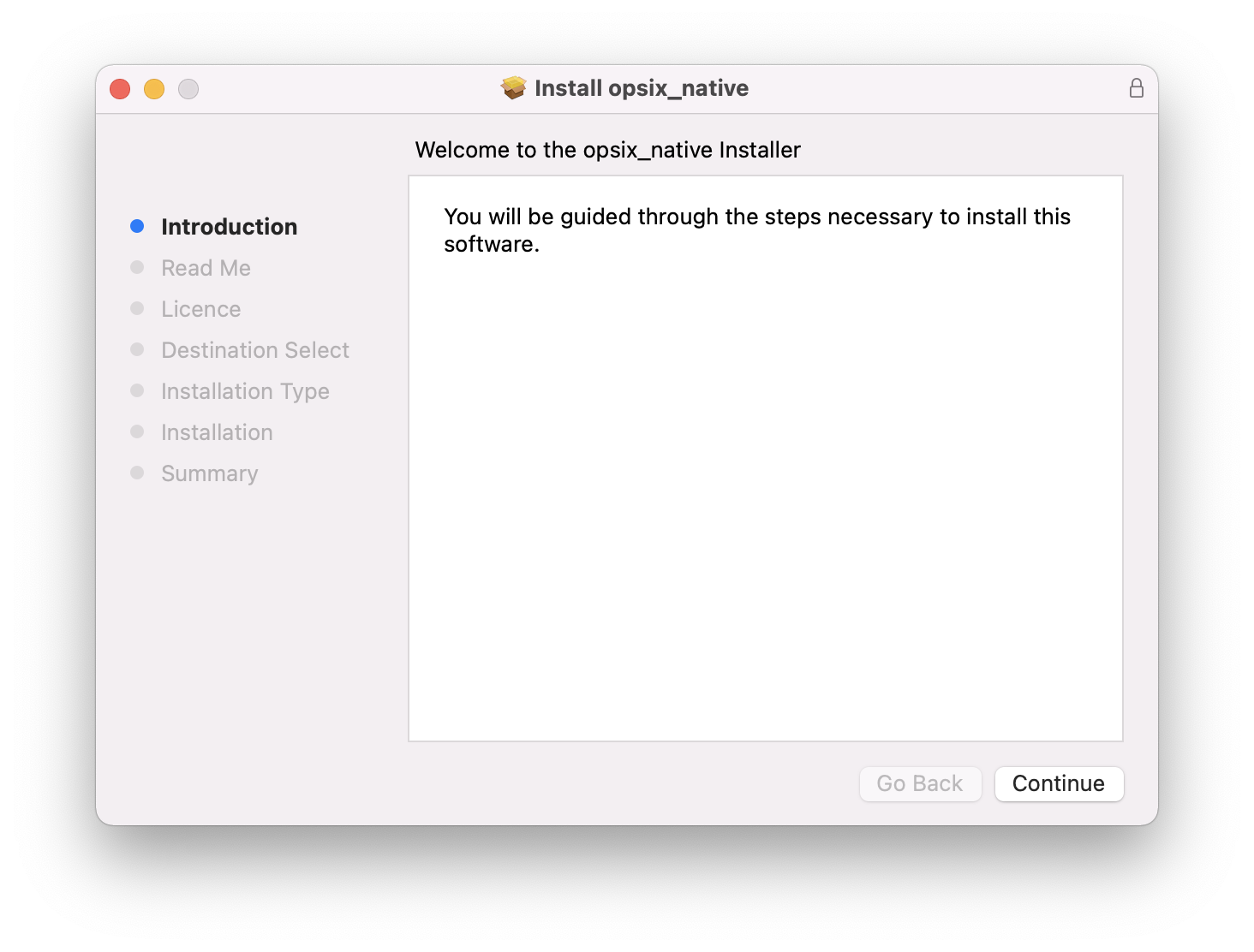
2. Click 'Continue'.
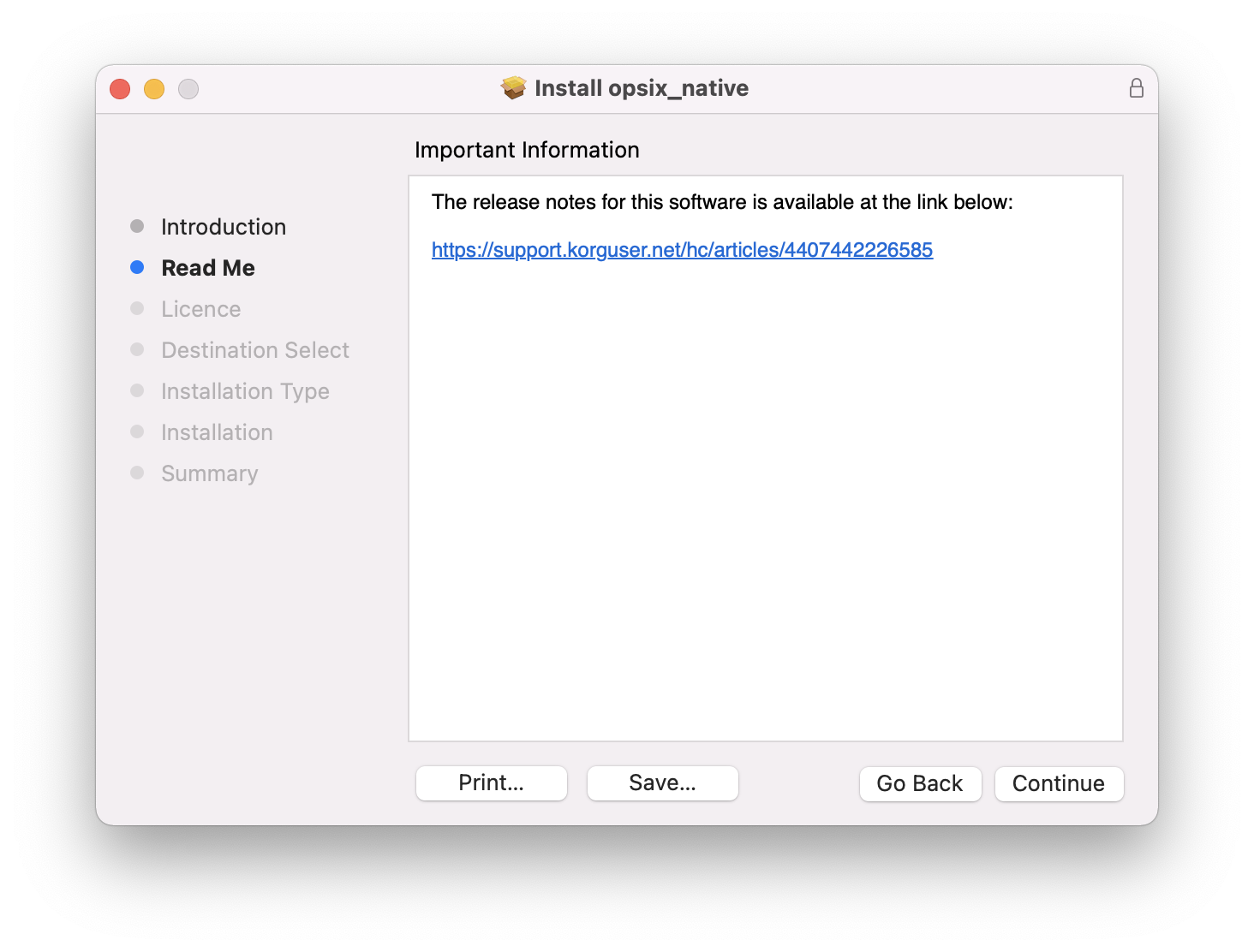
3. Click 'Continue'.
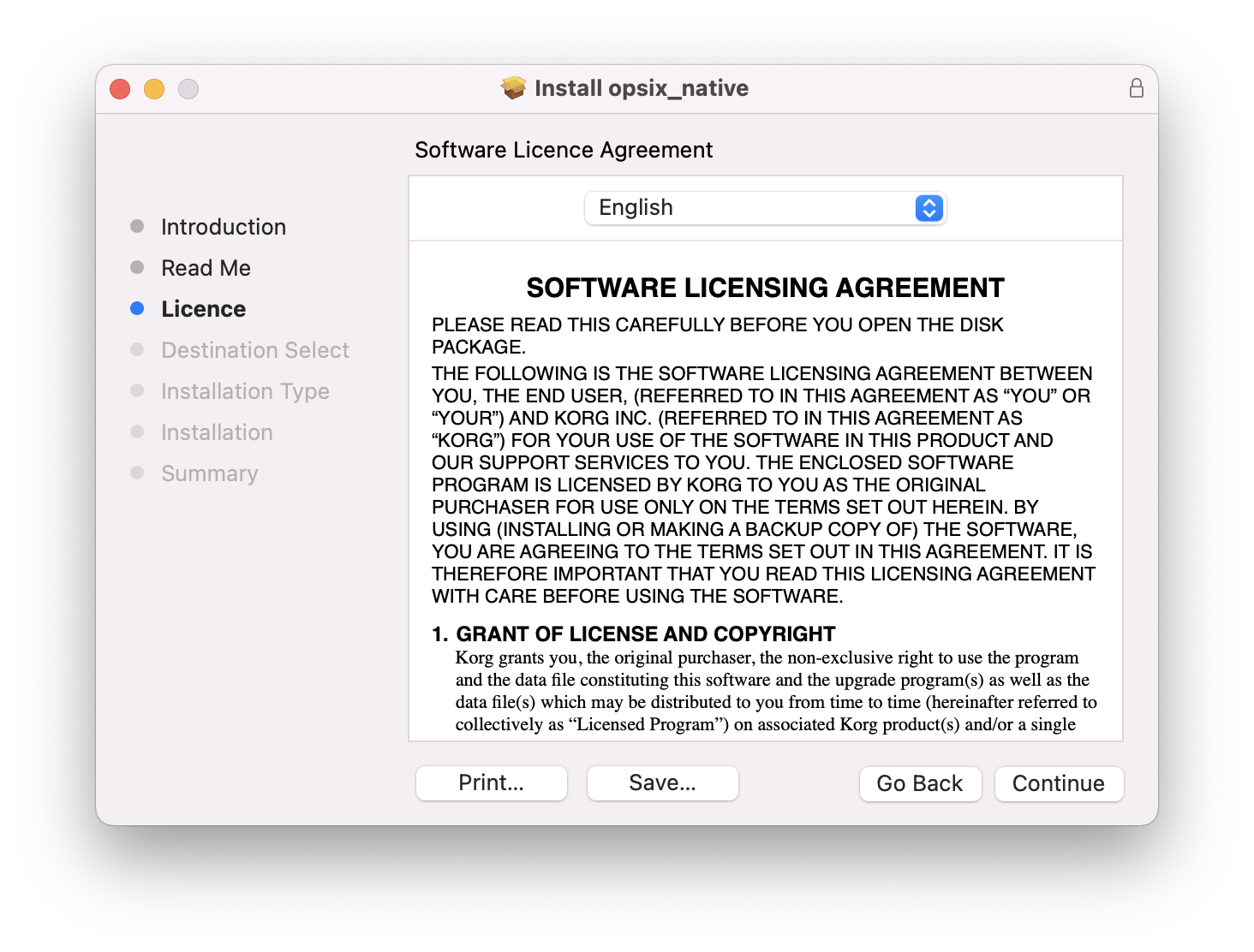
4. Click 'Agree'.
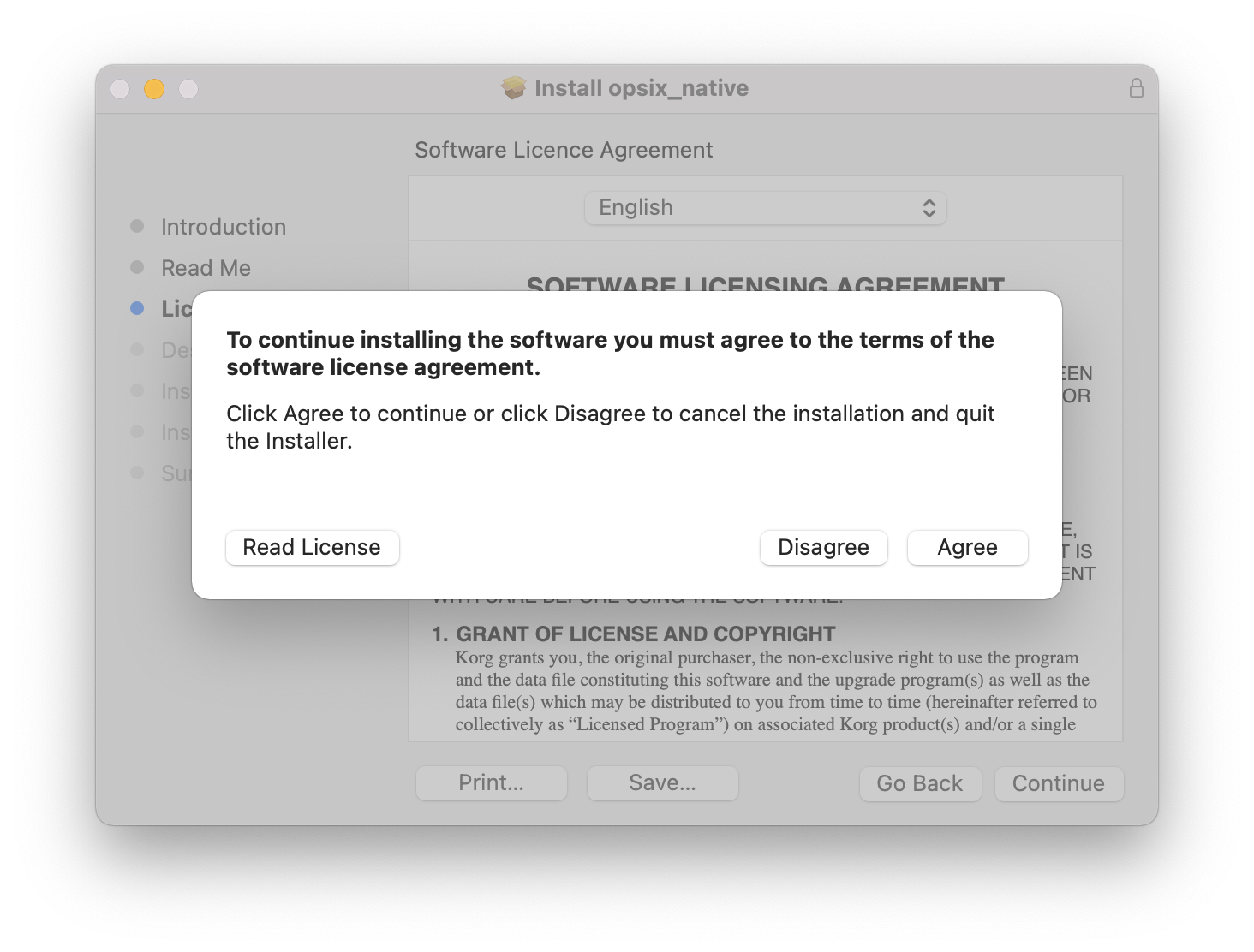
5. Click 'Install'.
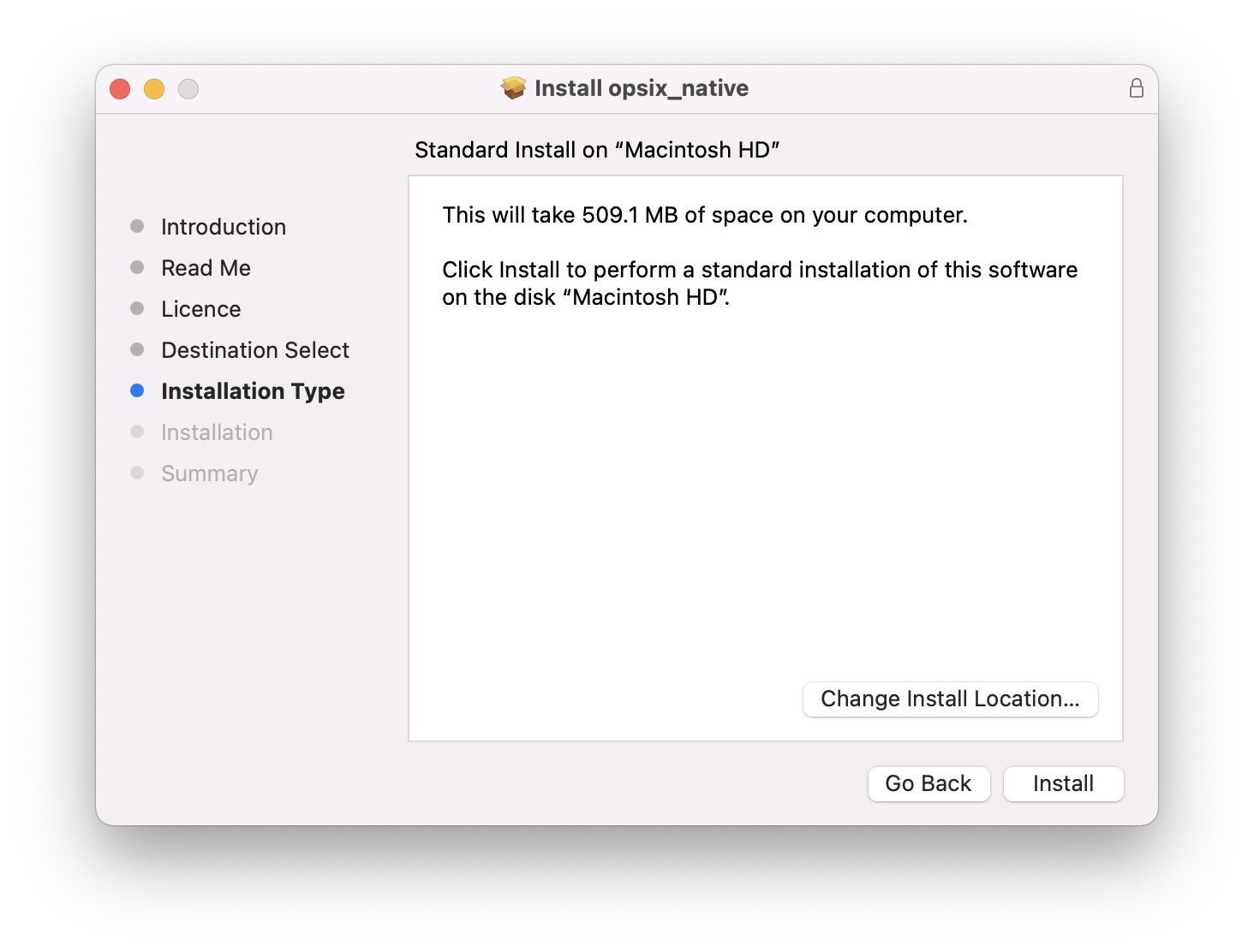
6. Click 'Close'.
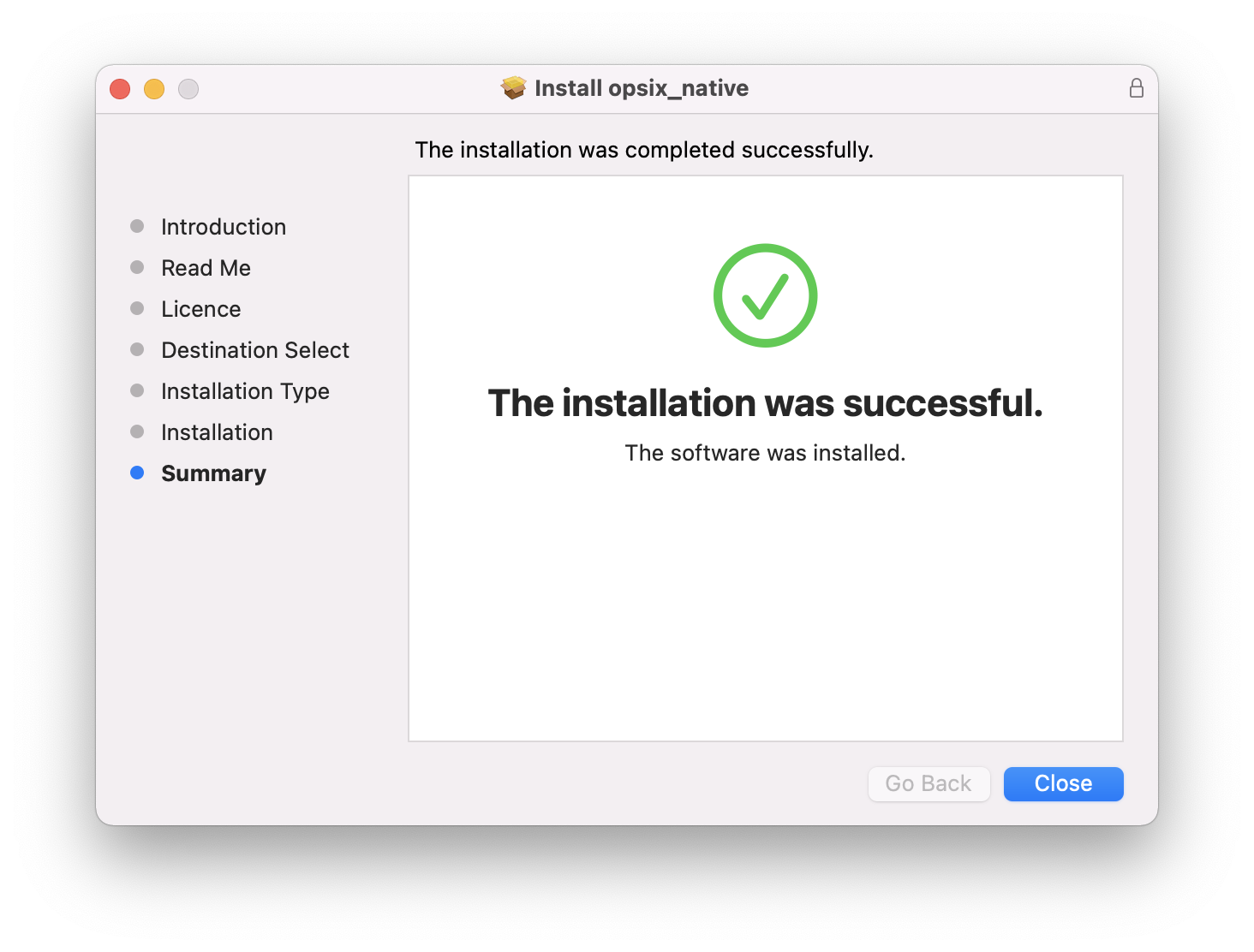
7. Open opsix native in your DAW or as a standalone program.
Your software is now activated and ready to use!
If you would like any further assistance with your software, please feel free to reach out to our support team at support@pluginboutique.com.