
Welcome to the Native Instruments installation page.
Please take a look at our installation guide videos below, which provide information on how to register, install and authorise your Native Instruments software.
Mac Video Installation Guide
Windows Video Installation Guide
Alternatively, you can follow the step-by-step instructions below for your software.
Installation Instructions
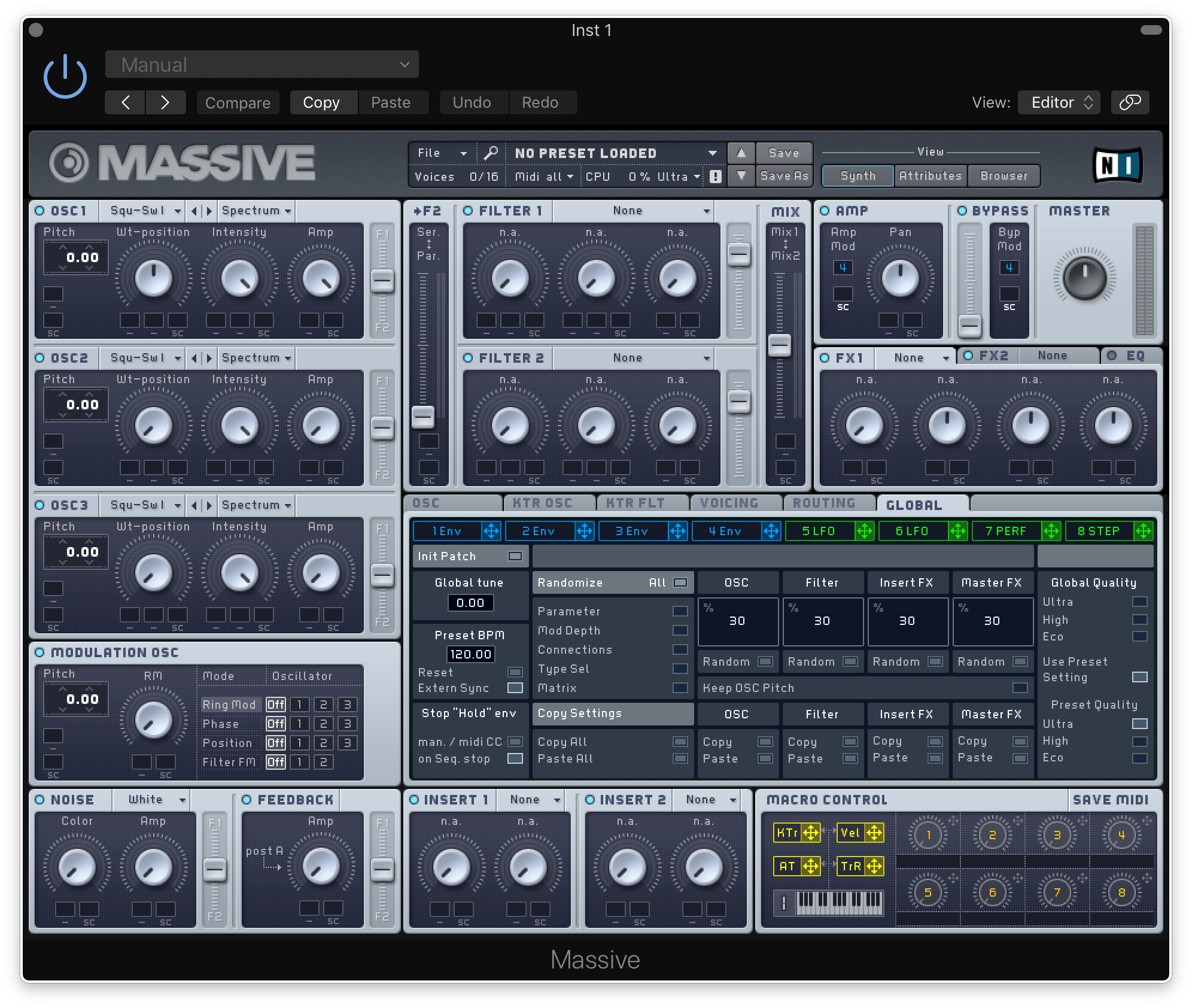
Note: Massive is used as an example.
Windows
1. Download the .zip installer file from your Plugin Boutique User Account.
2. Double-click the extracted .exe file to begin the installation process > click ‘Run’.
3. Read the welcome message > click 'Next'.

4. Click 'Next' to begin the installation.

5. Native Access has now been installed > Click 'Finish'.

6. Open Native Access > Create a new Native ID if you do not have one already. If you do, skip ahead to step 8.

7. You will then receive an email with a confirmation link > Open the email and click 'CONFIRM EMAIL'.

8. Log in to Native Access with your Native ID.

9. Click 'Add a serial'.

10. Enter your Serial Number found in your Plugin Boutique User Account > Click 'ADD SERIAL'.

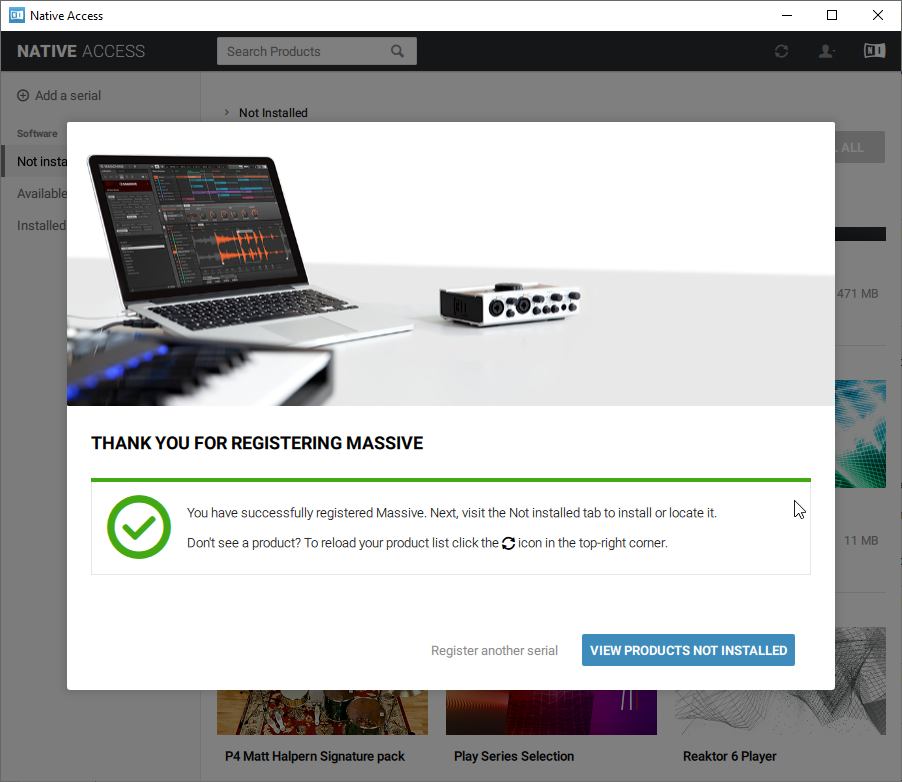
11. Once your serial has been registered, click 'VIEW PRODUCTS NOT INSTALLED'.
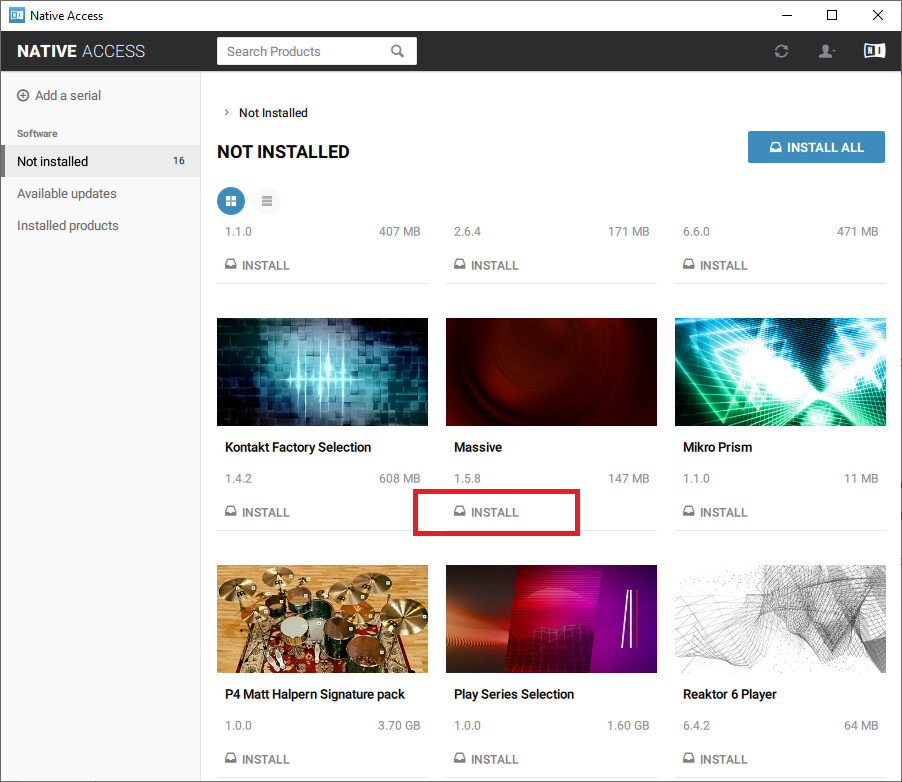
12. Click the 'Not installed' tab > Locate Massive > Click 'INSTALL'.
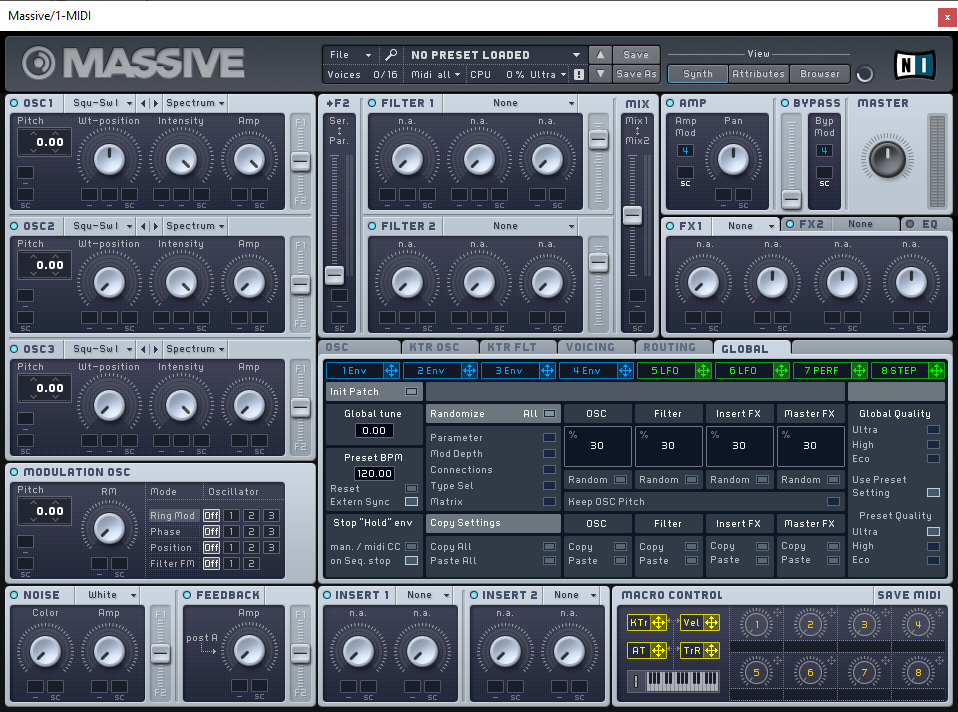
Your software is now activated and ready for use within your DAW.
Mac
1. Download the .dmg installer file from your Plugin Boutique User Account.
2. Double-click the .dmg file to install Native Access.
3. Open Native Acces > Create a new Native ID if you do not have one already. If you do, skip ahead to step 5.

4. You will then receive an email with a confirmation link > Open the email and click 'CONFIRM EMAIL'.
5. Log in to Native Access with your Native ID.

6. Click 'Add a serial'

7. Enter your Serial Number found in your Plugin Boutique User Account > Click 'ADD SERIAL'.

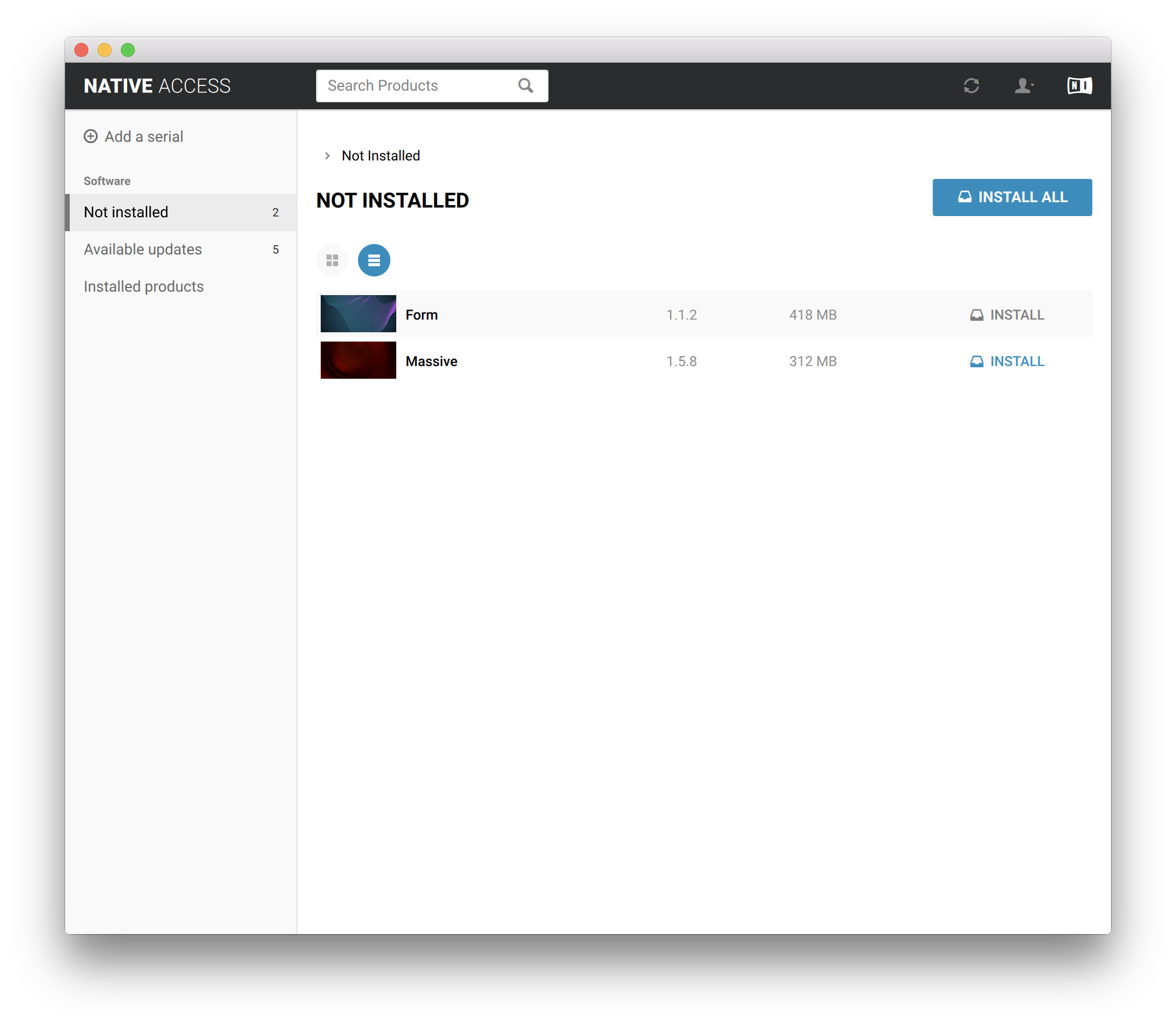
8. Click the 'Not installed' tab > Locate Massive > Click 'INSTALL'.
Your software is now activated and ready for use within your DAW.
If you need help adding a Kontakt instrument to your library, please follow the instructions in our help centre page HERE.
If you would like any further assistance with your software, please feel free to reach out to our support team at support@pluginboutique.com.