
Welcome to the Softube installation page.
Please take a look at our installation guide videos below, which provide information on how to register, install and authorise your Softube software.
Mac Video Installation Guide
Windows Video Installation Guide
Alternatively, please find our step-by-step guide below.
Note: Before starting the installation, you are required to create a FREE iLok user ID and install the iLok License Manager.
Please take a look at this Help Centre Guide for more information.
Registration
1. Click 'DOWNLOAD' in your Plugin Boutique Account. This will direct you to the Softube login page.
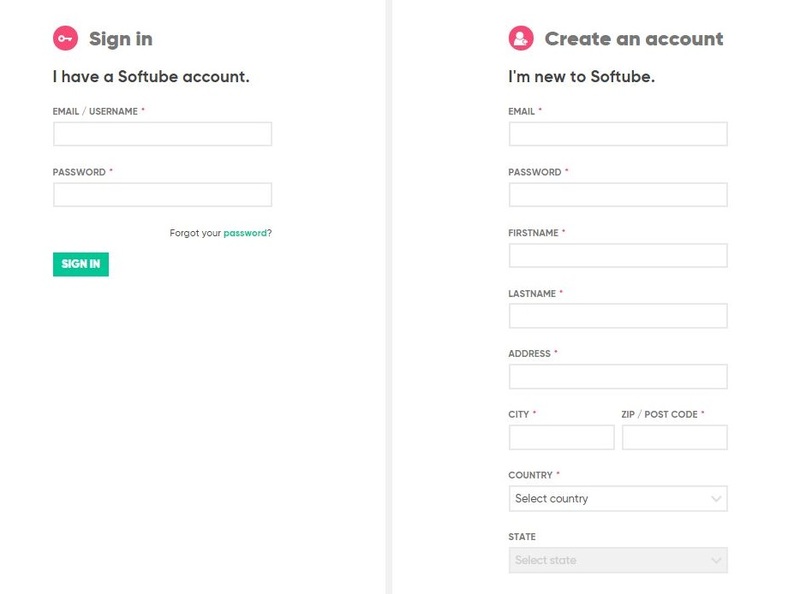
2. Enter your details > tick the Privacy Policy box > click 'Sign up' to create an account. (If you already have a Softube account, please log in and skip to step 5).
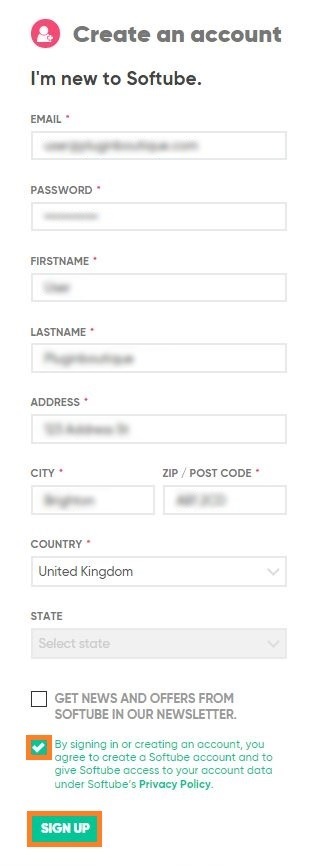
3. Go to your email account > find the Softube registration email > click 'ACTIVATE MY ACCOUNT'. (Your account has now been successfully created)

4. Go back to www.softube.com (you should now be logged in) > click 'MY ACCOUNT'.

5. Click 'REGISTER LICENSE'.

6. Enter the License Code (referred to as serial number on our site) found in your Plugin Boutique User Account > click 'REGISTER LICENSE'.

7. Click 'GO FOR IT!'.

Your product is now registered.
Mac
1. On the My Products page, click 'MAC' > you will be directed to the Mac Installation page.

2. Click 'HERE (highlighted in orange) to start downloading Softube Central.

3. Once it has downloaded, open the Softube Central PKG file > click 'Continue'.

4. Read through the Software License Agreement > click 'Continue'.

5. Click 'Agree'.

6. Click 'Install'.

7. Enter your password > click 'Install Software'.

8. Click 'Close'.

9. Open Softube Central > click 'INSTALL' to install all the necessary iLok licensing components. (This may take a few minutes)
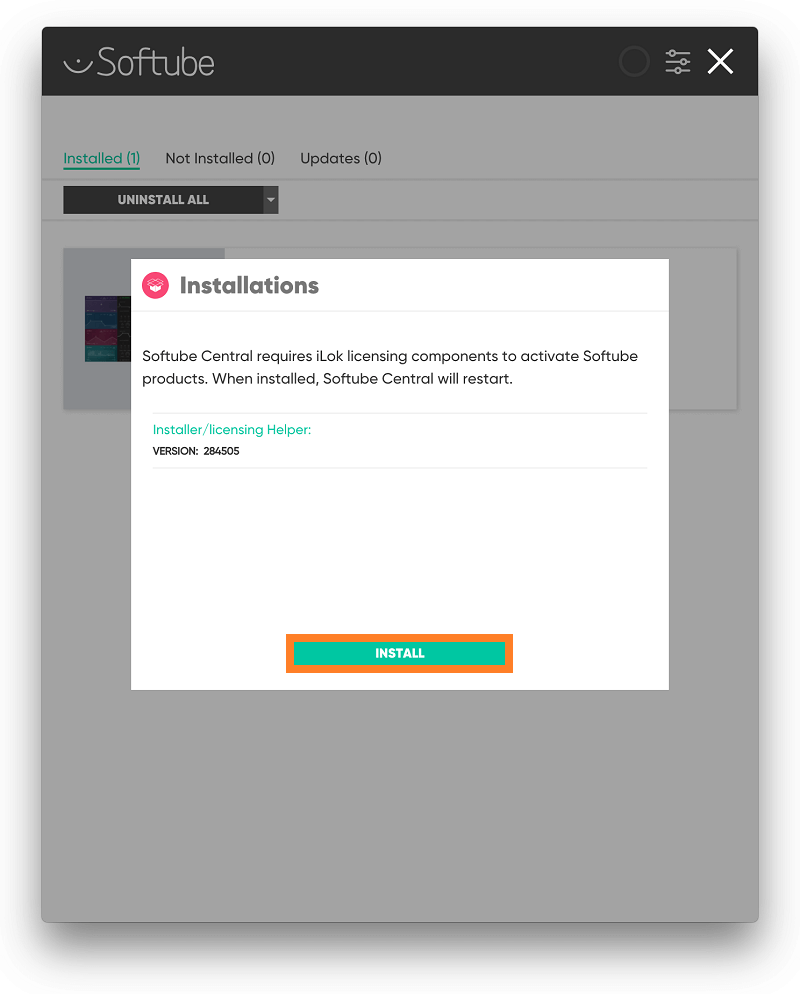
10. Sign in to your Softube account.

11. Your product will now be displayed in Softube Central.
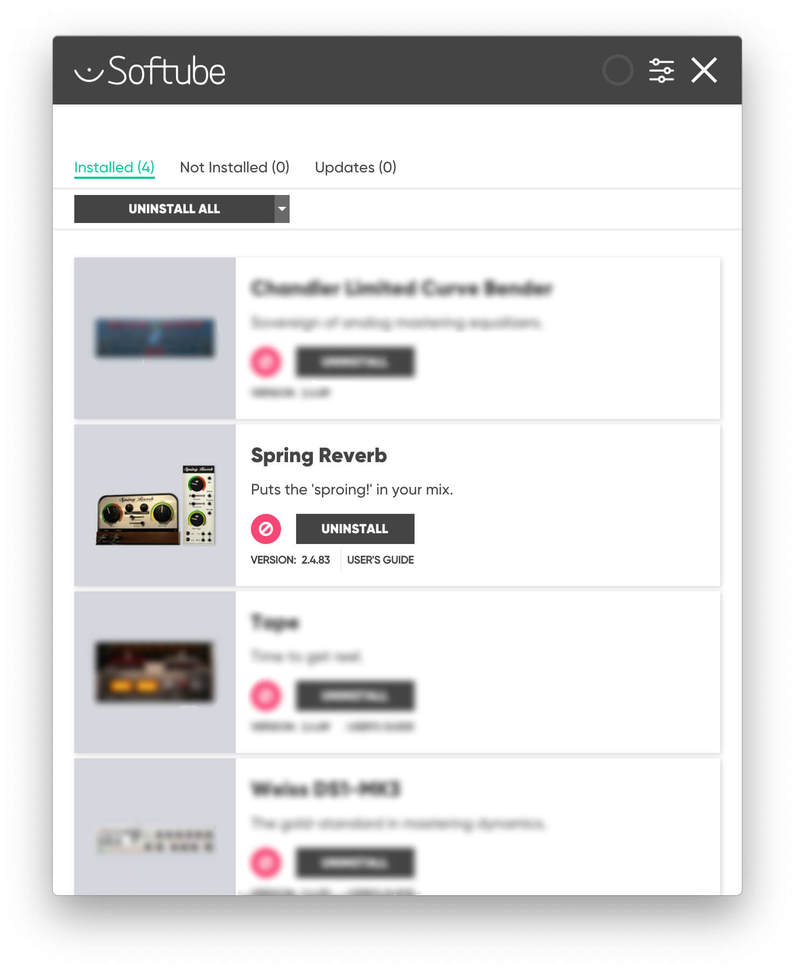
Please note: if it says 'DISCONNECTED' at the top of the window, please go to the settings and click 'RESTART', close Softube Central and then open it again.
Your software is now activated and ready for use within your DAW.

Windows
1. On the My Products page, click 'WINDOWS' > you will be directed to the Windows Installation page.

2. Click 'here' (highlighted in orange) to start downloading Softube Central.

3. Once it has downloaded, open the Softube Central download > click 'Yes'.

4. Read through the Software License Agreement > click 'I Agree'.

5. Softube Central will now open > click 'Install' to download the necessary iLok licensing components.

6. Please wait for the iLok licensing components to download. (This may take up to 5 minutes).

7. Click 'Yes' > the Softube Installer Helper Setup will now run.

8. Click 'Next >'.

9. Read through the License Agreement > click 'I Agree'.

10. Click 'Next >'.

11. Choose the VST file path (we recommend the default location) > click 'Install'.

12. Click 'Finish'.

13. Softube Central has now been successfully installed > click 'START'.

14. Sign in to your Softube account.

15. Click 'INSTALL'.

Your software is now activated and ready for use within your DAW.

If you would like any further assistance with your software, please feel free to reach out to our support team at support@pluginboutique.com.