
Welcome to the Sonarworks installation page.
Please take a look at our installation guide videos below, which provide information on how to register, install and authorise your Sonarworks software.
System Requirements
macOS 10.14 - 13 (64-bit only)
Windows 10 or later (64-bit only)
2 GB RAM, 1024 x 768 display
Audio interface - +48v Phantom Power and 44.1 kHz sample rate capability
Sonarworks supported or Sonarworks individually calibrated headphones required.
SoundID Reference measurement microphone or other omnidirectional measurement microphone
Important Note: Headphones and Speakers are NOT included with this product.
Mac Video Installation Guide
Windows Video Installation Guide
Alternatively, you can follow the step-by-step instructions below for your software.
Installation Instructions
Registration
1. Go to https://www.sonarworks.com/account/signup > Enter your email address & password > Click 'Sign up'.
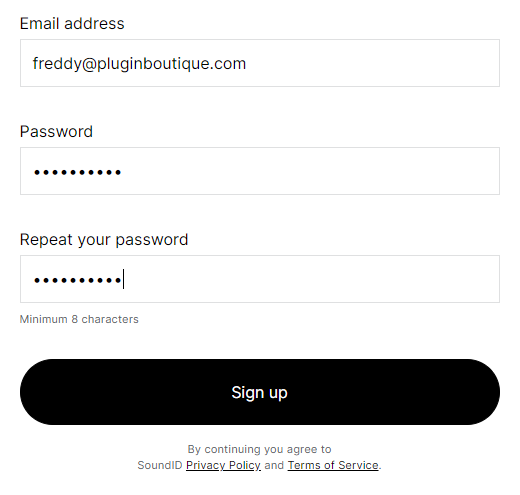
2. You will have received a confirmation email from Sonarworks > Go to your email and click 'Verify this email address'.

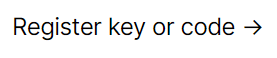
3. From within your Sonarworks account, click 'Register key or code ->' or go to https://www.sonarworks.com/account/add-license
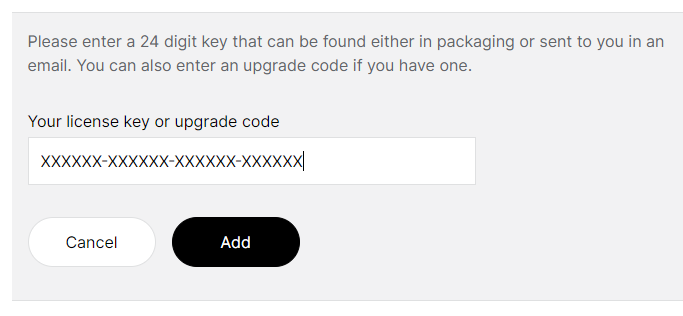
4. Enter the 24-digit key found in the serial number section of your Plugin Boutique User Account > Click 'Add'.
Mac Installation
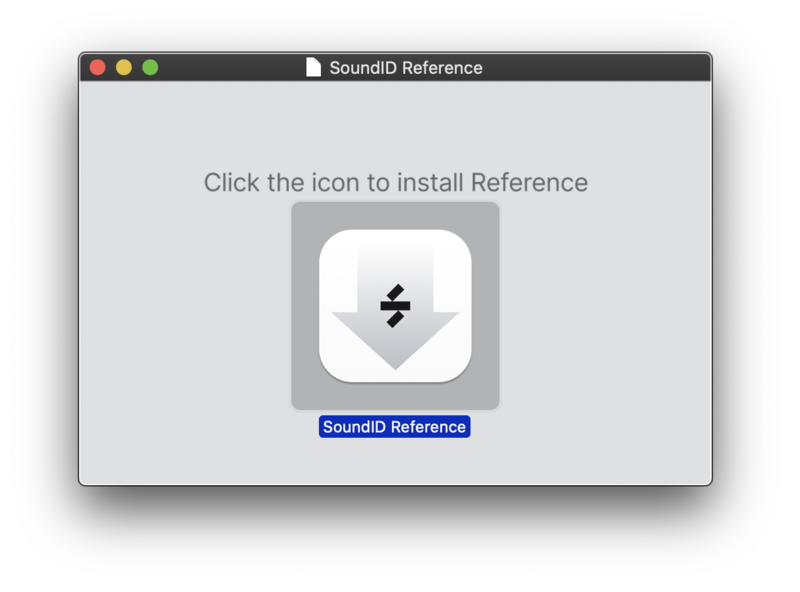
1. Download the installer from within your Plugin Boutique User Account and open the .dmg file > Double-click the installer icon to begin the installation.
2. Enter your computer username and password > Click 'Ok'.
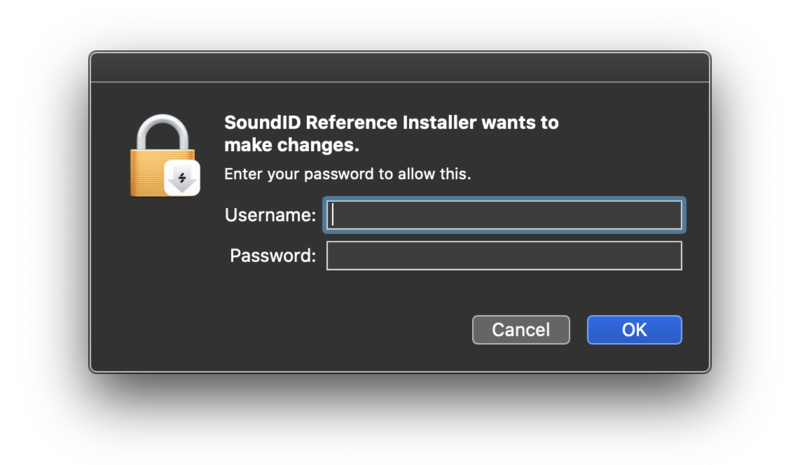
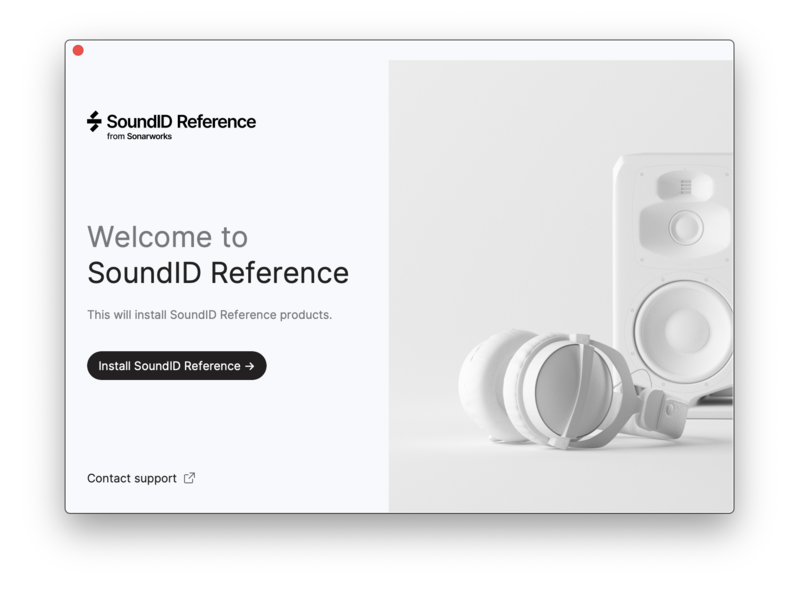
3. Click 'Install SoundID Reference'.
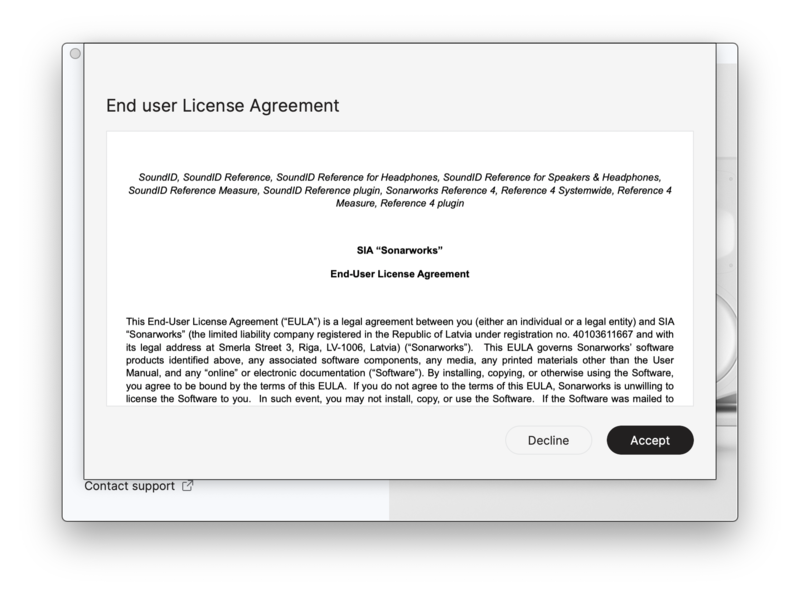
4. Click 'Accept'.
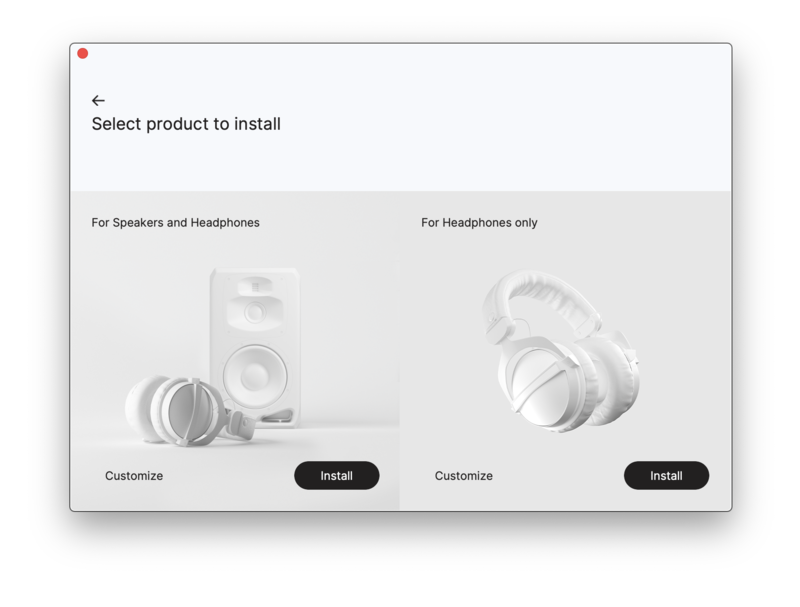
5. Click 'Install' for the purchased product that you wish to install.
6. Click 'Launch SoundID Reference'.
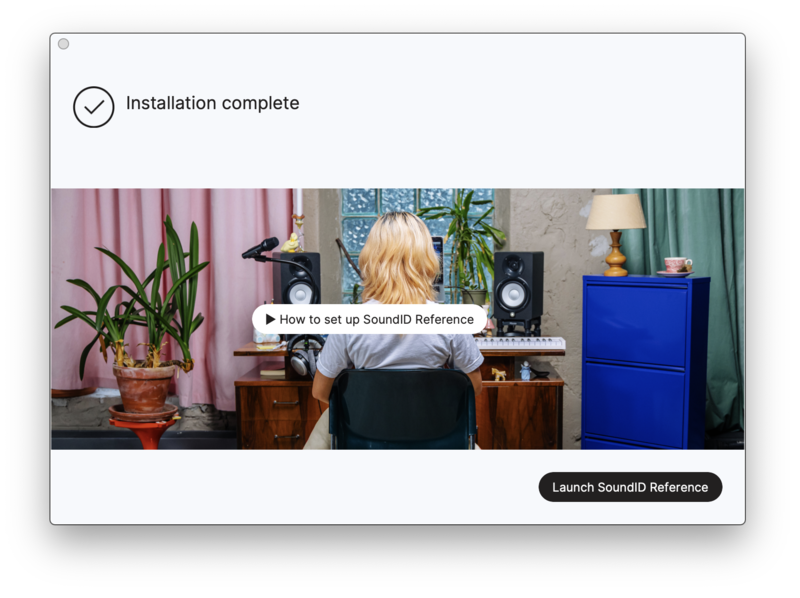
7. Click 'Sign in to SoundID Reference'.
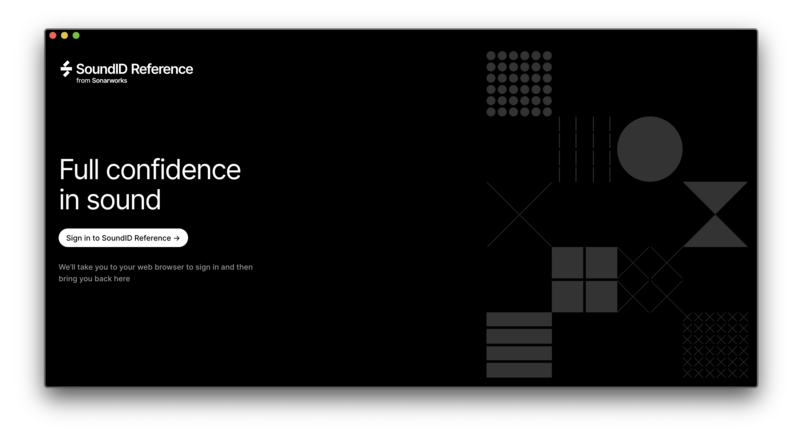
8. From within your Sonarworks Account, click 'Activate on this device'.
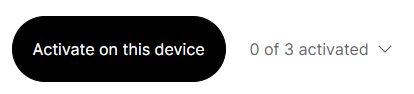
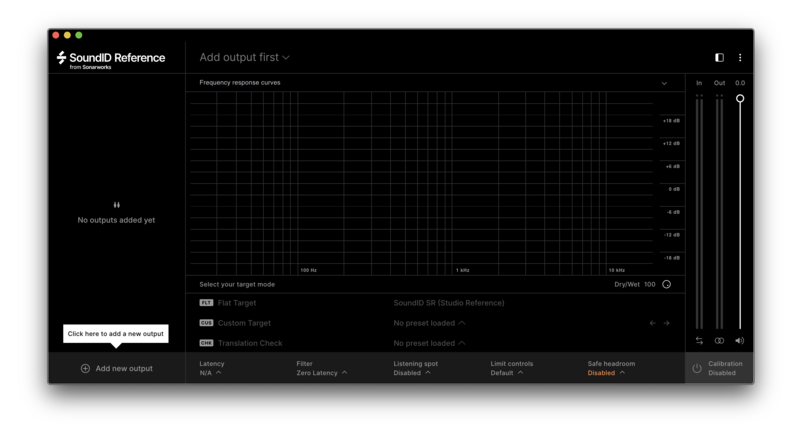
Your software is now activated and ready to use.
Windows Installation
1. Download the installer from within your Plugin Boutique User Account and double-click the zip file to extract the contents > Open the .exe file to begin the installation > Click 'Install SoundID Reference'.

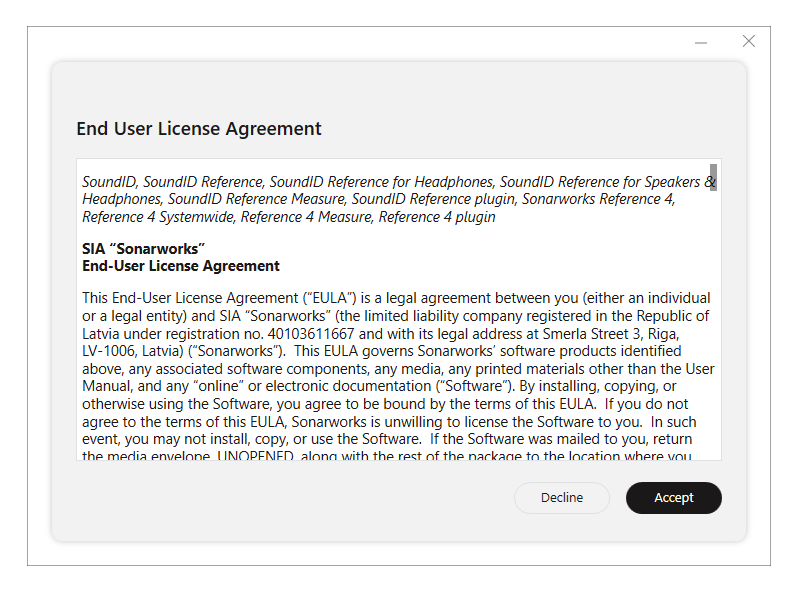
2. Click 'Accept'.
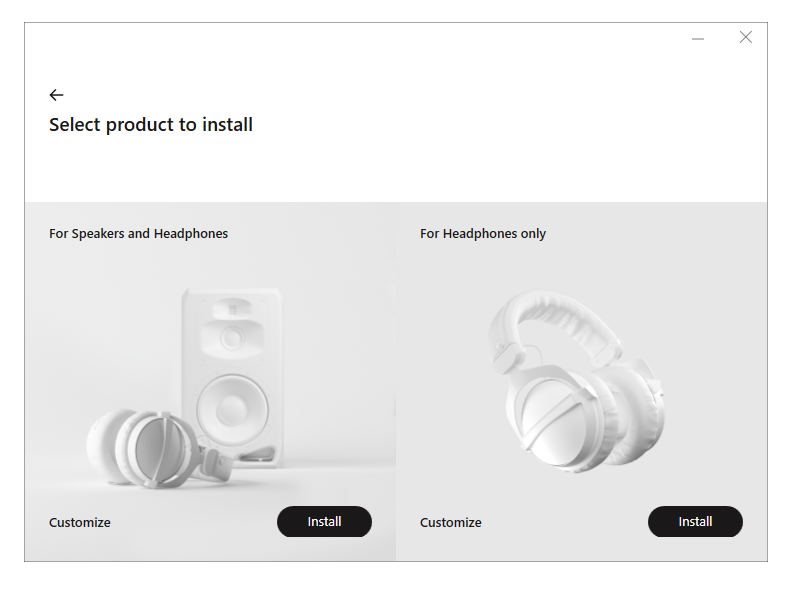
3. Click 'Install' for the purchased product that you wish to install.
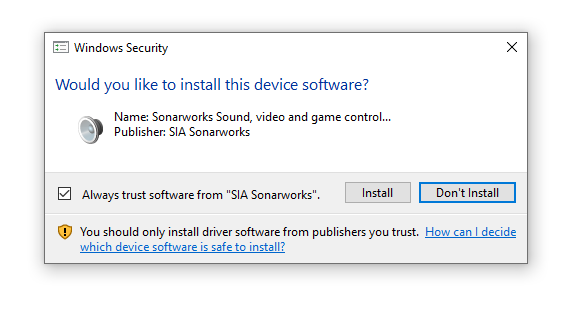
4. Click 'Install'.
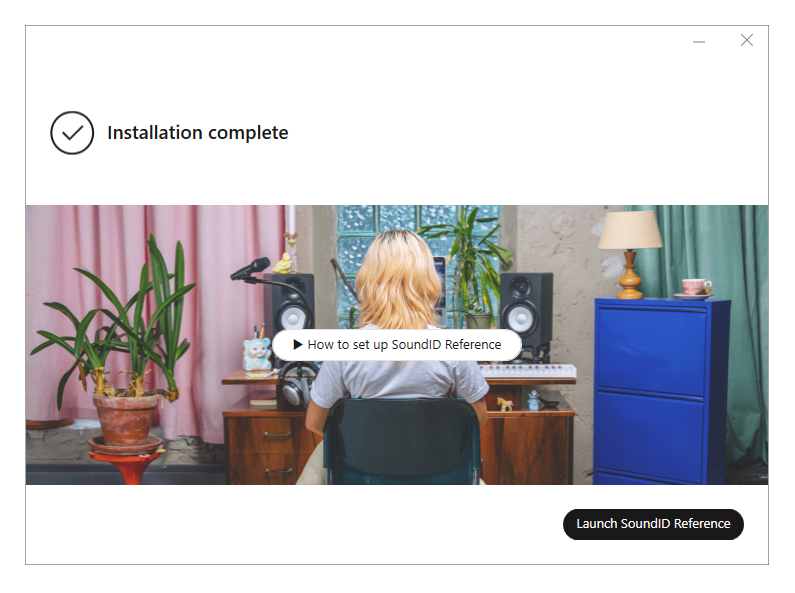
5. Click 'Launch SoundID Reference'.
6. Click 'Sign in to SoundID Reference'.
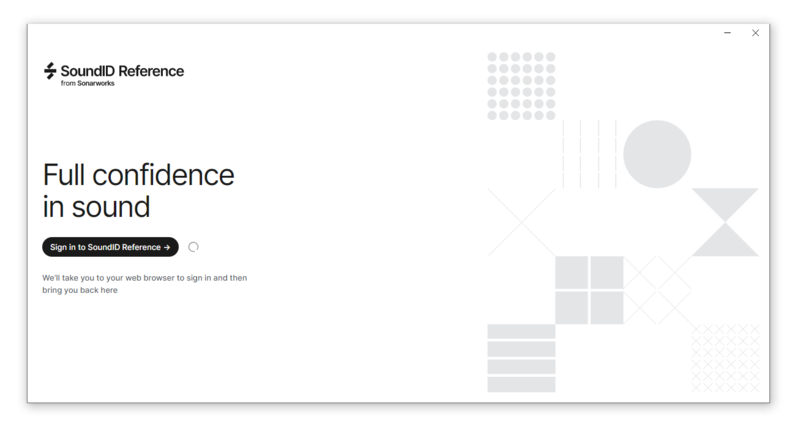
7. From within your Sonarworks Account, click 'Activate on this device'.
Your software is now activated and ready to use.
If you would like any further assistance with your software, please feel free to reach out to our support team at support@pluginboutique.com.