
Welcome to the u-he installation page.
Please take a look at our installation guide videos below, which provide information on how to register, install and authorise your u-he software.
System Requirements
Mac
- Mac OS X 10.9 or newer (Intel and M1 Mac Supported) (64-bit only)
- AU2, VST2, VST3
Windows
- Windows 7 or newer (32 / 64-bit)
- VST2, VST3
Minimum Requirements
- Host software / DAW
- 1GB RAM, more recommended
- 50MB free disk space
- 1000 × 600 or larger display
- Modern CPU required
- Intel Nehalem or newer, AMD Bulldozer or newer (for Windows / Linux)
- Intel Nehalem or newer, Apple M1 (for Mac)
- Linux - glibc version 2.28 or newer
Plugin Formats:
- Twangström is not a standalone product, it requires host software. Twangström is compatible with nearly all DAWs.
- Twangström is Native Instruments NKS-ready and compatible with Maschine and Komplete Kontrol hardware.

Mac Video Installation Guide
Windows Video Installation Guide
Alternatively, you can follow the step-by-step instructions below for your software.
Installation Instructions
u-he Installation/Activation Instructions
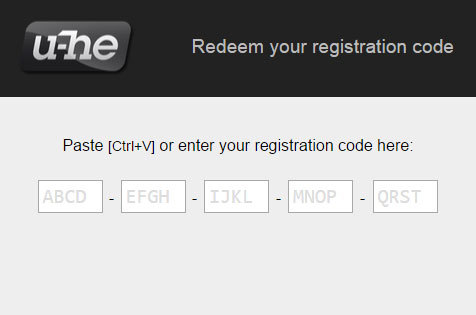
1. Visit redeem.u-he.com and enter your registration code (located within your account).
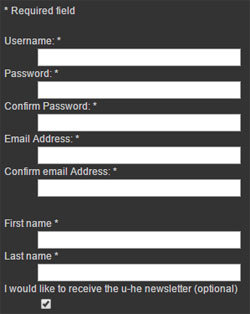
2. On the next page, fill in the required fields. An email with your serial number and download link will be sent to the supplied email address.
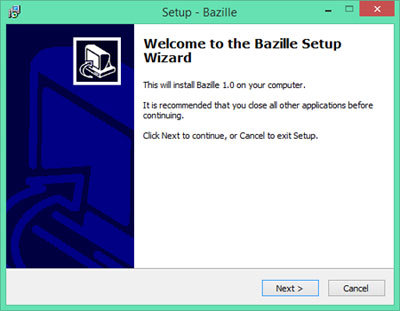
3. Once you have downloaded your installer from within your account, launch the Setup then click NEXT.
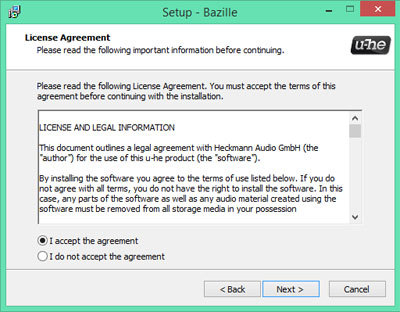
4. Read the licence agreement and if happy, click to accept the agreement then click NEXT.
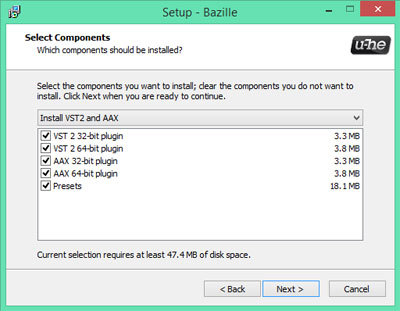
5. Select which components of your plugin you wish to install and click NEXT.
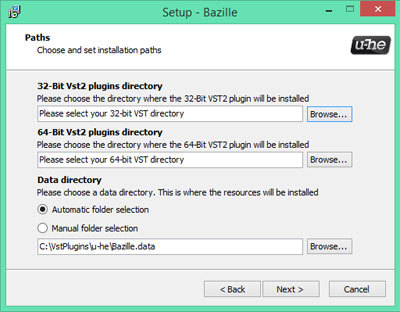
6. Choose your installation paths for both 32 and 64-bit versions of the plugin and click NEXT.
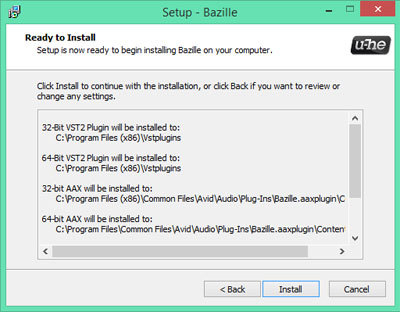
7. Evaluate your setup options and if happy, click INSTALL.
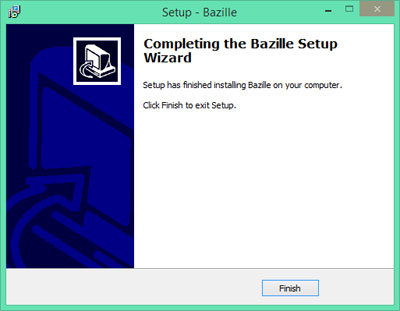
8. Once the installation has concluded, click FINISH.
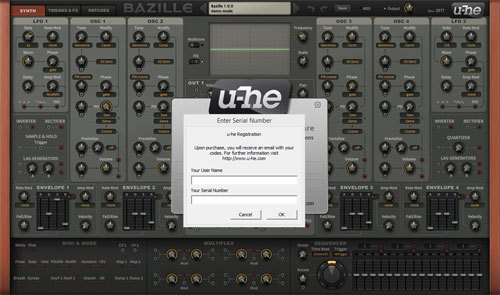
9. Open your plugin within your DAW. Right-click on the plug-in's data display (usually at the top).
10. Select "Enter serial number..." from the dropdown menu and enter your registered u-he username and Serial Number (when entering your name and Serial Number it's advisable to copy/paste the license information directly from the eMail into the plugin instead of typing each letter and number by hand). - Your plugin is now fully activated!
If you would like any further assistance with your software, please feel free to reach out to our support team at support@pluginboutique.com.