Welcome to the sonible installation page.
Please take a look at our installation guide videos below, which provide information on how to register, install and authorise your sonible software.
System Requirements
Mac
macOS 10.12+ (M1 Apple Silicon supported) (64-bit only)
RAM - at least 4 GB (recommended)
CPU - at least Intel DualCore i5 (recommended)
Plugin Formats - AU, VST2, VST3, AAX, MultiRack Native
Supported Sample Rates - 44.1 kHz to 192 kHz
PC
Windows 10+ (64-bit only)
RAM - at least 4 GB (recommended)
CPU - at least Intel DualCore i5 (recommended)
Plugin Formats - VST2, VST3, AAX, MultiRack Native
Supported Sample Rates - 44.1 kHz to 192 kHz
Compatible DAW's:
Logic Pro
Ableton Live
Pro Tools 11+
Reaper
Cubase
Nuendo
FL Studio
Studio One
Alternatively, you can follow the step-by-step instructions below for your software.
Please Note: frei:raum is used as an example.
Mac Installation
1. Download the installer file from your Plugin Boutique account.
2. Double Click and open the installer file > Double-click the ‘frei:raum installer mac.mpkg’ file.
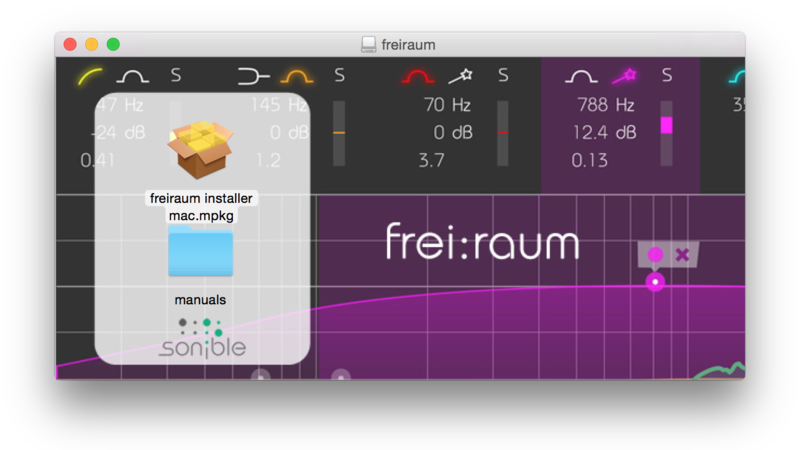
3. Begin the Installation Process > Click Continue.
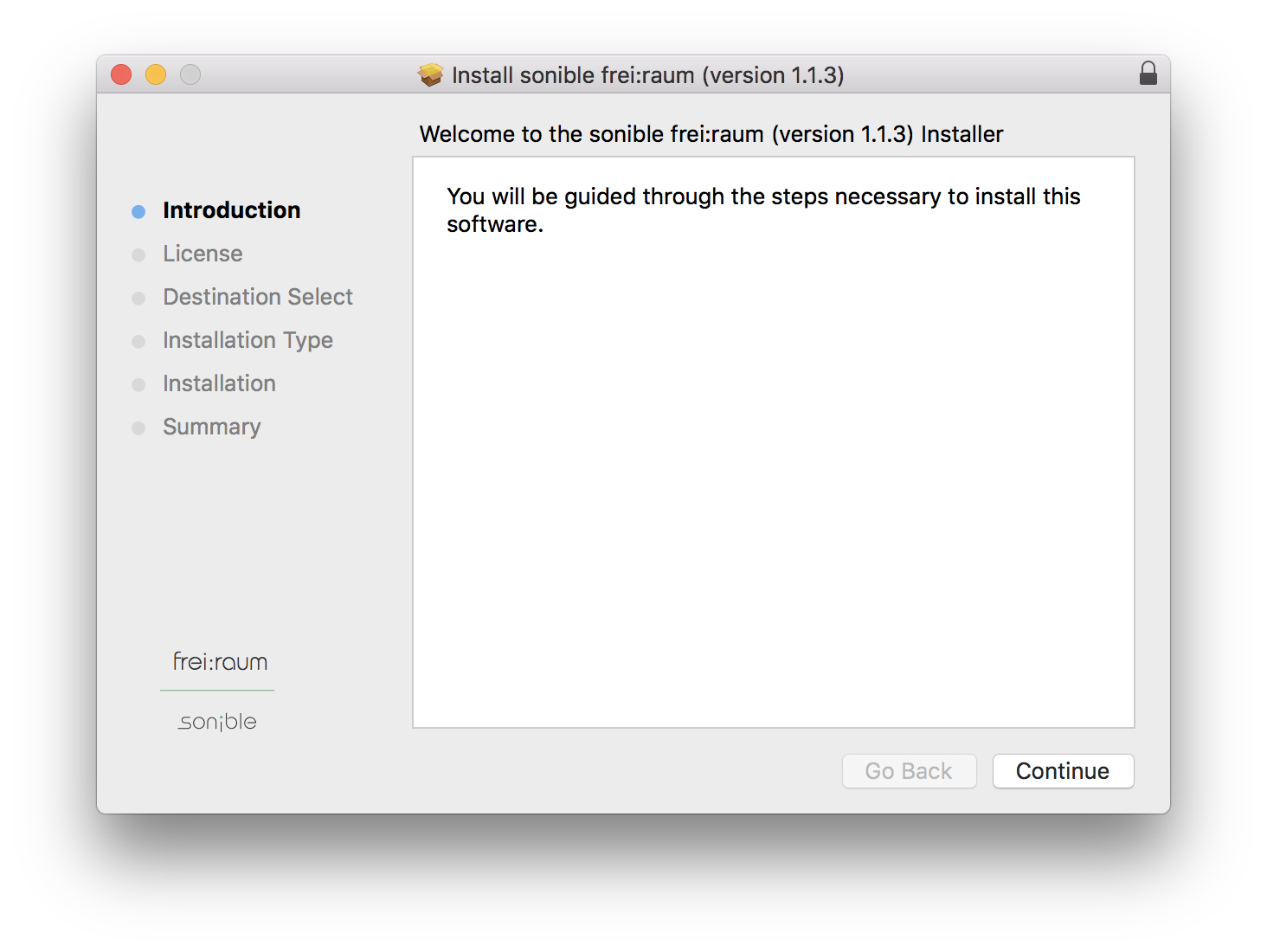
4. Read through the Terms & Conditions of the Licence Agreement > Click Continue > Click Agree.
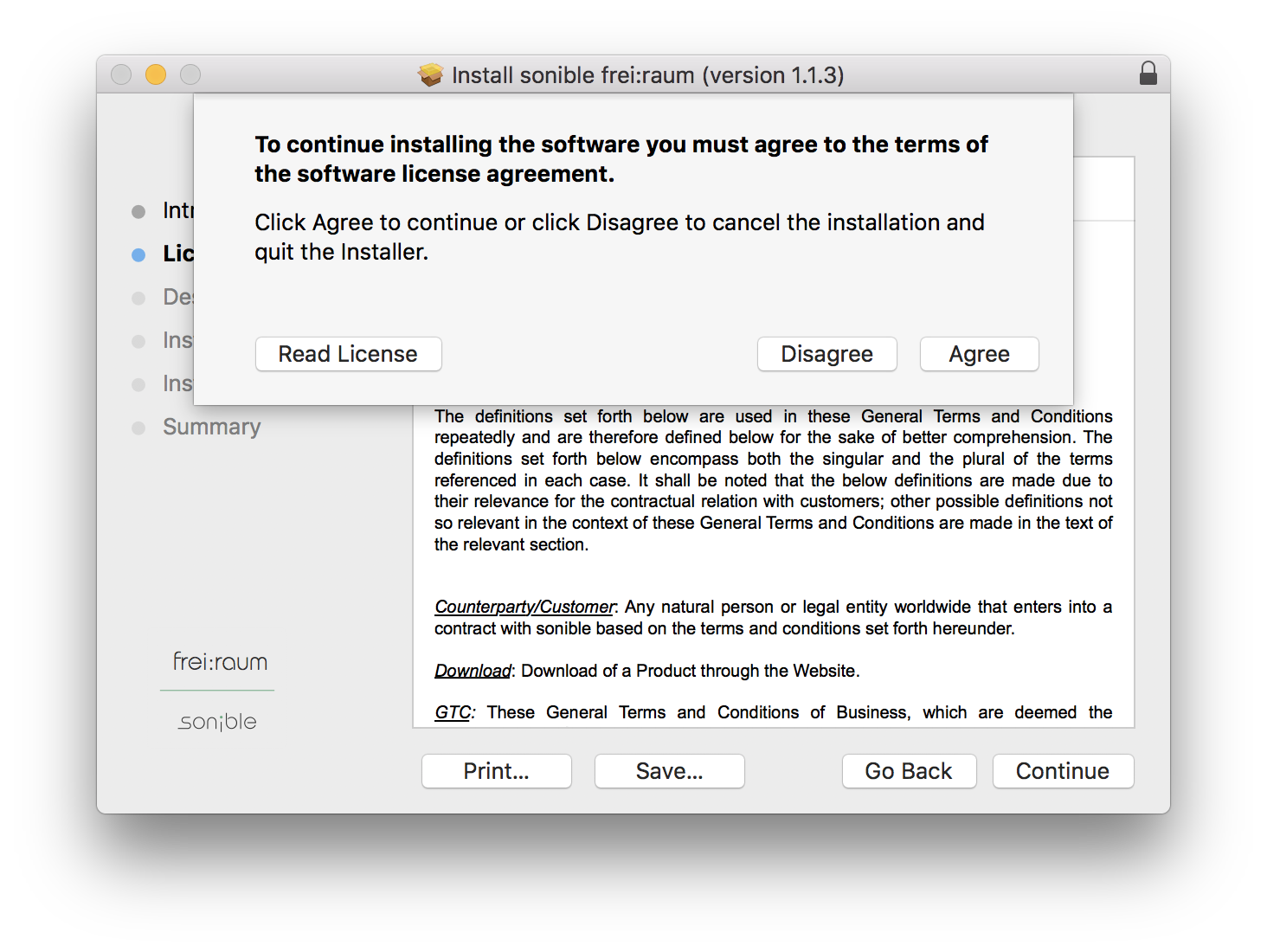
5. Select which software formats you wish to Install > Click Continue.
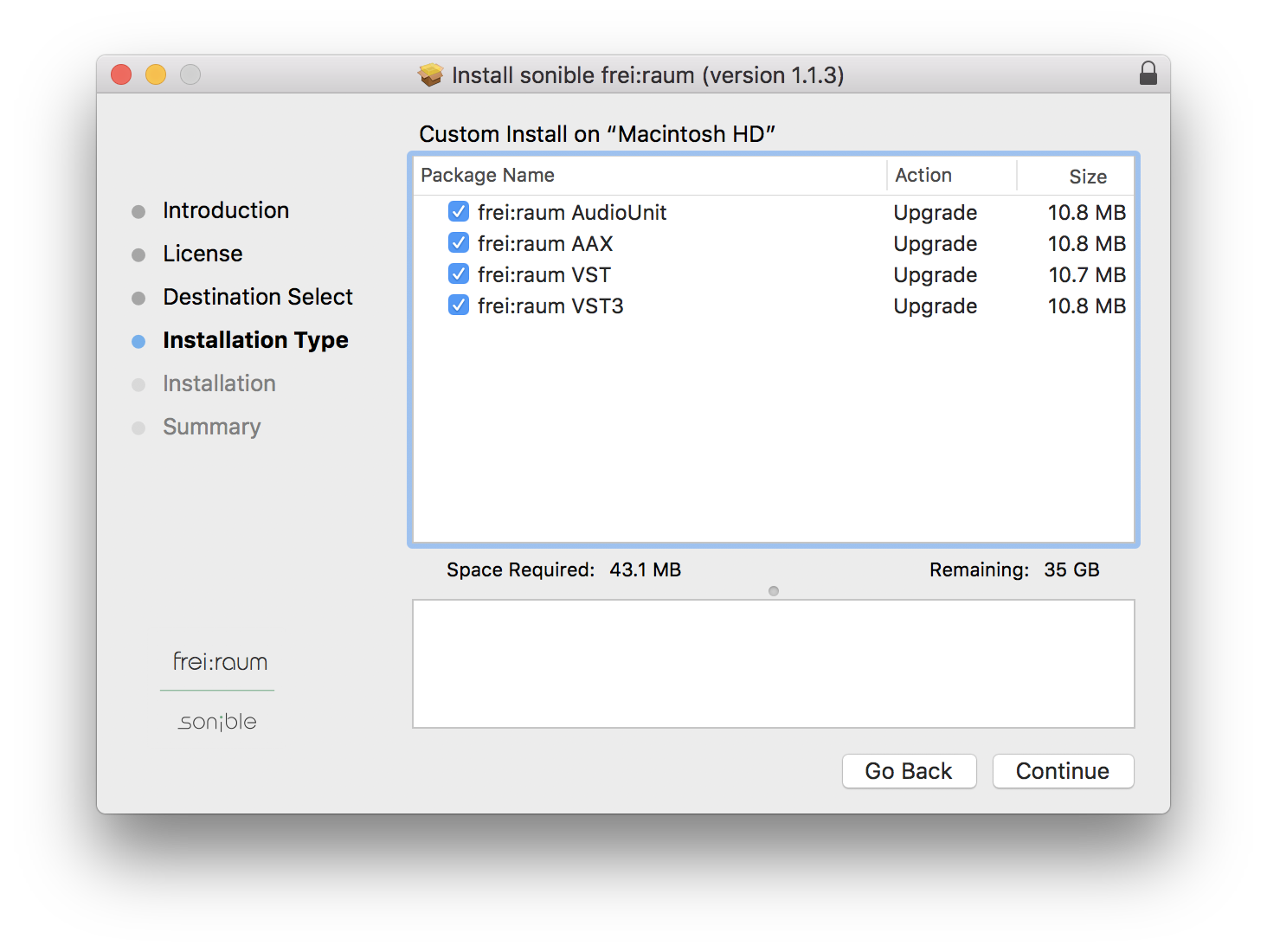
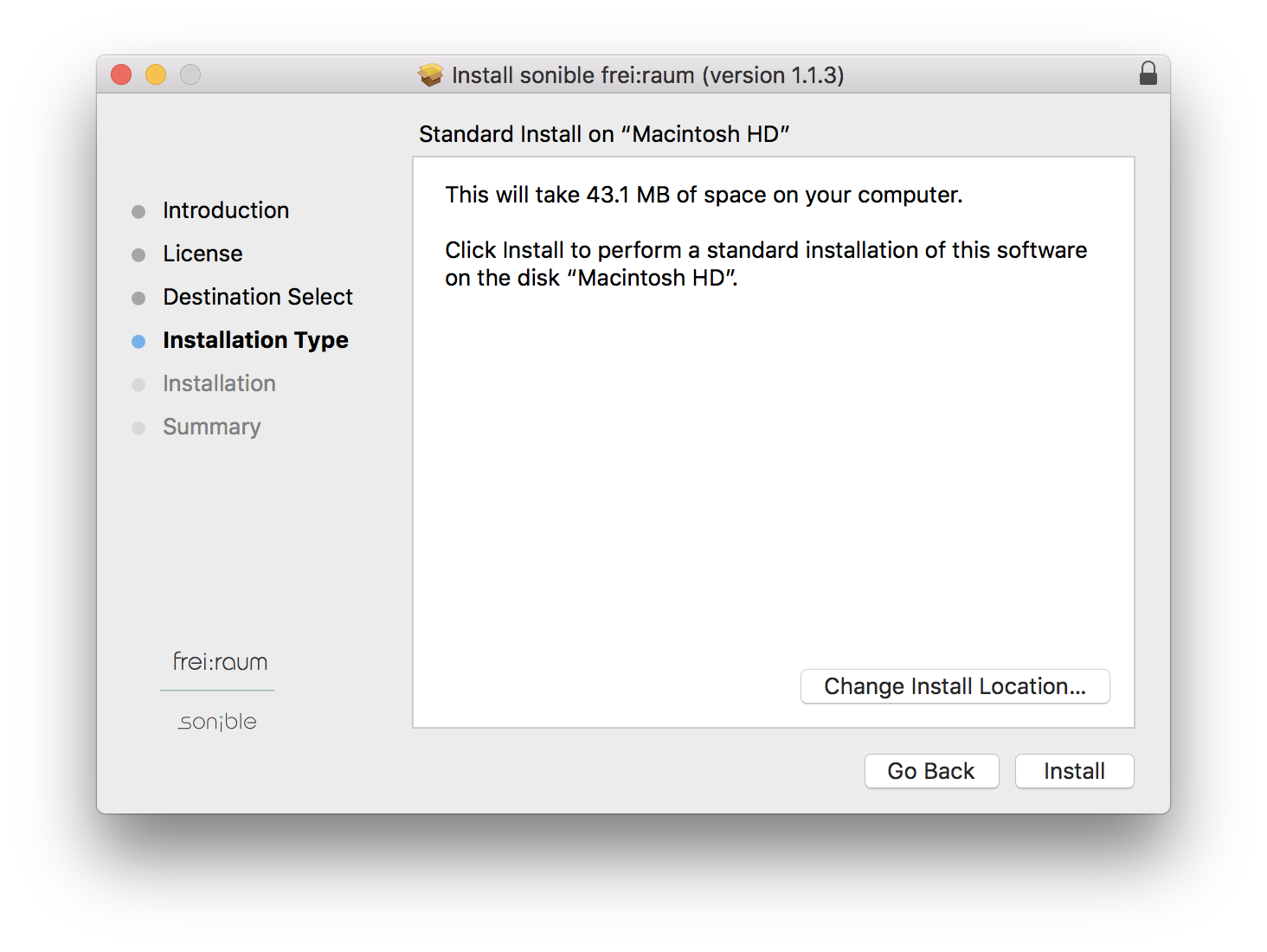
6. Confirm the Installation > Click Install.
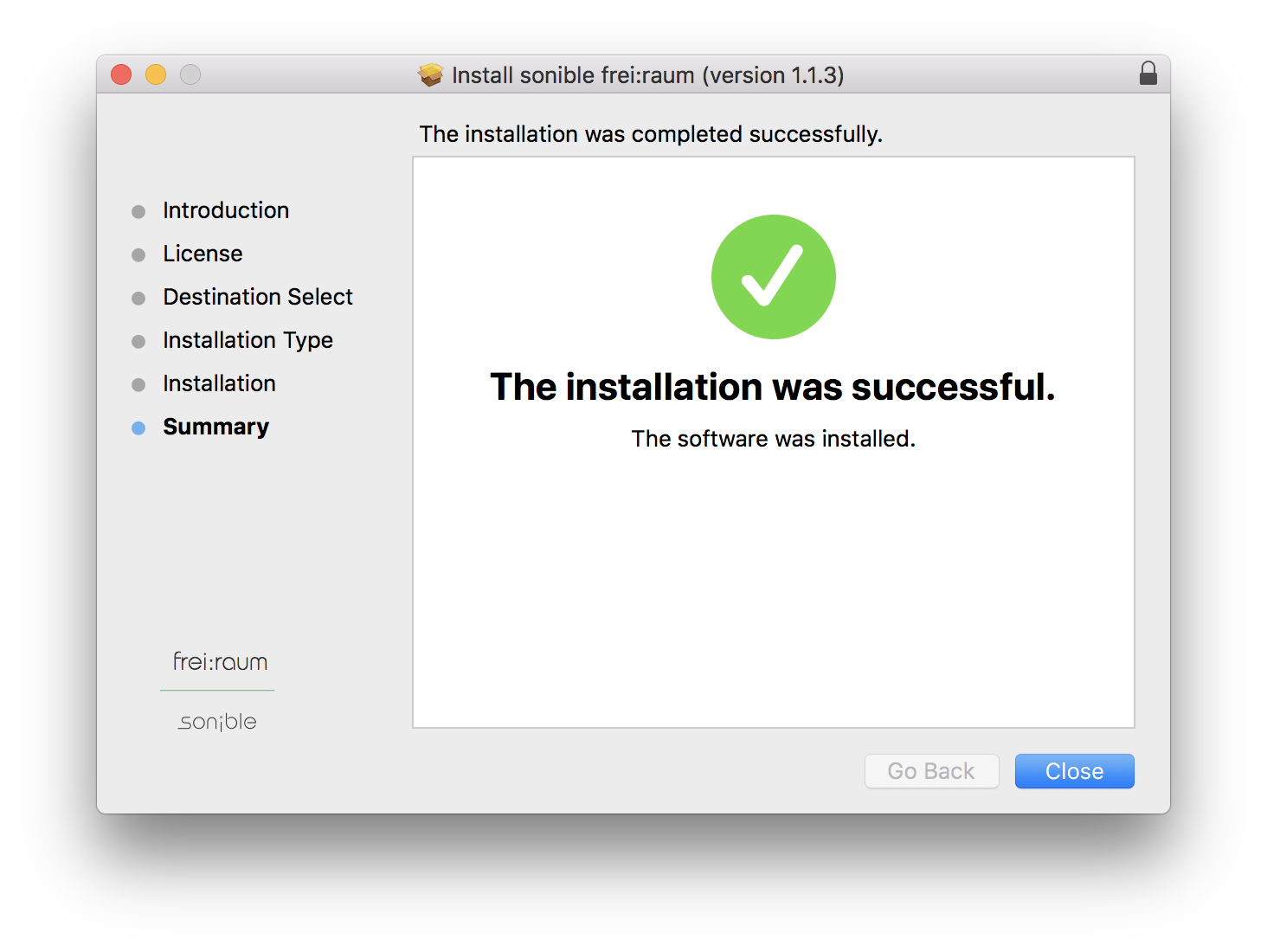
7. The Installation of your software has completed > Click Close.
8. Open/restart your DAW and load your sonible software. Please note that you may need to refresh/rescan your DAW plugin list if you can't locate it.
Standard Activation Instructions
1. Locate and open the sonible software in your DAW.
2. Copy & paste/manually enter the licence key/serial code that is available in your Plugin Boutique account > Click Register.
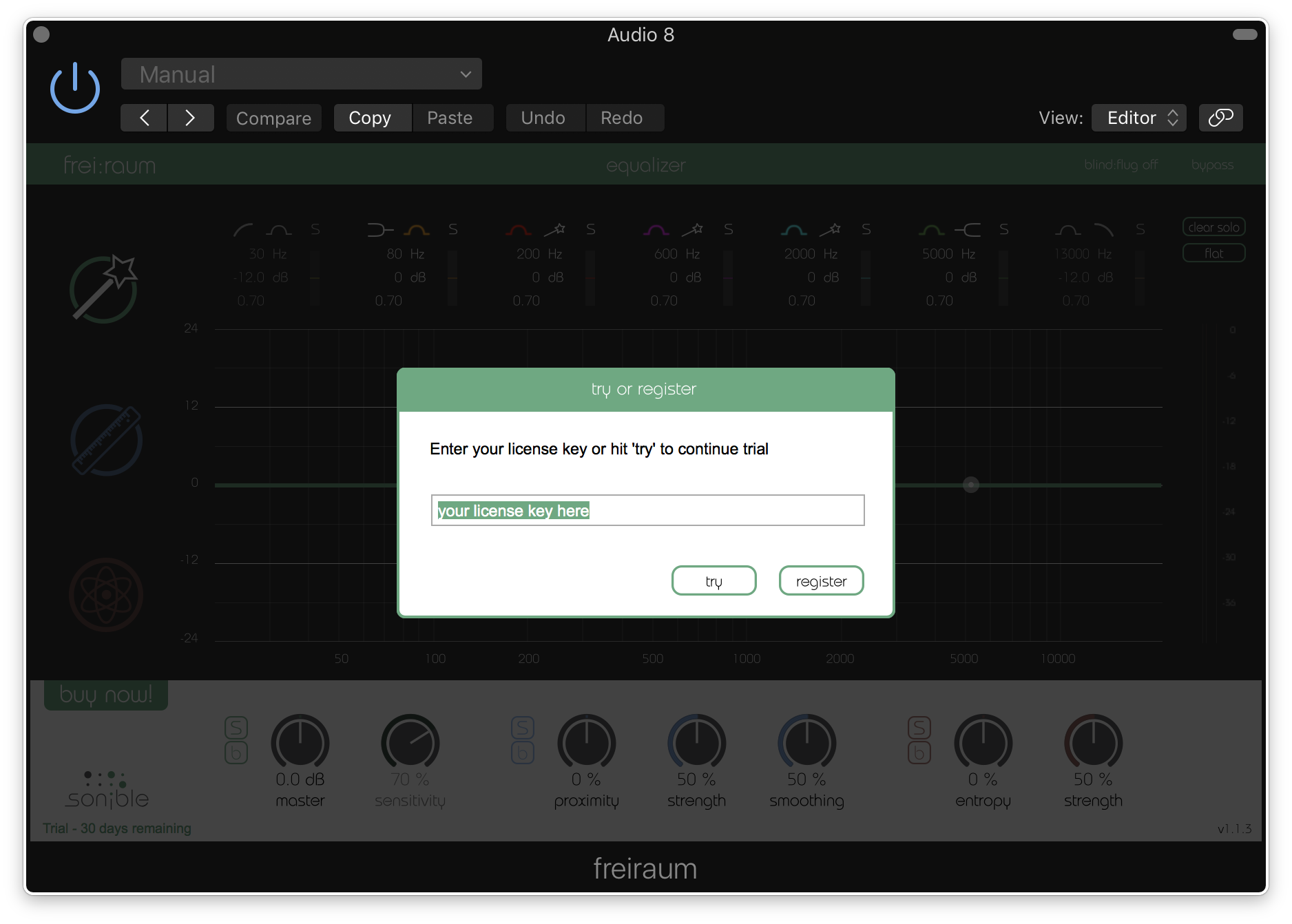
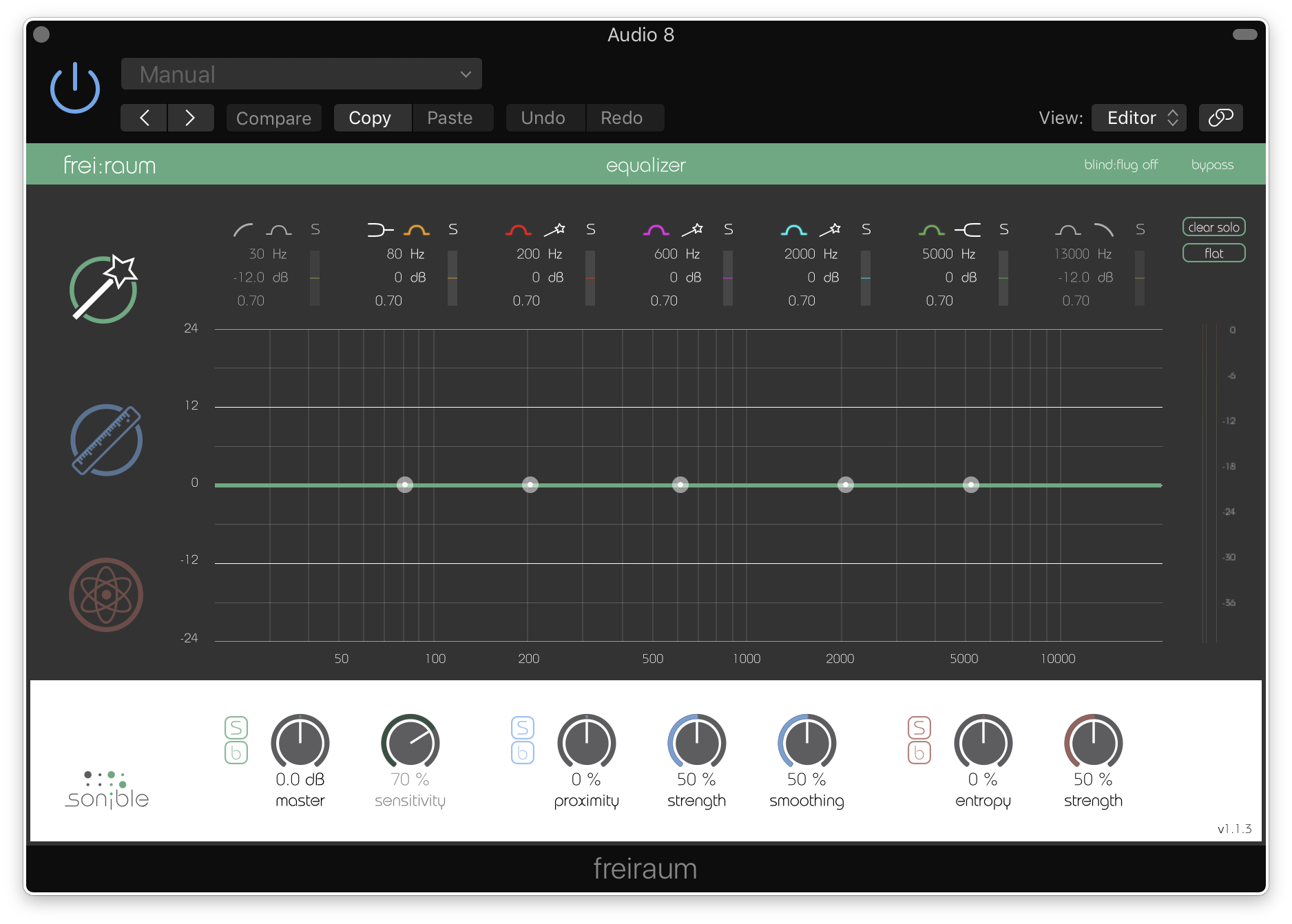
3. Your sonible software has now been successfully registered and authorised > Click Close.
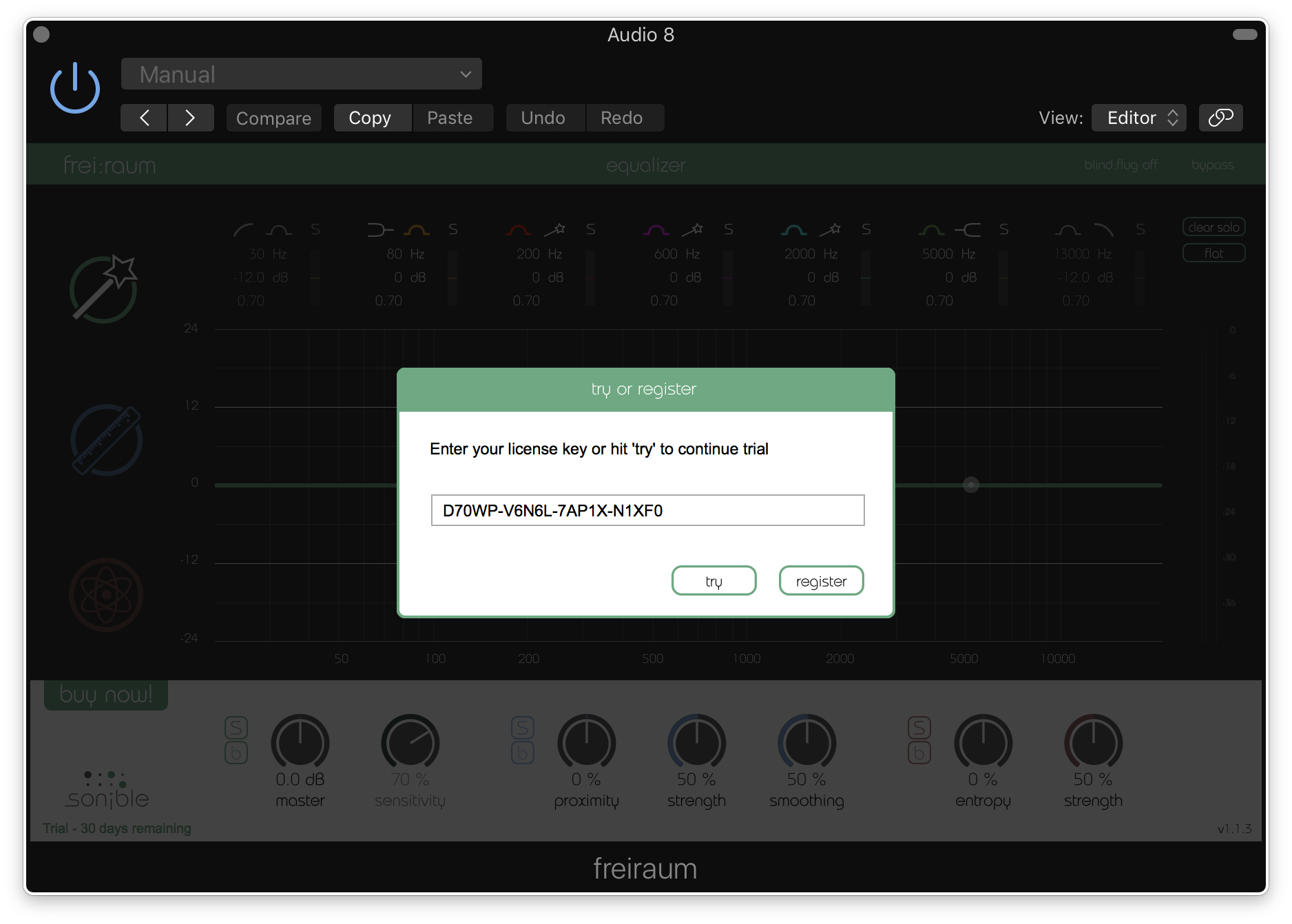
Your software is now activated and ready to use in your DAW!
PC Installation
1. Download the installer file from your Plugin Boutique account.
2. Unzip the downloaded folder and Double click the file to open/run the installer.
3. Select which version or versions of the software that you wish to install (32/64-Bit) > Click Next.
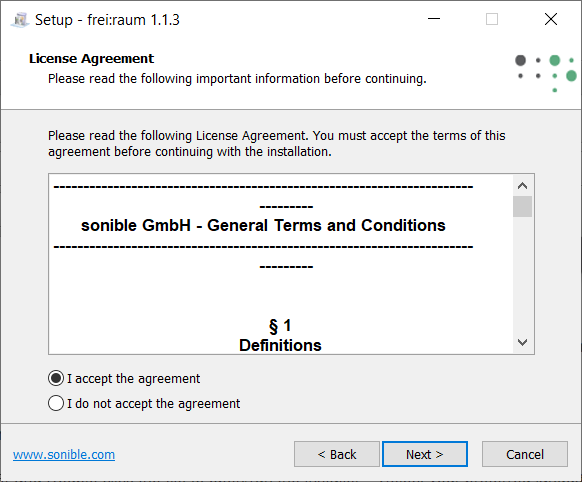
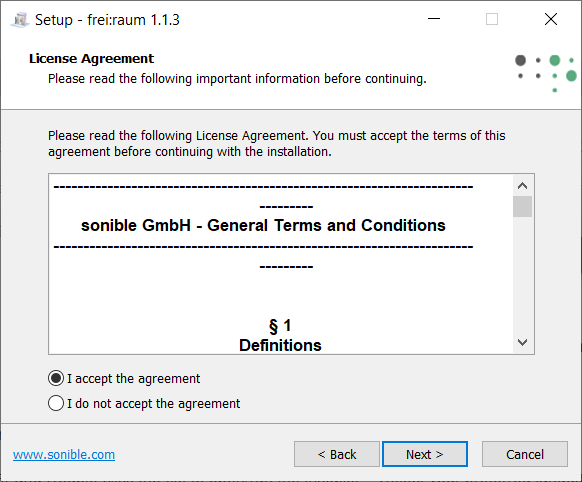
5. Read the Terms & Conditions of the Licence Agreement > Select 'I Accept the Agreement' if you accept the terms > Click Next.
6. Your software is now ready to install on your computer > Click Install.
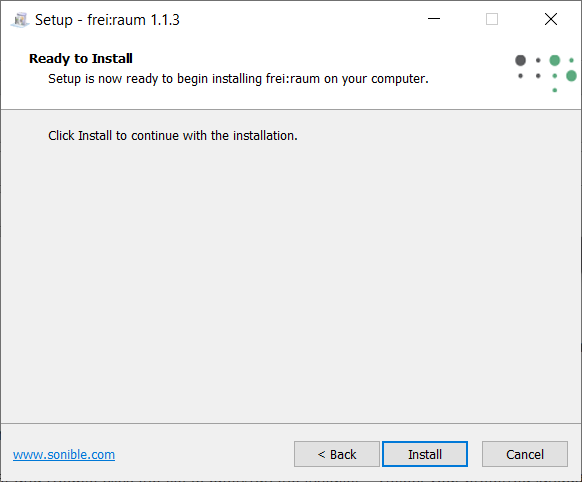
7. Your software is now installed > Click Finish.
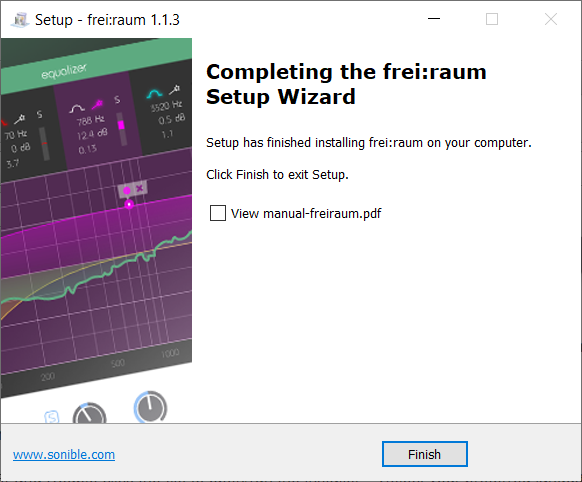
8. Open/restart your DAW and open your sonible software. Please note that you may need to refresh/rescan your DAW plugin list if the software fails to appear.
Standard Activation Instructions
1. Locate and open the sonible software in your DAW.
2. Copy & paste or manually enter the licence key/serial code that is available in your Plugin Boutique account > Click Register.
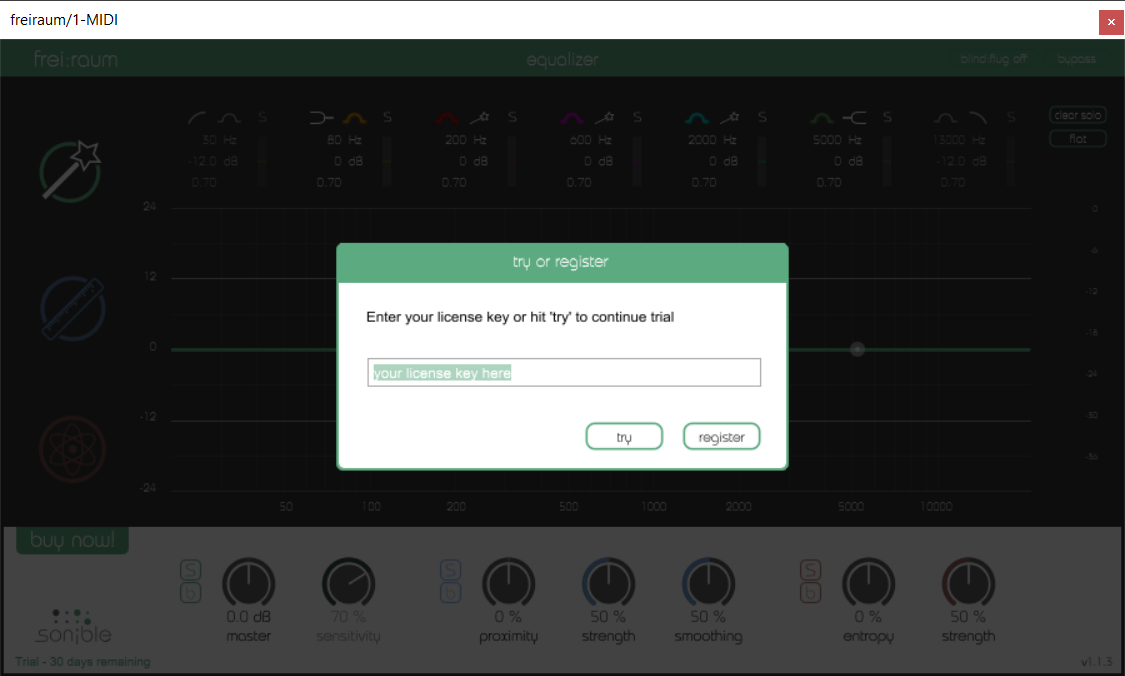
3. Your sonible software has now been successfully registered and authorised > Click Close.
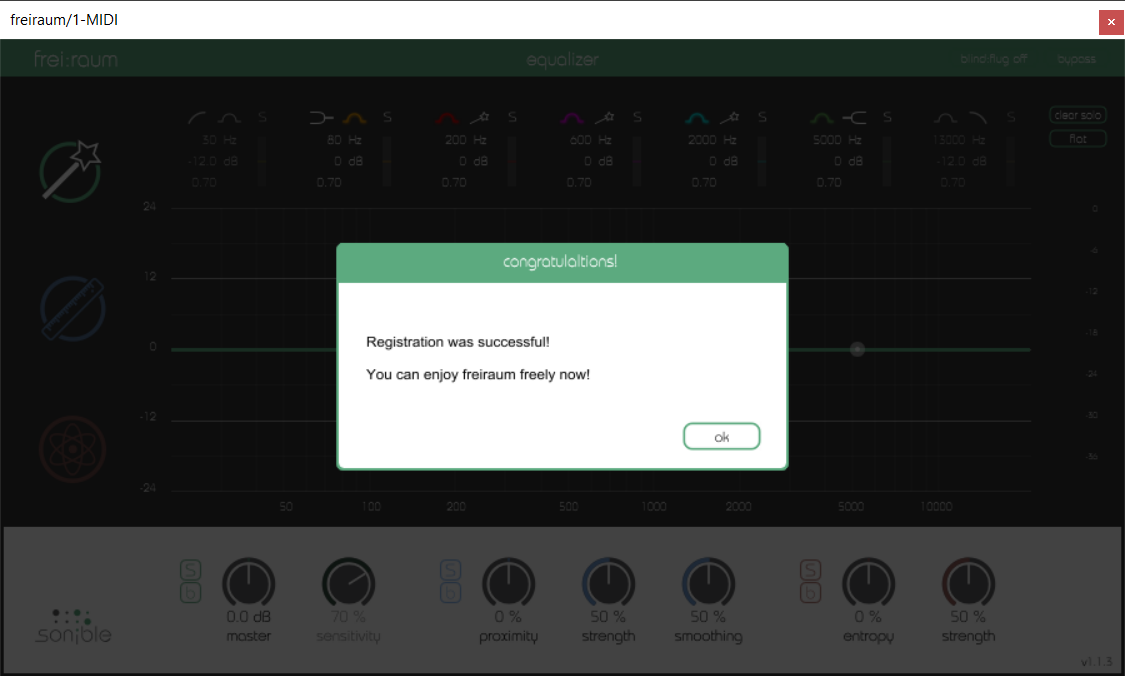
Your software is now activated and ready to use in your DAW!