
Welcome to the United Plugins installation page.
Please take a look at our installation guide videos below, which provide information on how to register, install and authorise your United Plugins software.
System Requirements
Mac
- macOS (from 10.10 Yosemite and newer, 64-bit)
- Intel/AMD/Apple Silicon CPU
- VST, VST3, AU, AAX-compatible host
Windows
- Windows 8/10/11 (64-bit)
- Intel/AMD processor with SSE2 support
- VST, VST3, AAX-compatible host
Mac Video Installation Guide
Windows Video Installation Guide
Alternatively, you can follow the step-by-step instructions below for your software.
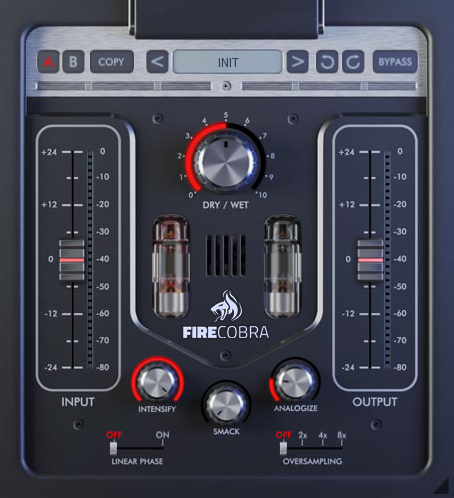
Note: FireCobra is used as an example as the installation process is the same for all United Plugins products.
Registration
Skip straight to 'Installation & Activation' if you already have an United Plugins account
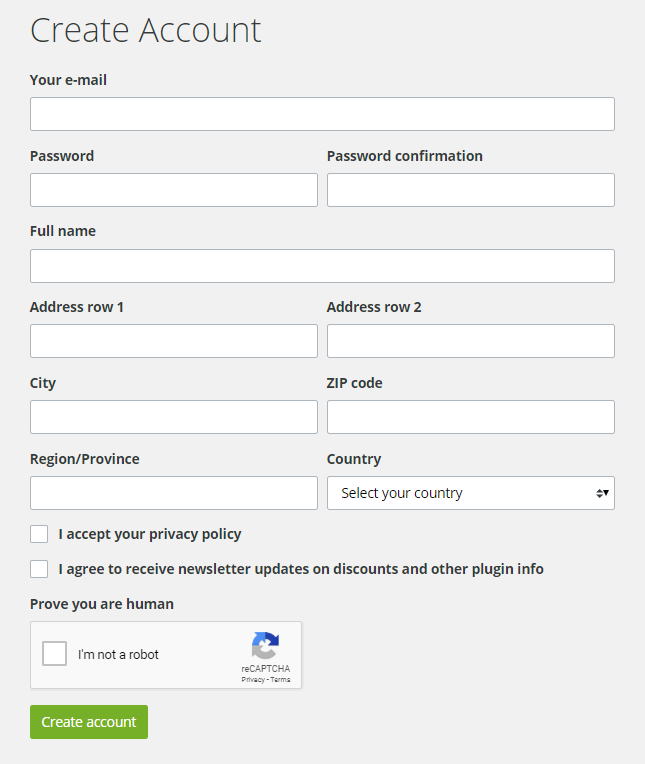
1. Go to https://unitedplugins.com/register/ > Fill out the account registration form, check the box that states 'I'm not a robot' and click 'Create Account'.
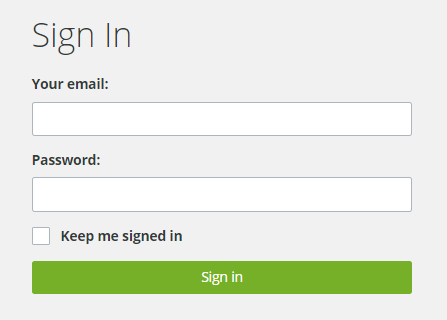
2. Enter your United Plugins-registered email and password > Click 'Sign in'.
Installation & Activation
1. Go to https://unitedplugins.com/download/
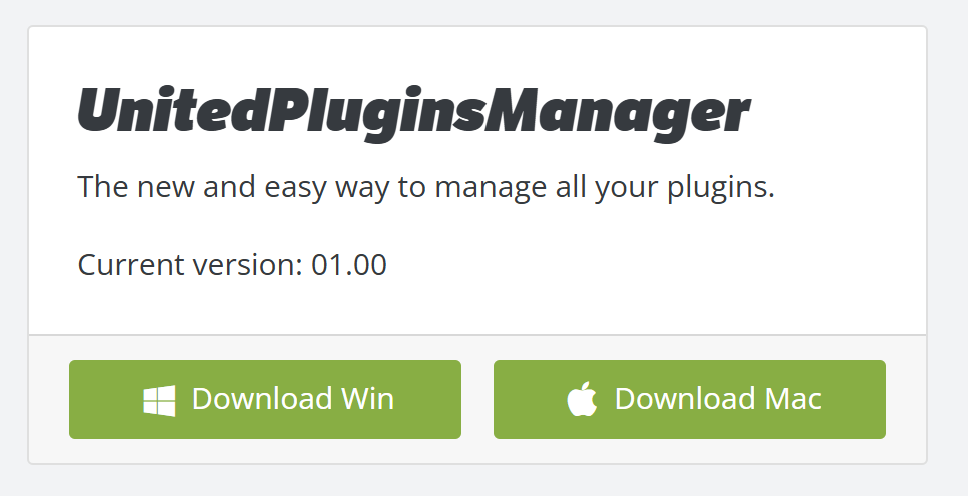
2. Download and install the United Plugins Manager for your OS
3. Watch the video linked below for an in depth guide to using the plugin manager > skip to 3 minutes into the video for info on redeeming the serial number found in your Plugin Boutique User Account
Your software is now activated and ready to use within your DAW.
If you would like any further assistance with your software, please feel free to reach out to our support team at support@pluginboutique.com.