
Welcome to the Lunacy installation page.
Please take a look at our installation guide videos below, which provide information on how to register, install and authorise your Lunacy software.
System Requirements
- MacOS 10.15+ AU / VST3 / AAX (M1 / M2 recommended)
- Windows 10+ VST3 / AAX
- Supported by all major DAWs
- 8GB RAM required (16GB RAM recommended)
- At least 250 MB of free hard disk space
- Access to a stable internet connection for downloading and activating the product is required.
Mac Video Installation Guide
Windows Video Installation Guide
Alternatively, you can follow the step-by-step instructions below for your software.
Registration
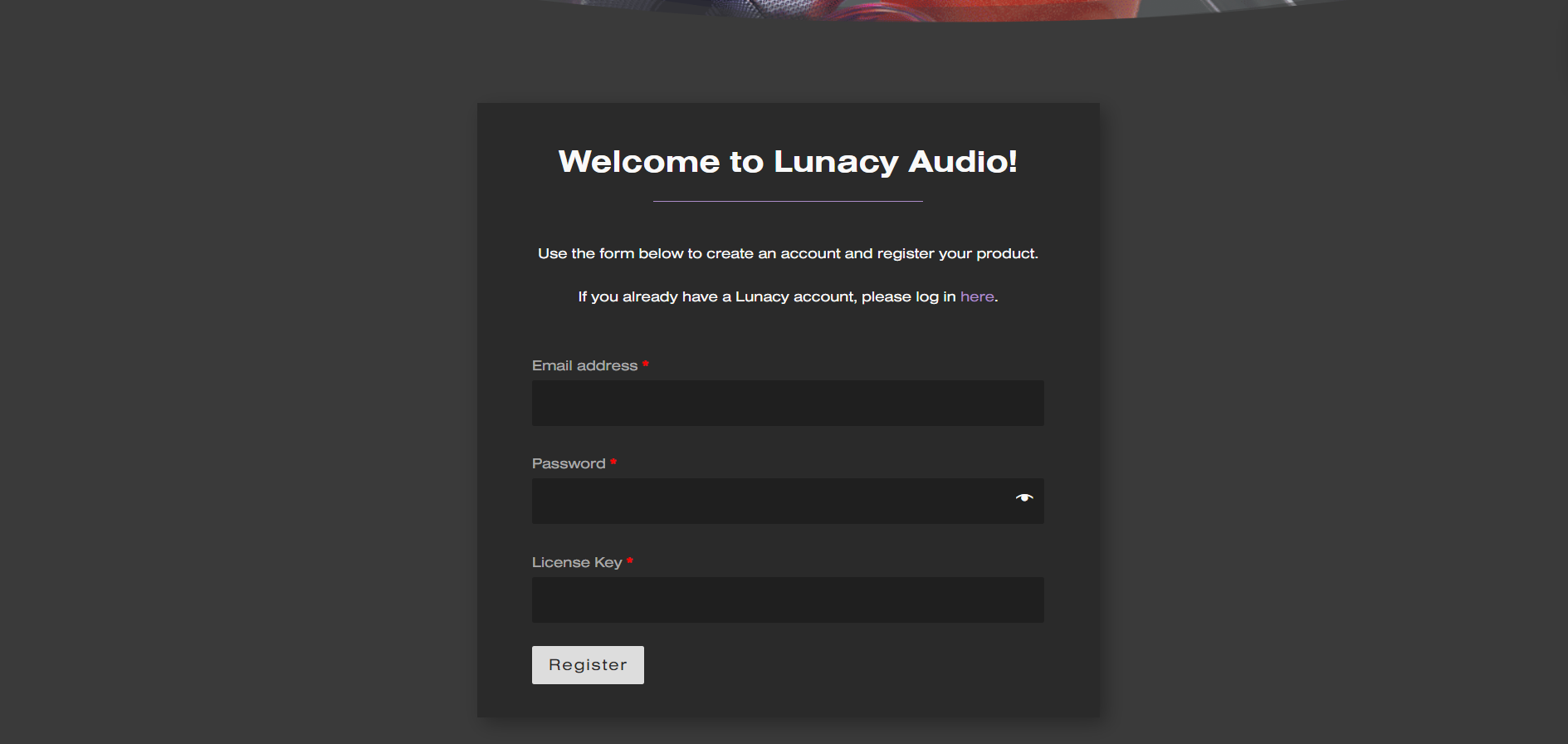
1. Go to https://lunacy.audio/register.
2. Enter your email address, the password you wish to use and your License Key which can be found in your Plugin Boutique User Account.
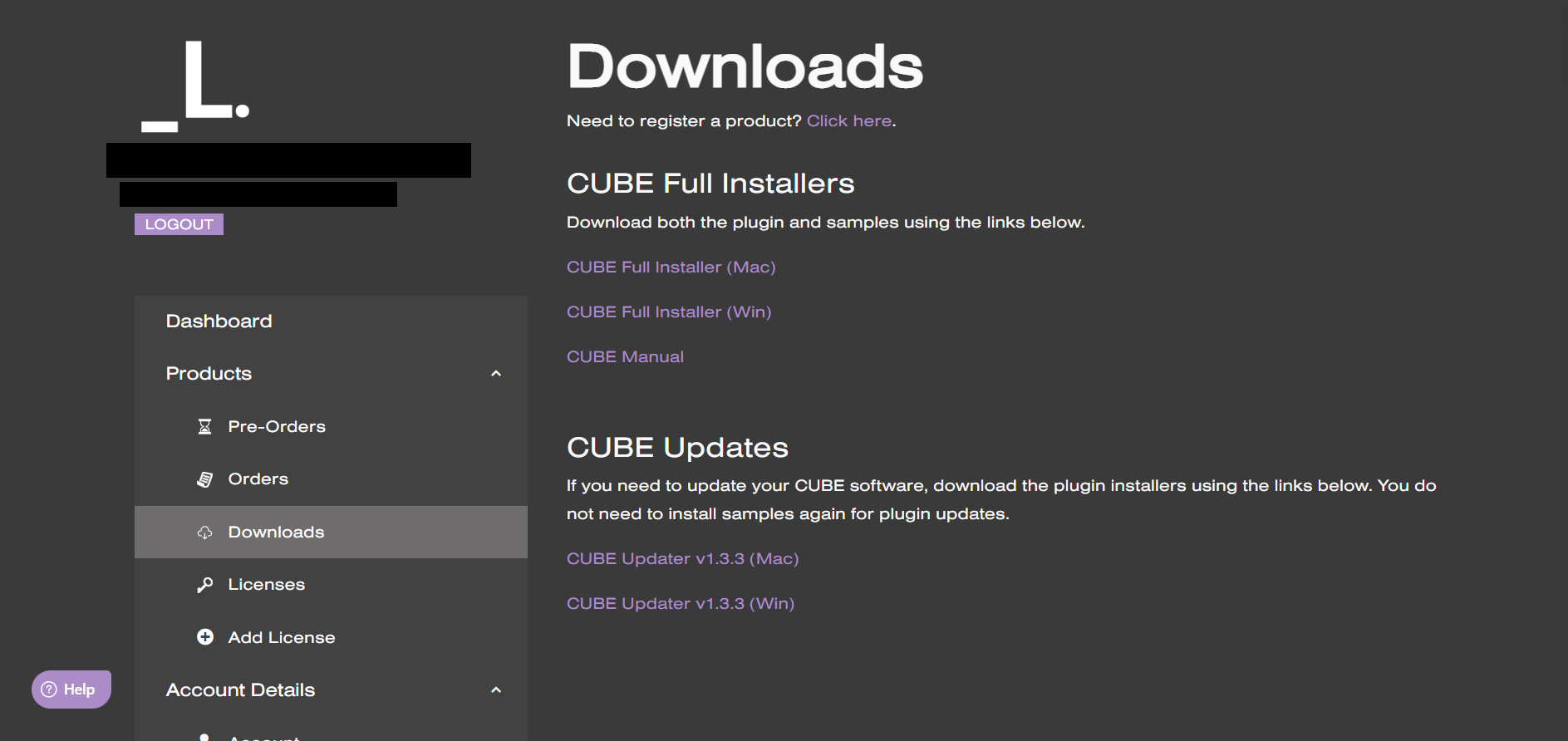
3. Download the relevant CUBE Full Installer.
Mac Installation
1. Download the installer from your Plugin Boutique user account and extract the zip folder.

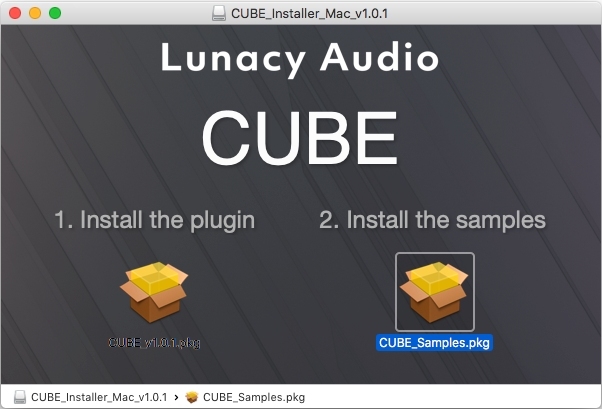
2. Run the "CUBE_Installer_Mac_v1.0.1.dmg" installer.
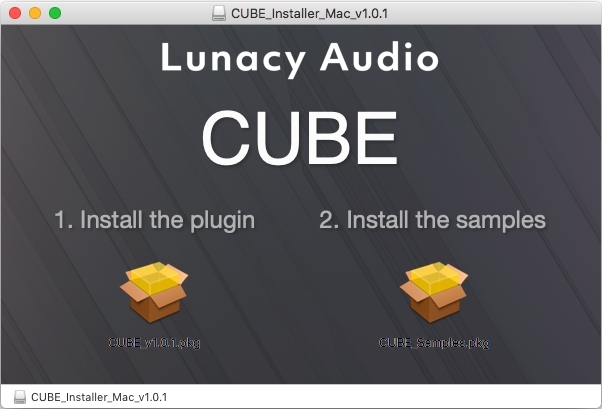
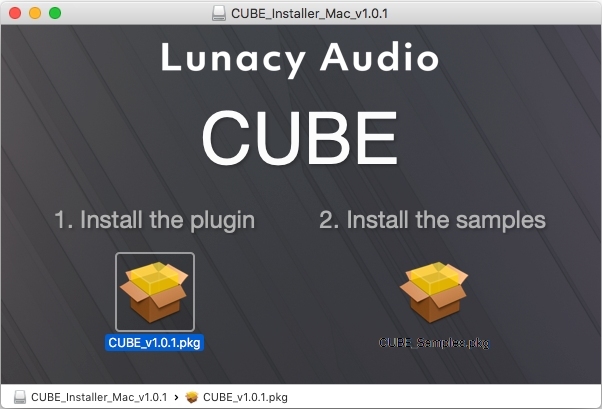
3. Run the left "CUBE_v1.0.1.pkg" under the heading "Install the plugin".
4. Click "Continue".
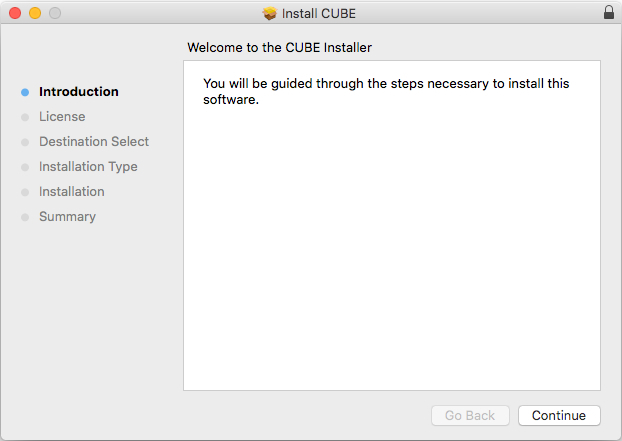
5. Click "Continue".
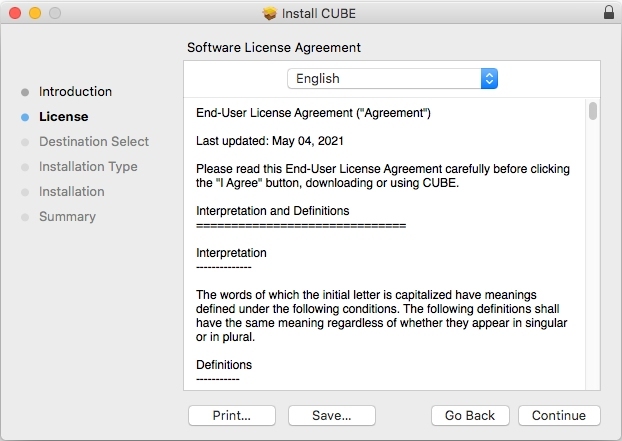
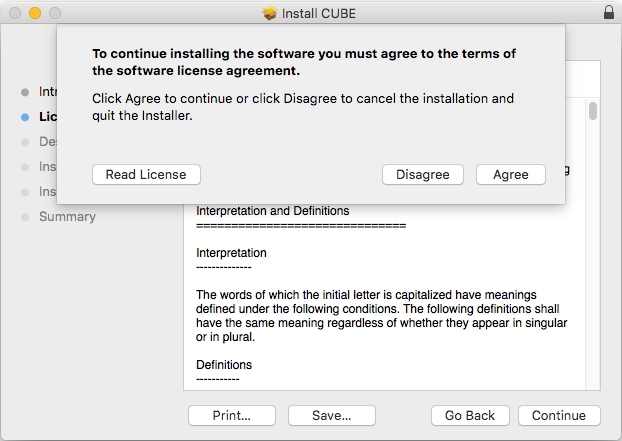
6. Click "Agree".
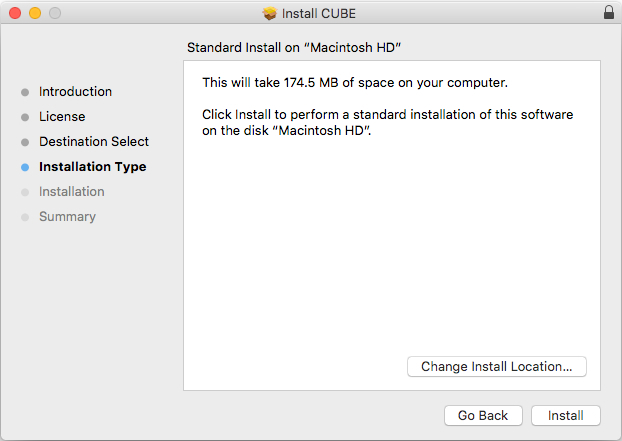
7. Click "Install".
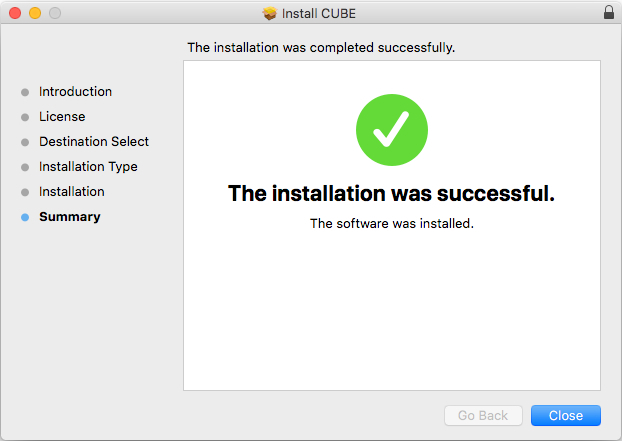
8. Click "Close".
9. Run the right "CUBE_Samples.pkg" under the heading "Install the samples".
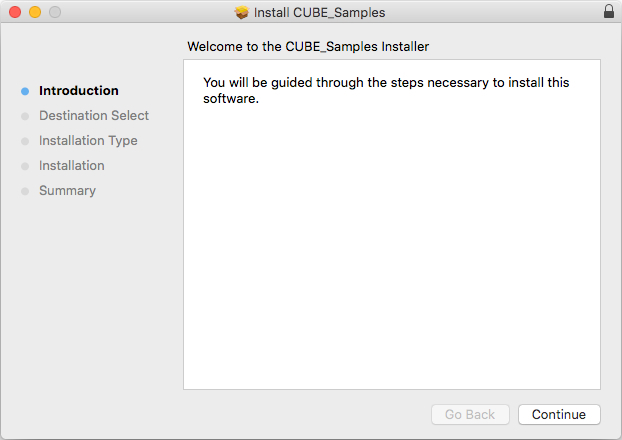
10. Click "Continue".
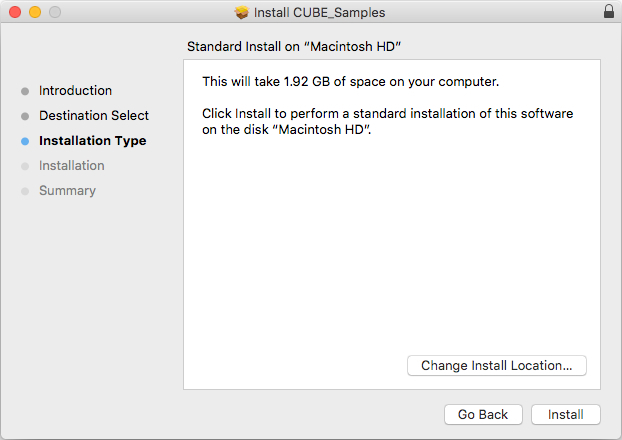
11. Click "Install".
12. Click "Close".
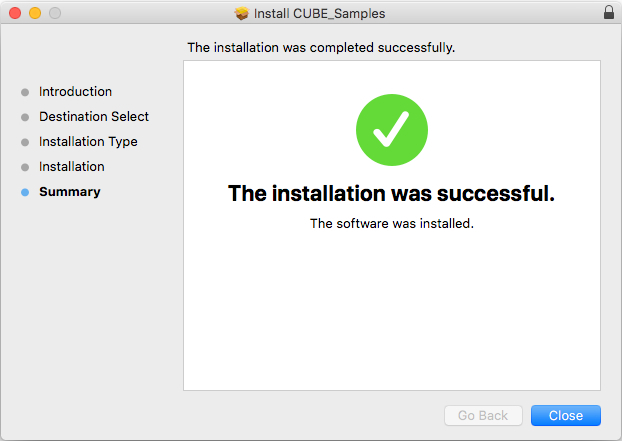
13. Launch your DAW and create a new stereo instrument track, then insert CUBE onto the channel.
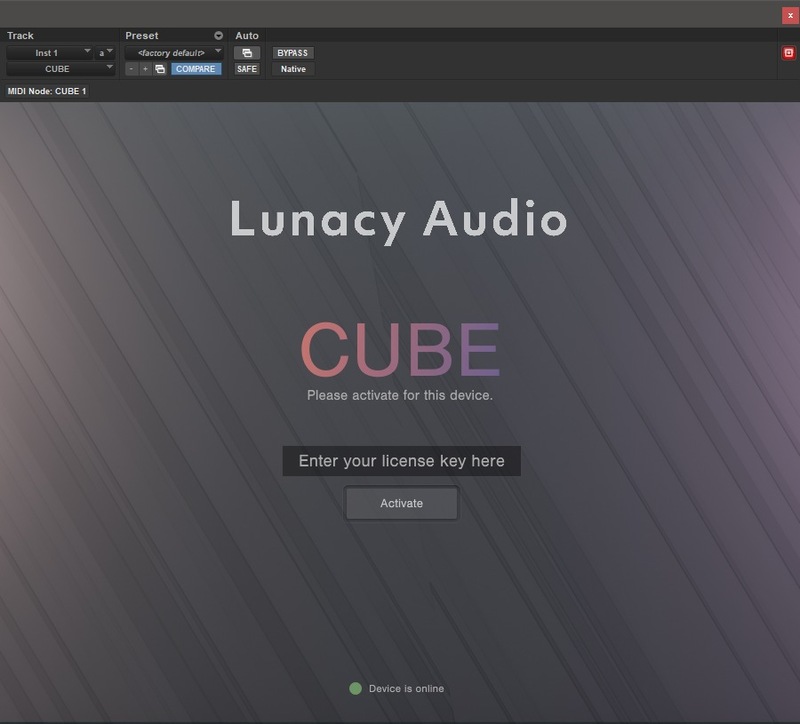
14. Enter your 20 digit serial code. This can be found on your My Account page. Make sure to include the first 4 letters. Then click Activate.
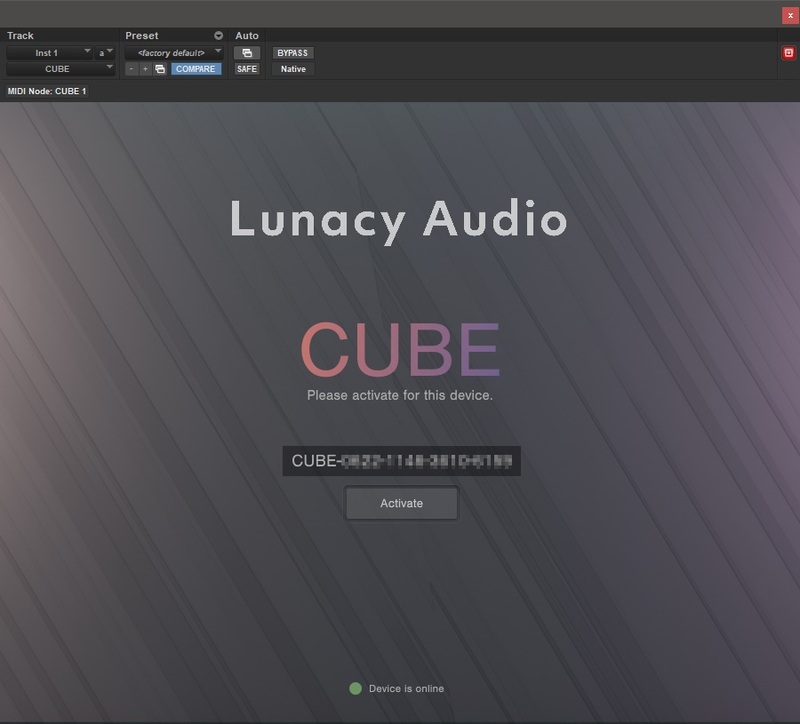
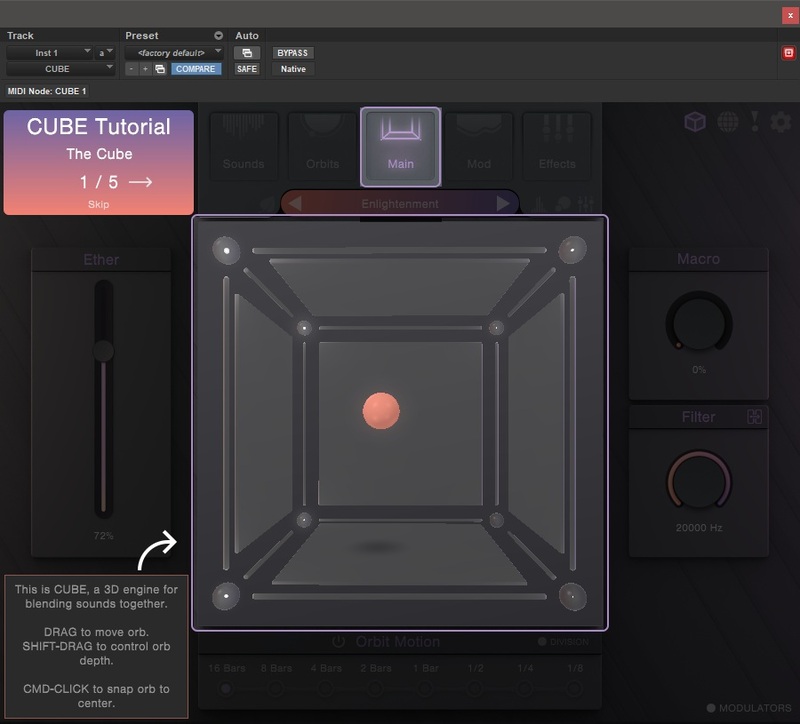
Your software is now activated and ready to use.
Windows Installation
1. Download the installer from your Plugin Boutique user account and extract the zip folder.
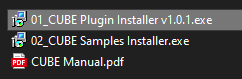
2. Run the first installer "01_CUBE Plugin Installer v1.0.1.exe".
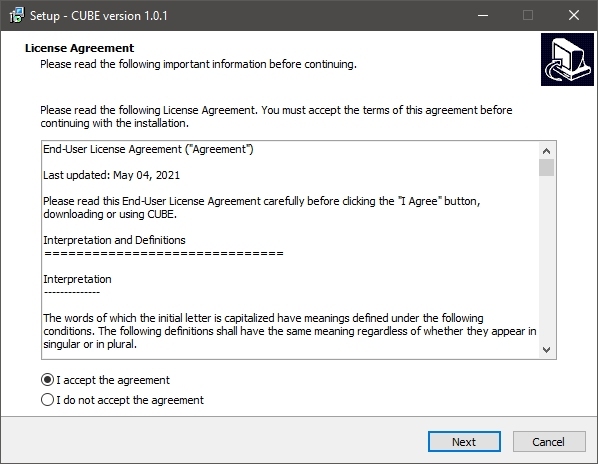
2. Click "I accept the agreement", then click "Next".
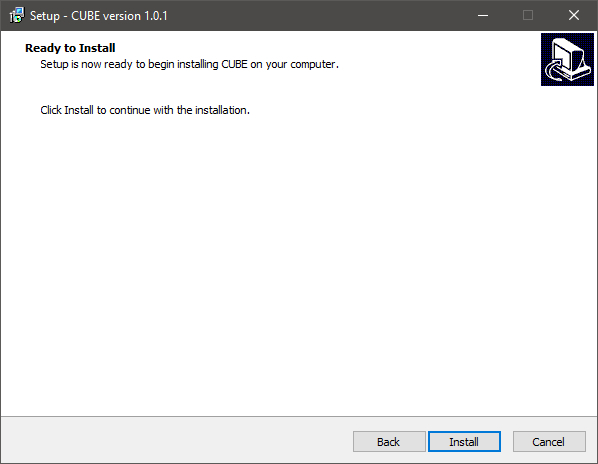
3. Click "Install".
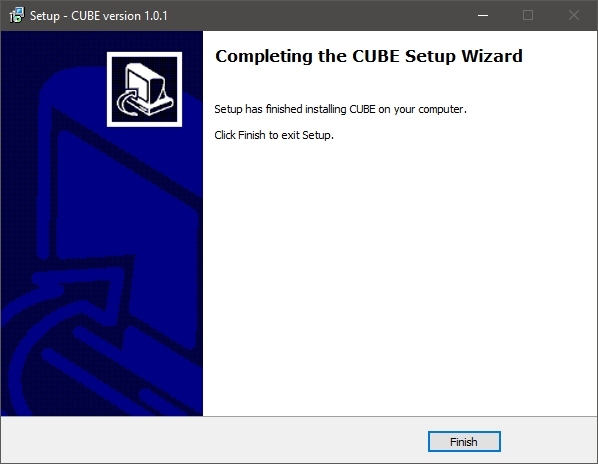
4. Click "Finish".
5. Now run the second installer "02_CUBE Samples Installer.exe".
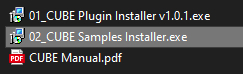
6. Click "Next".
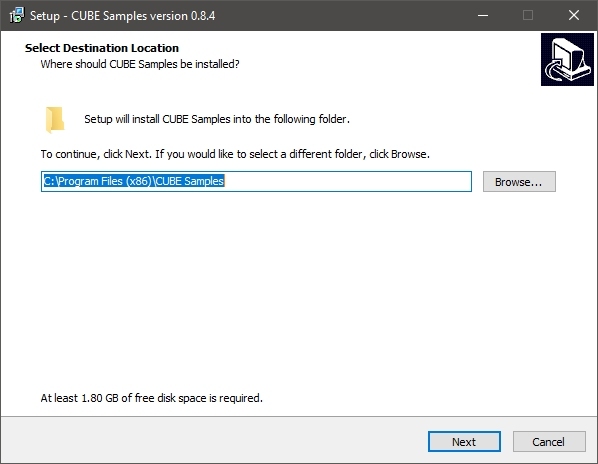
7. Click "Install".
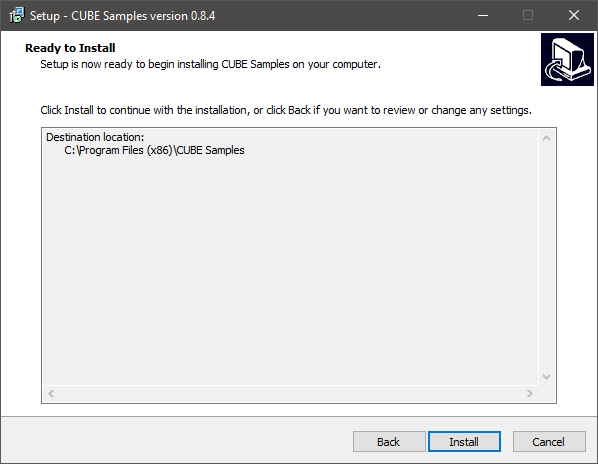
8. Click "Finish".
9. Launch your DAW and create a new stereo instrument track, then insert CUBE onto the channel.
10. Enter your 20 digit serial code. This can be found on your My Account page. Make sure to include the first 4 letters. Then click Activate.
Your software is now activated and ready to use.