
Welcome to the Pulsar Audio installation page.
Please take a look at our installation guide videos below, which provide information on how to register, install and authorise your Pulsar Audio software.
System Requirements
Mac
- MacOS 10.9 and higher (M1 Apple Silicon supported) (64-bit only)
- CPU: Intel Core i3 / i5 / i7 / Xeon / Apple Silicon (M1)
- Memory: 4 GB RAM / 1 GB free disk space
- GPU: OpengGL 2.0 compatible GPU
- Monitor: Resolution: minimum 1024×768, recommended 1920×1080 / Refresh rate: 60 Hz
Windows
- Windows 7 with SP1 64 bit / Windows 8.1 64 bit / Windows 10 64 bit
- CPU: Intel Core i3 / i5 / i7 / i9 / Xeon or AMD Quad-Core minimum
- Memory: 4 GB RAM / 1 GB free disk space
- GPU: OpengGL 2.0 compatible GPU
- Monitor: Resolution: minimum 1024×768, recommended 1920×1080 / Refresh rate: 60 Hz
Compatible plugin formats
- AAX Native
- Audio Unit (AU)
- VST 2.4
- VST 3
Mac Video Installation Guide
Windows Video Installation Guide
Alternatively, you can follow the step-by-step instructions below for your software.
Installation Instructions
Important - You need to have an account at ilok.com to be able to use Pulsar software.
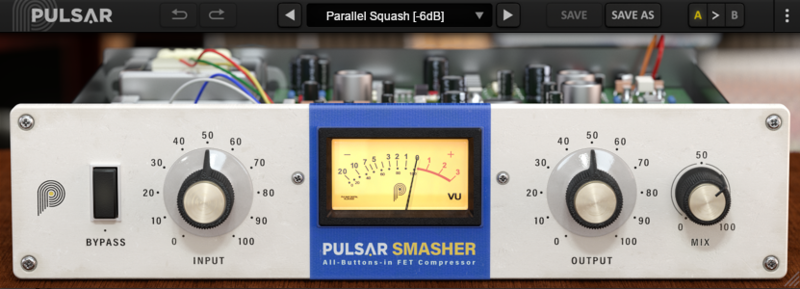
Please note: Pulsar Smasher is used as an example.
Mac
iLok Registration
1. Go to the iLok website and create a new account if you are not currently registered and do not have the iLok License Manager installed on your computer.
Note: Skip to the 'Pulsar Software Installation' procedure if you are already an iLok registered user.
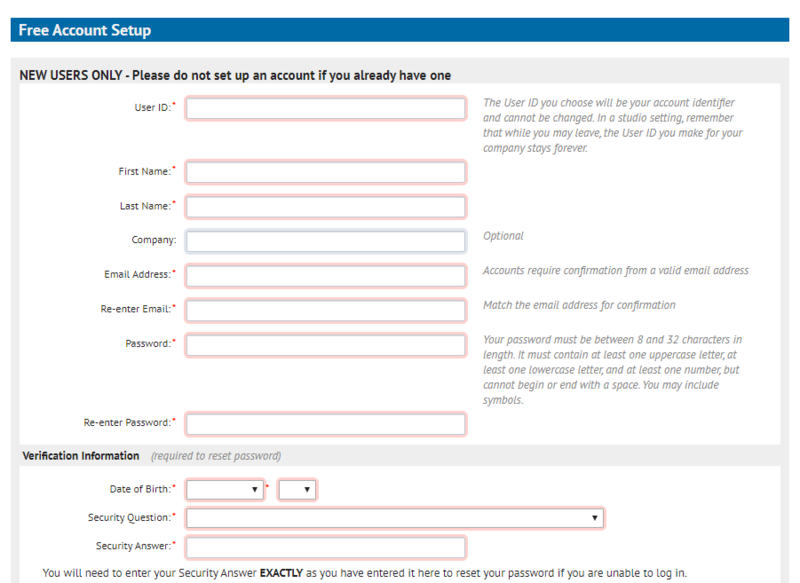
2. Download and install the iLok License Manager.
Pulsar Software Installation
1. Download the .dmg file from within your Plugin Boutique User Account and open it > Double-click the .pkg file to begin the installation.
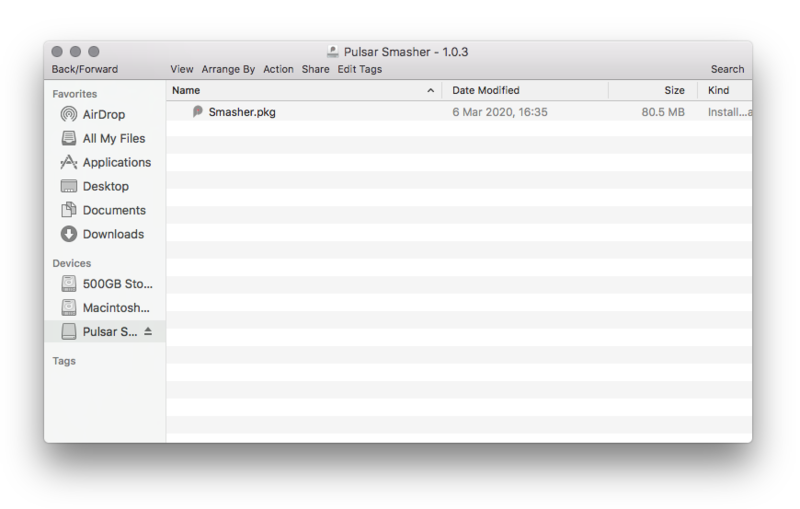
2. Click 'Continue'.
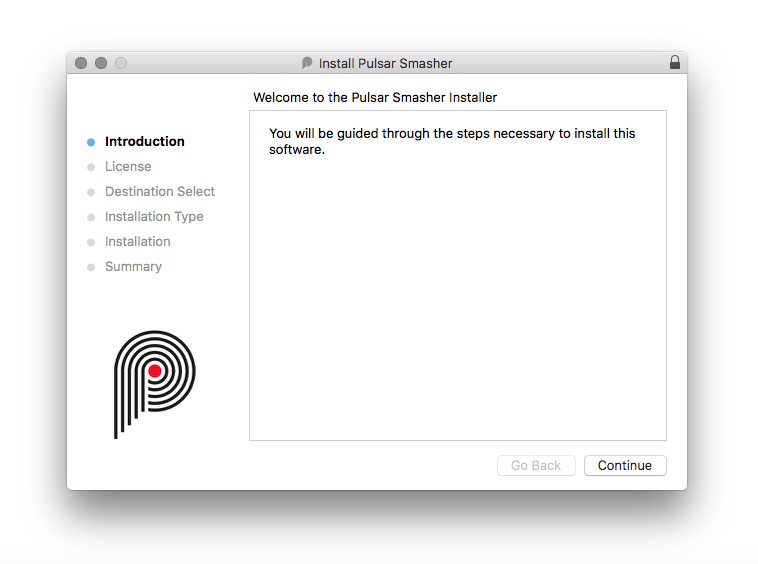
3. Click 'Continue'.
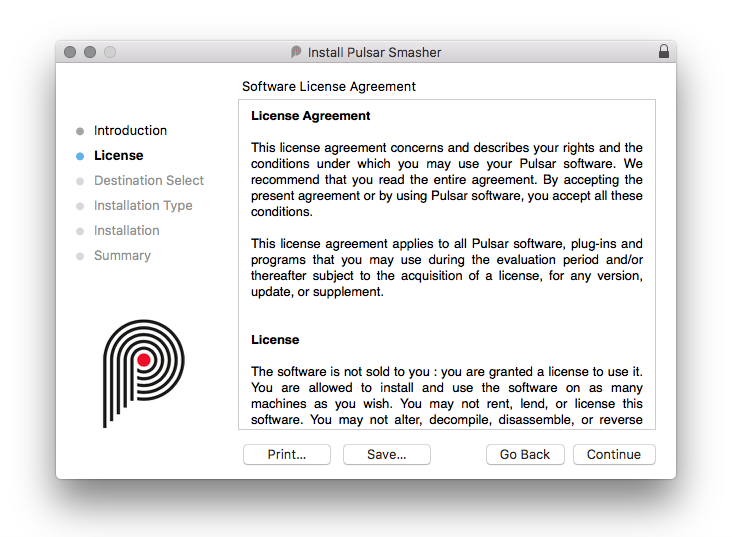
4. Click 'Agree'.
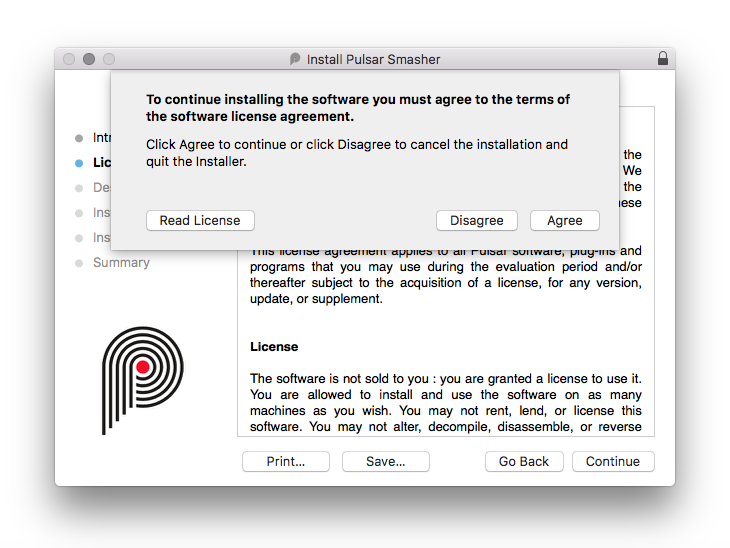
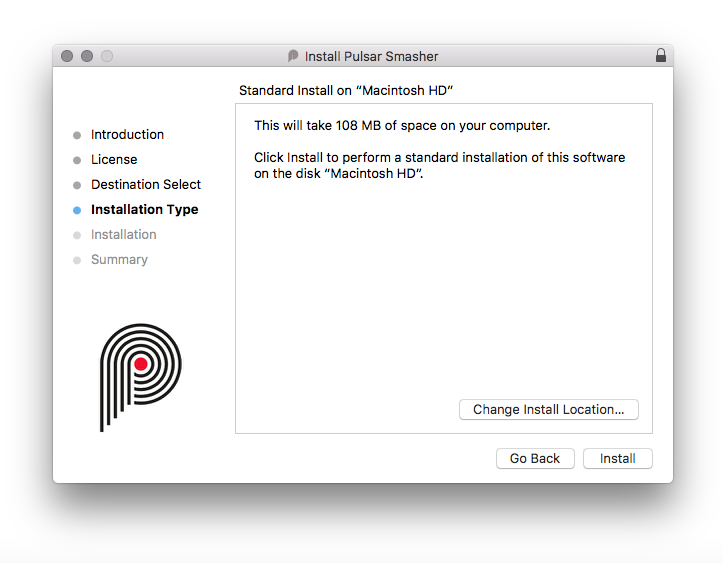
5. Click 'Install'.
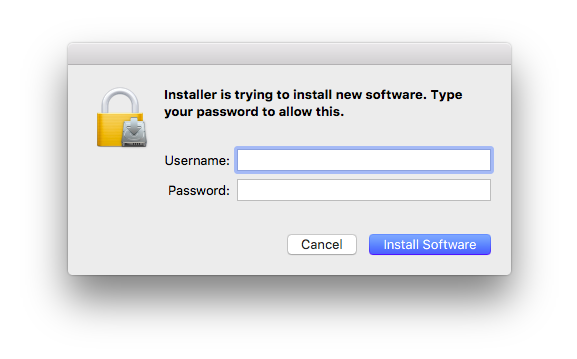
6. Enter your computer Username and Password > Click 'Install Software'.
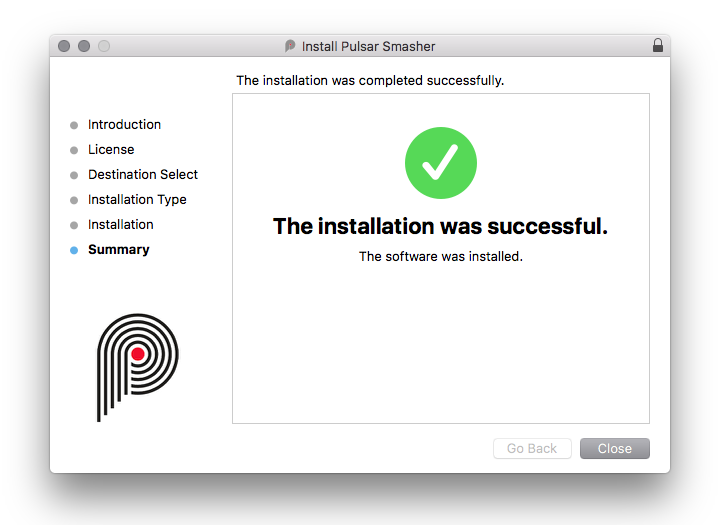
7. Click 'Close'.
iLok Activation
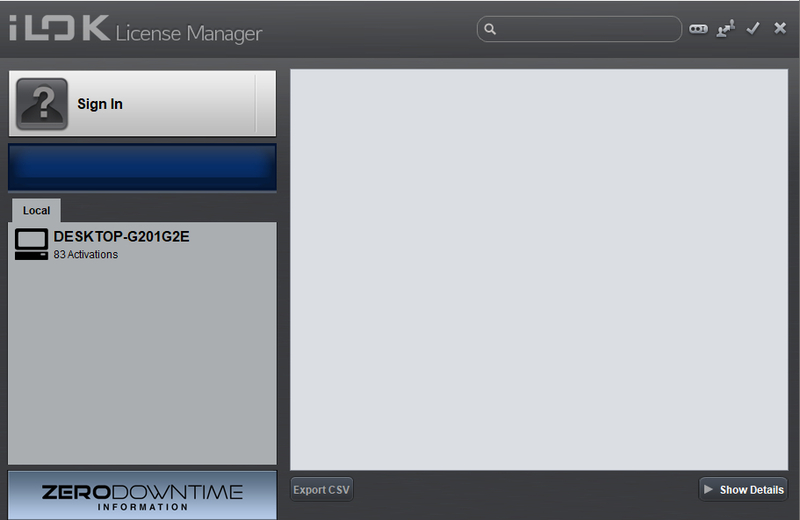
1. Open the iLok License Manager > Click 'Sign In'.
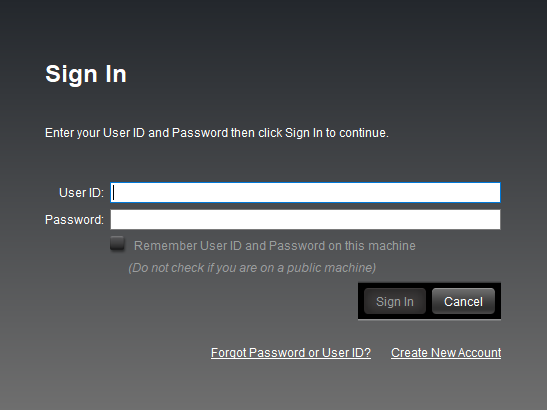
2. Enter your iLok User ID and Password > Click 'Sign In'.
3. Click the redeem icon in the top right-hand corner of the iLok License Manager window.

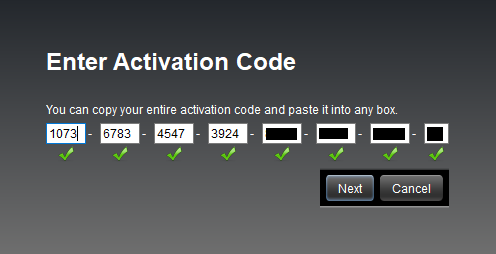
4. Enter the Activation Code in of your Plugin Boutique User Account > Click 'Next'.
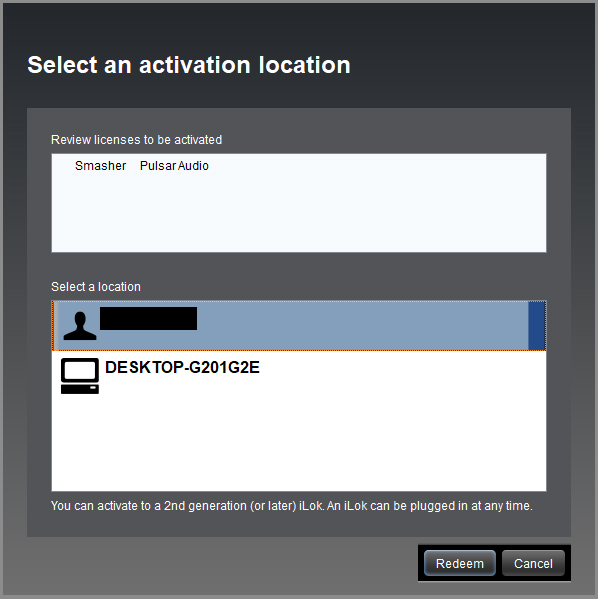
5. Select your account that you wish to redeem your product to > Click 'Redeem'.
6. Click 'Ok'.
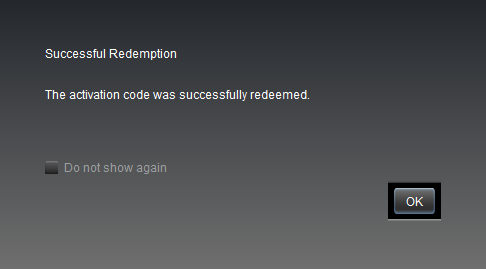
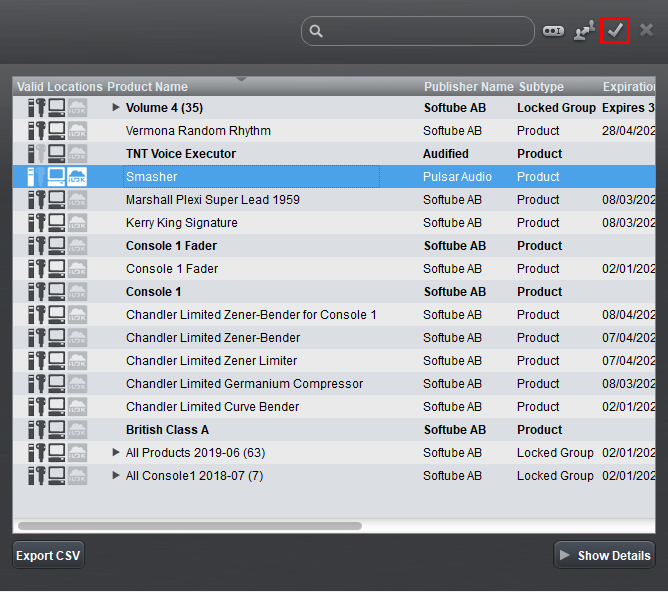
7. Select your redeemed product > Click the tick icon in the top-right hand corner of the iLok License Manager.
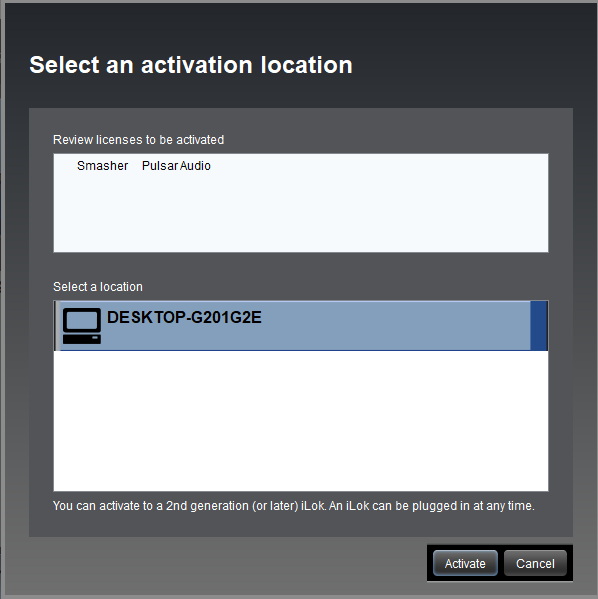
8. Select your computer from the list of activation locations > Click 'Activate'.
9. Click 'Ok'.
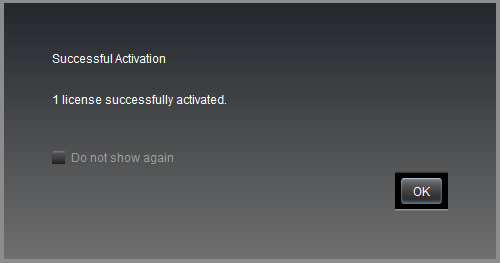
Your product is now activated and ready to use within your DAW.
Windows
iLok Registration
1. Go to the iLok website and create a new account if you are not currently registered and do not have the iLok License Manager installed on your computer.
Note: Skip to the 'Pulsar Software Installation' procedure if you are already an iLok registered user.
2. Download and install the iLok License Manager.
Pulsar Software Installation
1. Download the installer file from your Plugin Boutique User Account.
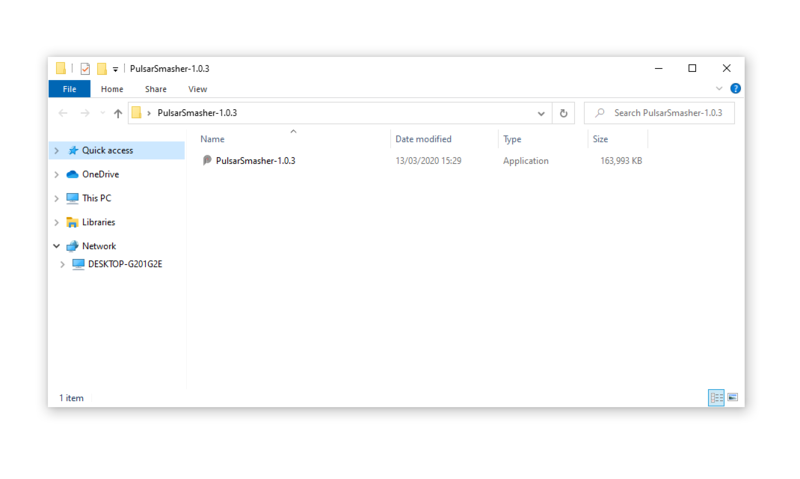
2. Double-click the .zip folder to reveal the installer file > Double-click the .exe installer file to begin the installation process.
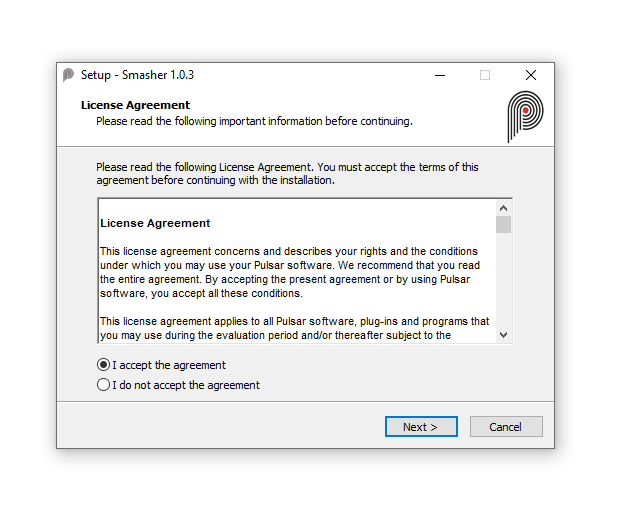
3. Select 'I Accept the Agreement' > Click 'Next'.
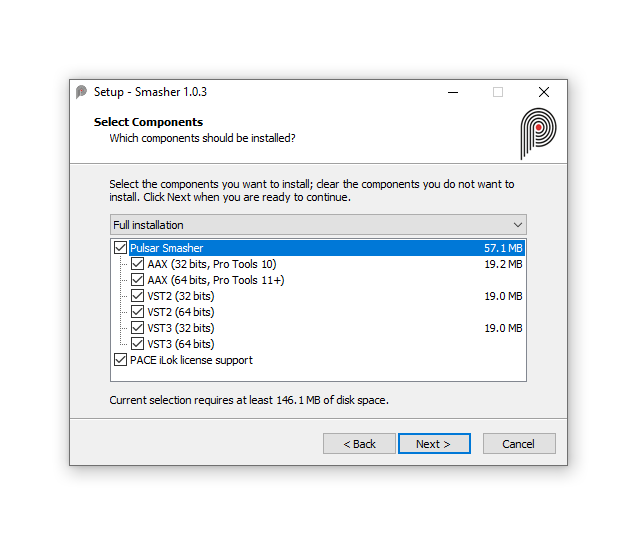
4. Select the components you wish to install > Click 'Next'. (Note: Untick 'PACE iLok license support' if you already have it installed on your computer).
5. Click 'Next'.
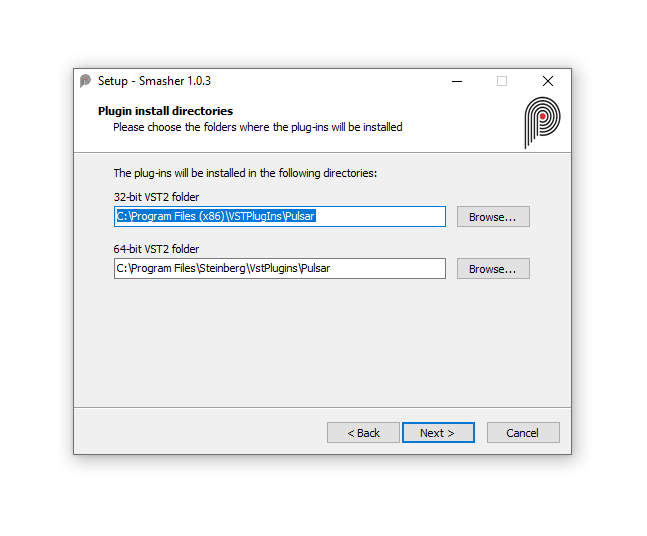
6. Click 'Install'.
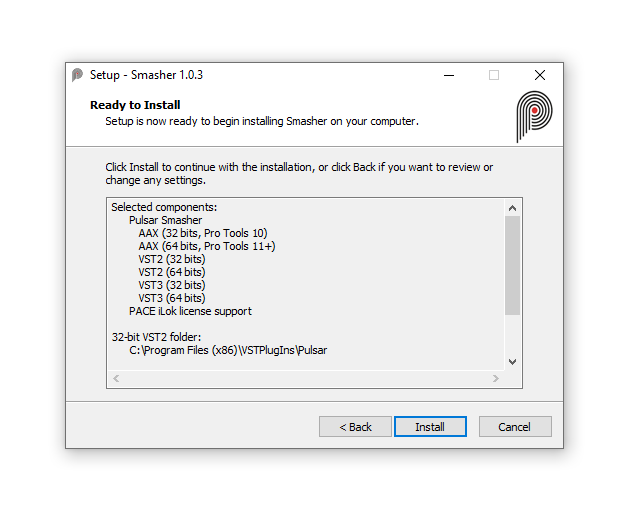
7. Click 'Finish'.
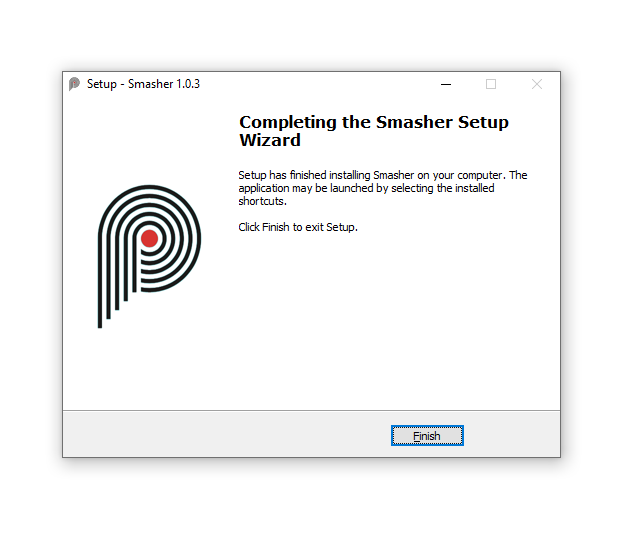
iLok Activation
1. Open the iLok License Manager > Click 'Sign In'.
2. Enter your iLok User ID and Password > Click 'Sign In'.
3. Click the redeem icon in the top right-hand corner of the iLok License Manager window.
4. Enter the Activation Code in of your Plugin Boutique User Account > Click 'Next'.
5. Select your account that you wish to redeem your product to > Click 'Redeem'.
6. Click 'Ok'.
7. Select your redeemed product > Click the tick icon in the top-right hand corner of the iLok License Manager.
8. Select your computer from the list of activation locations > Click 'Activate'.
9. Click 'Ok'.
Your product is now activated and ready to use within your DAW.
If you would like any further assistance with your software, please feel free to reach out to our support team at support@pluginboutique.com.