
Welcome to the GForce installation page.
Please take a look at our installation guide videos below, which provide information on how to register, install and authorise your GForce software.
System Requirements
macOS
- Intel or Apple Silicon Mac via Rosetta2 Translation
- macOS 10.15.x or above
- Standalone Application, AudioUnit, AAX, VST and VST3
- 230 MB of disk space + 5GB for the library that may be installed on an external hard drive
Windows
- 2GHz CPU with 2GB RAM
- Windows 7 and above
- Standalone Application, AAX, VST and VST3
- 230 MB of disk space + 5GB for the library that may be installed on an external hard drive
Mac Video Installation Guide
Windows Video Installation Guide
Alternatively, you can follow the step-by-step instructions below for your software.
Installation Instructions
Note: Minimonsta 2 is used as an example.
Please register your plugin with GForce Software to get access to:
- Download links
- Reg code (different from the one provided by Plugin Boutique and needed when you first open the product.)
Registration
1. Head to www.gforcesoftware.com/account/#my_instruments, or click 'Download' from within your Plugin Boutique User Account.
2. Log in, or register for a new account.

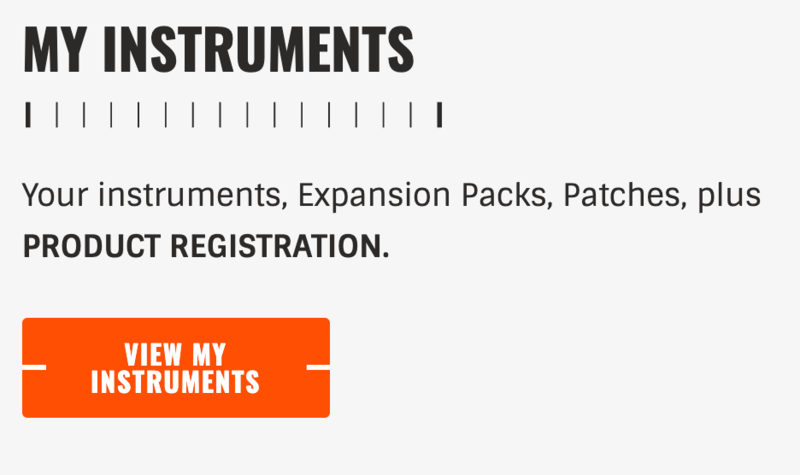
3. Once logged in to your account, click 'View My Instruments'.
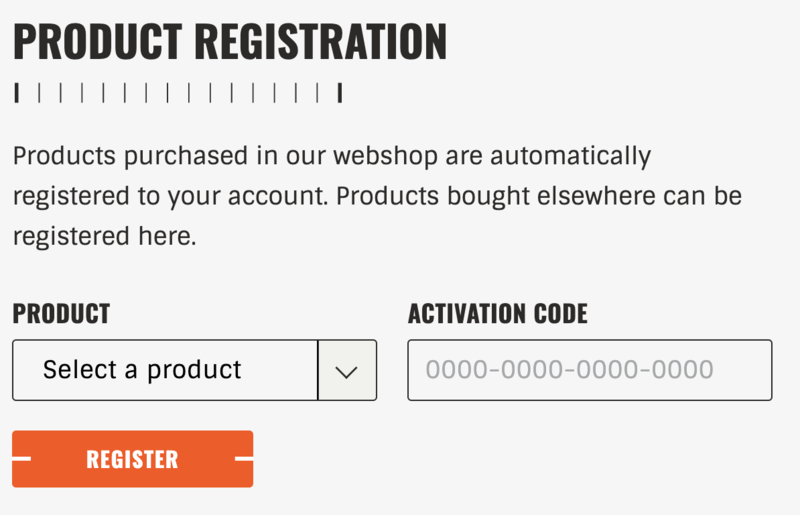
4. On the right-hand side of the page, select your purchased plugin from the dropdown list, then enter your Activation Code, which is listed under 'Serial Number' within your Plugin Boutique User Account.
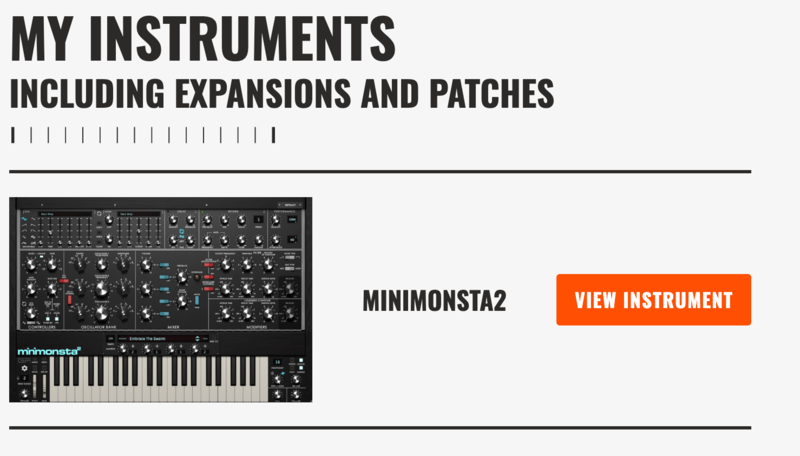
5. Underneath the heading 'My Instruments', click 'View Instrument'.
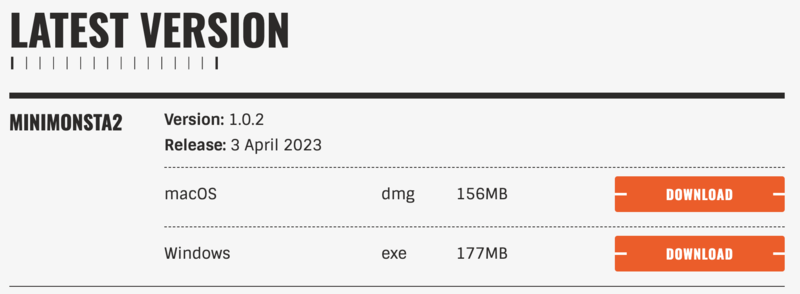
6. Click 'Download' on the correct version for your OS.
Installation
Mac
1. Double-click the downloaded .pkg file, then double click on the icon marked 'Double Click to Install.pkg'.
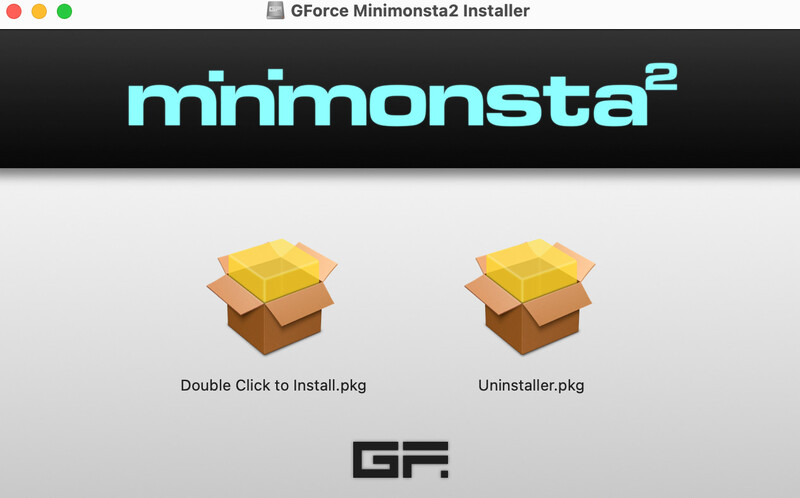
2. Click 'Continue'.
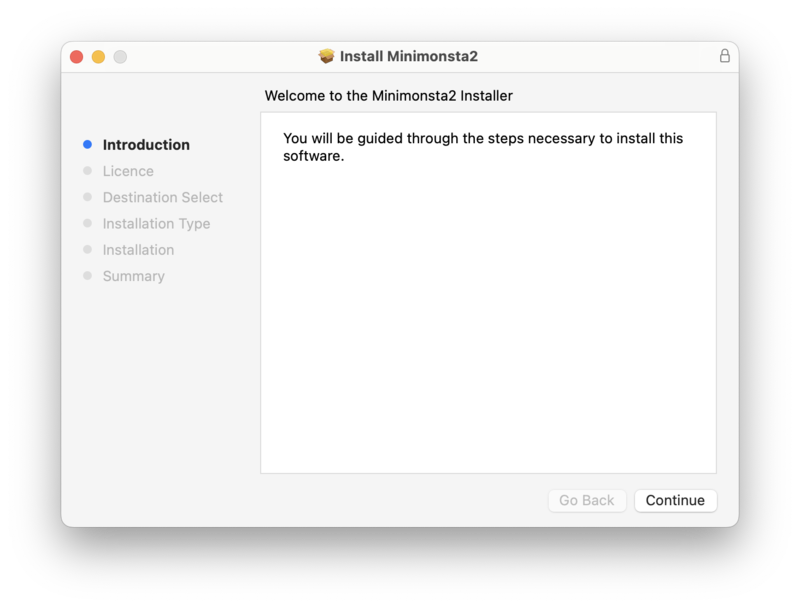
3. Click 'Continue'.
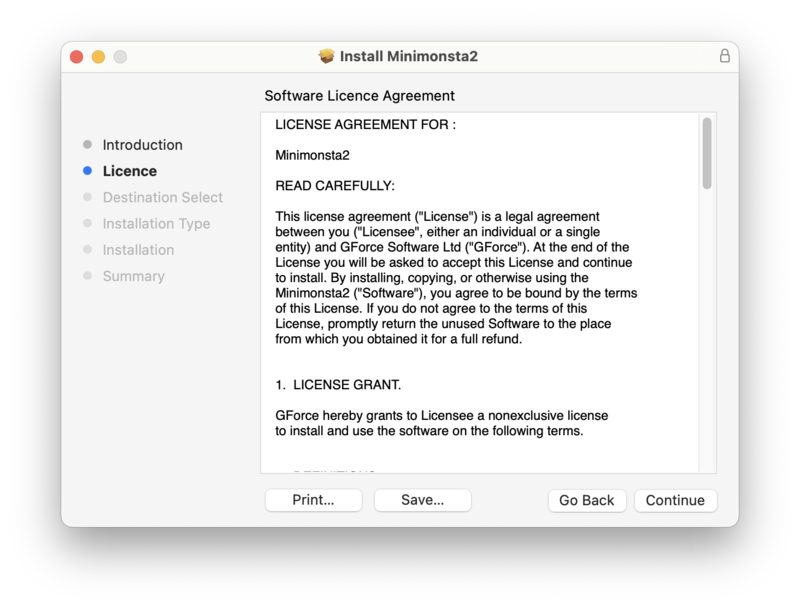
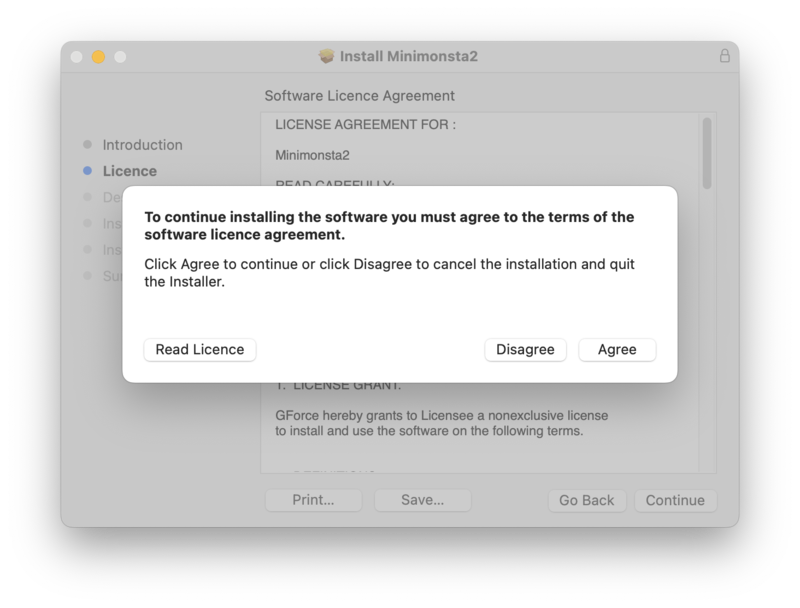
4. Click 'Agree'.
5. Select the items you would like the install, then click 'Continue'.
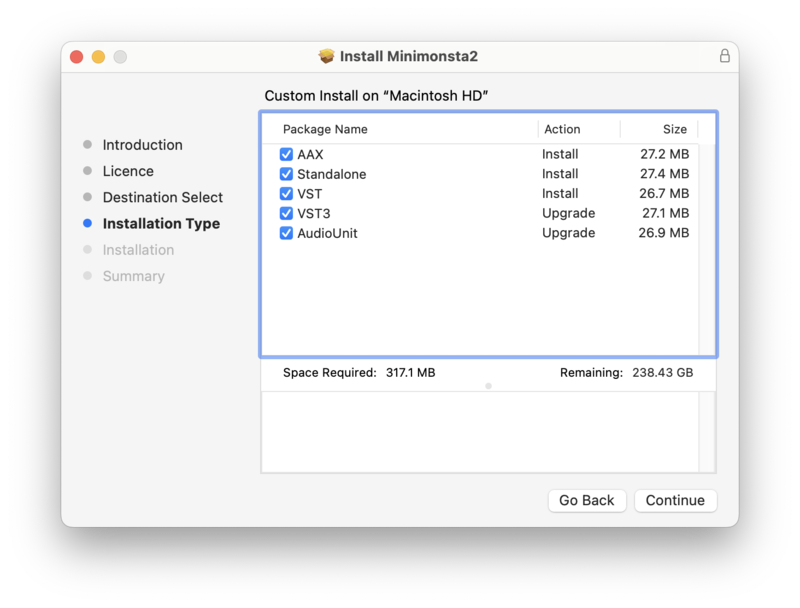
6. Click 'Install'.
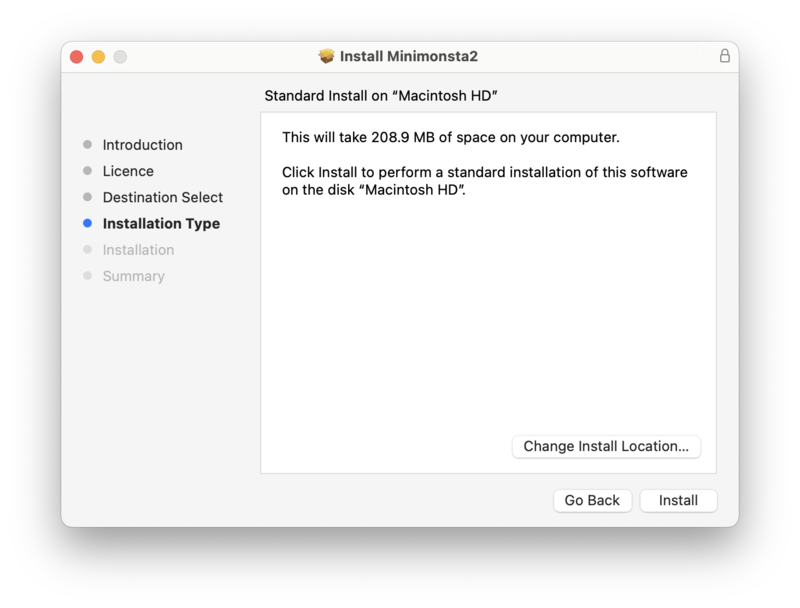
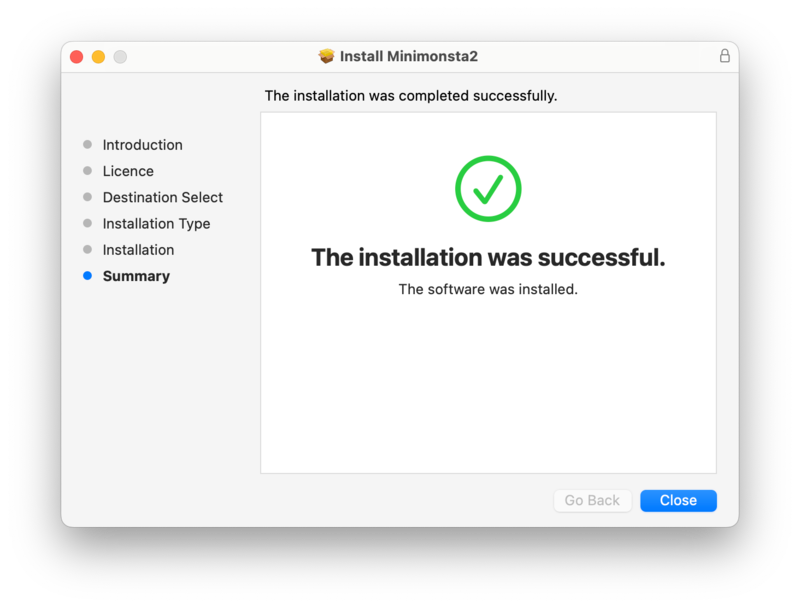
7. Once installation has completed, click 'Close'.
8. Locate your License Code, found on the right-hand side of the page within your GForce Account > 'View Instrument'
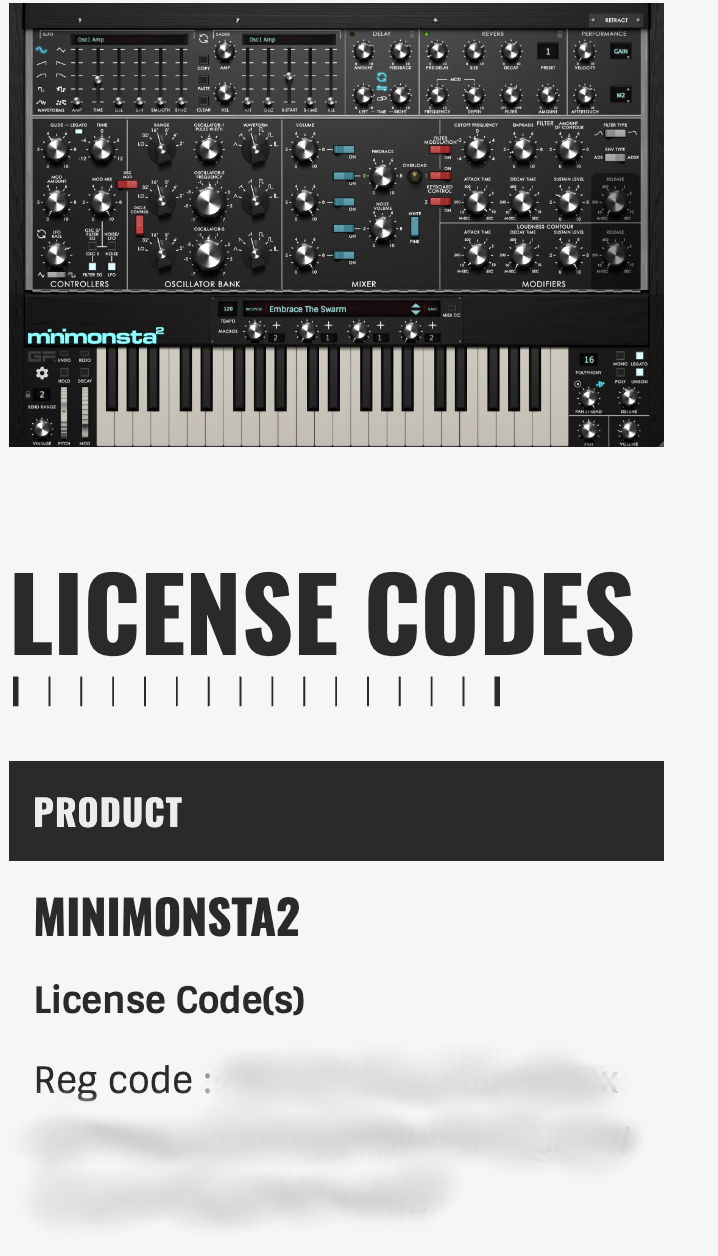
9. Launch your DAW, and open a copy of Minimonsta 2. Enter your License Code, as blurred out above, into the box. Click 'Register'.
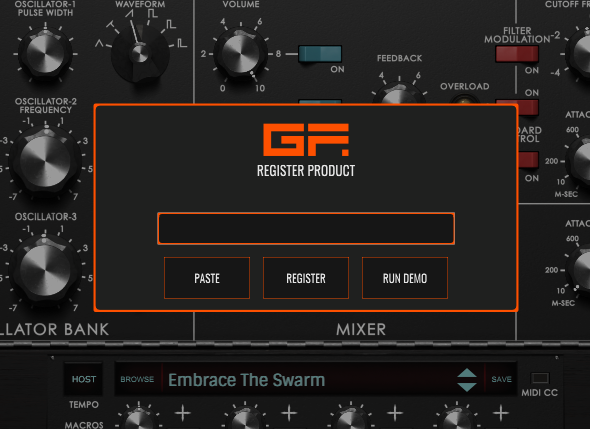
10. Installation is completed. Enjoy your plugin!
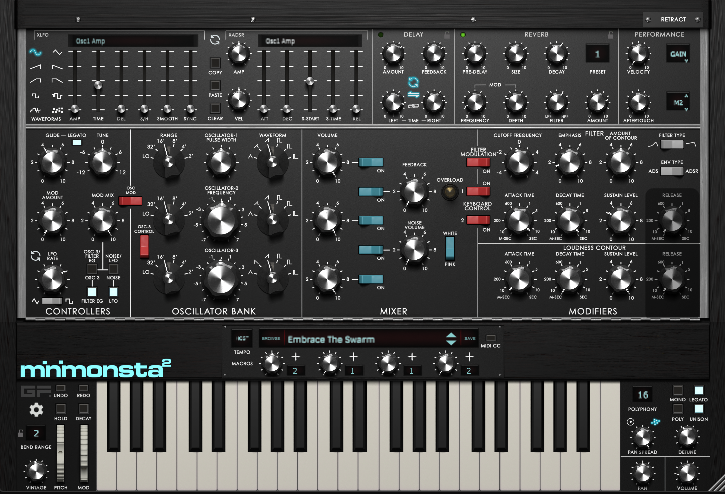
Windows
1. Launch the downloaded .exe file. Click 'Next'.
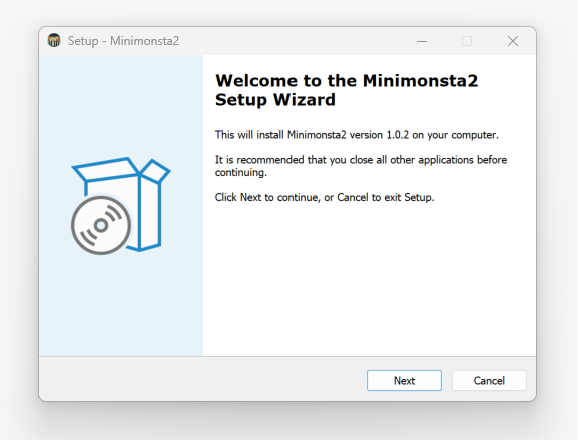
2. Click 'I accept the agreement', then click 'Next'.
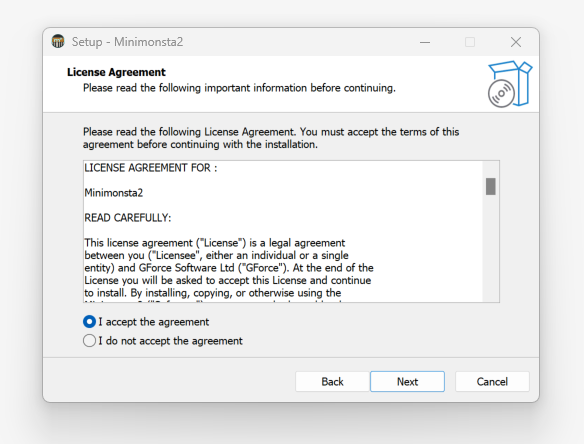
3. Click 'Next'.
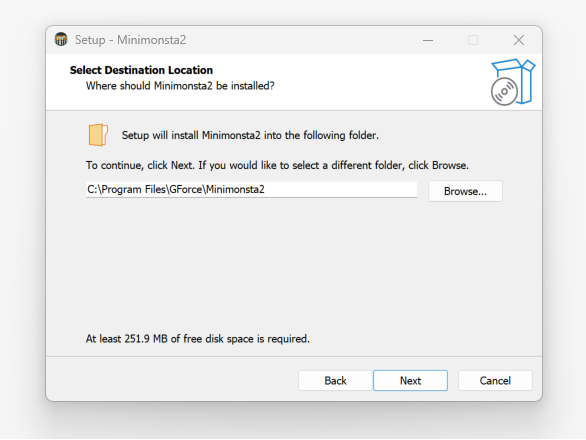
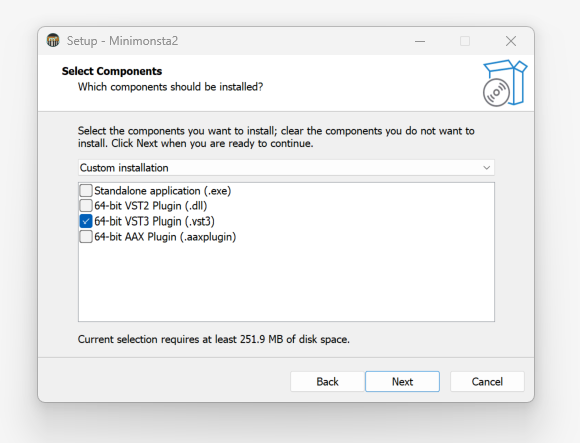
4. Select the plugin versions you would like to install, then click 'Next'.
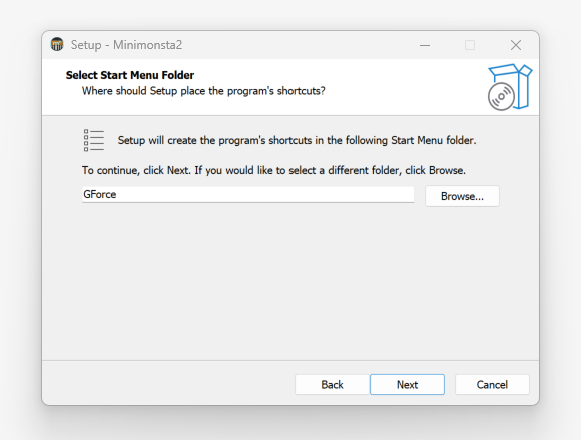
5. Click 'Next'.
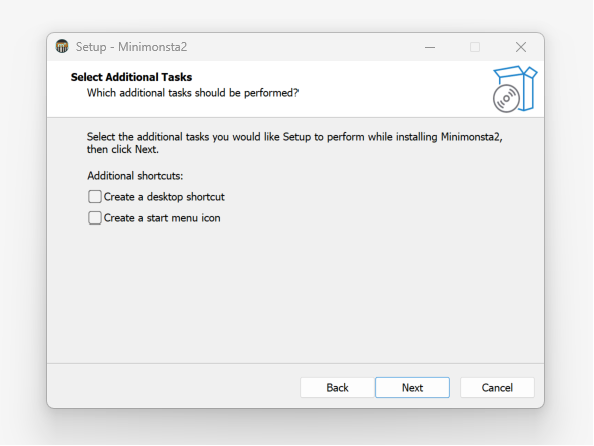
6. Click 'Next'.
7. Click 'Install'.
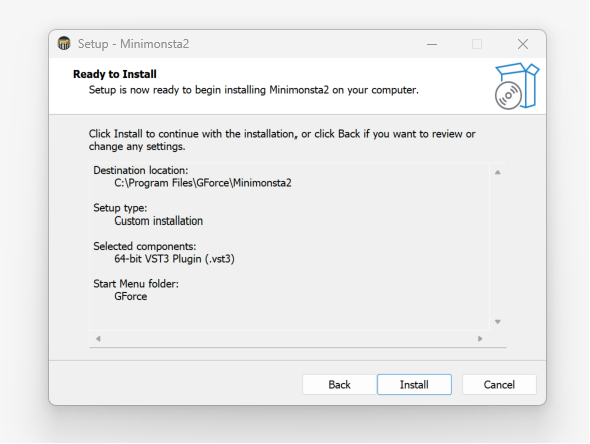
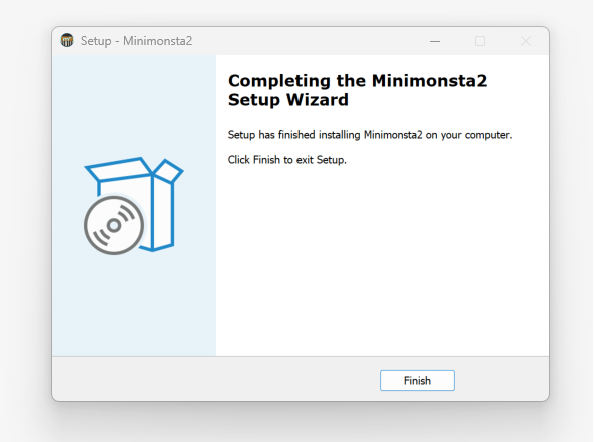
8. Once installation has completed, click 'Finish'.
9. Locate your License Code, found on the right-hand side of the page within your GForce Account > 'View Instrument'
10. Launch your DAW, and open a copy of Minimonsta 2. Enter your License Code, as blurred out above, into the box. Click 'Register'.
11. Installation is completed. Enjoy your plugin!
If you would like any further assistance with your software, please feel free to reach out to our support team at support@pluginboutique.com.